What Is an Amazon Phishing Email?

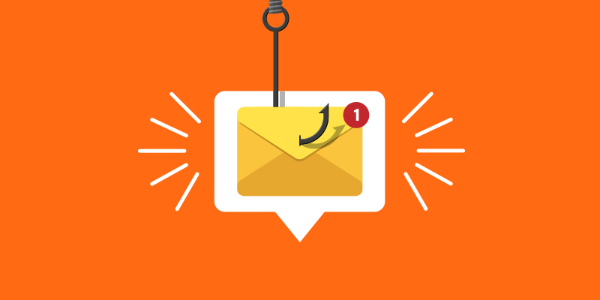
An Amazon phishing email is a fraudulent email that pretends to be from Amazon to trick you into taking harmful actions.
These emails often:
- Claim there’s a problem with your account.
- Ask you to verify payment details.
- Urge you to click suspicious links or download attachments.
- Use logos, branding, and language that closely mimic Amazon’s real emails.
The goal? To manipulate trust and trick you into giving away personal information.
Amazon Phishing Email vs Other Online Scams
| Type of Scam | How It Works | Key Focus | Main Difference from Amazon Phishing |
|---|---|---|---|
| Amazon Phishing | Fake Amazon-branded emails urge users to click links or enter credentials. | Login details, account access, payment info | Disguised as Amazon order updates, account alerts, or Prime notices. |
| PayPal Scams | Fraudulent alerts about “suspicious payments” or “frozen accounts.” | Payment approval, account reactivation | Focuses on fake transactions and urgent account locks. |
| Banking Scams | Fake bank messages demanding sensitive financial data like PINs or account numbers. | Full financial details, credit card info | More aggressive: ask for financial data immediately. |
| Social Media Scams | Fake profiles or DMs pretending to be friends or influencers. | Trust manipulation, link clicks, personal data | Delivered via direct messages, not email; relies on social interaction. |
How Amazon Phishing Emails Work
Scammers rely on psychological manipulation. They often create a sense of urgency, like threatening to suspend your account or warning of suspicious purchases. When you click the malicious link, you’re taken to a fake Amazon login page or malware-laden site. Once you enter your details, attackers capture them instantly. This technique is simple but effective, especially if the phishing email is well-crafted.
10 Real-Life Examples of Amazon Phishing Emails
Phishing emails often look identical to official Amazon communications, which is why so many people fall victim. Below are the most common tactics, how they appear, and why they’re dangerous:
1. “Your Account Will Be Suspended”
Fraudsters send urgent warnings claiming your Amazon account is about to be deactivated unless you take immediate action. These messages usually include a fake “verify now” button that leads to a fraudulent login page designed to steal your username and password.
2. “Payment Could Not Be Processed”
These emails pretend that your last order couldn’t go through due to an expired or declined card. Victims are urged to “update payment information”, but the link sends them to a fake billing page that collects sensitive card details.
3. “Unusual Sign-In Attempt Detected”
This trick mimics Amazon’s real security alerts. The message warns about an unauthorized login from a suspicious location and includes a “secure your account” link. Instead of protecting you, that link captures your login credentials.
4. “You Won a Gift Card”
Who doesn’t love free money? Scammers exploit this by offering fake Amazon gift cards or discounts. Clicking through usually requires you to fill out personal details or credit card information to claim the “prize,” which is just a scam.
5. “Your Package Could Not Be Delivered”
This message claims a package couldn’t be shipped due to an address issue. Victims are prompted to “reschedule delivery” by entering address and payment info. This not only steals data but can also install malware on your device.
6. “Confirm Your Prime Membership”
Fake renewal reminders appear around Amazon Prime’s billing cycle. They push users to “confirm membership” with card details, often stealing both payment information and login credentials in one step.
7. “Invoice Attached”
These emails include attachments labeled as Amazon invoices, usually PDFs or Word docs. Opening them downloads malware that can track keystrokes, steal passwords, or install ransomware.
8. “Security Alert: Reset Password”
Victims receive a fake warning that their Amazon password needs to be reset immediately. The email provides a reset link, which takes users to a fraudulent page where scammers harvest login information.
9. “Verify Your Identity”
A more aggressive phishing style, this message claims Amazon needs extra identification due to suspicious activity. Scammers may request Social Security numbers, driver’s licenses, or ID scans, which can lead to full-scale identity theft.
10. “Order Confirmation You Didn’t Make”
One of the most effective scams, this email shows a fake order receipt for something expensive (like a new iPhone). Shocked users rush to click “cancel order”, which leads them to a phishing site that captures their credentials.
Consequences of Falling for Amazon Phishing Emails
Financial Loss: Once scammers steal your payment details, they can drain bank accounts, make fraudulent purchases, or sell your data on the dark web.
Identity Theft: Phishing emails may request sensitive data like your date of birth, Social Security number, or address, putting you at risk of identity fraud.
Compromised Amazon Account: Losing access to your Amazon account means scammers could order items, access your saved cards, and even see your purchase history.
Tools and Technologies That Can Help
VPNs and Safe Browsing
A VPN like a free proxy VPN in UFO VPN, encrypts your internet traffic, reducing the chance of interception and helping to avoid malicious sites.


UFO VPN is an all-in-one VPN that offers unlimited access to 4K streaming like Netlfix, Disney Plus, no-ping gaming as PUBG, Roblox, CODM and social networking for YouTube, X, Facebook and more.




Unlock Pro Features
If you have upgraded to premium plan , feel free to enjoy premium servers for 4K streaming and advanced features like Kill Switch, Split Tunneling, and gaming acceleration. Your Mac is now fully optimized and protected. Inaddition to basic functions, we recommend you turn on

Verify Your IP Now
Use UFO VPN's " What is My IP " feature to see your new IP and location. This confirms your connection is secure, anonymous, and ready for safe browsing online anywhere at any time.







Email Filters and Security Suites
Modern email providers like Gmail and Outlook use AI-powered filters to block phishing attempts. Security software adds another layer of protection.
Password Managers
Password managers auto-fill only on legitimate websites, making it harder to fall for fake login pages.
How to Protect Yourself From Amazon Phishing Emails
Multi-Factor Authentication (MFA)
Even if a scammer manages to steal your Amazon password, MFA provides an extra shield. When enabled, you’ll be asked to confirm your identity with a second verification step, such as:
- A one-time code sent to your phone or email.
- An authentication app like Google Authenticator or Authy.
- A biometric factor (fingerprint or face recognition) on supported devices.
This means that even if hackers have your password, they can’t log in without your second approval. Enabling MFA only takes a few minutes but significantly reduces the risk of account takeover.
Verifying Links and Domains
Scammers are experts at mimicking Amazon’s branding, but the real giveaway is usually in the details of the email address and links. Building the habit of checking links before you click is one of the simplest but most effective defenses. Before clicking anything:
- Check the sender’s email: Official Amazon emails always come from @amazon.com (not “@amaz0n-security.com” or other variations).
- Hover over links: On desktop, place your mouse over the link without clicking. If the URL doesn’t lead to amazon.com or a trusted Amazon domain, it’s a red flag.
- Look for subtle misspellings: Attackers often swap letters or use extra characters to trick your eyes (e.g., arnazon.com instead of amazon.com).
Reporting Suspicious Emails
Amazon encourages customers to report phishing attempts so they can track and shut down scams faster. By reporting, you’re not only protecting yourself but also helping Amazon protect millions of other customers. If you receive a suspicious email:
- Do not click on any links or download attachments.
- Forward the entire email to stop-spoofing@amazon.com.
- After forwarding, delete the message from your inbox and trash folder.
Conclusion
Amazon phishing emails are dangerous, but they can be avoided if you know the red flags. By enabling multi-factor authentication, verifying every email, and using tools like password managers, you significantly reduce your risk. Remember: if an email feels urgent or suspicious, take a step back — scammers rely on panic to make you slip up. Staying safe online is about being cautious, informed, and proactive.
FAQs
1. How can I tell if an Amazon email is fake?
Check the sender address, look for poor grammar, and verify links before clicking.
2. Does Amazon ever ask for personal info by email?
No. Amazon never asks for your password, Social Security number, or banking details via email.
3. What should I do if I clicked a phishing link?
Immediately change your Amazon password, enable MFA, and monitor your bank accounts.
4. Can antivirus software stop phishing emails?
Antivirus software can block malicious attachments and links, but awareness is your strongest defense.
5. Is forwarding phishing emails to Amazon useful?
Yes. Forwarding suspicious emails to stop-spoofing@amazon.com helps Amazon track and shut down scammers.