Why Would You Want to Change Your IP Address?
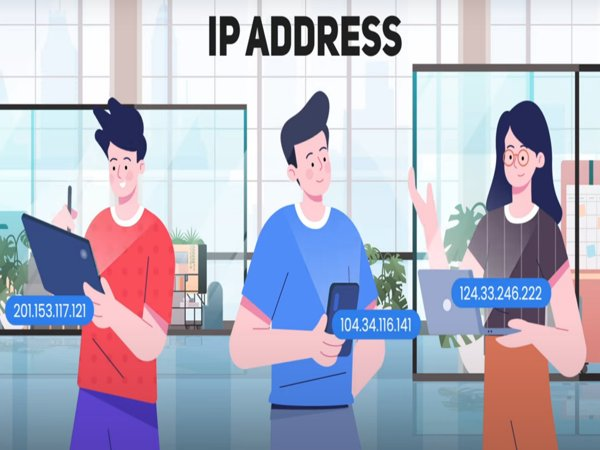
An IP address is like your device’s digital “home address” on the internet. Changing it can help in several scenarios:
- 🌍 Bypass geo-restrictions – Watch Netflix, YouTube, or sports events from different regions.
- 🔒 Protect privacy – Prevent websites, ISPs, or hackers from tracking your online activity.
- 🛠️ Troubleshoot connectivity issues – Fix slow connections or blocked websites.
- 🎮 Reduce lag in gaming – Connect to servers closer to your location.
- 📶 Avoid network bans or restrictions – Some networks block IPs; a new one restores access.
Methods to Change Your IP Address
There are several ways to change your IP address—some are quick fixes, while others offer stronger security and long-term solutions. The method you choose depends on your goals: do you simply want a new IP for troubleshooting, or are you aiming for privacy, streaming access, or safer browsing? Below, I’ll break down the most effective methods, from beginner-friendly options to advanced techniques.
Use a VPN
The fastest and safest way to change your IP address.
A VPN routes your connection through a secure server, giving you a new IP instantly.
Top providers like UFO VPN offer AES-256 encryption, no-log policies, and servers optimized for streaming & gaming. This means you not only change your IP but also secure your traffic against hackers and trackers.
✅ Works across devices: PC, Mac, iOS, Android, and even routers.
👉 Recommended if you want both privacy + speed.
Use Mobile Data
Switching from WiFi to mobile data instantly gives you a new IP assigned by your carrier.
✅ Quick & easy
❌ Limited by mobile data plans
This is a convenient method if you just need a temporary IP change, but it’s not practical for long-term browsing or streaming.
Restart Your Modem or Router
Sometimes your ISP assigns a dynamic IP that changes after a restart.
✅ Free & simple
❌ Doesn’t always work; depends on your ISP
If you’re lucky, restarting your modem gives you a fresh IP—but it’s not guaranteed.
Manually Change Your IP Address
On Windows, iPhone, or Android, you can manually set a new IP in network settings.
✅ Customizable
❌ Requires technical knowledge, not always effective
This option is useful for tech-savvy users but not beginner-friendly.
Use a Proxy Server
A proxy works like a middleman, masking your IP while browsing.
✅ Works in browsers for quick access
❌ No encryption, unsafe for sensitive tasks
👉 If you want both unblocking + security, a VPN like UFO VPN is a stronger option because it encrypts your entire connection.
Contact Your ISP
Requesting a new IP address from your Internet Service Provider is a guaranteed way.
✅ Permanent solution
❌ Not instant, requires a support call
This method is reliable but slower compared to VPNs or mobile data switching.
How to Change Your IP Address on Specific Devices
Changing your IP address can look slightly different depending on the device you’re using. While the overall goal is the same—getting a new IP for better privacy, security, or troubleshooting—the steps vary between iPhone, Android, Windows, and routers. Don’t worry if you’re not a tech expert 👍, I’ll guide you through the process step by step for each platform.
Change IP Address on iPhone
- Go to Settings > WiFi > (i)
- Tap Configure IP
- Select Manual and enter a new IP address
Change IP Address on Android
- Open Settings > Network & Internet > WiFi
- Select your WiFi and tap Modify Network
- Go to Advanced options > IP settings and set manually
Change IP Address on Windows
- Open Control Panel > Network & Internet > Network Connections
- Right-click your active connection > Properties
- Select Internet Protocol Version 4 (TCP/IPv4) and manually assign an IP
Change IP Address on Router
- Login to your router’s admin panel (usually 192.168.1.1 or 192.168.0.1)
- Look for WAN / Internet Settings
- Choose Renew or Change IP to get a fresh address
Is It Safe to Change Your IP Address?
✅ Yes, but safety depends on the method:
- VPNs like UFO VPN = encrypted + anonymous browsing 🔒
- Proxies = IP masking only, no protection ⚠️
- Manual or ISP change = safe, but no extra privacy
Pros and Cons of Different Methods
| Method | Pros 🚀 | Cons ⚠️ |
|---|---|---|
| VPN 🔒 | Secure, fast, bypass geo-blocks, works on all devices | Requires subscription |
| Mobile Data 📱 | Quick & easy | Uses mobile data, not stable |
| Restart Router 🔄 | Free, instant (sometimes) | Not always effective |
| Manual Change ⚙️ | Full control |
Complex, limited |
| Proxy Server 🕶️ | Simple, browser-based |
No encryption, risky |
| ISP Contact ☎️ | Guaranteed change |
Time-consuming |


UFO VPN is an all-in-one VPN that offers unlimited access to 4K streaming like Netlfix, Disney Plus, no-ping gaming as PUBG, Roblox, CODM and social networking for YouTube, X, Facebook and more.




Unlock Pro Features
If you have upgraded to premium plan , feel free to enjoy premium servers for 4K streaming and advanced features like Kill Switch, Split Tunneling, and gaming acceleration. Your Mac is now fully optimized and protected. Inaddition to basic functions, we recommend you turn on

Verify Your IP Now
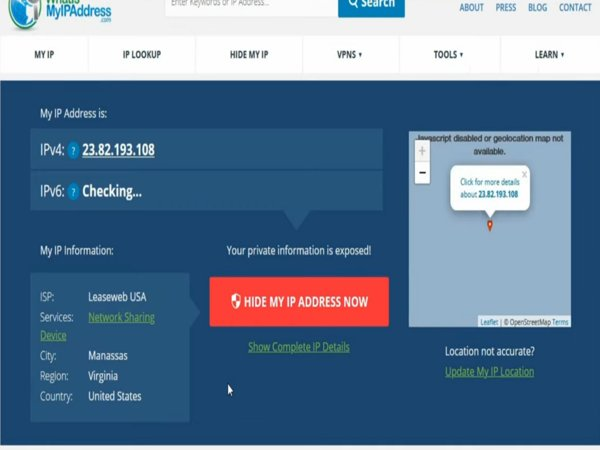
Use UFO VPN's " What is My IP " feature to see your new IP and location. This confirms your connection is secure, anonymous, and ready for safe browsing online anywhere at any time.







Conclusion
Changing your IP address today is easier than ever—but not all methods are equal.
For a quick fix, restart your router or switch to mobile data.
For security + streaming freedom, a VPN like UFO VPN is the best option. It encrypts your traffic, masks your identity, and lets you enjoy unrestricted internet access worldwide. 🌍✨
👉 In short: Proxies and manual methods work, but VPNs unlock safety, privacy, and freedom in one package.
FAQs
Q1: Is it legal to change my IP address?
Yes, it’s legal in most countries, but always follow local laws and regulations.
Q2: Can I change my IP address for free?
Yes—restart your router, use mobile data, or try free VPNs. But premium VPNs like UFO VPN are safer and faster.
Q3: Will changing my IP improve my internet speed?
Not directly. However, connecting to a closer server with a VPN can reduce lag.
Q4: Can I use a proxy instead of a VPN?
Yes, but proxies don’t encrypt traffic. For security, always choose a VPN.