logo

UFO VPN : Best Free VPN You Can Actually Trust

Strong encryption & free access to global apps & websites.

  • No credit card
  • 100% free plan
  • 2000+ servers
blog banner bg

Cancel Netflix Account | Delete Subscription & Compare Plans Securely

Thinking about parting ways with Netflix? Whether you’re tightening your budget, exploring other platforms, or just taking a break, canceling or deleting your Netflix account doesn’t have to be a headache. But before you hit “cancel,” do you know the difference between pausing, canceling, and deleting your account? What happens to your watchlist or billing details? And did you know that using a VPN like UFOVPN can help you access Netflix securely or explore international libraries? In this guide, we’ll walk you through canceling the Netflix account subscription, compare Netflix’s paid plans with free alternatives (yes, they exist!), and share tips to protect your data while streaming. Let’s dive in!
Updated on 01/26/2026
5 minutes

Also available in:  Русский

Table of Contents

How to Cancel My Netflix Account

Follow these steps to unsubscribe from your Netflix:

Step 1: Log in to your Netflix account
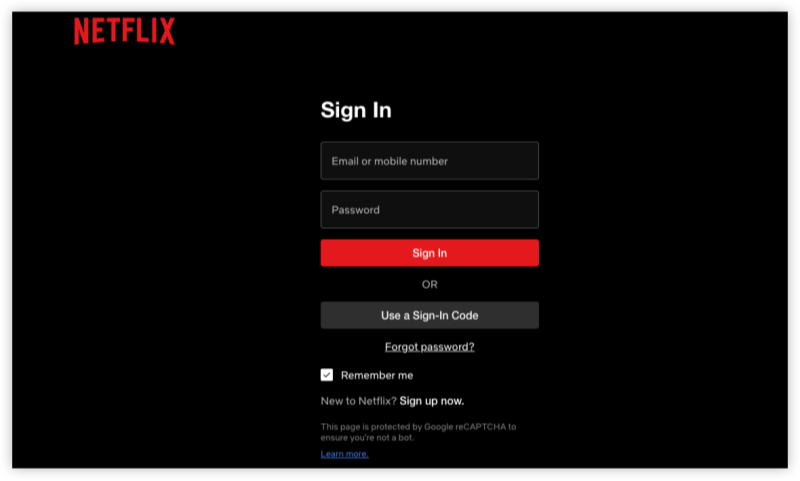
login to netflix account

Step 2: Click your profile icon > Account

open netflix account

Step 3: Under Membership & Billing, select Cancel Membership
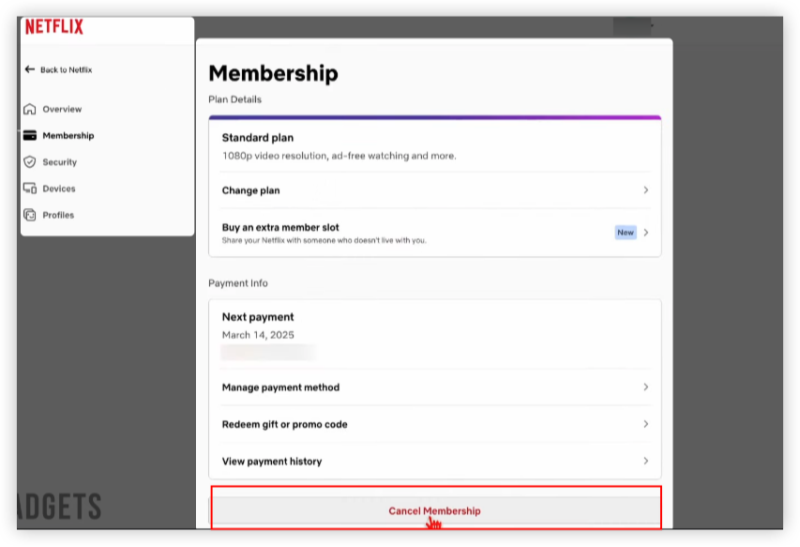
Step 4: Confirm cancellation.

Note: Your account stays active until the billing cycle ends. After that, you can reactivate within 10 months by logging back in.


📖Related Reading

How to Delete Your Netflix Account Permanently

What if you want to remove your Netflix account entirely, along with all data (watch history, profiles, and payment details)? Here’s how:

  1. First, cancel your subscription using the steps above.

  2. Go to the Netflix Help Center and start a live chat or call support.

  3. Request permanent deletion of your account.

Pro Tip

Use UFOVPN to mask your IP address before accessing or modifying sensitive account data. It adds an extra layer of privacy—especially important if you're on public Wi-Fi.

Netflix Paid vs Free Plans: What’s the Difference

Netflix no longer offers a permanent free plan, but in some countries, users may access limited trials or a small content library without a subscription. Here's how the paid plans compare to free Netflix alternatives:

Feature Paid Netflix Plan Free Alternatives
Content Library Full access to all content Limited, ad-supported content
Video Quality Up to 4K Ultra HD Standard HD (720p)
Simultaneous Screens 1 to 4 devices 1 device
Offline Downloads Yes No
Ads Ad-free (except ad-supported plan) Frequent ad breaks
Price $6.99–$22.99/month Free (region-dependent)

Examples of free streaming platforms:

  • Tubi

  • Crackle

  • Netflix’s “Watch Free” section (available in select countries)

Bonus: How to Access Netflix Safely in 2026

Using a free VPN like UFOVPN not only enhances your privacy but also opens access to geo-restricted content on Netflix. Here’s what UFOVPN does:

  • Bypasses regional restrictions (e.g., access Netflix Japan for anime, Netflix UK for BBC content)

  • Protects your data on unsecured networks

  • Prevents ISP throttling for smoother streaming

Step 1
Grab the free Windows VPN installer right below. UFO VPN is lightweight and secure on all Windows systems. Double-click the downloaded file and complete the installation. Once installed, launch UFO VPN.
windows1
Step 2
Select a VPN Server
Inside the app, you can click the "Connect" button for quick connection, or browse the list of servers by Location or categroy: Video& Stream, Game, etc. Choosing the right server ensures fast speeds and smooth access.
windows2
Pro Tip

UFO VPN is an all-in-one VPN that offers unlimited access to 4D streaming like Netlfix, Disney Plus, no-ping gaming as PUBG, Roblox, CODM and social networking for YouTube, X, Facebook and more.


Step 3
Enable Advanced Features
In addition to basic functions, we recommend you turn on extra protections via Ad Blocker and features like Kill Switch, Split Tunneling and Smart Hop. Users can optimize online gaming/streaming/chatting as much as possible.
windows3
Step 4
Check Your New IP
Use UFO VPN's built-in " What is My IP" feature to see your new IP address and location. This confirms your VPN is working, hides your real IP, and ensures privacy while browsing.
windows4
Step 1 Download and install UFO VPN for macOS
Click the button below to download offcial Mac VPN free. Open the .dmg file, drag UFO VPN to your Applications folder, and launch it. You're just a few clicks away from secure browsing.
macos1
Step 2 Pick Your IP Server
Tap "Connect" button for the fastest server automatically. Or you can select a server from the global server list in 100+ countries. UFO VPN is an UFO VPN is an all-in-one VPN or gaming, video streaming, social platforms, and AI tools.
macos2
Step 3

Unlock Pro Features

If you have upgraded to premium plan , feel free to enjoy premium servers for 4K streaming and advanced features like Kill Switch, Split Tunneling, and gaming acceleration. Your Mac is now fully optimized and protected. Inaddition to basic functions, we recommend you turn on

macos3
Step 4

Verify Your IP Now

Use UFO VPN's " What is My IP " feature to see your new IP and location. This confirms your connection is secure, anonymous, and ready for safe browsing online anywhere at any time.


macos4
Step 1 Download and install UFO VPN for iPhone/iPad
Download this free iOS VPN via official link or App Store. Once installed, launch the app to get started. UFO VPN is now trusted by over 2 million users worldwide with optimzed service.
ios1
Step 2 Select a Perfect Server
Hit "Connect" button for the fastest server near you instantly. Or you can choose a favorite location/platform from the server list manually for full control. UFO VPN is an all-in-one VPN companion for gaming, streaming, social media, and AI tools.
ios2
Step 3 Lookup IP and Enable Pro Features
Now you can check your current IP via built-in IP lookup tool. Pro features in premium plan offer you premium servers, blazing speeds, Kill Switch, Split Tunneling, and Multi-device login, so you can protect your iPhone, iPad, and other Apple devices all at once.
ios3
Step 1 install UFO VPN for Android
Get free Android VPN from offcial website or Google Play Store. Follow the instructions for easy download. Then open the app and get ready to surf safely.
android1
Step 2 Choose Your Ideal Server
UFO VPN is an all-in-one powerhouse for gaming, video streaming, social apps, and AI tools. The"Connect" button links you to the fastest server instantly, or you can choose among the server list manually via Location/ Video&Stream/Games for easy access.
android2
Step 3 Power Up Pro Features
Pro users can look up current IP via built-in "What Is My IP" feature, and unlock premium features like 4K servers, turbo speeds, Kill Switch, Split Tunneling, and Multi-device login, keeping all your Android phones, tablets, and other devices safe at once.
android3

Recommended Tools for a Safer Streaming Experience

  • Password Manager: Use LastPass to protect and manage your Netflix login credentials.

  • Ad Blocker: Activate ad blocker feature in UFO VPN to minimize interruptions on free streaming platforms.

Conclusion

Canceling your Netflix account is straightforward—just be sure to confirm cancellation and tie up any loose ends like shared profiles or stored payment methods. If you're keeping Netflix, consider switching to an ad-supported plan to save money, or upgrading to 4K if you’re a serious viewer.

FAQs

Will I get a refund after canceling?

No. Netflix doesn’t offer partial refunds. Your subscription remains active until the end of your billing period.

Can I use Netflix for free permanently?

Not officially. Free access is only available through: temporary regional promotions; third-party platforms with ad-supported content

Is it secure to use UFOVPN with Netflix?

Yes, using a VPN is legal. However, Netflix might block some VPN servers. UFOVPN regularly updates its IP pool to avoid detection and maintain access.

Bypass blocks. Stay private.

Use UFO VPN — the best free VPN that works anywhere

Also available in:  Русский

Marco
Marco

About This Author

Hi, I’m Marco, a tech enthusiast and writer specializing in trending topics around AI and IT. With a passion for innovation and a knack for simplifying complex concepts, I create engaging content that keeps readers informed about the latest advancements in technology.