What a Wi-Fi authentication problem means
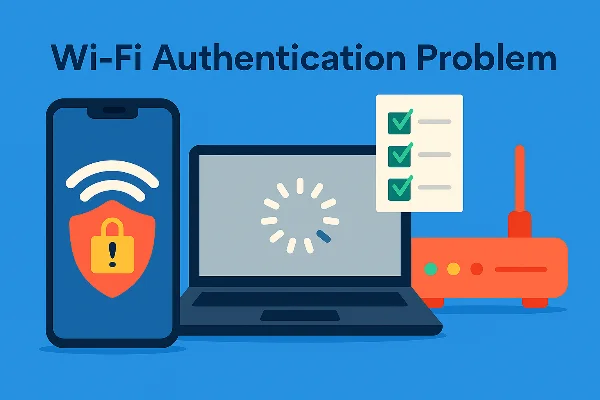
A wifi authentication problem is a connection failure during the secure join phase. It often stems from password or key mismatch, outdated saved credentials, protocol incompatibility (e.g., device expects WPA2-AES while the router forces WPA/WPA2 mixed with TKIP), or a glitch in the handshake. In short: the device can’t prove it should be on the network—or the network can’t read the device’s proof.
Typical symptoms
-
“Authentication error” or “Verification failed” toast/messages
-
Infinite “Connecting → Saved” loop
-
“Connected” to Wi-Fi but no internet if the handshake didn’t fully complete (or DNS failed afterward)
Common root causes and how to confirm
Understanding root causes is the fastest path out of a wifi authentication problem:
-
Wrong or outdated password – The most frequent trigger. If the router password changed, devices keep trying old credentials until you “Forget” and re-enter them. First step: double-check the password and retype carefully.
-
Security protocol mismatch – Devices and routers must agree on WPA2/WPA3 and the cipher (AES vs. TKIP). A mismatch or legacy mode can block authentication. Check/router and device use compatible, modern settings.
-
Saved network corruption – Long-kept profiles break after firmware updates or roaming. Remove the saved network and reconnect fresh.
-
Router or device glitches – Routine reboots flush stuck states: restart phone, toggle Wi-Fi, power-cycle the router.
-
Clock/time skew – Wrong date/time causes certificate checks to fail on some networks. Enable automatic time.
-
Interference or signal quality – Overloaded APs or weak signal can interrupt the handshake. Try moving closer or switching bands/SSID.
Quick root fixes that work on any device
Use this fast sequence to clear a wifi authentication problem on phones, tablets, or laptops:
-
Forget & re-join: Settings → Wi-Fi → select network → Forget → reconnect and re-enter the password. This resets the key material and is the highest-success fix.
-
Restart phone & router: Power-cycle both ends to refresh the handshake state.
-
Check security mode: Set the router to WPA2-Personal (AES) or WPA3-Personal if supported; avoid TKIP/mixed WPA/WPA2. Then reconnect devices.
-
Update firmware/apps: Update router firmware and your OS; many authentication bugs get patched silently.
-
Reset password cleanly: If you can’t recall or confirm the Wi-Fi password, reset
Android
-
Settings → Network & Internet → Internet → tap the gear for your SSID → Forget → reconnect.
-
Toggle Airplane Mode off/on; toggle Wi-Fi off/on. Reboot the phone.
-
If it still fails, temporarily test a different band/SSID (2.4 GHz vs 5 GHz).
-
For enterprise/captive networks, make sure the EAP method and CA certificates are set per the organization’s guide.
iPhone (iOS)
-
Settings → Wi-Fi → (i) next to network → Forget This Network → re-join with password.
-
If you’re on a captive-portal hotspot (airport/hotel), connect first without a VPN, complete the portal, then enable your VPN after the splash page loads. (Captive portals often block tunnels until you accept terms.)
“Connected but no internet” after joining?
Check DNS/IP settings or try another network to isolate whether the issue is router/ISP-side.
Router-side changes that resolve stubborn errors
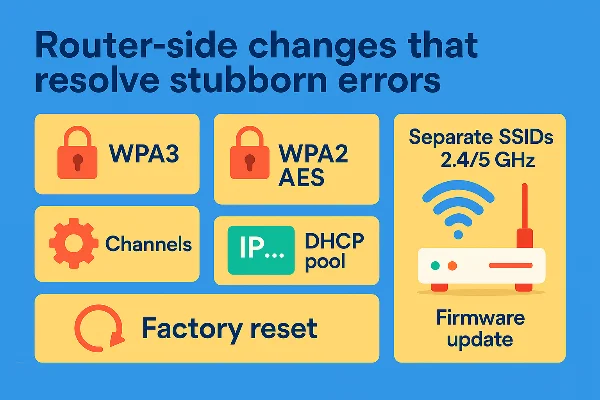
Some wifi authentication problem cases won’t clear until you adjust the access point:
-
Security mode: Use WPA3-Personal when all clients support it; otherwise WPA2-Personal (AES-only). Avoid TKIP/mixed modes.
-
SSID & band strategy: Create distinct SSIDs for 2.4/5 GHz to avoid sticky clients; optionally disable band steering while troubleshooting.
-
Channel/congestion: Set a cleaner channel (1/6/11 on 2.4 GHz; DFS or low-congestion channels on 5 GHz).
-
DHCP scope: Ensure the pool isn’t exhausted and leases aren’t stuck.
-
Firmware & factory reset: Update the router; if misbehavior persists, backup config and factory-reset, then set fresh credentials and security.
Reminder: some public hotspots use enterprise/WPA2-EAP or captive portals. If you don’t have the right certificate/EAP settings—or the portal blocks encrypted tunnels—authentication appears to fail until you complete the required step.
Stay safe on public Wi-Fi and avoid repeat headaches

Even after you fix a wifi authentication problem, public hotspots remain risky: operators can log domains, captive portals can spoof sign-in pages, and misconfigured APs may leak data. Pair good Wi-Fi hygiene with an encrypted tunnel.
Practical checklist
-
Connect to the official SSID only; complete the captive portal if present.
-
Then enable free proxy VPN in UFO VPN so all traffic (including DNS) goes through an encrypted tunnel—reducing what hotspot owners can see and preventing on-path snooping.
-
Prefer HTTPS-only browsing; avoid entering passwords on warning pages.
-
If the portal blocks VPN outright, connect first, finish the portal, and then start your VPN session.
Why a VPN matters here
A VPN doesn’t fix a wifi authentication problem; it protects your sessions after you join, especially on networks you don’t control. It also curbs the “connected, no internet” confusion caused by hostile DNS interception on public Wi-Fi.
💗4 Easy Steps to Get Your Best Helper


UFO VPN is an all-in-one VPN that offers unlimited access to 4K streaming like Netlfix, Disney Plus, no-ping gaming as PUBG, Roblox, CODM and social networking for YouTube, X, Facebook and more.




Unlock Pro Features
If you have upgraded to premium plan , feel free to enjoy premium servers for 4K streaming and advanced features like Kill Switch, Split Tunneling, and gaming acceleration. Your Mac is now fully optimized and protected. Inaddition to basic functions, we recommend you turn on

Verify Your IP Now
Use UFO VPN's " What is My IP " feature to see your new IP and location. This confirms your connection is secure, anonymous, and ready for safe browsing online anywhere at any time.







FAQs
What causes a wifi authentication problem most often?
Wrong credentials and protocol mismatch (e.g., TKIP vs AES) lead the list. Forget the network, re-enter the password, and ensure the router uses WPA2-/WPA3-Personal with AES.
Is an authentication error the same as no internet?
Not exactly. Authentication fails before you’re truly online. But some “connected, no internet” cases are handshake or DNS issues that feel similar—check DNS/IP and try a fresh join.
Why does my phone loop between ‘Saved’ and ‘Connecting’?
Corrupted saved credentials or router glitches. Forget the SSID, reboot phone and router, and reconnect with a verified password.
Should I change WPA modes on my router?
Yes—use WPA3-Personal if supported; otherwise WPA2-Personal (AES-only). Mixed WPA/WPA2 and TKIP cause many wifi authentication problem cases.
What about the time/date tip—does it really help?
Yes. Incorrect time can break secure handshakes on some networks. Set automatic date/time and try again.
Can a VPN fix a wifi authentication problem?
No. A VPN protects traffic after you connect. For authentication failures, fix password/protocol/SSID issues first, then run your VPN to keep the session private on shared networks.