Plan for your home network
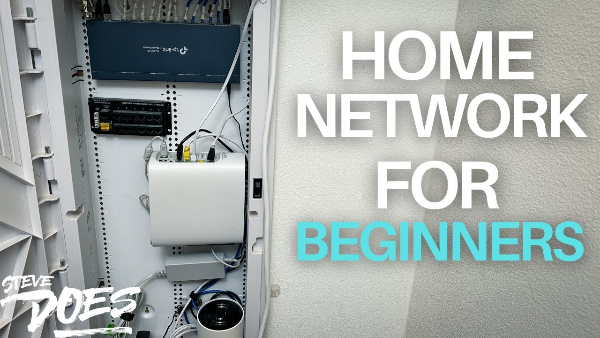
A little planning makes how to set up a home network faster and cheaper.
-
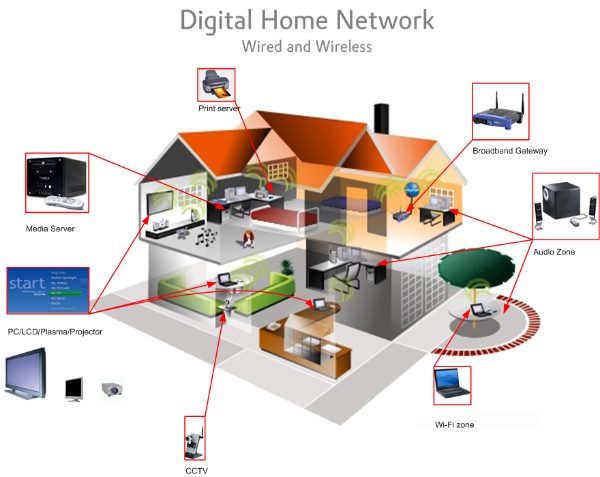
Map your space. Note dead zones (concrete walls, long hallways, upstairs rooms). Decide where the modem and primary router will live (central is best).
-
Right-size your internet plan. 300–500 Mbps is plenty for most families; heavy gamers/creators may want 1 Gbps. Faster plans don’t fix bad Wi-Fi placement.
-
Pick a topology:
-
Single router for small apartments.
-
Router + mesh satellites for multi-floor homes or >1,500 sq ft.
-
Ethernet backhaul (wired connections between router and satellites) is best for top speed.
-
-
Inventory your devices. Laptops/phones (Wi-Fi), TVs/consoles (Ethernet when possible), IoT (2.4 GHz).
-
Security baseline. Plan a secure home network from day one: WPA3, long passphrases, separate guest/IoT Wi-Fi, auto updates.
Choose the right gear : router, mesh, cables
Hardware selection shapes performance and ease of use in home network setup.
-
Modem vs. gateway: If your ISP gives a combo modem/router, you can either use it or set it to bridge mode and add your own router (often better features and updates).
-
Router class: Look for Wi-Fi 6/6E (AX/BE) with WPA3, automatic updates, and strong parental/guest features. Multiple gigabit ports help.
-
Mesh Wi-Fi: Pick 2–3 nodes for larger homes. Favor kits that support Ethernet backhaul for maximum stability.
-
Switches: An unmanaged gigabit switch adds more Ethernet ports for TVs, consoles, and desktops.
-
Cabling: Use Cat6 or better for longer runs and future-proofing.
-
Power & placement: Avoid placing routers in cabinets or behind TVs. High and central beats hidden and cornered.
Configure your router : SSID, passwords, updates, DNS
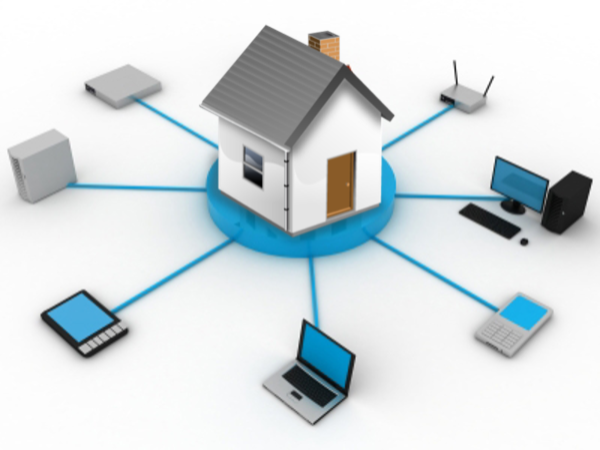
This is the heart of router configuration and how to set up a home network securely.
-
Connect and log in
-
Plug the modem into the router’s WAN/Internet port, power both, then connect to the router’s default Wi-Fi or via Ethernet.
-
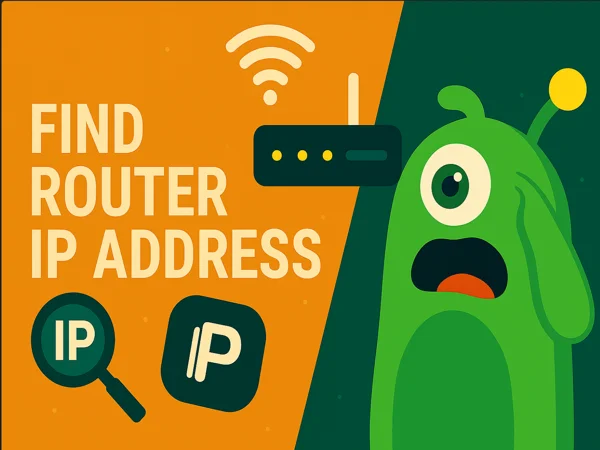
Visit the admin page (often
192.168.0.1or192.168.1.1) and change the admin password immediately.
-
-
Name your networks (SSIDs)
-
Create a clear main SSID (e.g., Home-Main) and a Guest SSID (isolated from your devices).
-
If offered, enable WPA3; otherwise use WPA2-AES (avoid TKIP/WEP).
-
-
Strong Wi-Fi passphrases
-
Use 14–20 characters (random words + numbers). Avoid addresses, pet names, and reused passwords.
-
-
Update firmware & auto updates
-
Check for updates now and enable auto updates if supported. This single action prevents many security issues on a secure home network.
-
-
Channel & band settings
-
Let the router auto-select channels, or manually pick cleaner ones if you’re in a dense apartment. Enable both 2.4 GHz (range) and 5/6 GHz (speed).
-
-
DNS options
-
You can use your ISP’s DNS or choose a reputable third-party resolver. If you need content filtering, some routers and DNS providers offer family/anti-malware modes.
-
-
Guest & IoT isolation
-
Turn on Guest network isolation. If available, create a separate IoT SSID for cameras, smart plugs, doorbells—keeping them away from your laptops.
-
-
Save & reboot
-
Apply settings and reboot once so everything starts clean.
-
Optimize coverage and speed for your router
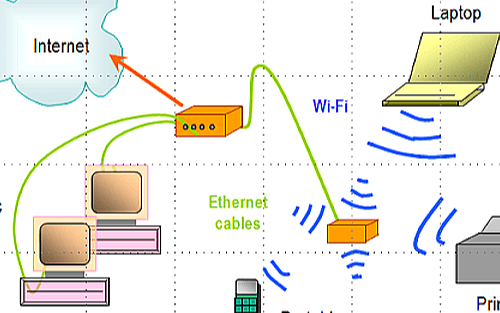
Performance tuning ensures home network setup feels fast everywhere.
-
Placement matters most. Put the main router high and central; avoid metal and microwaves. For mesh, place satellites 1–2 rooms from the main node, not at the very edge of coverage.
-
Prefer Ethernet for heavy hitters. Wire TVs, consoles, desktops, and NAS boxes. This frees Wi-Fi for mobile devices and lowers latency.
-
Backhaul smartly. If you have mesh, use Ethernet backhaul where possible. If not, keep satellites line-of-sight when you can.
-
QoS (Quality of Service). Enable smart QoS so video calls and gaming packets don’t stutter when someone uploads photos.
-
Reduce interference. Switch congestion-heavy channels, or split SSIDs if older 2.4 GHz devices drag performance down.
-
Test and iterate. Use a speed test in each room on 2.4 and 5/6 GHz. Move nodes if you see big drops.
These tweaks make the “after” part of how to set up a home network noticeably better than the “before.”
Secure your home network : updates, access, backups
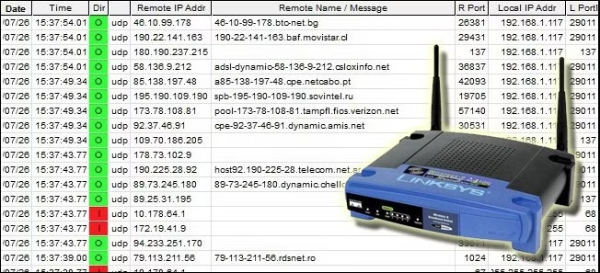
Security is a continuous habit, not a one-time checkbox, and it’s central to how to set up a home network that lasts.
-
Auto-update everything. Router firmware, mesh nodes, and connected devices.
-
Unique passwords + MFA. Use a password manager. Enable multi-factor (if offered) on your router admin and major services.
-
Disable WPS and UPnP (when not needed). WPS is convenient but risky. UPnP can be helpful for consoles; if you don’t need it, turn it off.
-
Admin access hygiene. Keep the router admin panel unreachable from the internet, and restrict admin to wired/Ethernet if your router allows it.
-
Network segmentation. Keep Guest and IoT separate; many routers let you prevent those networks from reaching your main devices.
-
Backups & power. Use a small UPS for your modem/router if you rely on smart locks/alarms. Back up critical settings or export them if your router supports it.
A secure home network is part configuration, part routine.
Home Network Privacy on the Internet
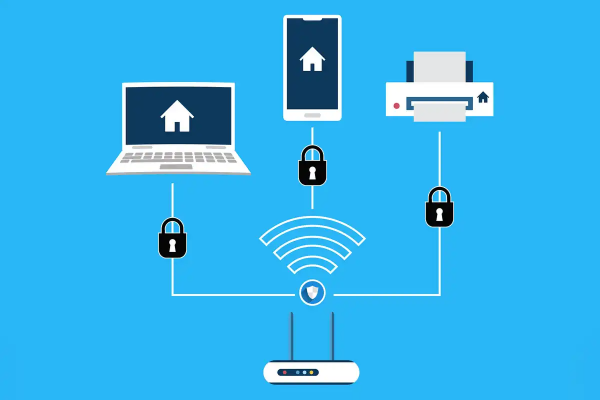
A VPN won’t replace your router’s firewall, but it does protect your traffic once it leaves your home—an important piece of how to set up a home network for modern life.
-
Public Wi-Fi safety. At cafés, hotels, and airports, connect free proxy VPN in UFO VPN on phones and laptops before logging into accounts or managing smart-home dashboards. The tunnel encrypts traffic and reduces on-path tampering.
-
ISP and venue privacy. A VPN masks your IP from venue operators and can minimize ISP profiling of your browsing.
-
Routing stability for travel/work. If a service works poorly on a specific route, switching to a nearby UFO VPN location can stabilize performance.
-
Router-level VPN (if supported). Some routers can run a VPN client for specific devices or an entire SSID (for example, an “Away” or “Work” network). That sends outbound traffic through the VPN automatically—useful for remote work or consistent region routing.
-
Expectations. A VPN won’t fix bad Wi-Fi placement or LAN issues, but paired with a secure home network, it raises your privacy bar online.
💛Bonus: Quick Start Guide for UFO VPN💛


UFO VPN is an all-in-one VPN that offers unlimited access to 4K streaming like Netlfix, Disney Plus, no-ping gaming as PUBG, Roblox, CODM and social networking for YouTube, X, Facebook and more.




Unlock Pro Features
If you have upgraded to premium plan , feel free to enjoy premium servers for 4K streaming and advanced features like Kill Switch, Split Tunneling, and gaming acceleration. Your Mac is now fully optimized and protected. Inaddition to basic functions, we recommend you turn on

Verify Your IP Now
Use UFO VPN's " What is My IP " feature to see your new IP and location. This confirms your connection is secure, anonymous, and ready for safe browsing online anywhere at any time.







Troubleshoot common issues about home network
Even a careful home network setup hits snags. Use this quick triage before deep dives.
-
Slow everywhere? Reboot modem/router; test wired vs. Wi-Fi. If wired is fast and Wi-Fi is slow, reposition nodes, reduce interference, or add a mesh point.
-
Only one device is slow? Forget and rejoin Wi-Fi; update drivers/OS; check VPN settings; disable battery-saver that throttles radios.
-
Smart device won’t connect? Many IoT gadgets need 2.4 GHz. Temporarily disable 5 GHz or split SSIDs during onboarding.
-
Random disconnects? Check for firmware updates, change channels, and inspect cables. For mesh, move satellites closer or add Ethernet backhaul.
-
NAT/port issues (gaming/remote access). Enable UPnP for consoles only if needed, or manually forward ports. Disable double NAT by bridging the ISP gateway.
FAQs
What’s the simplest way to start if I’m overwhelmed?
Buy a reputable Wi-Fi 6/6E router, place it centrally, use WPA3 with a long passphrase, create a Guest SSID, and enable auto updates. That’s how to set up a home network in one hour.
Do I need mesh or is one router enough?
Apartments and small homes often need one router. Multi-floor houses or tricky layouts benefit from mesh. Ethernet backhaul is the gold standard.
Should I combine 2.4 and 5/6 GHz under one name?
For most people, yes—let band steering work. If older IoT gear struggles, split SSIDs temporarily to onboard devices, then recombine.
Is a VPN necessary at home?
It’s optional. Your router already performs NAT/firewall duties. Use UFO VPN primarily on public Wi-Fi and for privacy from ISP/venue logs, or run it router-wide if you need consistent routing.
Which DNS should I choose?
Your ISP DNS is fine for most users. If you want filtering or added privacy, choose a reputable third-party resolver in your router settings.