Understanding Traceroute and How It Works
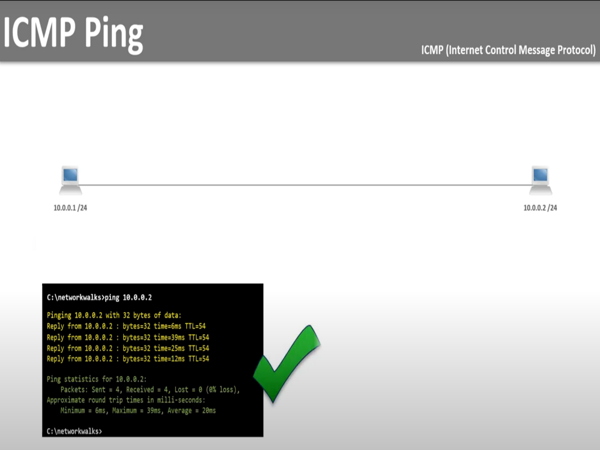
Before diving into the specific uses of traceroute, it’s helpful to understand why this tool is different from basic connectivity tests. Unlike a simple ping, traceroute doesn’t just tell you whether a device is reachable—it reveals the entire path your data takes, hop by hop. By visualizing each step, you can pinpoint where delays, packet loss, or routing issues occur, making it a far more powerful diagnostic tool for complex networks.
The Purpose of Traceroute
Traceroute is primarily used to map the journey of data packets across a network. Unlike a simple ping, which tests connectivity, traceroute reveals every hop—routers and servers—between your device and the destination. This allows you to:
- Identify slow network segments
- Detect routing loops or misconfigurations
- Diagnose points of packet loss
In short, traceroute provides a roadmap of your network path, which is invaluable for troubleshooting complex issues.
How It Works
Traceroute works by sending ICMP echo requests or sometimes UDP packets with progressively increasing Time-to-Live (TTL) values. Each router along the path decreases the TTL by 1. When TTL reaches zero, the router returns a “time exceeded” message, allowing the traceroute tool to record that hop.
This process repeats until the packet reaches its destination. The final output lists each hop, its IP address, and the round-trip time (RTT) for each step, giving a clear picture of network latency.
Why Use Traceroute for Network Troubleshooting
Traceroute isn’t just a diagnostic curiosity—it’s a practical tool for identifying connectivity problems and performance issues. By analyzing the full path of your packets, you can quickly detect where problems occur, which is crucial for both home users and network professionals.
Connectivity and Routing Checks
Traceroute allows you to check the exact path your data takes. If a hop shows high latency or no response, it can indicate:
- Misconfigured routers
- Temporary outages
- ISP routing problems
Using UFO VPN alongside traceroute can help distinguish whether an issue is local, ISP-related, or external by routing traffic through secure servers 🌐.
Latency, Packet Loss, and Performance Issues
Traceroute also helps identify network performance issues. High RTT values or repeated timeouts may suggest:
- Overloaded network segments
- Physical issues such as damaged cables
- External attacks or throttling
A VPN can provide an extra layer of protection and sometimes bypass throttling, ensuring accurate measurements of your network performance.
How to Run Traceroute Across Platforms
Running traceroute varies by device, but the principle remains the same: observe each hop along the path to the destination. Here’s how to do it across popular platforms.
Windows
- Open Command Prompt (CMD).
- Type “tracert” followed by the target website or IP and press Enter.
- Review each hop’s latency in milliseconds.
💡 Tip: Using UFO VPN can bypass local network restrictions and protect your connection while testing.
macOS & Linux
- Open the Terminal application.
- Type “traceroute” followed by the target website or IP and press Enter.
- Observe each hop and its round-trip time.
- On Linux, administrator permissions (sudo) may be required.
iPhone/Android & Online Tools
Mobile devices often lack native traceroute tools, but you can:
- Use apps like PingTools, Network Analyzer, or Fing to perform traceroute.
- Use online traceroute services to get path information without installing apps.
On public Wi-Fi, combining traceroute with UFO VPN ensures encrypted traffic, reducing the risk of monitoring or interference.
Reading and Interpreting Traceroute Results
Knowing how to read traceroute output is key to understanding network performance. Each hop displays IP addresses and round-trip times (RTT), which highlight potential bottlenecks or failures.
Latency and RTT
Sudden spikes in RTT indicate slow or congested routers. For example:
| Hop | IP Address | RTT 1 | RTT 2 | RTT 3 |
|---|---|---|---|---|
| 1 | 192.168.0.1 |
1 ms | 2 ms | 1 ms |
| 2 | 203.0.113.1 | 10 ms | 12 ms |
11 ms |
| 3 | 198.51.100.5 | 120 ms |
125 ms | 122 ms |
Packet Loss and Errors
- * * *indicates a timeout or unreachable hop.
- Frequent timeouts suggest packet loss or network issues.
- Using UFO VPN can help identify whether the issue is local, ISP-related, or external.
Common Issues and Troubleshooting Scenarios
Traceroute can reveal common network problems:
- Blocked ICMP: Some routers ignore traceroute packets; VPNs may route around these blocks.
- Routing loops: Packets repeatedly cycle between routers, which needs network admin intervention.
- Dynamic IPs: ISP-assigned IPs can cause inconsistent paths; repeated tests help verify patterns.
💡 VPNs like UFO VPN also help maintain privacy and avoid misinterpreting routing issues caused by local ISP policies.


UFO VPN is an all-in-one VPN that offers unlimited access to 4K streaming like Netlfix, Disney Plus, no-ping gaming as PUBG, Roblox, CODM and social networking for YouTube, X, Facebook and more.




Unlock Pro Features
If you have upgraded to premium plan , feel free to enjoy premium servers for 4K streaming and advanced features like Kill Switch, Split Tunneling, and gaming acceleration. Your Mac is now fully optimized and protected. Inaddition to basic functions, we recommend you turn on

Verify Your IP Now
Use UFO VPN's " What is My IP " feature to see your new IP and location. This confirms your connection is secure, anonymous, and ready for safe browsing online anywhere at any time.







Conclusion
latency, and packet loss, you can identify bottlenecks, misconfigurations, and maintain reliable connectivity.
Using traceroute with a secure VPN such as UFO VPN ensures accurate testing while protecting your privacy 🌐. Whether on Windows, macOS, Linux, or mobile, mastering traceroute equips you to troubleshoot networks professionally and securely.
FAQs
Q1: Is traceroute safe to use?
Yes. It sends standard network packets. For extra security, a VPN is recommended.
Q2: Can I run traceroute over a VPN?
Yes. It helps bypass blocks and provides privacy while testing.
Q3: Why do some hops show * * *?
The router may not respond to ICMP, or there is a temporary network issue.
Q4: How often should I use traceroute?
Use it when diagnosing connectivity issues or monitoring network performance.
Q5: Can traceroute detect slow websites?
Yes. RTT analysis at each hop shows where delays occur before reaching the server.