Important Tips Before Changing Steam Region (We Don't Want You Troubled)
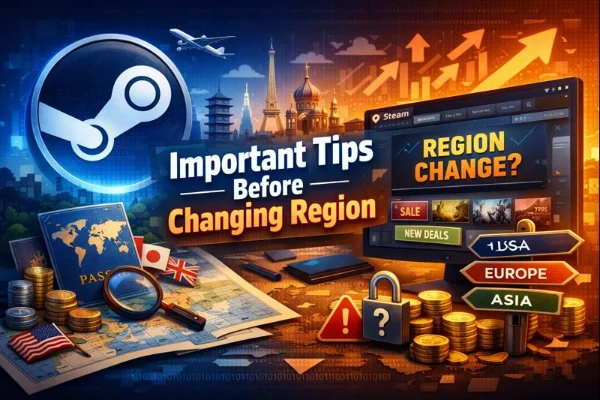
Before you attempt to change your Steam region, it’s crucial to understand how Valve defines a “region” and why improper changes can cause problems. Many guides online oversimplify this topic, which often leads to account restrictions or confusion. We don't want you in trouble, so the following are what you need to bear in mind:
Tip 1: Steam’s store region is tied to your country of residence, not just your IP address. Valve determines this using multiple signals, including your payment method, billing address, purchase history, and long-term usage behavior. Simply changing your location temporarily does not automatically update your store country.
Tip 2: Steam limits how often you can change your store region. In most cases, users are restricted to one region change every three months. This policy exists to prevent abuse of regional pricing differences. If you attempt to change regions too frequently, Steam may block the option entirely.
Tip 3: Changing your Steam region for cheaper games carries risk. While many users search for how to change Steam region for cheaper games, Valve’s Terms of Service explicitly discourage switching regions solely to obtain lower prices. In extreme cases, this may result in purchase restrictions or account penalties. (Want to get some free Steam games safely? ←Check our guide)
Tip 4: Another important factor is payment compatibility. Some countries have limited payment options due to financial regulations. Even if Steam is available in your region, certain cards or payment methods may not work. Without a valid local payment method, changing your Steam store region often fails.
Tip 5: Remember that Steam availability varies globally. Although Steam operates in over 180 countries, it is not officially available in a few regions, and some content may be restricted due to local laws. Always check whether your target region fully supports Steam services.
Generally, if Steam is not available in your country, a reliable VPN with stable servers can help you bypass restrictions. Well tested by many gamers, UFO VPN offers optimized gaming VPN servers for playing Steam games. Plus, to change region on Steam, a solid VPN like UFO VPN is essential if you want to access Steam from another country.
How to Change Steam Region the Official Way (No VPN Required)
If you have moved to another country, the official method is the safest and most reliable way to change your Steam store region.
Step-by-step official method to change the region for Steam:
Step 1: Log in to your Steam account
Open the Steam client or web version and sign in as usual.
Step 2: Add a game to your cart
Choose any game (even a low-cost one) and proceed to checkout.
Step 3: Confirm your new country
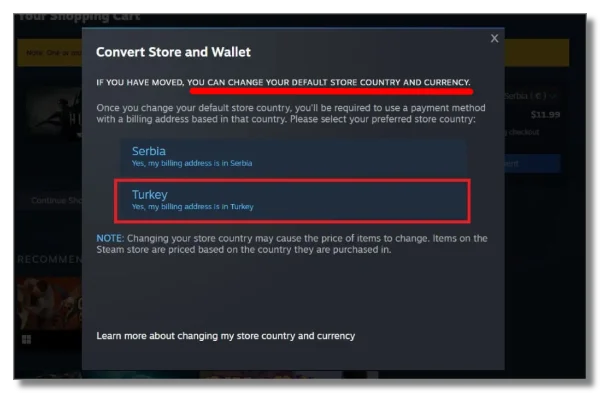
During checkout, Steam may ask you to confirm your store country. Select the country where you currently reside.
Step 4: Enter a local billing address
You must provide a valid address and ZIP/postal code matching the selected country. This step is mandatory to change your Steam billing address.
Step 5: Use a local payment method
Complete the purchase using a payment method issued in that country, such as a local credit card or region-matching PayPal account.
Once the purchase is successful, your Steam store region updates automatically. Prices, currency, and store availability will reflect your new location.
Important notes
-
This method works best if you have actually relocated.
-
Steam may reject the change if your payment method does not match the region.
-
Your first successful purchase in the new region sets your store country.
If you are wondering how to change Steam region after moving, this is the only fully compliant approach.
How to Change Steam Region with a Reliable VPN
Many of you may also turn to how to change Steam region with a VPN, but this way requires careful clarification. A VPN does not directly change your Steam store region. Steam does not rely on the IP address alone when determining your country.
However, VPNs may still play a role in specific scenarios. If Steam games are blocked in your country, or you want to get cheaper items by changing your Steam location, you can follow the steps below:
Step 1: Choose a reliable VPN
Before opening Steam, use a trusted VPN to change your IP address, which makes you appear in countries you want.
Why is UFO VPN recommended?
- Optimized global 2000+ server network
- Change IP address with just one click
- Strong privacy and IP protection
- No bandwidth throttling
- Prevent cybercriminals
- Supported on your Windows, MacOS, Android, iPhone, etc
Download UFO VPN for your Steam gaming following the steps:


UFO VPN is an all-in-one VPN that offers unlimited access to 4K streaming like Netlfix, Disney Plus, no-ping gaming as PUBG, Roblox, CODM and social networking for YouTube, X, Facebook and more.




Unlock Pro Features
If you have upgraded to premium plan , feel free to enjoy premium servers for 4K streaming and advanced features like Kill Switch, Split Tunneling, and gaming acceleration. Your Mac is now fully optimized and protected. Inaddition to basic functions, we recommend you turn on

Verify Your IP Now
Use UFO VPN's " What is My IP " feature to see your new IP and location. This confirms your connection is secure, anonymous, and ready for safe browsing online anywhere at any time.







Step 2: Connect to a server in your current country
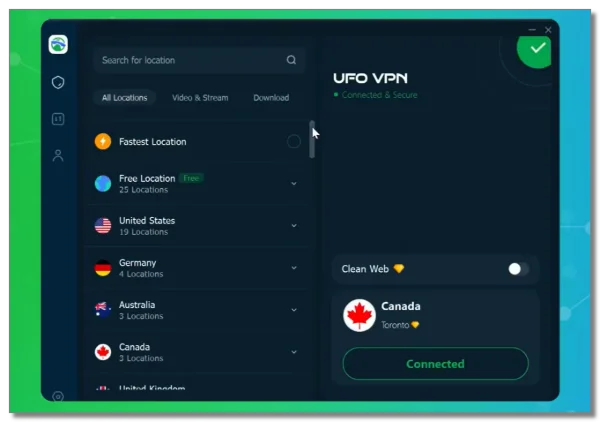
After installing UFO VPN on your device, choose a VPN server, such as the USA VPN free & the UK VPN free, that matches where you are physically located (Ideally) or where you want to switch to.
Tested by some gamers, switching to Turkey VPN free or Argentina VPN free may get more free or cheaper Steam games.
⚠️: Connecting to a VPN server in another country does not automatically change your Steam store region. Keep reading to complete the whole changing process.
Step 3: Launch Steam after the VPN connection is active
Once the VPN connection is established:
- Open the Steam client or website
- Log in to your account as usual
At this point, Steam may route your connection differently, but your account region and store country remain unchanged.
Step 4: Complete a purchase with a local payment method
To actually change your Steam store region, you must make a purchase using a local payment method from the target country.
This includes:
- A credit or debit card issued in that country
- A PayPal account registered with a matching local address
Steam uses billing details—not just your IP address—to determine your store country. Even if you are connected to a VPN, your region will not update without a valid local payment.
💡 Tip: If Steam detects a mismatch between your IP location and payment country, it may simply keep your original region unchanged.
Step 5: Verify the region change and note the 3-month cooldown
After completing the purchase:
- Go to Steam Store and check whether prices are now displayed in the new local currency
- Visit Account Details → Store & Purchase History to confirm the updated store country
If the store region has changed successfully, Steam will lock your store country for 3 months. During this cooldown period, you won’t be able to change your Steam region again, even if you move or switch networks.
This restriction is designed to prevent frequent region switching for price differences, so make sure the new region truly matches your current residence before confirming the change.
Using a VPN is a personal choice, and you should be aware of and responsible for any potential consequences.
Why Using a VPN for Steam Gaming Is Highly Recommended?
Even if you are not changing your Steam store region, using a VPN while gaming can still offer benefits.
Key advantages
-
Protection against DDoS attacks, especially in competitive multiplayer games
-
Enhanced privacy, masking your real IP from third parties
-
Safer purchases on public or shared Wi-Fi networks
-
More stable routing in regions with congested ISPs
That said, a VPN should be viewed as a security and privacy tool, not a shortcut for manipulating Steam pricing. Responsible usage aligns better with Steam’s policies and reduces account risks.
Changing Steam Region Not Working? Quick Fixes
If your attempt to change region on Steam fails, several common issues may be responsible.
1. Payment method mismatch
Steam often rejects region changes if your card or PayPal account does not match the selected country. Ensure your billing information is fully consistent.
2. Region change cooldown
If you recently changed your store region, you may still be within the three-month cooldown period.
3. Address verification issues
Incorrect ZIP codes or incomplete billing addresses frequently cause errors when changing your Steam billing address.
4. Confusing store region with download region
Many users believe Steam keeps changing their region automatically, when in fact only the download region is switching (more on that below).
5. Family Sharing limitations
If you’re trying to change Steam region for family sharing, note that region differences may restrict which games can be shared across accounts.
Misunderstanding: Steam Download Region vs Store Region
This is one of the most misunderstood aspects of Steam.
Steam Download Region
-
Controls which server you download games from
-
Affects download speed and stability
-
Can be changed anytime in Steam settings
-
May automatically switch based on network conditions
This explains why users often search for “Steam keeps changing my download region” or “how to change Steam server region”.
Steam Store Region
-
Determines game prices, currency, and availability
-
Tied to billing address and payment method
-
Cannot be freely changed
-
Rarely updates automatically
If your prices didn’t change after adjusting settings, you likely modified the download region, not the store region.
Bonus: Get Cheaper Steam Games from Another Country
Steam uses regional pricing to reflect local purchasing power and market conditions. This is why the same game may cost different amounts in different countries.
However, attempting to exploit these differences by artificially changing regions carries risk. Steam actively monitors suspicious behavior, especially when accounts switch regions without legitimate relocation.
A safer approach is to:
-
Buy games during official Steam sales
-
Use your wishlist to track discounts
-
Understand how regional pricing works instead of trying to bypass it
- Double-verify your real IP with UFO VPN if Steam keeps showing the wrong IP
In most cases, the long-term risks outweigh the short-term savings.
FAQs
Can Steam ban me for changing region?
Steam may restrict purchases or lock region changes if it detects abuse. Permanent bans are rare but possible in extreme cases.
Does Steam automatically change your region?
Steam may automatically adjust your download region, but your store region rarely changes without a qualifying purchase.
Why can’t I change my location on Steam?
Most failures are due to payment mismatches, cooldown periods, or address verification issues.
How to change Steam region after moving?
Use the official purchase method with a local billing address and payment option.
Is changing Steam region worth it?
Only if you have genuinely relocated. Otherwise, the risks often outweigh the benefits.
Conclusion
Changing your Steam region affects prices, payments, and access, and it’s not something Valve allows casually. The safest way to change the Steam store region is through legitimate relocation with a VPN and a local purchase. However, VPNs can enhance privacy and gaming security, but cannot override Steam’s regional rules.