What Are YouTube Shorts?
YouTube Shorts is YouTube's short-form video feature, designed to compete with TikTok and Instagram Reels. The content is meant to be quick, snackable, and highly engaging—often driving algorithmic recommendations based on viewing patterns. However, for parents, this means there is an increased risk of exposure to inappropriate content, such as explicit language, mature themes, or disturbing visuals, which is why many parents want to block YouTube Shorts on kids' phone.
It’s important to note that YouTube Shorts doesn't have an explicit “off” button. Instead, you’ll need to utilize a combination of settings, apps, and controls to limit your child’s access to these videos. Let's dive into the best practices.
How to Block YouTube Shorts on Kids’ Phone: Quick Steps
Here’s how to begin the process of blocking YouTube Shorts on kids' phone. There are multiple layers of protection you can apply to effectively manage content.
Step 1: Use YouTube’s Built-in Controls
A) Disable Shorts Feed (Web Version)
While YouTube doesn’t allow you to fully turn off Shorts, you can hide the Shorts shelf on the web interface:
-
Go to the YouTube website and log into your child’s account.
-
Scroll to the Shorts section on the homepage and click on the three dots next to it.
-
Select Hide to remove it temporarily.
This is a simple, yet effective way to remove the Shorts feed from appearing on the homepage when browsing YouTube on a desktop or laptop.
B) Mark Shorts as “Not Interested”
If a Shorts video does appear, you can mark it as “Not Interested” to inform the algorithm not to recommend similar content.
To do this:
-
Tap the three dots on a Shorts video.
-
Choose Not Interested from the dropdown menu.
This helps personalize the recommendations, limiting Shorts from showing up again in the future.
Step 2: Set Parental Controls Using Family Link
Google’s Family Link is a powerful tool for managing your child’s account and activity across Google services, including YouTube. With Family Link, you can set screen time limits, approve app downloads, and manage the apps your child can access.
A) How to Set Up Family Link:
-
Install Google Family Link on your own device.
-
Create a Google account for your child or link their existing account.
-
From the Family Link app, tap on your child’s profile and choose Manage Settings.
-
Under YouTube Settings, select Restricted Mode to limit content exposure.
You can also enforce screen time limits, ensuring that your child doesn’t spend too much time on YouTube. Family Link will allow you to manage YouTube activity and block YouTube Shorts on kids' phone by controlling what your child can access.
Step 3: Switch to YouTube Kids
For younger children, YouTube Kids is an ideal alternative. This app is designed with kids in mind and filters out inappropriate content while offering a kid-friendly interface. It also removes the temptation of Shorts altogether, as the app focuses on longer videos and curated content.
How to Set Up YouTube Kids:
-
Download the YouTube Kids app from the App Store or Google Play.
-
Create a profile for your child, ensuring that only age-appropriate content is available.
-
Use YouTube Kids settings to control the content your child can watch and filter any unwanted videos or topics.
While YouTube Kids doesn’t show Shorts, it still offers a range of educational and entertaining videos that are suitable for children.
Step 4: Use Third-Party Apps and Extensions
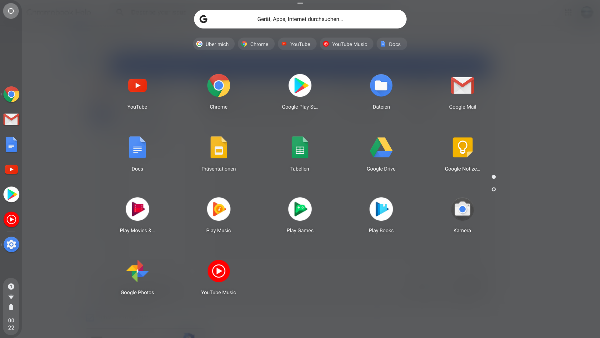
If the built-in YouTube features aren’t enough, there are third-party apps and browser extensions that can block or filter out Shorts content.
A) Browser Extensions (for desktop)
-
Enhancer for YouTube – Available on Chrome, Firefox, and other browsers, this extension lets you customize your YouTube experience, including hiding the Shorts feed.
-
Remove YouTube Shorts – Another Chrome extension that removes the Shorts section on YouTube’s homepage and video suggestions.
These tools are perfect for parents who prefer using YouTube on desktop browsers and want to ensure that YouTube Shorts is blocked from appearing.
B) Third-Party Apps (for Android)
Apps like Block YouTube Shorts or Blocker for YouTube are designed to restrict access to YouTube Shorts. These apps can work in the background and prevent your child from scrolling through Shorts, even if they try to find them manually.
Open VPN When Watching YouTube Shorts
While you can block and filter content directly on YouTube, there’s an extra layer of privacy you might want to consider: a free proxy VPN in UFO VPN.
A VPN like UFO VPN doesn’t just protect your data on untrusted networks; it can also help block ads, trackers, and monitor app behaviors that might bypass parental controls.
How UFO VPN Helps:
-
Encrypted Connection on Public Networks: When your child accesses YouTube or any other app on a public Wi-Fi network, UFO VPN ensures their data is encrypted and secure, preventing any potential spying or third-party tracking.
-
IP Address Masking: With UFO VPN, you can mask your child’s IP address to prevent tracking and targeted advertising while they browse YouTube or other websites.
-
Reduced Network Vulnerabilities: If you're concerned about any apps bypassing restrictions or collecting data from your child’s device, UFO VPN adds an extra layer of protection by masking traffic.
By pairing UFO VPN with Family Link and YouTube Kids, you’ll be able to secure your child’s online activity while minimizing exposure to inappropriate content.
FAQs
How do I block YouTube Shorts on my child’s phone?
You can block YouTube Shorts on kids' phone by using Family Link to enforce restricted content settings, hiding the Shorts shelf on YouTube’s web interface, or using YouTube Kids. You can also use third-party apps like Block YouTube Shorts on Android or browser extensions for desktops.
Can I prevent my child from watching YouTube Shorts entirely?
The best way to fully block Shorts is by using YouTube Kids, where this feature doesn’t exist, or enforcing a supervised experience via Family Link with the appropriate content restrictions. You can also prevent access to the YouTube app entirely by managing app permissions.
What if my child is using YouTube on a public Wi-Fi network?
When using public Wi-Fi, a VPN like UFO VPN can encrypt your child’s connection and prevent local snooping or tracking, adding an extra layer of protection while they browse or watch videos.
How can I monitor my child’s YouTube activity?
You can monitor your child’s activity via YouTube Family Link, which provides detailed information on watch history, search activity, and device usage. You can also restrict certain content directly.