What Is a Home Server?
A home server is a dedicated device that runs continuously in your home to provide centralized storage, services, and remote access. Unlike a regular PC, it’s designed to stay online 24/7 and can serve as your personal cloud alternative.
Common uses include:
- File storage & backup 🗂️
- Media streaming (Plex, Jellyfin, Emby)
- Smart home automation (Home Assistant, OpenHAB)
- Remote access to data ☁️
- Hosting personal websites or test environments
Benefits of Running a Home Server
Running a home server offers significant advantages:
- Data ownership – Keep your files under your control rather than relying on third-party providers.
- Cost savings – Avoid recurring cloud subscription fees by investing in your own storage.
- Flexibility – Run the exact applications and services you need, from streaming servers to smart home hubs.
- Secure remote access – With tools like free proxy VPN you can safely connect to your server anywhere without exposing open ports 🌐
Choosing the Right Home Server Setup
When setting up a home server, success depends largely on making the right choices early on. Your hardware defines the performance and capacity, while your software stack determines the features and flexibility. The key is to balance both according to your needs, budget, and technical skills.
Hardware Options
Your hardware choice depends on your needs, budget, and technical expertise:
NAS (Network Attached Storage): Best for simple file storage and backup. Low power, easy to manage.
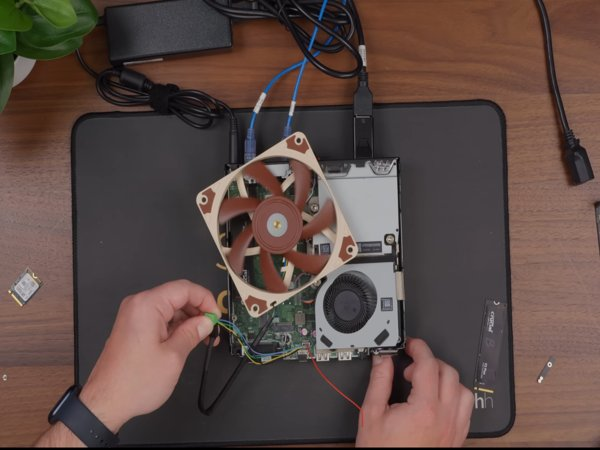
Mini PC / Intel NUC: Compact and versatile, capable of running multiple services or lightweight virtualization.
Custom-built server: For enthusiasts who need high performance for 4K media streaming, virtual labs, or advanced automation. Higher cost and power consumption.
Once you have the right hardware foundation, the next step is to choose the software ecosystem that powers your server. This is where you can customize your setup for storage, media, or automation.
Home Server Software in 2026
The software ecosystem for home servers is richer than ever:
Operating systems: Ubuntu Server 24.04, Windows Server 2022, TrueNAS, Proxmox VE
Media & storage: Plex, Jellyfin, Nextcloud, Syncthing
Automation & virtualization: Home Assistant, Docker, VMware ESXi
By combining the right hardware with the right software, you can build a server environment that’s not only efficient but also future-proof.
Step-by-Step Home Server Setup Guide (2026)
- Plan your use case – Decide whether you want storage, media, smart home integration, or a mix of all.
- Choose hardware & software – Select your server device and operating system.
- Configure networking – Set a static IP and optimize router settings.
- Install core applications – File management, media servers, or container platforms like Docker.
- Enable remote access securely – Instead of exposing risky open ports, configure UFO VPN. It provides a secure tunnel for accessing your home server while protecting your real IP and preventing unwanted intrusions 🔒.
Security Essentials for Home Servers
A home server can be powerful, but it’s only as secure as the measures you put in place. Since these systems often store personal files, media, and sensitive data, neglecting security can expose your entire digital life to risks. To keep your server reliable and protected, it’s important to focus on three key areas: network security, safe remote access, and ongoing maintenance.
Network Security
- Enable a firewall and block unused ports.
- Use strong, unique passwords.
- Deploy intrusion prevention tools like Fail2Ban.
VPN for Remote Access
One of the most critical security practices is using a VPN. With UFO VPN, you can:
- Connect to your home server from anywhere in the world 🌍.
- Avoid exposing sensitive ports directly to the internet.
- Encrypt all traffic, preventing data leaks on public WiFi.
This is particularly useful if you travel frequently or use your home server for professional work.
Regular Updates & Monitoring
- Keep OS & software updated to patch vulnerabilities.
- Use monitoring tools like Grafana or Zabbix for system health.
- Perform regular backups to external drives or cloud redundancy.


UFO VPN is an all-in-one VPN that offers unlimited access to 4K streaming like Netlfix, Disney Plus, no-ping gaming as PUBG, Roblox, CODM and social networking for YouTube, X, Facebook and more.




Unlock Pro Features
If you have upgraded to premium plan , feel free to enjoy premium servers for 4K streaming and advanced features like Kill Switch, Split Tunneling, and gaming acceleration. Your Mac is now fully optimized and protected. Inaddition to basic functions, we recommend you turn on

Verify Your IP Now
Use UFO VPN's " What is My IP " feature to see your new IP and location. This confirms your connection is secure, anonymous, and ready for safe browsing online anywhere at any time.







Advanced Use Cases of Home Servers in 2026
Once your server is secure and running smoothly, you can go beyond the basics. Modern home servers are no longer limited to simple file storage—they’ve evolved into multi-purpose digital hubs that can handle entertainment, automation, and even personal cloud services. Depending on your needs, here are some of the most popular advanced use cases:
- Media center – Stream 4K content to multiple devices via Plex or Jellyfin.
- Smart home hub – Control lights, locks, and sensors with Home Assistant.
- Virtual lab – Run virtual machines or Docker containers for development.
- Self-hosted cloud – Replace Google Drive or Dropbox with Nextcloud for complete privacy.
Common Challenges and How to Overcome Them
While home servers now are more capable than ever, they still come with challenges that beginners and advanced users alike may encounter. From performance bottlenecks to network vulnerabilities, these issues can impact stability and security if left unaddressed. Fortunately, most problems have straightforward solutions when planned for in advance. Below are some of the most common obstacles—and how to overcome them effectively:
- Performance bottlenecks – Upgrade CPU/RAM or optimize Docker containers.
- Security risks – Always use VPN (like UFO VPN) instead of direct port forwarding.
- Storage issues – Implement RAID or external backup strategies.
- Remote access difficulties – VPN solutions greatly simplify this process.
Conclusion
After addressing common challenges, it’s clear that a home server can be both powerful and practical when set up correctly. It’s more than just a storage solution—it’s the foundation of a secure, flexible, and private digital ecosystem. With the right hardware, modern software, and strong security practices, you can transform your home server into the central hub of your digital life. And with a VPN like UFO VPN, you gain safe, encrypted remote access that keeps your data protected wherever you are 🔒.
FAQs
Is a home server beginner-friendly?
Yes—NAS devices and mini PCs make it easy for beginners to start, even without advanced technical skills.
How much does it cost to set up a home server?
Entry-level NAS devices cost around $200–$500, while custom-built servers with high performance can exceed $1,000.
What’s the best way to secure a home server?
Use strong passwords, enable firewalls, keep software updated, and access remotely through a VPN such as UFO VPN.
Can a home server replace cloud storage?
Yes, for most personal and family use cases. However, cloud providers may still be useful for redundancy.
Can I access my home server while traveling?
Absolutely—VPNs like UFO VPN let you securely connect from anywhere in the world without exposing your IP.