




Some Key Facts to Know Before We Start

Before you unblock someone on WhatsApp, it helps to understand how the blocking system works. Many users think that unblocking will automatically restore everything from the past, but this is not always true. Knowing a few basic facts will make the process clearer and help avoid confusion later.
Here are several important things to keep in mind.
💡 Fact 1: Unblocking does not restore old messages
When you block someone on WhatsApp, messages sent during the blocked period are not stored. After you unblock the contact, you will not receive messages they sent while they were blocked. Communication only resumes from that moment forward.
💡 Fact 2: The person will not receive a notification
WhatsApp does not send a notification when you unblock someone. The contact will not see an alert that says they have been unblocked. However, they may notice changes, such as being able to send messages again or seeing your profile photo and status.
💡 Fact 3: You may need to start a new chat
In some cases, the previous conversation may still exist in your chat list. In other cases, especially if you deleted the chat earlier, you might need to start a new conversation by selecting the contact again.
💡 Fact 4: Privacy settings will apply immediately
Once the contact is unblocked, your privacy settings become active again for that person. For example, if your “Last Seen,” profile photo, or status updates are visible to contacts, they will now be able to see them again.
💡 Fact 5: Blocking again is always possible
If communication becomes uncomfortable again, you can block the contact anytime in the future. WhatsApp does not limit how many times you can block or unblock the same person.
Things to Prepare for Unblocking Someone on WhatsAPP
Before you tap into the application to change your privacy settings, you need to make sure your hardware and your software are ready for the task. You cannot change account settings if you are offline, locked out of your phone, or using a broken version of the application. Check these four basic requirements first to ensure the process goes smoothly without errors.
✅ Access to WhatsApp
You need physical access to the device where your WhatsApp account is currently logged in. If you lost your phone, you cannot unblock a contact until you get a replacement device, install WhatsApp again, and log in with your phone number and the SMS verification code.
If you are using a companion device such as a tablet or a computer, it must be linked to your main phone account through the WhatsApp companion device feature.
In some regions, network restrictions or unstable connections may also prevent WhatsApp from loading properly. In that situation, using a reliable VPN connection like UFO VPN can help restore normal access.


UFO VPN is an all-in-one VPN that offers unlimited access to 4K streaming like Netlfix, Disney Plus, no-ping gaming as PUBG, Roblox, CODM and social networking for YouTube, X, Facebook and more.




Unlock Pro Features
If you have upgraded to premium plan , feel free to enjoy premium servers for 4K streaming and advanced features like Kill Switch, Split Tunneling, and gaming acceleration. Your Mac is now fully optimized and protected. Inaddition to basic functions, we recommend you turn on

Verify Your IP Now
Use UFO VPN's " What is My IP " feature to see your new IP and location. This confirms your connection is secure, anonymous, and ready for safe browsing online anywhere at any time.







✅ Stable Connection
A stable internet connection helps WhatsApp update your settings correctly. The unblock action usually takes effect immediately, but it still requires a connection to the WhatsApp servers.
You can use either:
-
Wi-Fi
-
Mobile data
If you are using a VPN, make sure you have switched to a stronger, faster server, or activate the automatic connection feature of the tool.
✅ Updated Version of WhatsApp
Using an updated version of WhatsApp ensures that all menu options appear in the correct place. Older versions sometimes have slightly different layouts.
You can update the app through:
-
Google Play Store on Android
-
App Store on iPhone
-
Microsoft Store for Windows apps
-
Mac App Store for macOS
After updating, restart the app before continuing.
✅ The Contact's Phone Number
If you deleted the person's phone number from your device's address book after you blocked them, they will appear in your blocked list as a random string of numbers instead of a familiar name.
Having their correct phone number written down handy helps you identify the correct person, especially if you have a long list of blocked spam callers and unknown numbers. You can also type and save their number back into your phone contacts application before you start the unblocking process.
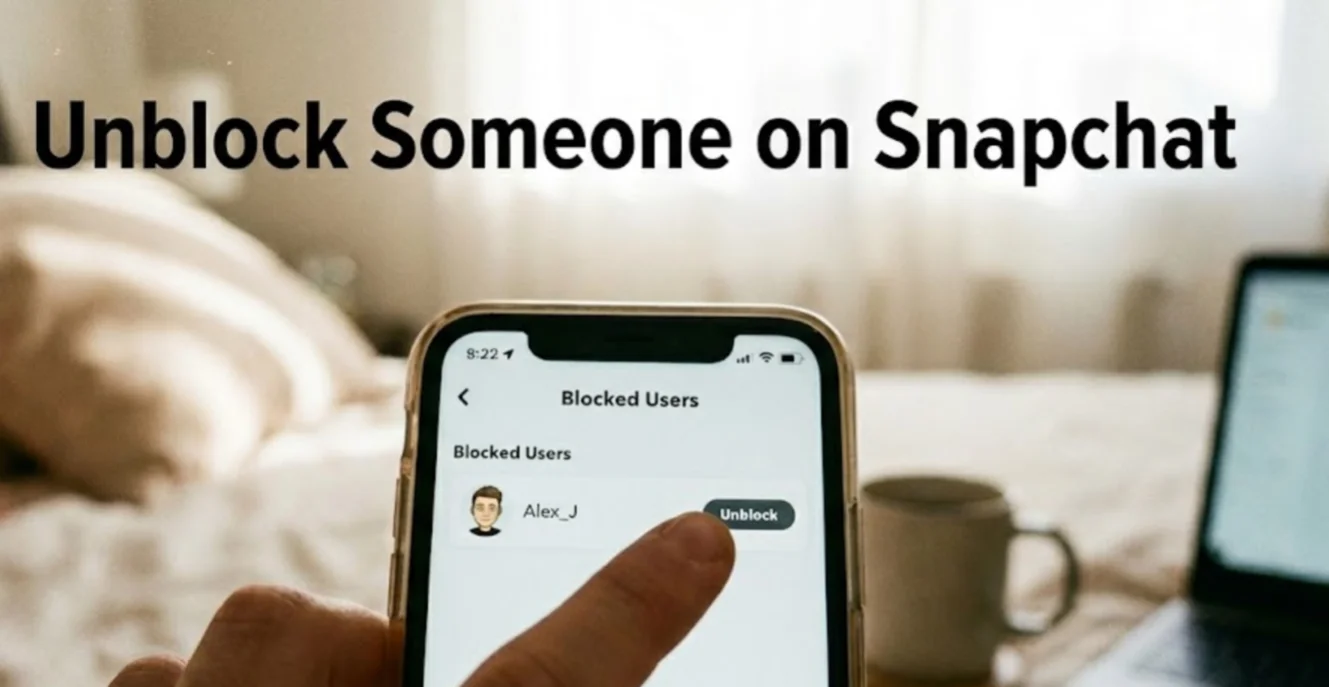

How to Unblock Someone on WhatsApp?
The specific steps to locate your blocked contacts list look slightly different depending on the device you hold in your hand or the computer sitting on your desk. The operating systems structure their menus in different ways. Choose the device you are using right now from the sections below and follow the specific path to restore your contact.
🎯 On Android
Android users can unblock contacts through the privacy section of WhatsApp settings. The menu layout is similar on most Android phones, such as Samsung, Google Pixel, Xiaomi, and OnePlus devices. Once you locate the blocked contacts list, removing a block only takes a few seconds.
Step 1: Open WhatsApp
Locate the WhatsApp icon on your Android phone and tap it to open the application. Wait until the main chat screen loads. This is the page where all your recent conversations appear.
Step 2: Open the main menu
Look at the top-right corner of the screen and tap the three-dot menu icon. This button opens a dropdown menu that contains several options for managing your account and app settings.
Step 3: Enter Settings
From the dropdown menu, tap Settings. The settings page will appear with several categories such as Account, Privacy, Chats, and Notifications.
Step 4: Go to the Blocked Contacts list

Tap Privacy, then scroll down until you find Blocked Contacts. Open it to see every number or contact you have blocked on WhatsApp.
Step 5: Unblock the person
Tap the contact you want to unblock. A small message will appear asking whether you want to remove the block. Tap Unblock to confirm. The contact will immediately be removed from the blocked list and will be able to message you again.
🎯 On iOS
The steps on an iPhone are slightly different because the WhatsApp settings tab is located at the bottom of the screen rather than inside a menu.
Step 1: Launch WhatsApp
Open WhatsApp from your iPhone home screen. After the application loads, you will see the chat list with your recent conversations.
Step 2: Open the Settings tab
Look at the bottom navigation bar and tap Settings. This opens the page where you can manage account information, privacy options, storage, and other app preferences.
Step 3: Access the Privacy settings

Tap Privacy to enter the section where WhatsApp controls visibility and security options such as last seen status, profile photo access, and blocked contacts.
Step 4: Open the Blocked list

Scroll down until you find Blocked. Tap it to open the list of contacts you previously blocked.
Step 5: Remove the block
Swipe left on the contact you want to unblock and tap Unblock, or tap Edit in the corner and remove the contact using the red minus icon. Once removed, the contact will be able to send messages again.
🎯 On Windows
WhatsApp Desktop on Windows works as a companion app linked to your phone. You can still manage blocked contacts directly from the desktop interface.
Step 1: Open WhatsApp
Find the WhatsApp icon on your Android phone and tap it to launch the application. After the app opens, you will see the main chat screen where your recent conversations are listed. Make sure you are logged into your WhatsApp account before moving to the next step.
Step 2: Open the menu
Look at the top-right corner of the screen. You will see a three-dot icon, which is the main menu button in WhatsApp for Android. Tap this icon to open a dropdown menu that contains several options related to your account and settings.
Step 3: Go to Settings
In the dropdown menu, tap Settings. This will open the WhatsApp settings page where you can manage account options, privacy controls, chats, notifications, and storage.
Step 4: Enter the Privacy section
Inside the settings menu, tap Privacy. This page contains settings related to your account visibility, including profile photo access, last seen status, read receipts, and the list of blocked contacts.
Step 5: Open Blocked Contacts
Scroll down through the privacy page until you find Blocked Contacts. Tap this option to open the list. Here you will see all the phone numbers or contact names that you have blocked in the past.
Step 6: Unblock the contact
Find the contact you want to unblock and tap their name or number. A small confirmation message will appear on the screen asking if you want to remove the block. Tap Unblock to confirm. Once the action is completed, the contact will be removed from the blocked list and will be able to send messages to you again.
🎯 On macOS
Mac users can unblock contacts through the WhatsApp Desktop application in a similar way, although the layout of the settings panel is slightly different.
Step 1: Open WhatsApp Desktop
Launch the application from the Applications folder, Launchpad, or the dock. When the app opens, your chat list will appear on the screen.
Step 2: Access the Settings panel
Click the Settings icon in the sidebar. This opens the main settings page where you can manage notifications, privacy, and account options.
Step 3: Open the Privacy section
Inside the settings menu, select Privacy. This page includes the blocked contacts list.
Step 4: Manage blocked contacts
Click Blocked Contacts to view all numbers and contacts you have blocked. Find the person you want to unblock.
Step 5: Remove the block
Click the Unblock button next to the contact’s name or number. Once you confirm the action, the block will be removed and the person can message you again.
Common Issues When Unblocking Someone on WhatsApp & Fix
Sometimes users run into small problems while trying to unblock a contact. These issues are usually easy to fix. The table below lists several common situations and simple solutions.
| Issues | Description | Fix |
|---|---|---|
| Contact not visible in the blocked list | The contact may have been deleted from your phone contacts | Search using the phone number instead |
| Settings page not loading | A weak internet connection may prevent the list from loading | Switch to Wi-Fi or reconnect to mobile data |
| Unblock option missing | Older WhatsApp versions may hide certain options | Update the app to the latest version |
| Messages still not received | The contact may not have sent a message yet | Ask them to send a new message |
| Contact still appears blocked | The app may not have refreshed settings | Close WhatsApp and reopen it |
Final Verdict
Unblocking someone on WhatsApp is a simple task that takes only a few steps through the privacy settings. Once the contact is removed from the blocked list, normal messaging can continue again. Different devices place the settings in slightly different locations, but the process remains quick and simple.
FAQs
Can I unblock someone whose account no longer exist?
If the WhatsApp account has been deleted or permanently removed, unblocking will not restore communication. The phone number must register a new WhatsApp account before messages can be sent again.
Will the person know immediately that I unblocked them?
WhatsApp does not notify users when they are unblocked. They may only realize it if they try sending a message and it goes through successfully.
Can I unblock someone without saving their number?
Yes. Even if the number is not saved in your phone contacts, it can still appear in the blocked list. You can unblock it directly from there.
Will group chats be restored after unblocking someone?
Unblocking does not automatically add you back to groups that the person manages. You must be invited again by a group admin.
Is there a limit to how many contacts I can unblock?
No. WhatsApp does not set a limit on unblocking contacts. You can unblock as many numbers as you want whenever you choose.