




Possible Reasons for WhatsApp Suddenly Not Opening

If WhatsApp won't open, it usually means there is an issue with the app, your device, or the connection between them. Understanding the possible causes can save time and make troubleshooting easier. Here are six common reasons:
💡 Outdated App Version: Many issues occur when the WhatsApp app is not updated. Developers release updates to fix bugs and improve compatibility with new phone operating systems. Using an older version can prevent the app from opening or functioning properly.
💡Poor Internet Connection: WhatsApp requires a stable internet connection to load. If your Wi-Fi is weak or your mobile data is unstable, the app may fail to open or display errors when trying to send messages.
💡Full Storage or Device Memory: When your phone storage is almost full, apps like WhatsApp may fail to launch. Insufficient memory affects the app’s ability to load its files and data, leading to crashes or freezing.
💡Corrupted App Cache or Data: Over time, WhatsApp stores temporary data to speed up its performance. If this cache becomes corrupted, the app may stop opening or freeze on the loading screen.
💡Software Conflicts or Bugs: Other apps installed on your device can sometimes interfere with WhatsApp. Certain security apps, battery savers, or system management tools may restrict app functions, causing WhatsApp to fail.
💡Phone Operating System Issues: If your phone's OS is outdated or has bugs, WhatsApp may not run correctly. Compatibility problems are common when the OS is older than the app version requires.
Quick Solutions to WhatsApp Not Working
If WhatsApp won't open, there are several straightforward solutions you can try before seeking professional help. Each of these steps addresses a common cause and usually restores the app's normal function.
Way 1: Make Sure You Have the Right Access
Check if WhatsApp has the necessary permissions to run on your device. Without permission to access storage, contacts, or network settings, the app may fail to open. On Android, go to Settings > Apps > WhatsApp > Permissions and ensure all required options are enabled. On iPhone, go to Settings > WhatsApp and check that all relevant toggles are on.
Sometimes, WhatsApp may not work because of network restrictions. For example, public Wi-Fi networks in schools, offices, or cafes can block access to WhatsApp servers. In addition, some countries restrict access to WhatsApp due to geographic regulations. In these situations, using a VPN can help.
It creates a secure connection that allows WhatsApp to bypass both local network restrictions and geographic blocks. UFO VPN is a reliable choice, offering stable servers and easy setup for Android and iPhone. Make sure the VPN is active and connected, then reopen WhatsApp to check if it works properly.


UFO VPN is an all-in-one VPN that offers unlimited access to 4K streaming like Netlfix, Disney Plus, no-ping gaming as PUBG, Roblox, CODM and social networking for YouTube, X, Facebook and more.




Unlock Pro Features
If you have upgraded to premium plan , feel free to enjoy premium servers for 4K streaming and advanced features like Kill Switch, Split Tunneling, and gaming acceleration. Your Mac is now fully optimized and protected. Inaddition to basic functions, we recommend you turn on

Verify Your IP Now
Use UFO VPN's " What is My IP " feature to see your new IP and location. This confirms your connection is secure, anonymous, and ready for safe browsing online anywhere at any time.







Way 2: Check the Internet Connection
Verify that your Wi-Fi or mobile data is working. Try opening a website or another app to see if it loads correctly. If the connection is slow or unstable, switch networks, turn Wi-Fi off and on, or reset your mobile data. A stable connection ensures WhatsApp can sync messages and load properly.
Way 3: Update WhatsApp to the Latest Version
Visit the Google Play Store or Apple App Store and check for updates. Updating ensures the app has the latest bug fixes and compatibility improvements. If an update is available, install it and reopen WhatsApp. Many startup issues are resolved simply by updating the app.
Way 4: Log out and Reopen the App
Sometimes, closing the app completely and reopening it can fix temporary glitches. On Android, swipe up or use the app switcher to close WhatsApp.
On iPhone, double-click the Home button (or swipe up from the bottom on newer models) and swipe WhatsApp away. After closing, open it again to see if it starts properly.
Way 5: Restart Your Devices
Restarting your phone can clear minor system issues affecting app performance. Turn off your device, wait 10-20 seconds, and turn it back on. This often resolves background conflicts or temporary bugs that prevent apps from opening.
Way 6: Clear Cache
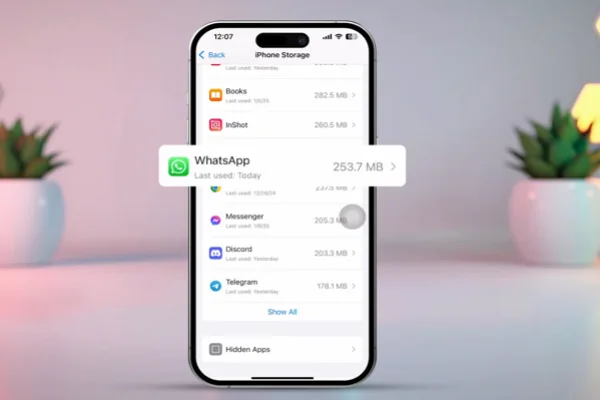
Clearing the cache removes temporary files that may have become corrupted. On Android, go to Settings > Apps > WhatsApp > Storage > Clear Cache. This does not delete your messages or media. iPhone does not have a direct cache-clear option, but reinstalling the app achieves a similar effect.
Way 7: Allow All App Permissions
Ensure that WhatsApp has permission to access storage, microphone, camera, and location, depending on your usage. Without these permissions, some functions may fail, and the app may refuse to start. Check in your device settings under Permissions or Privacy.
Way 8: Update Your Phone's Operating System
Running an outdated OS can create compatibility issues with apps. On Android, go to Settings > System > Software Update. On iPhone, go to Settings > General > Software Update. Installing the latest OS ensures all apps, including WhatsApp, run with full support.

Additional Tips for Using WhatsApp Smartly
Once WhatsApp is working again, there are ways to use it more efficiently and avoid future issues. Here are four practical suggestions:
✅ Limit Background Data Use
Prevent WhatsApp from using too much data in the background. On Android, go to Settings > Apps > WhatsApp > Data Usage and adjust settings to reduce background activity. On iPhone, go to Settings > WhatsApp > Background App Refresh.
✅ Regularly Back Up Chats
Backup your chats to Google Drive or iCloud. Regular backups protect your data and make it easier to restore WhatsApp after reinstalling or switching devices.
✅ Keep Storage Space Free
Delete old media files and messages that are no longer needed. WhatsApp uses storage to save images, videos, and documents, so clearing space can improve performance and prevent crashes.
✅ Manage Notifications
Customize notifications to avoid being overwhelmed by frequent messages. In WhatsApp settings, go to Notifications to adjust sounds, vibration, and message previews. This keeps the app running smoothly and avoids unnecessary background activity.
Conclusion
WhatsApp not opening can be caused by app errors, network problems, storage issues, or system conflicts. Understanding these causes and knowing how to troubleshoot them quickly can save time and frustration.
The eight practical solutions listed here address common problems directly, and the additional tips help keep WhatsApp running efficiently. By maintaining your app, phone, and connection, you can enjoy uninterrupted messaging every day.
FAQs
Why does WhatsApp crash immediately after opening?
Crashes can result from corrupted cache, low memory, or outdated app versions. Clearing cache, freeing up storage, and updating the app usually resolves this.
Can antivirus apps prevent WhatsApp from opening?
Yes. Some security apps restrict WhatsApp's functions. Temporarily disabling the antivirus or adjusting its settings can help the app open.
Will reinstalling WhatsApp delete my messages?
If you do not back up your chats, reinstalling will delete messages. Always back up chats to Google Drive or iCloud before reinstalling.
Why does WhatsApp freeze on loading screen?
Freezing often occurs due to a weak internet connection, app bugs, or an outdated OS. Checking the connection, clearing the cache, and updating both the app and OS can fix this.
Is WhatsApp compatible with older phones?
Older devices may face performance issues or lack compatibility with the latest app version. Updating the OS or using a supported device improves stability.