Prep checklist before you transfer files
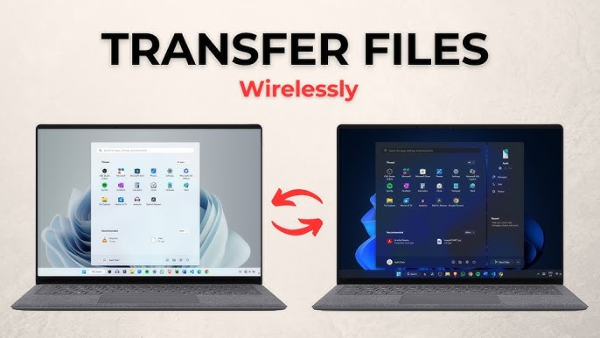
A tiny bit of prep turns PC to PC file transfer from messy to painless. Do these first so how to transfer files from PC to PC goes smoothly.
-
Map what’s moving. List folders (Documents, Desktop, Downloads, Photos, Music, project folders). Don’t forget hidden app data (e.g.,
%AppData%), browser profiles, and email archives. -
Clean as you go. Delete obvious junk so you don’t migrate clutter.
-
Update both PCs. On transfer files Windows 11 jobs, update Windows and drivers so features like Nearby Share Windows and SMB are stable.
-
Name both PCs clearly. Settings → System → About → Rename this PC to avoid confusion during network discovery.
-
Decide the path. Pick one: offline (USB/SSD/cable), local network (Nearby Share/SMB), or cloud/remote.
-
Safety net. Back up critical folders (and browser passwords/export bookmarks) before any big how to transfer files from PC to PC operation.
Fastest offline methods to transfer files PC to PC
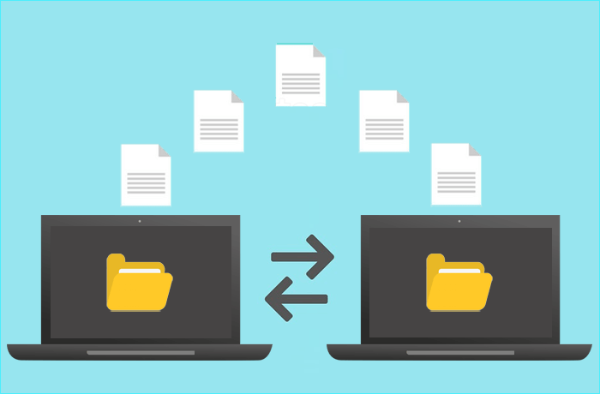
When speed matters, offline wins. These options keep how to transfer files from PC to PC quick and dependable.
External SSD/HDD (USB 3.2/4)
-
Steps: Plug into the old PC → copy folders → eject → plug into the new PC → paste.
-
Why it’s great: No network bottlenecks; 500MB/s–1GB/s on a good SSD.
-
Tips: Format the drive exFAT (cross-platform). Copy in logical chunks (e.g.,
DocumentsthenPictures). Verify sizes after copy.
High-capacity USB drive
-
Steps: Same as SSD, just slower and smaller.
-
Use for: Smaller PC to PC file transfer jobs (docs, photos, a few videos).
PC-to-PC transfer cable (USB-to-USB)
-
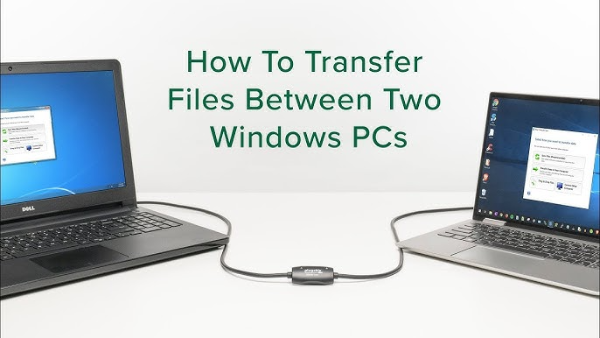
Steps: Use a data transfer cable that ships with a utility; install on both PCs; select folders; start transfer.
-
Why it’s great: Direct copy without external media.
-
Note: Use a reputable cable; ordinary USB-A-to-USB-A without electronics is unsafe.
If you have the hardware handy, offline is the quickest answer to how to transfer files from PC to PC for large libraries.
Transfer files PC to PC over a local network (LAN)
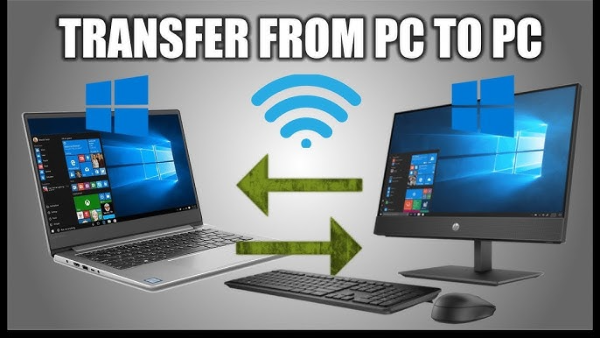
No external drive? Your Wi-Fi or Ethernet can handle how to transfer files from PC to PC without the internet.
Nearby Share (Windows 11/10 modern builds)
-
Enable on both PCs: Settings → System → Nearby sharing → Everyone nearby (or My devices if both use your Microsoft account).
-
Share: Right-click files/folders → Share → choose the other PC.
-
Pros: Simple UI, encrypted on the local link, perfect for ad-hoc shares.
-
Best for: Medium transfers; integrates directly with transfer files Windows 11 workflows.
SMB file sharing (classic network share)
-
Enable discovery: Settings → Network & Internet → Advanced sharing → turn on Network discovery & File and printer sharing.
-
Share a folder: Right-click a folder → Properties → Sharing → Advanced Sharing → share name → permissions as needed.
-
Access from other PC: Press Win+R, type
\\PC-NAME\Sharename, press Enter. -
Pros: Great for large moves, structured, resumable; works over Ethernet for maximum speed.
-
Tip: Use wired Ethernet for big migrations; it’s far faster and more stable than Wi-Fi.
Direct Ethernet (no router)
-
Steps: Connect PCs with Ethernet → set both to Private network → ensure they’re in the same subnet → use SMB as above.
-
Why: 1Gbps (or 2.5/10Gbps) peer-to-peer beats shared Wi-Fi congestion.
LAN approaches are the most “set it and forget it” way to handle how to transfer files from PC to PC across a home or office.
Transfer files PC to PC via cloud or sync tools
Cloud is ideal when the PCs aren’t on the same network—or you want a second copy as you move. It’s also the least disruptive path for how to transfer files from PC to PC during a busy workday.
Cloud drives (OneDrive, Google Drive, Dropbox, etc.)
-
Steps: Sign in on both PCs → upload from the old PC → wait → download/sync to the new PC.
-
Pros: Off-site backup during the move; pauses/resumes; easy cross-platform.
-
Cons: Limited by your internet upload speed and storage quota.
-
Tip: For transfer files Windows 11, OneDrive can auto-migrate Desktop/Documents/Pictures. Check your OneDrive storage before the move.
Personal cloud/NAS (e.g., Synology, TrueNAS)
-
Steps: Mount the NAS share; copy from old PC → paste to NAS → paste from NAS to new PC.
-
Pros: Very fast on gigabit/2.5G LAN; keeps a central backup.
-
Tip: Enable SMB3 and jumbo frames (if your network supports it) for higher throughput.
Ad-hoc transfer apps
-
Examples: Resumable transfer utilities or web-based drop apps you self-host temporarily.
-
Good for: One-off, simple PC to PC file transfer where you don’t want to set up shares.
Cloud methods trade raw speed for simplicity and resilience—the safest “slow and steady” path for how to transfer files from PC to PC when distance or time zones are involved.
Transfer files PC to PC over the internet (safely)
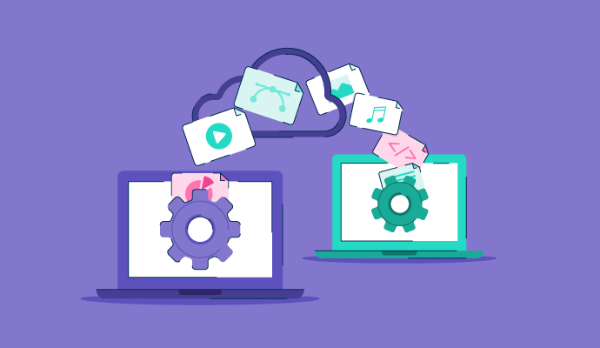
Sometimes you must move data between networks (home → office; two cities). Here’s how to transfer files from PC to PC when there’s no shared LAN.
SFTP/FTPS (secure file servers)
-
Steps: Set up SFTP on one PC or a small VPS/NAS; connect from the other PC with a client (e.g., WinSCP) and copy.
-
Pros: Encryption, granular control, resumable.
-
Tip: Use strong passwords or SSH keys; open only the ports you need and close them after the migration.
End-to-end encrypted messengers/drives
-
Use for: Small to medium moves where you need privacy and simplicity.
-
Limit: Size caps may apply.
Protecting the route with a VPN
A VPN won’t make a slow plan fast, but it does protect your path—crucial when you perform how to transfer files from PC to PC over hotel, café, or campus Wi-Fi, or when an ISP plays games with routes.
-
Why use it: Encrypts traffic against on-path snooping, reduces captive-portal shenanigans, and can stabilize flaky routes during long uploads.
-
Simple routine:


UFO VPN is an all-in-one VPN that offers unlimited access to 4K streaming like Netlfix, Disney Plus, no-ping gaming as PUBG, Roblox, CODM and social networking for YouTube, X, Facebook and more.




Unlock Pro Features
If you have upgraded to premium plan , feel free to enjoy premium servers for 4K streaming and advanced features like Kill Switch, Split Tunneling, and gaming acceleration. Your Mac is now fully optimized and protected. Inaddition to basic functions, we recommend you turn on

Verify Your IP Now
Use UFO VPN's " What is My IP " feature to see your new IP and location. This confirms your connection is secure, anonymous, and ready for safe browsing online anywhere at any time.







-
Reality check: If a service blocks VPN IPs for large transfers, pause the VPN for that service only, then re-enable when finished.
Used this way, a VPN complements your security posture during PC to PC file transfer, especially across untrusted networks.
Fix common errors when you transfer files PC to PC
If how to transfer files from PC to PC stalls, these fixes usually help.
“Access denied” on SMB shares
-
Ensure both PCs are on Private (not Public) networks.
-
Match user accounts/passwords or grant Everyone → Read/Change temporarily on the shared folder (revert after the move).
Transfers crawl over Wi-Fi
-
Move the destination PC closer to the router; use 5GHz or Wi-Fi 6/6E.
-
For massive libraries, use Ethernet. Wi-Fi interference often masquerades as “Windows is slow.”
File name too long / path too long
-
Zip the folder first, then transfer.
-
Flatten deep subfolder structures before moving.
Interrupted copies
-
Use tools with resume support (robust copy utilities, SFTP clients).
-
On Windows,
robocopywith/Z(restartable mode) and/E(include subdirs) is your friend:(Run in an elevated terminal; adjust threads
/MTto your CPU/drive.)
Hidden data didn’t move
-
Show hidden items and copy
%AppData%or program-specific folders you need (e.g., mail archives, editor configs).
Cloud sync collisions
-
Pause sync on one PC while you seed files; resume only when the initial upload finishes to prevent duplicate storms.
VPN slowed a transfer
-
Choose the nearest free proxy VPN in UFO VPN location; avoid far-away regions.
-
If a service rate-limits VPN egress, pause the VPN for that host, or use SFTP over VPN only on public Wi-Fi, not at home.
These tips turn “it keeps failing” into “it’s finally done” for how to transfer files from PC to PC jobs of any size.
FAQs
What’s the fastest method for large migrations?
An external USB 3.2/4 SSD or wired Ethernet SMB is typically fastest. For truly huge libraries, combine both: seed to SSD, then finish deltas over LAN.
Is Nearby Share good enough for a whole user folder?
It works, but it’s easier to use SMB or an external SSD for entire profiles. Nearby Share shines for ad-hoc, medium transfers.
Does a VPN speed up transfers?
A VPN (e.g., UFO VPN) protects the route and can stabilize remote paths. It won’t exceed your plan’s speed but may avoid ISP traffic shaping or sketchy public Wi-Fi issues.
Should I copy Programs or reinstall?
Reinstall apps on the new PC. Copy data and settings, not the Program Files folders. Portable apps are an exception.
How do I keep folder structure intact?
Use drag-and-drop of the top-level folder or robocopy with /E. Avoid cherry-picking files if you want identical structure.