Understand the “Minecraft LAN not working” problem
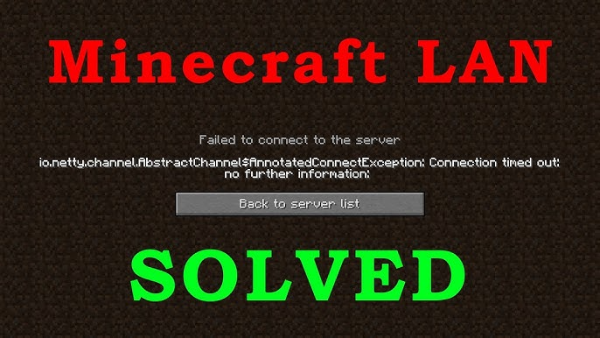
“LAN” mode broadcasts a local game over your home network using your PC’s IP address and port (commonly 25565 for Java). Other PCs on the same subnet auto-discover it. When Minecraft LAN not working appears, one of three layers is failing:
-
Device layer: wrong network profile (Public instead of Private), firewall blocking
javaw.exe/Minecraft, antivirus interference, or expired drivers. -
Network layer: Wi-Fi isolation (AP/client isolation), different subnets/VLANs, router guest networks, or Ethernet/Wi-Fi mixing that can’t talk.
-
Game layer: mismatched Minecraft versions/editions, incompatible mods, cheats/rules conflicts, or an already-used port.
Quick fixes on each PC (fastest wins first)
Start here—these resolve most Minecraft LAN not working cases in minutes.
-
Put both PCs on the same network & band
-
Connect both to the same SSID or the same Ethernet switch. Avoid “Guest” Wi-Fi. If possible, use 5 GHz for stable LAN.
-
Confirm both IPs share the same first three octets (e.g.,
192.168.1.x). If not, you’re on different subnets.
-
-
Set the network profile to Private/Trusted (Windows)
-
Settings → Network & Internet → Wi-Fi/Ethernet → your network → Private.
-
Private allows device discovery; Public blocks it, which triggers Minecraft LAN not working.
-
-
Allow Minecraft/Java through the firewall
-
Windows Defender Firewall → Allow an app → ensure Minecraft and Java™ Platform SE binary (javaw.exe) are allowed on Private networks.
-
Temporarily disable third-party firewalls/AV to test. If LAN works, add permanent allow rules.
-
-
Host the world properly
-
Open a single-player world → Open to LAN → pick mode → Start LAN World.
-
Note the port shown (e.g.,
Local game hosted on port 54923). On the joining PC, click Multiplayer → Scanning. If it doesn’t appear, choose Direct Connect and enterHOST-IP:PORT.
-
-
Match versions and editions
-
Both players must run the same edition (Java ↔ Java or Bedrock ↔ Bedrock) and the same version. For Java with mods, both mod lists and loaders must match (Forge/Fabric). Mismatches are a top cause of Minecraft LAN not working.
-
-
Restart the basics
-
Close Minecraft on both PCs, then reboot both machines and power-cycle the router (unplug 30–60s). Fresh routing tables solve many local discovery issues.
-
-
Update drivers and Java (Java Edition)
-
Update GPU & NIC drivers, then install the latest Java runtime (if not bundled by your launcher). Outdated runtimes can break discovery sockets.
-
If Minecraft can’t connect to LAN after these, move to network checks.

Network checks for LAN play (router, IP, isolation)
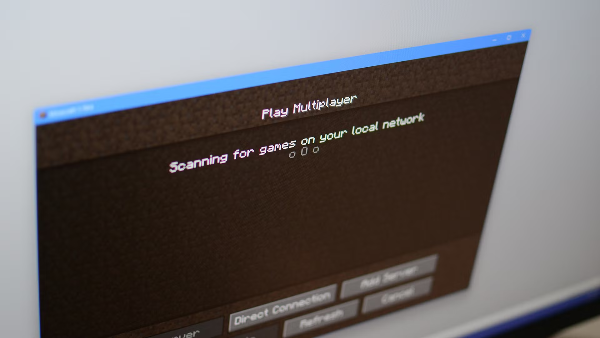
These steps fix the “we’re on the same Wi-Fi but I still can’t see your world” flavor of Minecraft LAN not working.
-
Confirm same subnet
-
On Windows:
Win + R→cmd→ipconfig. On macOS: System Settings → Wi-Fi → Details. -
Both devices should be, for example,
192.168.0.xwith the same subnet mask (255.255.255.0). If one is192.168.0.xand the other192.168.50.x, the router is segmenting networks.
-
-
Disable AP/Client Isolation & Guest mode
-
In router settings, turn off AP Isolation/Client Isolation for the SSID you’re using. Guest networks often isolate devices by default, leading to Minecraft LAN not working.
-
-
Prefer wired or same-band Wi-Fi
-
Mixed 2.4 GHz/5 GHz or Powerline adapters can sometimes block broadcast packets. Try both PCs on 5 GHz or both on Ethernet.
-
-
Check VPNs, proxies, and DNS
-
Third-party on-device VPN apps can route local traffic over a tunnel, hiding LAN broadcasts. Pause them while using LAN. (You’ll use free proxy VPN in UFO VPN later if you switch to secure online play across networks.)
-
-
Test ping and port
-
On PC2, open Command Prompt and
ping HOST-IP. If no replies, you have a network/firewall issue. -
If you noted the host’s LAN port, try
telnet HOST-IP PORT(Windows feature: Turn Windows features on/off → Telnet Client). Failure indicates a blocked port—create a firewall allow rule for that specific port.
-
These network fixes resolve another big chunk of Minecraft LAN connection problems.
Minecraft settings that break LAN
Once the network is sound, game-level quirks can still trigger Minecraft LAN not working.
-
Edition and version sync
-
Java Edition: Ensure both launchers use the same profile/version (
Installationsin the Minecraft Launcher). -
Bedrock Edition (Windows/console/mobile on the same LAN): All devices must be on similar patch levels.
-
-
Mods and loaders (Java)
-
Both sides need the same loaders (Forge/Fabric/Quilt) and the same mod list and versions. Even small mismatches—like differing world-gen mods—can prevent connections.
-
-
World/cheat rules
-
If Open to LAN with cheats off and the joining player expects operator actions, re-host with the desired settings. Conflicting game rules rarely block discovery but can cause failed joins.
-
-
Port collisions
-
If the host’s LAN port is blocked/in use, restart Minecraft and try Open to LAN again (it chooses a new port). Optionally, set a fixed port in
server.propertieswhen running an actual local server.
-
-
Render-distance overload
-
Excessive render distance on low-power hosts can cause join timeouts. Lower it on the host world before opening to LAN.
-
By aligning editions, versions, and mods, you’ll turn “Minecraft LAN not working” into “Found LAN game.”
Platform-specific fixes (Windows, macOS, Bedrock)
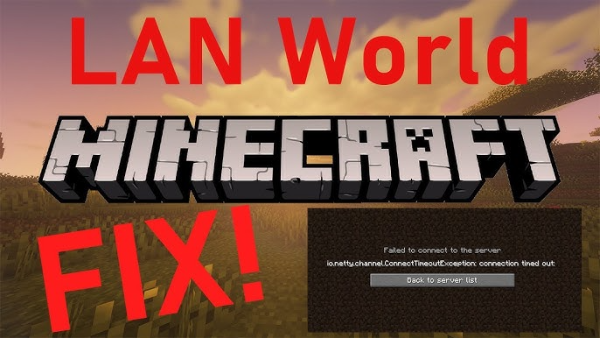
Dial in the last mile with OS-level tweaks that often get overlooked.
Windows (Java & Bedrock)
-
Defender Firewall advanced rule: In Windows Defender Firewall → Advanced settings → Inbound Rules, ensure Java(TM) Platform SE binary and Minecraft have Allow rules for Private. If your LAN port is known (e.g., 54923), create a New Rule → Port → TCP for that port.
-
Network Discovery services: Open Services and verify Function Discovery Resource Publication and SSDP Discovery are running (Automatic).
-
User account control: Run the launcher as administrator once to allow proper rule creation.
macOS (Java & Bedrock)
-
Security & Privacy prompts: The first time Java/Minecraft opens sockets, macOS may ask to allow incoming connections. Click Allow. If you mis-clicked, go to System Settings → Network → Firewall → Options and add Java/Minecraft with Allow incoming connections.
-
Apple silicon notes: Use the latest launcher/Java build optimized for your chip to avoid odd socket behavior.
Bedrock cross-device LAN (PC + console/mobile on home Wi-Fi)
-
Ensure all devices use the same Microsoft/Xbox Live region and are on the same NAT type (Open/Moderate). Strict NATs can stop discovery even on home LAN with cloud-assisted discovery paths.
-
Disable router UPnP only if you know you’re not using it; Bedrock sometimes benefits from UPnP when consoles are involved.
These targeted steps fix the last, stubborn cases of Minecraft LAN not working.
When LAN still fails: play online safely
If you’ve done everything and Minecraft can’t connect to LAN persists—perhaps because your dorm router isolates clients or friends live across town—switch to online play securely.
Option A: Host a local server and port-forward
-
Run the official server (Java) on your PC; forward TCP 25565 on your router to the host’s IP. Share your IP with friends.
-
Security musts: Use a whitelist, strong admin password, and keep the server updated. Change the forwarded port when you’re done.
Option B: Use a reputable hosting service
-
A small paid server removes router headaches and gives you a persistent world with crash protection.
Option C: Play over a secure VPN tunnel
-
If you and your friends can’t share a LAN, a VPN lets you simulate a “same-network” experience with encryption.
-
How UFO VPN helps:
-
On hotel, campus, or café networks, connect in UFO VPN to encrypt traffic and reduce captive-portal or on-path interference while connecting to public servers.
-
If your ISP shapes gaming traffic unpredictably, a nearby UFO VPN location can stabilize routes.
-
For remote friends, you can all connect to the nearest UFO VPN region to minimize latency before joining a hosted server.
-
Note: Most consumer VPNs don’t expose true LAN broadcast between peers. Use VPN for secure online play and downloads, not for in-home LAN discovery. Pause the VPN when returning to local LAN play.
-
- How to Use it Efficiently:


UFO VPN is an all-in-one VPN that offers unlimited access to 4K streaming like Netlfix, Disney Plus, no-ping gaming as PUBG, Roblox, CODM and social networking for YouTube, X, Facebook and more.




Unlock Pro Features
If you have upgraded to premium plan , feel free to enjoy premium servers for 4K streaming and advanced features like Kill Switch, Split Tunneling, and gaming acceleration. Your Mac is now fully optimized and protected. Inaddition to basic functions, we recommend you turn on

Verify Your IP Now
Use UFO VPN's " What is My IP " feature to see your new IP and location. This confirms your connection is secure, anonymous, and ready for safe browsing online anywhere at any time.







FAQs
Why does Minecraft say “Scanning for games on your local network” forever?
You’re likely on different subnets, a guest SSID, or a network with AP/client isolation. Put devices on the same private network and disable isolation in the router.
How do I join if the LAN game doesn’t appear?
Choose Direct Connect and enter HOST-IP:PORT shown on the host after Open to LAN. If that fails, a firewall or port block is in the way.
Can mods cause Minecraft LAN not working?
Yes. For Java, both players must have the same mod loader and identical mod versions. Remove/align mods and try again.
What firewall rules are required on Windows?
Allow Minecraft and Java (javaw.exe) on Private networks; optionally allow the specific LAN port in Inbound Rules. Public profiles often block discovery.
Does a VPN fix LAN discovery?
No. VPNs protect online routes; they don’t enable broadcast discovery across your home LAN. Use UFO VPN when you move from LAN to remote/online play or when using public Wi-Fi.