




How to Find the Blocked List on Snapchat?
Finding your blocked list is the first step in managing your digital boundaries. Over time, you may have blocked dozens of bots, spam accounts, or former friends, and reviewing this list can be a good housekeeping practice for your account.
To access your Blocked List, follow these step-by-step instructions:
-
Open the Snapchat App: Launch the app on your mobile device. Then you will automatically land on the camera screen.
-
Go to Your Profile: Tap on your Bitmoji or profile icon located in the top-left corner of the screen. This opens your main profile dashboard.
-
Access Settings: Look for the "Gear" icon in the top-right corner of the profile page. Tap this to enter the Settings menu.
-
Scroll Down: You will need to scroll down past the "My Account" and "Additional Services" sections.
-
Locate Account Actions: Keep scrolling until you find the "Account Actions" section (on iOS) or look under "Privacy Controls" (on Android, depending on the version).
-
Tap "Blocked": You will see a tab labeled "Blocked." Tap this, and a list of every username you have ever blocked will appear.
How to Unblock Someone on Snapchat?
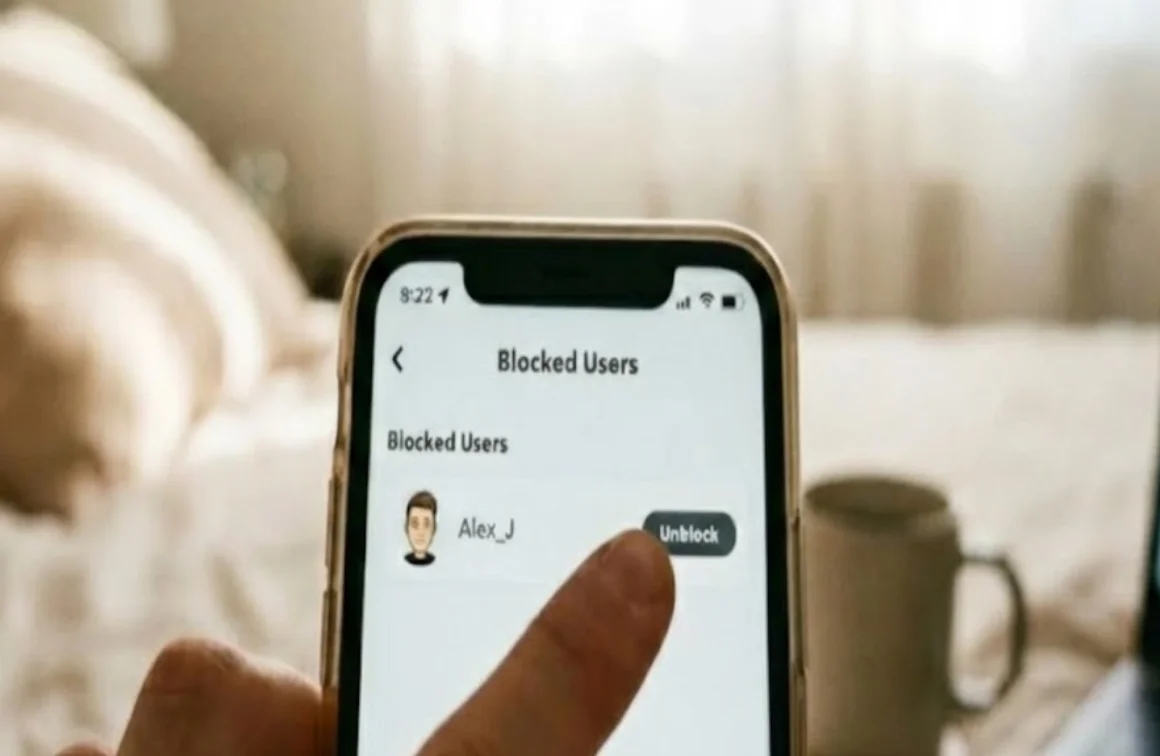
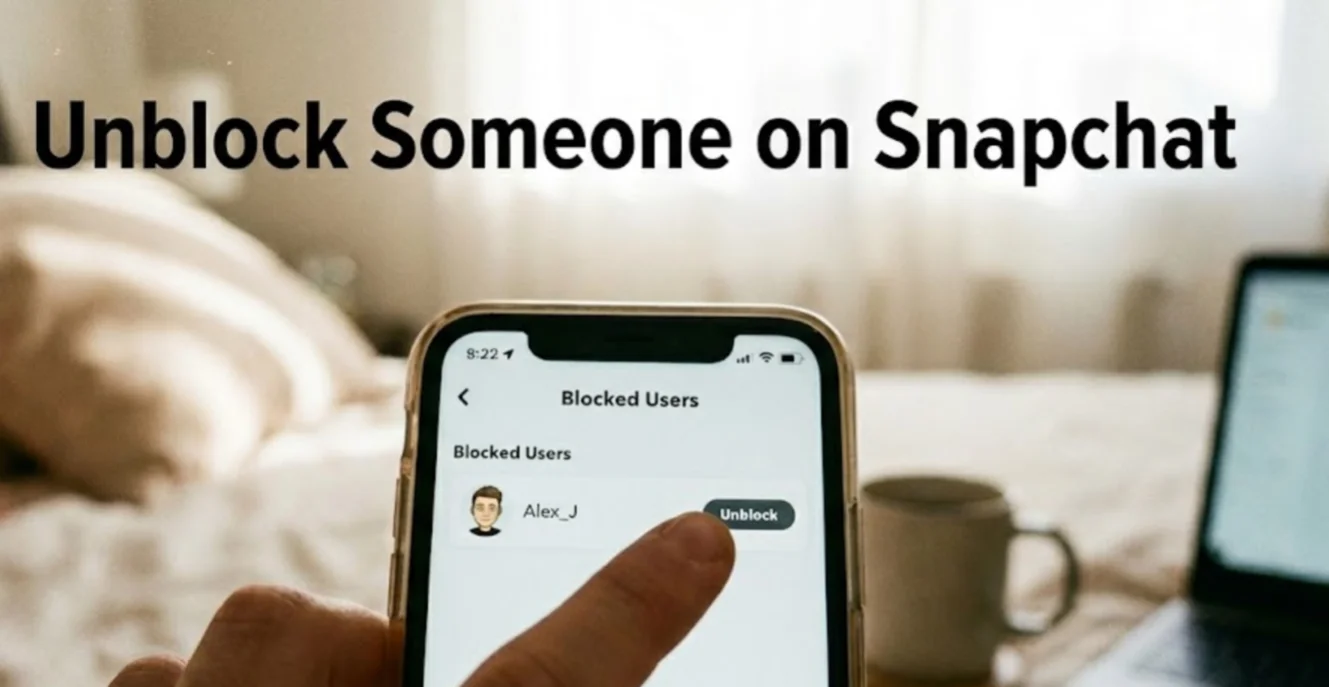
Unblocking is instant, but it is important to be precise. Once you are looking at your blocked list, you might be surprised by how many names are there. Here is how to specifically target and unblock the person you want to reconnect with:
- Identify the User: Scroll through your specific list of blocked users. Note that the list is usually alphabetized by display name or username.
- Tap the 'X': Next to the name of the person you wish to unblock, you will see an 'X' icon (usually gray or black).
- Confirm the Action: After tapping the 'X', Snapchat will trigger a pop-up confirmation asking, "Are you sure you want to unblock this Snapchatter?"
- Select "Yes" or "Unblock": Tap the affirmative option to confirm. The name will instantly disappear from the list.
⚠️ Important Note on Data: Before you proceed, it is crucial to understand how unblocking affects your data and privacy:
-
Chat History Restoration: When you block someone, the chat history is usually hidden or cleared from your feed. Unblocking them does not automatically restore the chat to your main feed immediately unless you have previously saved messages or you decide to start a new conversation.
-
Story Visibility: If your primary reason for blocking them was to stop them from viewing your Story, be aware that unblocking them immediately grants them the potential to see your public content again, depending on your current privacy settings.
If you are trying to unblock a friend while at school or work, you might find the app won't load or refresh. To fix this immediately, enable a free proxy VPN on your device to bypass network blocks.
Bonus Tips: Enhance Your Snapchat Experience Safely
Snapchat is a heavy app that demands a lot from your network and device. You may frequently experience lagging snaps, slow loading times, or concerns about your online privacy while using the app. Here's how you can do to level up the experience:
1. Use a VPN for a Limitless Snapchat
If you want to take your Snapchat experience to the absolute highest level, integrating a VPN is a game-changer. UFO VPN is designed to seamlessly work with social media apps to solve common frustrations that settings tweaks can't fix. Some highlights of this tool include:
-
Bypass Geo-Restrictions: Have you ever traveled to a country or school campus where Snapchat is blocked or restricted? UFO VPN masks your IP address, allowing you to bypass these local firewalls and access your Snaps from anywhere in the world.
-
Enhance Privacy: When you use Snapchat on public Wi-Fi (like in cafes or airports), your data is vulnerable. UFO VPN encrypts your internet connection, ensuring that no one can intercept your Snaps or messages.
-
Improve Connection Stability: Sometimes, Internet Service Providers (ISPs) throttle bandwidth for high-data apps like Snapchat. By using UFO VPN, you avoid this throttling, resulting in faster loading times for stories and smoother video calls.
Moreover, UFO VPN is super easy to set up. Follow the steps below and you can use it on any of your devices in just a few minutes.


UFO VPN is an all-in-one VPN that offers unlimited access to 4K streaming like Netlfix, Disney Plus, no-ping gaming as PUBG, Roblox, CODM and social networking for YouTube, X, Facebook and more.




Unlock Pro Features
If you have upgraded to premium plan , feel free to enjoy premium servers for 4K streaming and advanced features like Kill Switch, Split Tunneling, and gaming acceleration. Your Mac is now fully optimized and protected. Inaddition to basic functions, we recommend you turn on

Verify Your IP Now
Use UFO VPN's " What is My IP " feature to see your new IP and location. This confirms your connection is secure, anonymous, and ready for safe browsing online anywhere at any time.







2. Clear Your Cache
Snapchat automatically downloads lenses, filters, and Discover content to your device to help them load faster next time. However, this "cache" can quickly accumulate, taking up gigabytes of storage and causing the app to lag or crash.
🎯 The Step: Go to Settings > Account Actions > Clear Cache and confirm the action.
⭐ The Benefit: This wipes temporary files to free up massive amounts of storage space and fix common app glitches without deleting your saved Memories, chats, or friends.
3. Enable Two-Factor Authentication (2FA)
In an era of frequent data breaches, relying solely on a password is risky. 2FA adds an essential second layer of defense that locks your account to your specific device.
🎯 The Fix: Enable this in Settings > Two-Factor Authentication. You can choose to receive a login code via SMS or use a dedicated authentication app.
⭐ The Benefit: Even if a hacker successfully steals your password, they cannot access your account without physically having your phone to see the verification code, keeping your private snaps secure.
4. Customize Friend Emojis
The default emojis (like the yellow heart or the fire icon) indicate your friendship status, but they can often feel generic or confusing.
🎯 The Fix: Head to Settings > Manage > Friend Emojis to manually assign specific emojis to different relationship tiers.
⭐ The Benefit: You can change the "Super BFF" heart to a pizza slice or the "Streak" fire to a rocket ship. This makes your friends list look unique to you and helps you instantly recognize your relationship status with different contacts at a glance.
5. Manage Data Usage
By default, Snapchat pre-loads Snaps, Stories, and Discover content in the background so they can view instantly. While convenient, this consumes a significant amount of mobile data rapidly.
🎯 The Fix: Turn on "Data Saver" (sometimes called Travel Mode) in Settings > Additional Services > Manage.
⭐ The Benefit: Snaps and Stories will not load until you specifically tap on them. This significantly reduces data consumption, which is perfect if you are on a limited data plan or roaming internationally.
Do I Need to Add Someone Back After Unblocking?
The short answer is: Yes, absolutely.
When you block someone on Snapchat, the platform completely cuts the friendship tie. It removes them from your Friends list entirely. Therefore, simply hitting "unblock" does not return them to your friends list; it merely returns them to the status of a stranger or a public user.
Here is what you need to know about the post-unblocking dynamic:
-
You Must Send a Request: You will have to search for their username manually or find them in your "Add Friends" suggestions and tap the "Add" button again.
-
They Must Accept: Just like a new friendship, they will receive a notification that you added them. If they realize you unblocked and re-added them, they must accept your request for you to exchange Snaps and see each other's Snap Scores.
-
Privacy Settings Apply: Until they add you back, you will only be able to see their content if their privacy settings are set to "Everyone." If their account is locked down to "Friends Only," you will see a grey "Pending" status next to your messages.
Understanding this distinction is vital to avoid the embarrassment of sending Snaps that never get delivered because the friendship hasn't been formally re-established.
Conclusion
Managing your social circle on Snapchat doesn't have to be permanent or stressful. Whether you are correcting a mistake or rekindling an old friendship, the process is pretty simple once you know where to look. By following this guide, you have learned exactly how to unblock someone on Snapchat, locate your blocked list, and navigate the necessary steps to re-add your friend.
Moreover, by optimizing your app with cache clearing and securing your connection, you ensure that your social media experience is not only social but also safe and fast. Digital boundaries are yours to set and yours to remove - now you have the tools to do both effectively.
FAQs
Will the person know if I unblock them on Snapchat?
Snapchat does not send a specific notification to a user when you unblock them, so they will not be immediately alerted by the app itself.
However, if you attempt to add them as a friend again, they will receive a standard friend request notification, which is a clear indicator that they were previously removed or blocked.
Can I read the old messages after unblocking someone on Snapchat?
This depends on how the conversation was saved prior to the blocking. If you or the other person saved the messages in the chat, they will reappear once you re-add each other as friends, but if the messages were unsaved, the act of blocking usually clears the thread from your recent feed.
Why can’t I find the person I just unblocked on Snapchat?
After unblocking someone, it may take a few moments for Snapchat's servers to refresh the data, or their privacy settings might make them hard to find.
You usually need to manually search for their exact username in the search bar to find and add them again, as they won't automatically pop up in your recent list.
How long do I have to wait to re-block someone on Snapchat?
Snapchat sometimes implements a time restriction to prevent spamming the block feature.
If you unblock someone and immediately try to block them again, you might see an error message or have to wait up to 24 hours before the system allows you to re-block that specific user.