




What Is Spicychat.ai & Is It Safe to Use?

Spicychat.ai is an adult AI chatbot platform designed mainly for free-form roleplay. You can create or browse community-made characters, chat through different scenarios, and use features such as lorebooks, group chats, and multiple AI models. A free plan is available, while paid plans offer features like better memory, more model options, and image generation.
So, is Spicychat.ai safe to use? Generally, yes, for adults, as long as you use it carefully. The platform has operated for several years under NextDay AI and has no major publicly known data breaches. However, you should still avoid sharing personal, financial, or other identifying information in your chats. Your conversations may be stored on its servers, and its privacy policy does not provide much detail about data retention or how chats may be used for AI training. For a safer experience, use the official website and avoid unofficial apps or sites claiming to be Spicychat.
Can't Open This Tool: What Happened to Spicychat.ai?
If you currently can’t open Spicychat.ai, you’re not the only one experiencing the problem. Some users are reporting that the site is not loading properly or showing errors when they try to access the platform or start a chat.
So, what happened to Spicychat.ai? The service is still active, but access may currently be unstable for some users. If you've sed this chat tool recently, you may likely notice one or more of the issues below:
- The website won’t load or stays stuck on a blank page.
- Error messages appear when you open the site or start a chat.
- Chats fail to load or messages don’t send properly.
- Some features stop responding even though the main website opens.
- The connection keeps timing out or drops unexpectedly.
These issues can be temporary, but the exact cause may vary.
Is Spicychat Down for Everyone or Just You?
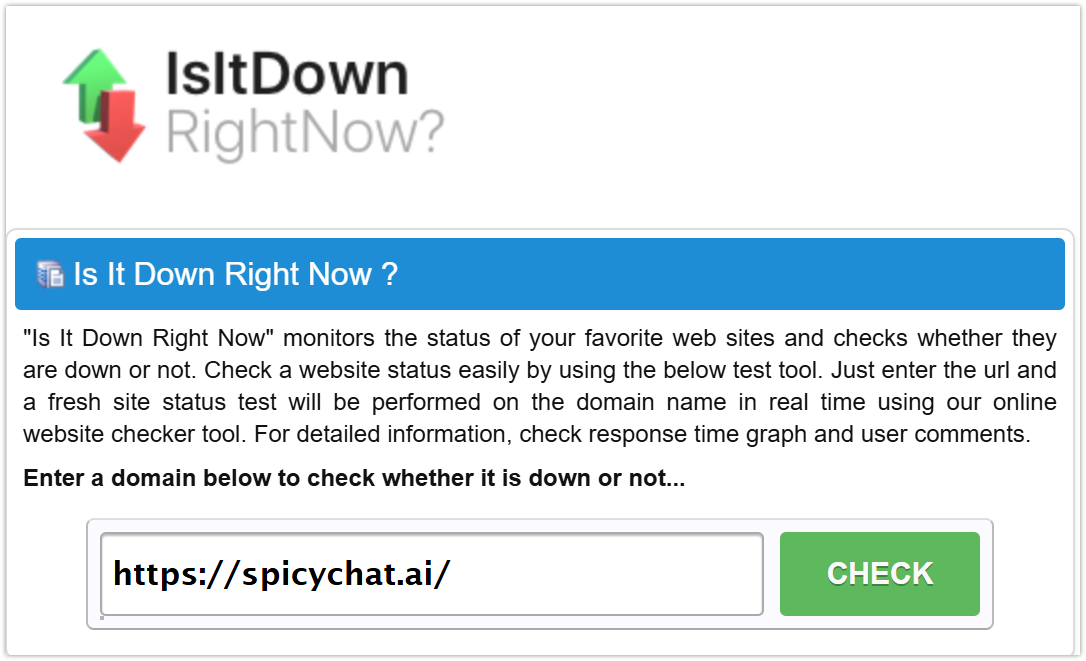
Whenever you can’t access Spicychat.ai, you can first use an online status checker to see whether Spicychat.ai is down for everyone or the problem is limited to your connection. These tools check the site from external servers, so they can quickly help you narrow down the issue.
- Down For Everyone Or Just Me – Quickly checks whether the website is accessible from external servers.
- Downdetector – Shows user reports and outage trends in real time.
- OnlineOrNot – Provides a simple check of website availability.
- Is It Down Right Now? – Checks the current status and provides historical data.
- Website Planet – Lets you quickly check whether a website is online.
- IsItUpDown – Checks website availability from different locations.
- StatusDetector – Cross-checks status signals and user reports.
- Down.directories – Useful for checking multiple services and spotting wider outages.
If these tools show that Spicychat.ai is working normally, the problem is likely on your side. In that case, check your network, browser, device, or other local settings. Keep reading to find the most common causes and quick fixes.
Common Spicychat Breakdown Reasons
When Spicychat.ai won’t load or your chats suddenly stop working, the problem can come from either the platform itself or your own connection and device. In some cases, the issue affects everyone, while in others, only certain networks, browsers, or features are affected. Here are the most common reasons to check:
- Temporary server overload or maintenance – Spicychat may be handling too much traffic or performing maintenance, which can temporarily affect access.
- Regional network or ISP issues – Your internet provider may have routing problems that prevent a stable connection to the site.
- Outdated cache or cookies – Old browser data can interfere with loading the latest version of Spicychat.
- VPN or proxy conflicts – Some VPN or proxy connections may cause verification errors or prevent the site from loading properly.
- Cloudflare or CDN issues – Problems with security checks or content delivery networks can sometimes make the site inaccessible.
- Browser extensions – Ad blockers, privacy tools, or other extensions may interfere with scripts needed by Spicychat.
- DNS problems – Your device may be using outdated DNS information, making it difficult to find the correct server.
- Peak-hour traffic or model issues – Heavy traffic or problems with a specific AI model can cause slow responses or failed chats.
- Wi-Fi or mobile data problems – Switching between Wi-Fi and mobile data can help determine whether your current network is the problem.
- Outdated app or PWA cache – If you use an unofficial app or saved web app, an outdated version or cached data may cause issues.
- Partial feature outages – Sometimes the main website works while specific models, chats, or other features are temporarily unavailable.
10+ Smart Ways to Try When Spicychat Goes Down
Searching “is Spicychat down” may give you plenty of troubleshooting tips, but the right fix depends on where the problem comes from. Start with a quick status check, then try network, browser, and device fixes before moving to more advanced options. Here are 12 practical ways to get Spicychat working again.
1. Check Real-Time Status First
Before changing anything on your device, check whether Spicychat is actually experiencing an outage. This helps you avoid wasting time troubleshooting a problem that affects the platform itself.
Key steps:
- Open Down For Everyone Or Just Me or Downdetector.
- Search for spicychat.ai and check the latest status.
- If an outage is reported, wait for Spicychat to restore the service.
If the status looks normal, move on to the fixes below.
2. Activate a Reliable VPN to Bypass Regional Issues
If Spicychat works normally for others but you cannot access it from your network, regional restrictions or ISP routing may be involved. A VPN can route your connection through another location and may restore access.
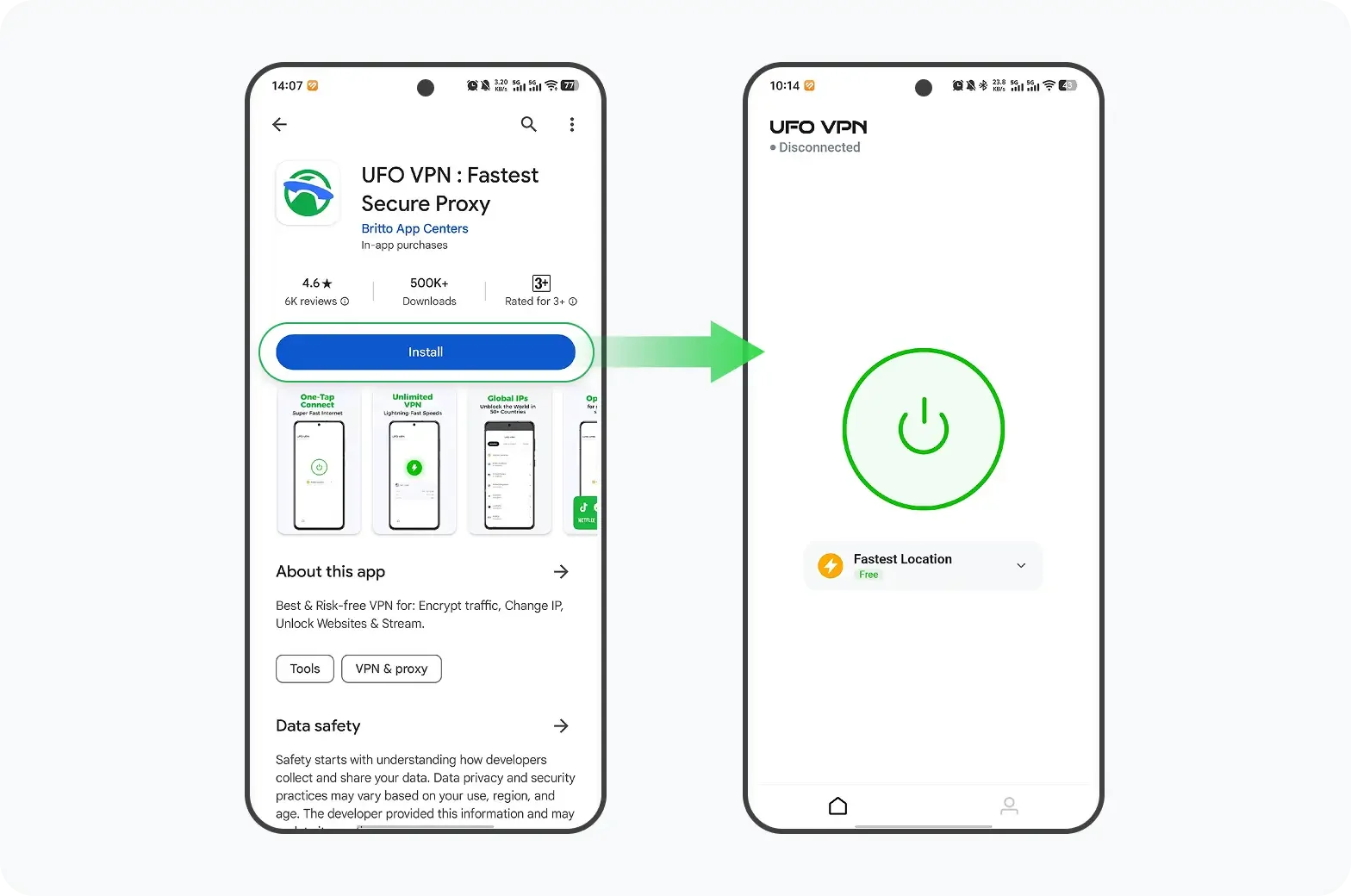
Try UFO VPN if you need a simple option:

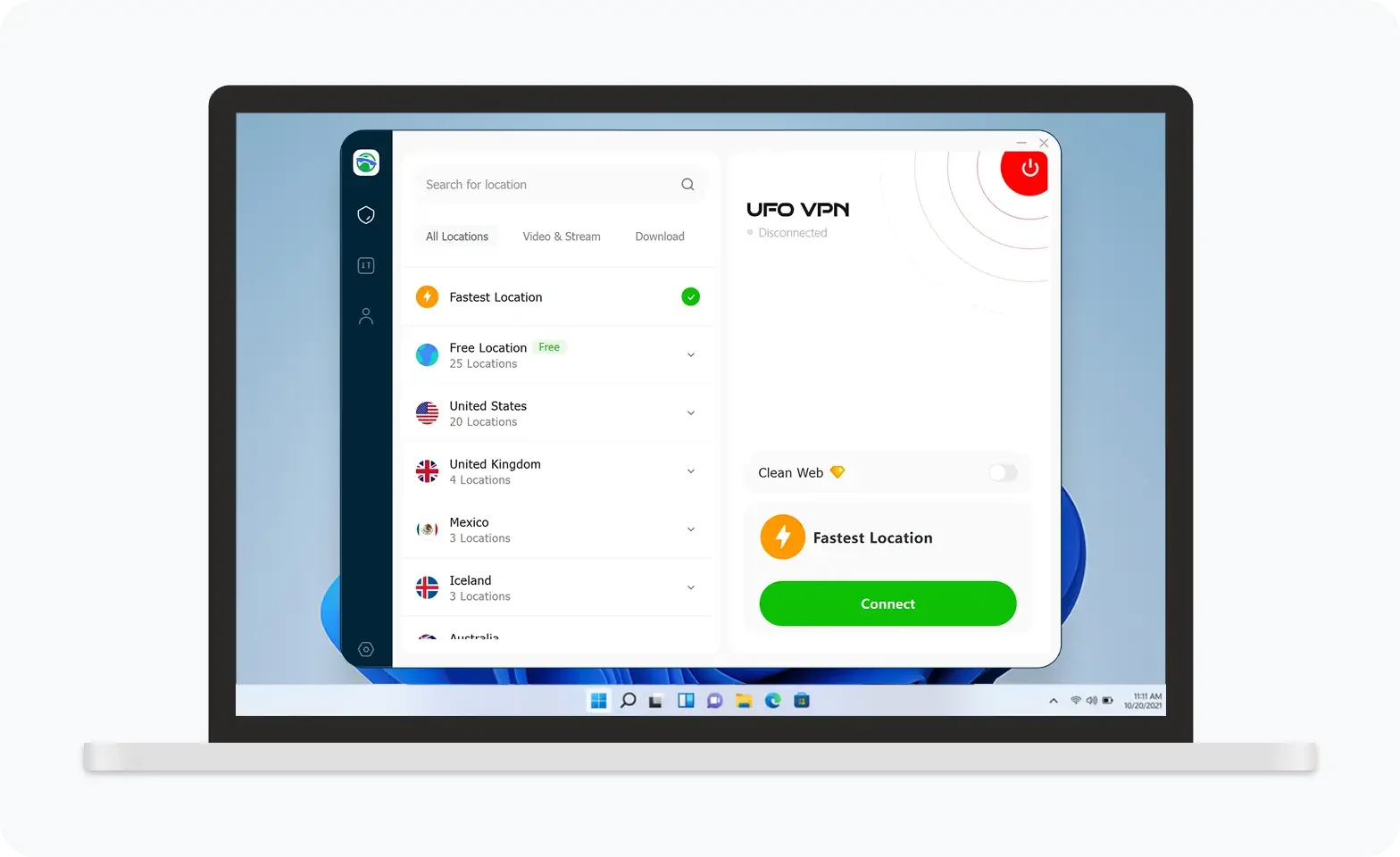
UFO VPN is an all-in-one VPN that offers unlimited access to 4K streaming like Netlfix, Disney Plus, no-ping gaming as PUBG, Roblox, CODM and social networking for YouTube, X, Facebook and more.
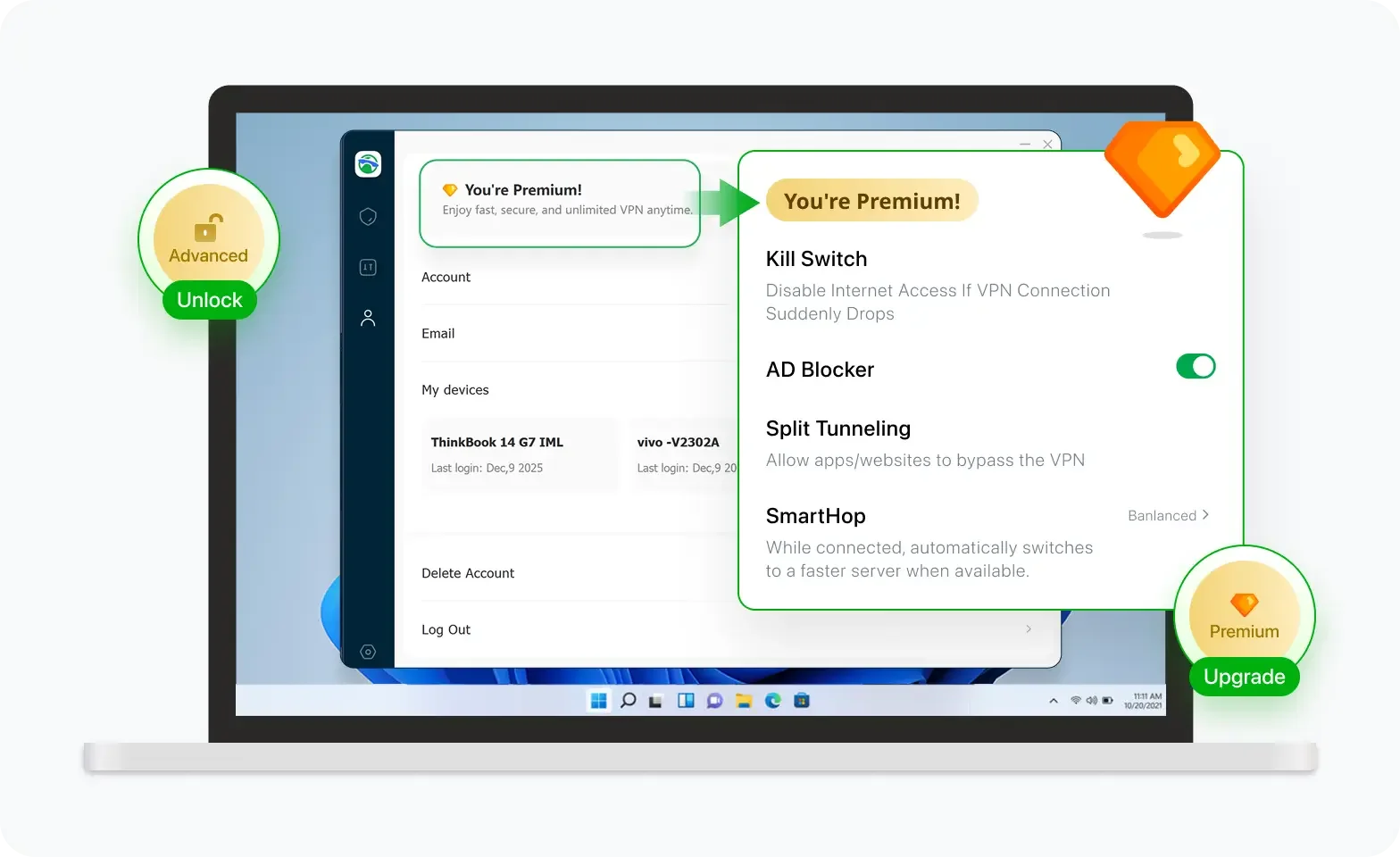


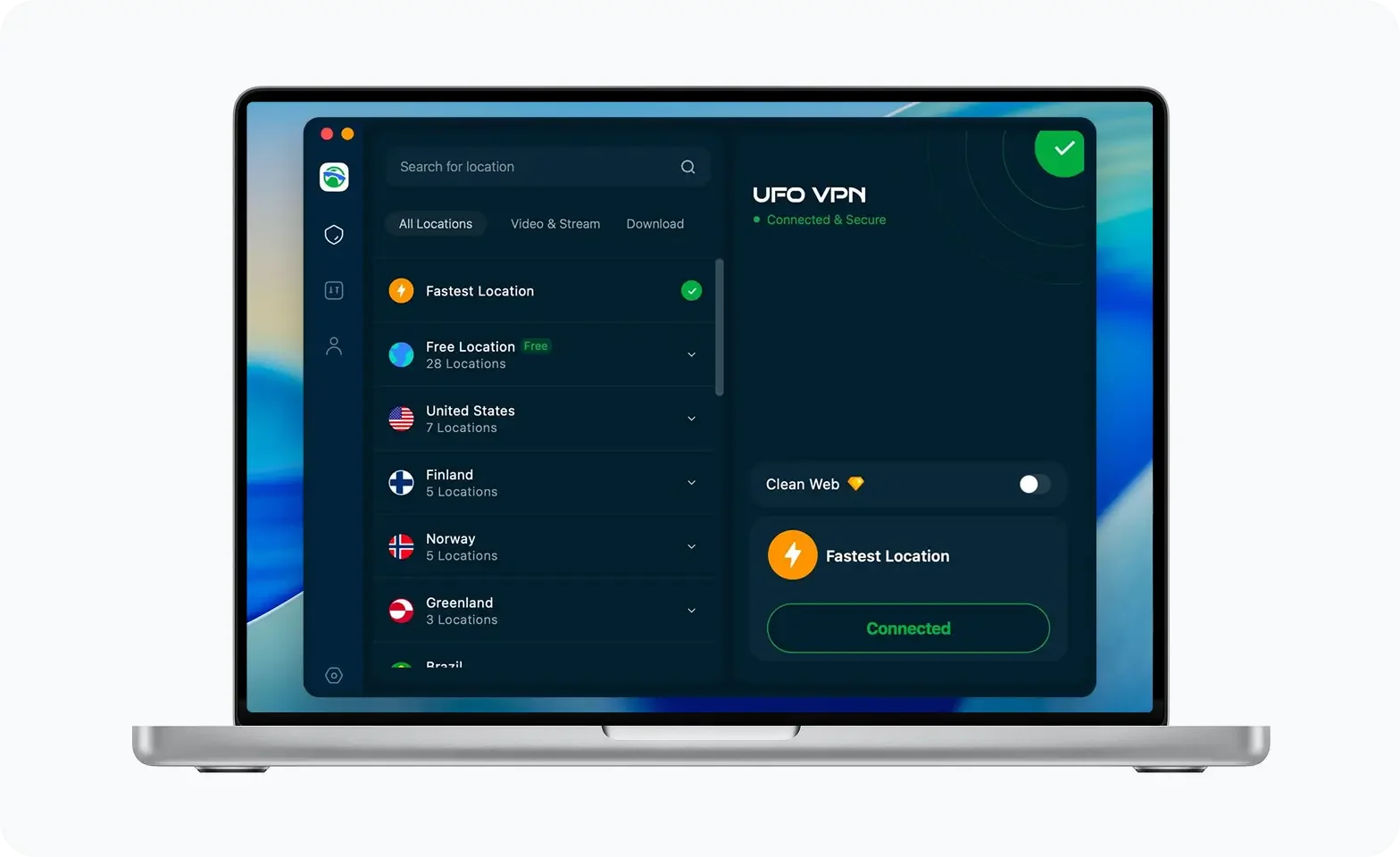
Unlock Pro Features
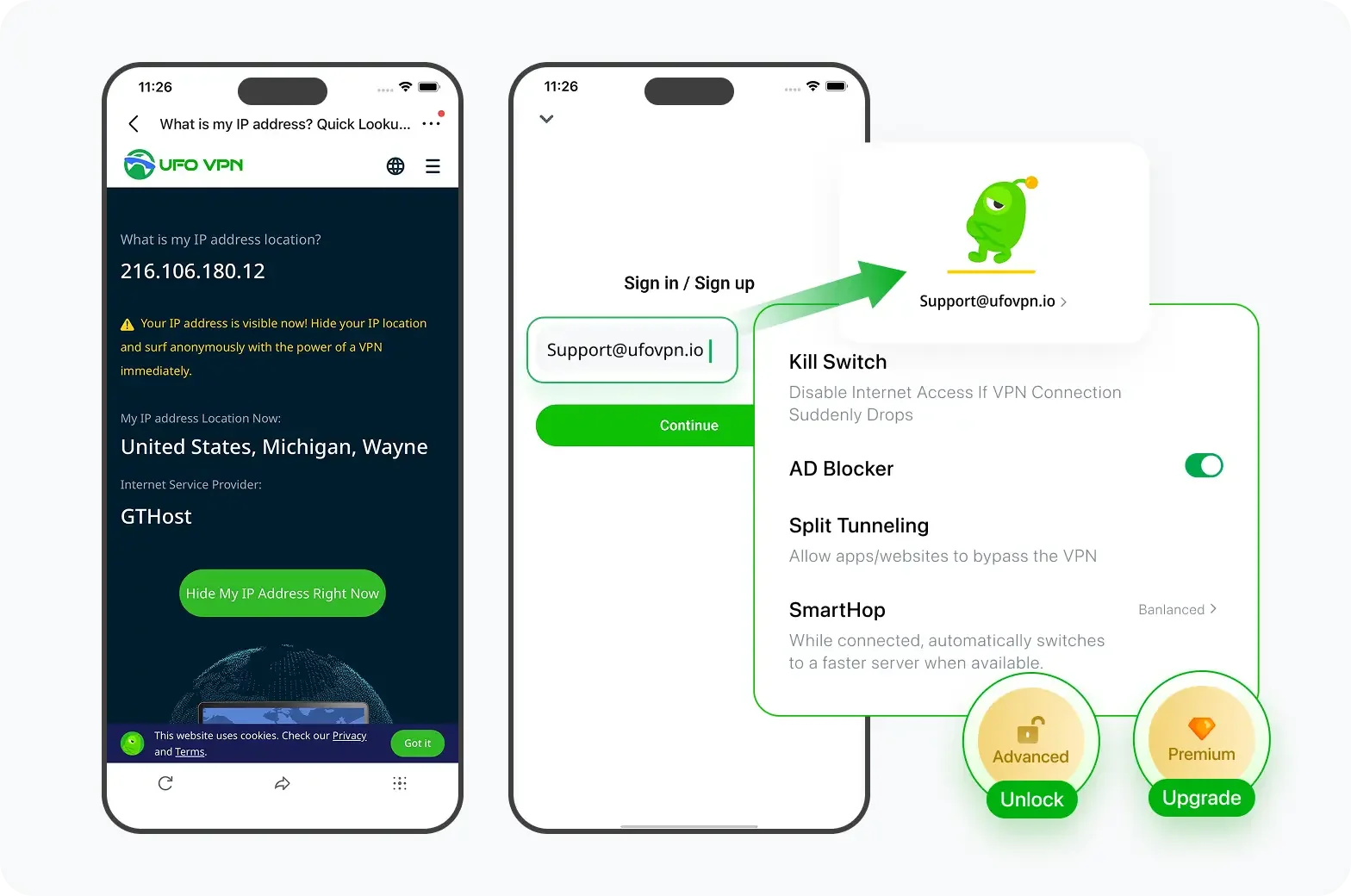
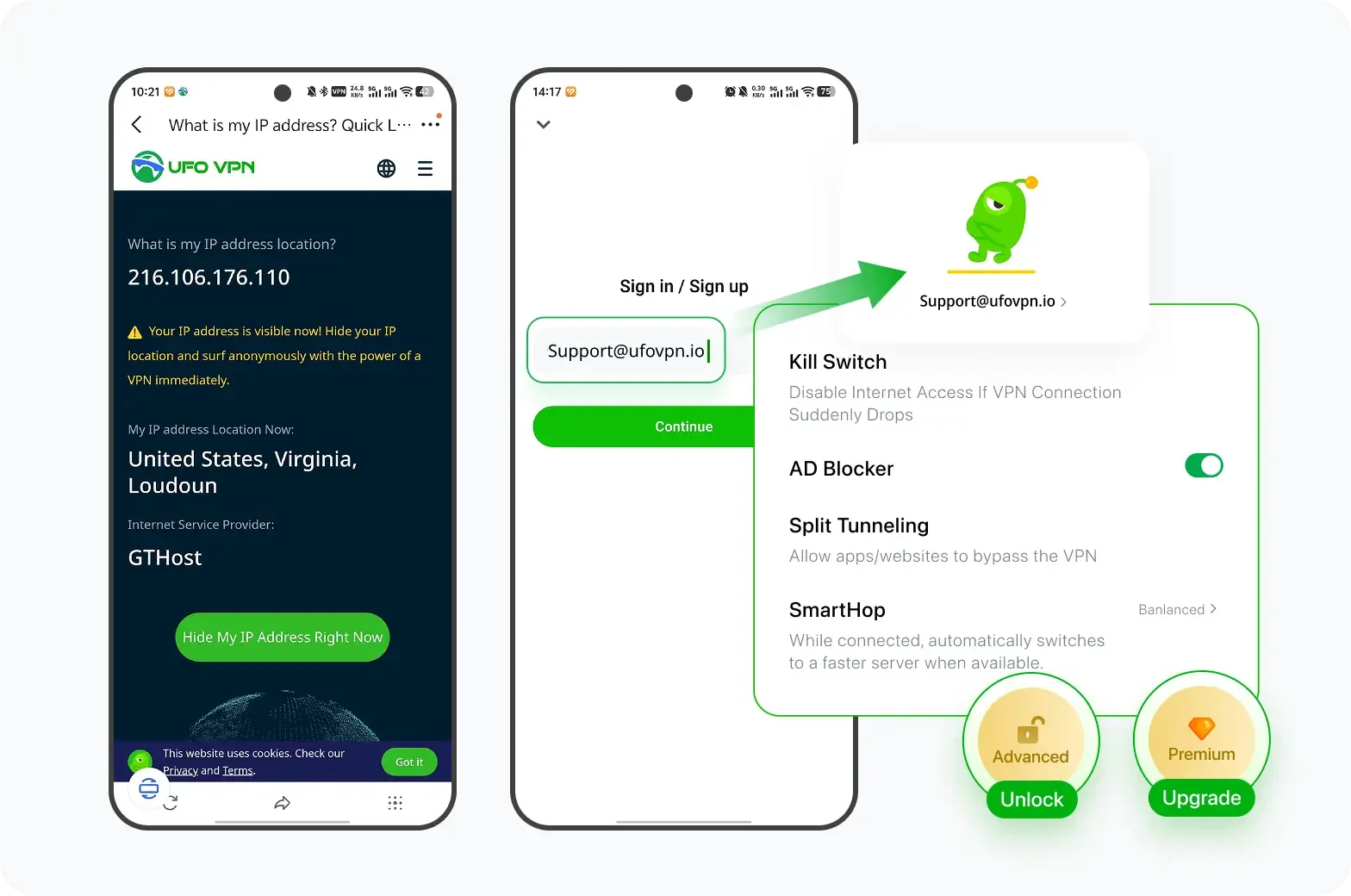
If you have upgraded to premium plan , feel free to enjoy premium servers for 4K streaming and advanced features like Kill Switch, Split Tunneling, and gaming acceleration. Your Mac is now fully optimized and protected. Inaddition to basic functions, we recommend you turn on

Verify Your IP Now
Use UFO VPN's " What is My IP " feature to see your new IP and location. This confirms your connection is secure, anonymous, and ready for safe browsing online anywhere at any time.

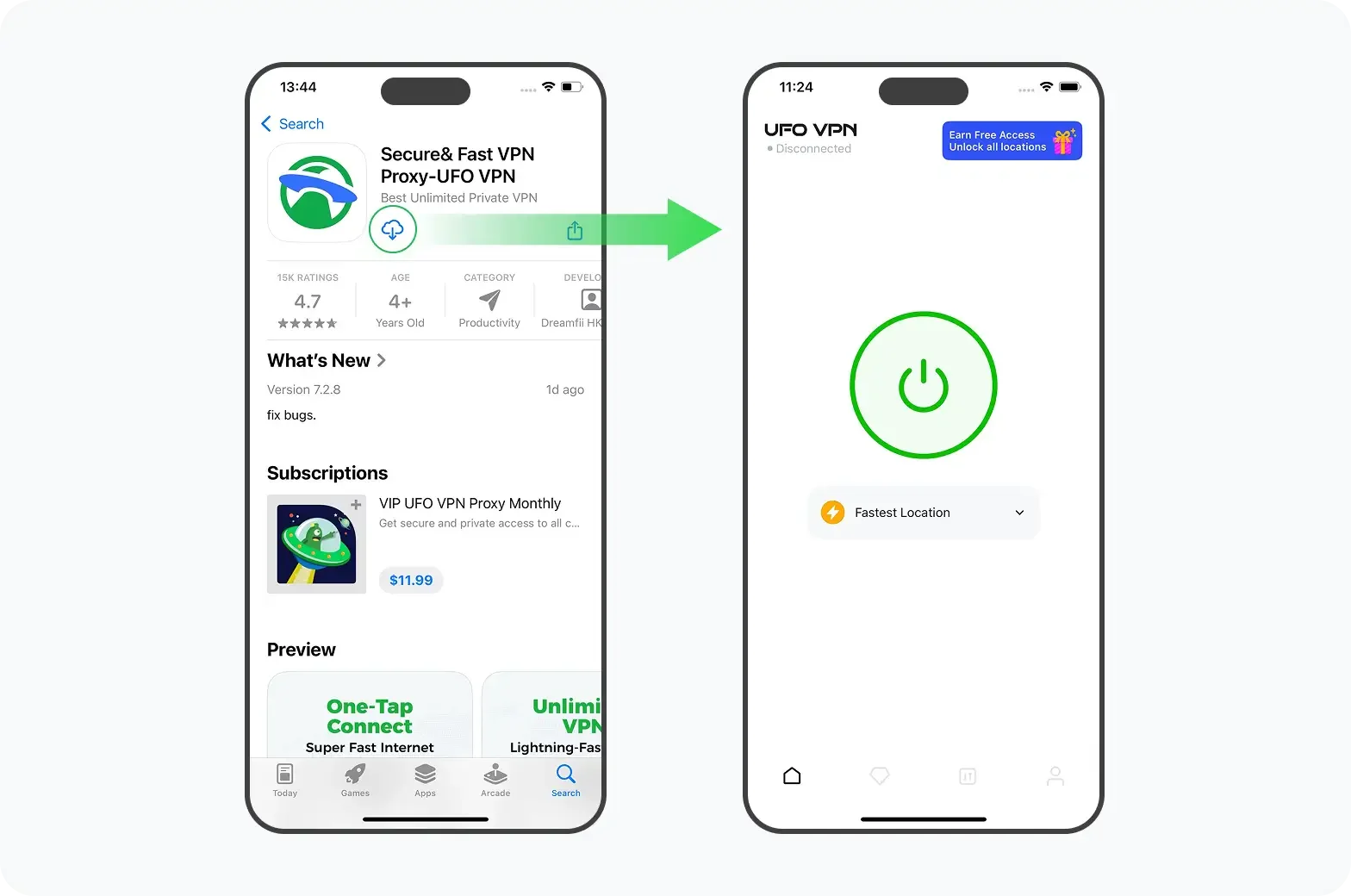
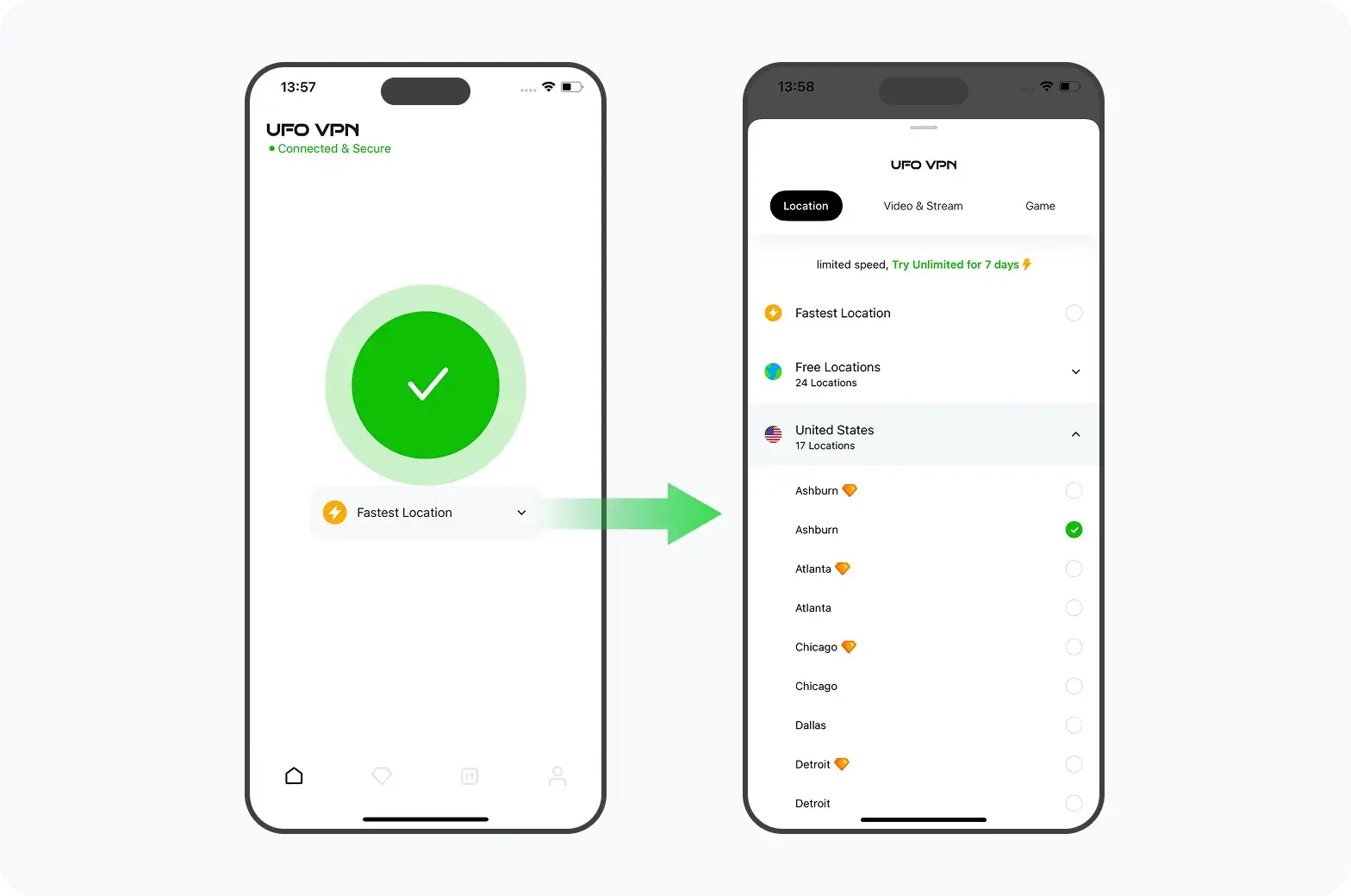
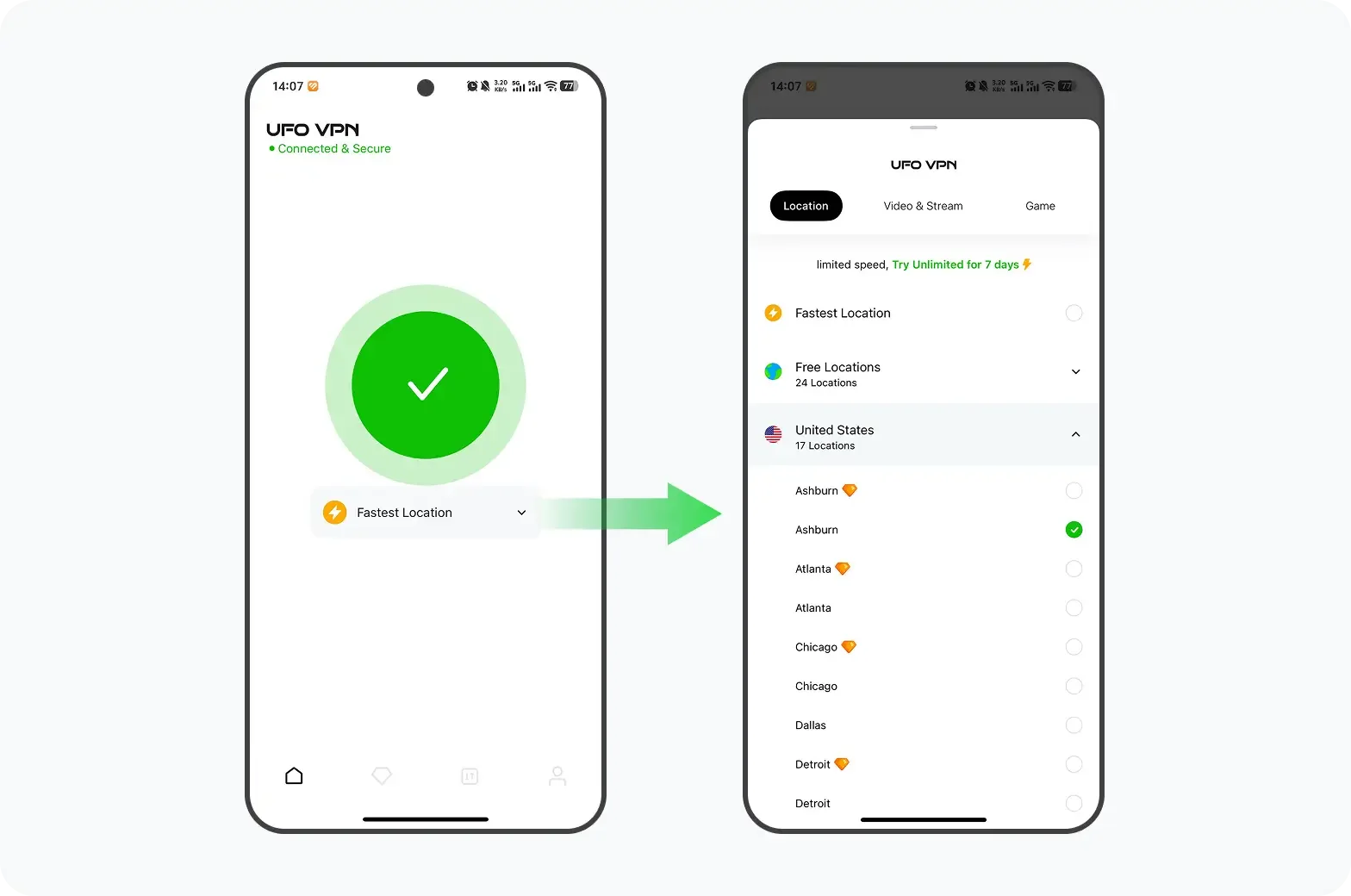
This is particularly useful when the problem only occurs on your current network or in your region.
3. Hard-Refresh the Page
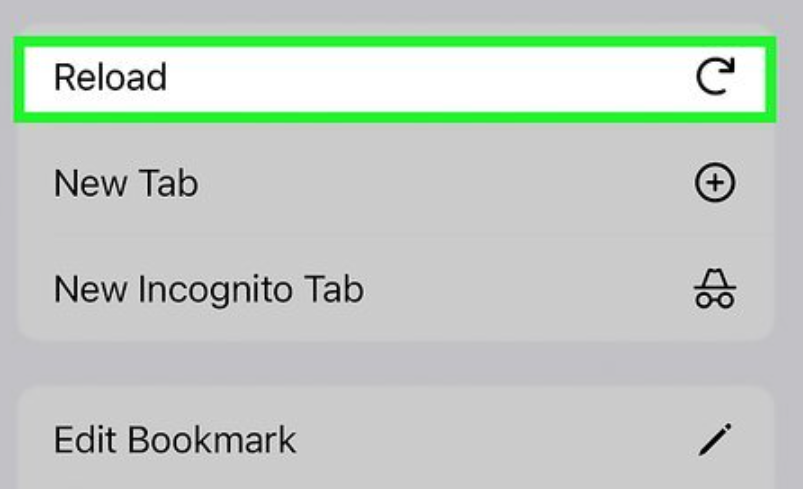
A normal refresh may continue using outdated files stored by your browser. A hard refresh forces the browser to reload the page and its latest resources.
On Windows, press Ctrl + F5. On Mac, use Cmd + Shift + R. For mobile browsers, close the browser completely and reopen Spicychat.ai.
4. Clear Browser Cache and Cookies
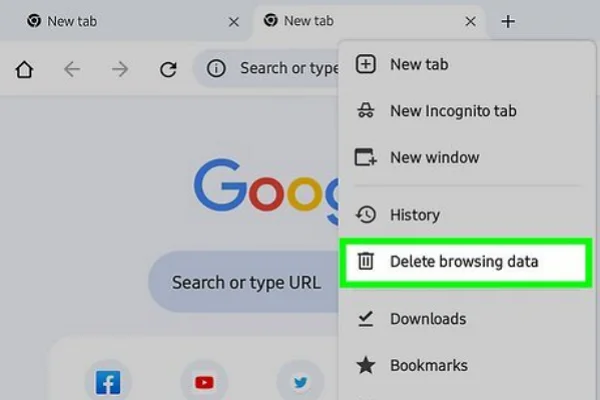
Old or corrupted browser data can cause loading, login, or chat problems. Clearing the data associated with Spicychat gives the site a clean start.
Open your browser settings, find the privacy or browsing-data section, and clear the cache and cookies for Spicychat.ai. Then reopen the site and sign in again.
5. Switch Networks
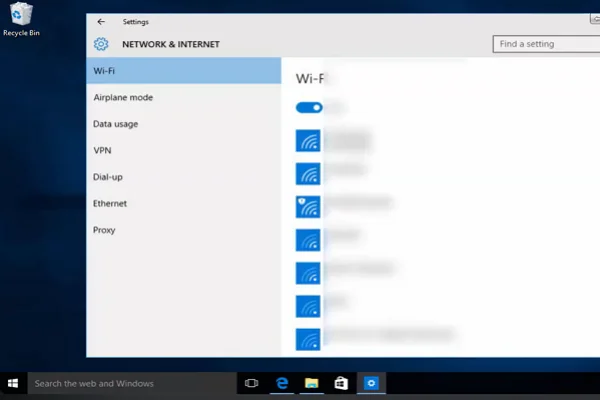
Your current Wi-Fi or mobile network could be causing the connection problem. A quick network switch can help you identify whether this is the case.
If you are using Wi-Fi, turn it off and try mobile data. You can also connect to another Wi-Fi network. If Spicychat starts working immediately, your original network or ISP may be the source of the problem.
6. Try a Different Browser or Incognito Mode
Browser extensions, stored data, or browser-specific settings can sometimes prevent Spicychat from working properly.
Open Spicychat in another browser such as Chrome, Firefox, or Edge. You can also try an incognito or private window. If the site works there, temporarily disable your extensions to find the one causing the conflict.
7. Flush Your DNS
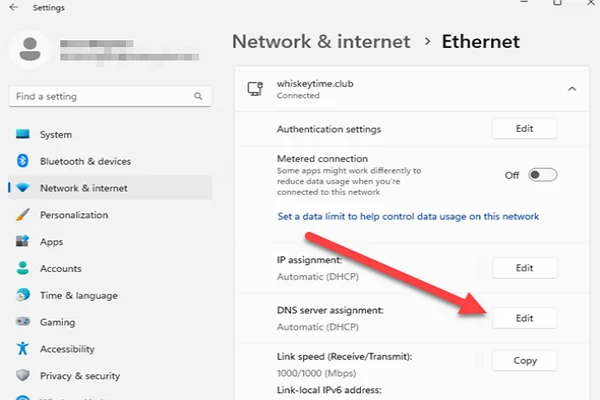
DNS problems can prevent your device from finding the correct Spicychat server, especially if your local DNS information is outdated.
On Windows, open Command Prompt and run ipconfig /flushdns. Then restart your browser and try Spicychat again. If you use macOS or Linux, use the appropriate DNS-flushing command for your system.
8. Disable VPN Temporarily or Switch Servers
Already using a VPN? The VPN itself could be causing the problem. Certain servers may be overloaded or blocked by the website.
Disconnect your VPN and reload Spicychat. If the site works normally afterward, reconnect through a different server. Testing two or three locations can help you find a more reliable connection.
9. Check Official Channels
If the problem is widespread, other users may already be discussing it online. Checking Spicychat's official channels and community pages can help you confirm whether there is a known service issue.
Look for recent announcements about maintenance, outages, login problems, or specific features that are temporarily unavailable. This is especially useful when the main website is accessible but chats or certain functions are not.
10. Try the Progressive Web App or Mobile Browser
If Spicychat does not work properly on your desktop, try accessing it through your phone's browser. This can help determine whether the issue is limited to your desktop browser or device.
Open spicychat.ai on your mobile browser and sign in. If everything works normally, you can add the site to your home screen for easier access later.
11. Wait 15 – 30 Minutes and Retry
Some problems are temporary and may disappear without any changes on your side. Server traffic, short outages, or model-related glitches can affect the service for a limited period.
If your connection and browser appear fine, wait 15 – 30 minutes and try again. Avoid repeatedly refreshing or logging in while the service is unstable.
12. Test with a Different Device

Trying another device is a simple final check. It can tell you whether the problem is specific to your current phone, computer, or tablet.
For example, open Spicychat on another device using the same network. If it works there, focus on your original device's browser, DNS, extensions, or settings. If it fails everywhere, the issue is more likely to be related to the service or network.


If Still Can't Load - Try Spicychat Alternatives
If Spicychat remains unreachable, you can try other AI companion and roleplay platforms. The options below offer different combinations of character chats, customization, voice, and image or video features. 18+ only.
| Alternative | Key Features | Pros | Cons |
|---|---|---|---|
| GPTGirlfriend | NSFW chat, character library, images, voice | Wide character selection and flexible roleplay | Free access is limited; some features use credits |
| FLIRTCam AI | AI companions, chat, images, short videos | Strong focus on video and customization | Full access requires a subscription |
| SexyAI | Adult companion chat, image generation | Simple and adult-focused | Fewer features than larger platforms |
| Camsoda AI | AI companions, chat, images, voice | Strong adult focus with multiple media options | Advanced media features are usually paid |
| CrushOn.AI | Character library, roleplay, image generation | Large community and flexible character options | Free image features are limited |
| Candy AI | AI companions, images, video, voice | Strong visuals and character consistency | More features are behind paid plans |
| OurDream AI | Chat, images, voice, video | Good mix of chat and multimedia | Free plan is more limited |
| Muah AI | Companion chat, images | Affordable option for chat and visuals | Memory and response depth can vary |
| Nastia AI | Custom companions, chat, images, video, voice | Flexible conversations and persistent memory | Media quality can vary |
| DreamGF | AI girlfriends, images, voice | Strong customization and visual features | More companion-focused; limited free access |
| Secret Desires AI | Roleplay, character creation, images, video, voice | Good for scenario-based roleplay | Media features use credits |
If you mainly want character-based roleplay, prioritize platforms with large character libraries. If images, video, or voice matter more, check the platform's available media features and pricing before switching.
Final Say
So, is Spicychat down? It can experience temporary access problems, but a loading failure does not always mean the entire platform is offline. Start by checking its current status, then test your browser, network, and device.
If regional access is the issue, a reliable VPN such as UFO VPN may help. And if Spicychat remains unavailable, you can always switch to one of the alternatives above. With a few quick checks, you can usually identify the problem and get back to chatting without spending too much time refreshing the page.
FAQs
How long do Spicychat outages usually last?
There is no fixed duration. Short service disruptions may resolve within minutes or a few hours, while more serious issues can take longer. Check outage trackers and community reports for the latest updates.
Does Spicychat have an official status page?
Spicychat does not appear to have a dedicated public status page. When you cannot access the site, use third-party outage checkers and check its official community channels for service updates.
Can I use Spicychat without an account?
You may be able to access some public content without signing in, but an account is generally needed to use the platform's full chat and personalization features.
Why does Spicychat work on one device but not another?
The two devices may have different browsers, cache, DNS settings, extensions, or network connections. Try the same network and browser on both devices to narrow down the cause.
Is there an official Spicychat mobile app?
Availability can change by platform and region. If you want to use Spicychat on mobile, check the official Spicychat website for the latest supported access method rather than downloading an unverified app from a third-party source.