




Why Checking Your VPN Connection Matters
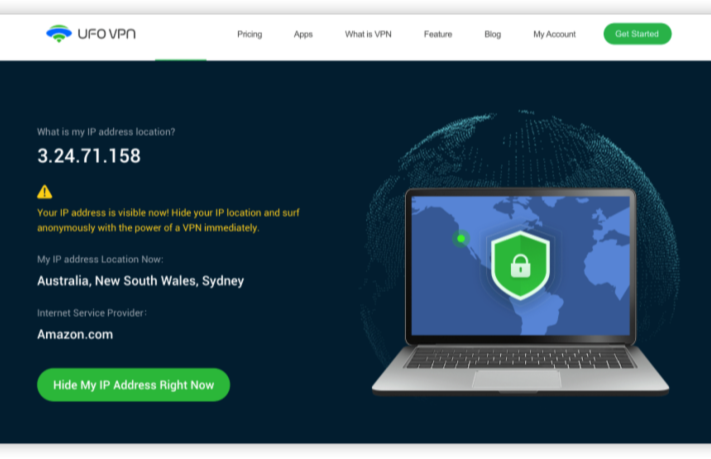
Before exploring the “how-to,” it’s crucial to understand why regularly checking your VPN connection matters:
-
Security Assurance:
Confirm that your connection is encrypted and your IP address is hidden. This is vital to avoid potential data breaches or tracking by third parties. -
Bypass Geo-Restrictions:
Ensuring your VPN is active lets you access content that may be blocked in your region, such as certain streaming services or websites. -
VPN Speed and Performance:
Running a speed test helps you determine if your VPN is slowing down your connection and whether you need to switch servers. -
Avoid IP Leaks:
IP address leaks can expose your real location and identity. Regular checks help ensure your VPN is not leaking sensitive data. -
Detecting VPN Blocks:
Some networks or ISPs actively block VPN traffic. Knowing if your VPN is blocked allows you to switch providers or servers if needed.
Quick Examine Your VPN Status
| Issue | Quick Fix | Explanation |
|---|---|---|
| Outdated VPN App Version | Update the VPN App | Install the latest version from your app store to resolve bugs and improve compatibility. |
| Network Instability | Verify and Switch Networks | Test your connection on different networks or restart your router to ensure a stable internet connection. |
| Device Compatibility | Update Device OS and Check Requirements | Ensure your device meets the VPN's system requirements and run the latest operating system version. |
| Cache Overload | Clear Cache/Reinstall the App | Remove stored cache data through device settings or reinstall the app to clear corrupt data. |
| Server Downtime | Check Server Status or Switch Server | Monitor the VPN provider’s status page or select an alternative server to maintain connectivity. |
| Permissions Issues | Adjust App Permissions | Grant necessary permissions (e.g., storage, camera) in your device settings to enable full functionality. |
| Battery Optimization Settings | Disable Battery Optimization for VPN | Turn off battery-saving features for the VPN app to prevent performance restrictions. |
| Software Bugs | Restart or Reinstall the VPN App | Restart the app or your device; if problems persist, reinstall the VPN to eliminate software glitches. |
| Geo-Restrictions | Use Obfuscation/Stealth Mode | Enable obfuscation settings to bypass regional blocks imposed by ISPs or governments. |
| IP Address Leak | Enable VPN Kill Switch and Test DNS Leak | Activate the kill switch feature to disconnect if the VPN drops, and use DNS leak tests to verify security. |
How to Check if Your VPN is Working on Android
For Android users, verifying that your VPN is functioning is a straightforward process. Follow these steps to ensure your VPN is active and secure:
Step 1: Check Your IP Address
-
Connect to Your VPN:
Open your VPN app and connect to your preferred server. Make sure the connection is active. -
Open a Browser and Visit an IP Checker:
Open Google Chrome or your favorite browser and visit what is my ip section for your IP lookup. -
Verify the IP Address:
Compare the IP address shown with your VPN provider’s server location. If the IP address reflects the region you connected to (e.g., a US-based server), your VPN is working.
Step 2: Test for IP Leaks
-
Visit an IP Leak Test Site:
Check out your IP status at ipleak.net to check if your real IP address is exposed. -
Review the Results:
Ensure that only the VPN-assigned IP is visible. If your actual IP appears, it indicates an IP leak that needs attention.
Step 3: Run a VPN Speed Test
-
Download a Speed Test App:
You can use apps like Ookla Speedtest available on the Google Play Store. -
Perform the Test:
With your VPN connected, run a speed test. Note your download and upload speeds. -
Compare Results:
Compare these speeds to your normal internet speed (without VPN) to gauge any performance drops. A slight decrease is normal, but drastic reductions may indicate a problem.
Step 4: Verify Secure Connection
-
Check for Encryption:
Some VPN apps display a padlock icon or a “secure” message when your connection is encrypted. Confirm that this indicator is visible in your VPN app. -
Look for DNS Leaks:
Use a DNS leak test website (like dnsleaktest.com) to ensure that your DNS requests are not leaking. All DNS requests should be handled by your VPN.
How to Check if Your VPN is Working on iPhone
For iPhone users, the process is similarly straightforward, with a few differences in navigation due to iOS.
Step 1: Check Your IP Address
-
Connect to Your VPN:
Launch your VPN app and connect to the server of your choice. -
Open Safari and Visit an IP Checker:
Navigate to what is my ip section. -
Review the IP Address:
Your displayed IP should match the VPN server’s location, confirming that your VPN is active.
Step 2: Test for IP and DNS Leaks
-
Run an IP Leak Test:
Use ipleak.net on Safari to verify that your real IP is hidden. -
Perform a DNS Leak Test:
Visit dnsleaktest.com and run the extended test to confirm that your DNS requests are secure.
Step 3: Check VPN Performance with a Speed Test
-
Install a Speed Test App:
Download the Speedtest by Ookla app from the App Store. -
Conduct the Test:
With your VPN connected, run a speed test. Note your download and upload speeds and compare them to your standard connection. -
Assess Performance:
Slight drops in speed are normal. However, if performance is significantly reduced, try switching to another server.
Step 4: Confirm VPN Status in iOS Settings
-
Check VPN Icon:
Look for the VPN icon in the status bar at the top of your iPhone screen. Its presence indicates an active VPN connection. -
Review VPN Settings:
Go to Settings > General > VPN to see the current status and configuration of your VPN connection.
How to Check for IP Address Leaks
Ensuring that your VPN is not leaking your real IP address is essential for maintaining your privacy. Follow these steps to check for leaks:
-
Visit a Trusted IP Leak Site:
Use websites like ipleak.net or dnsleaktest.com. -
Run the Test:
When connected to your VPN, these sites will display your public IP address and DNS servers. -
Verify Results:
Ensure that the IP address matches the server location you selected and that there are no traces of your real IP address. If your actual IP address appears, this is known as an IP leak, and you should consider changing servers or updating your VPN software.
Bonus: Quick Fix IP Address Leak
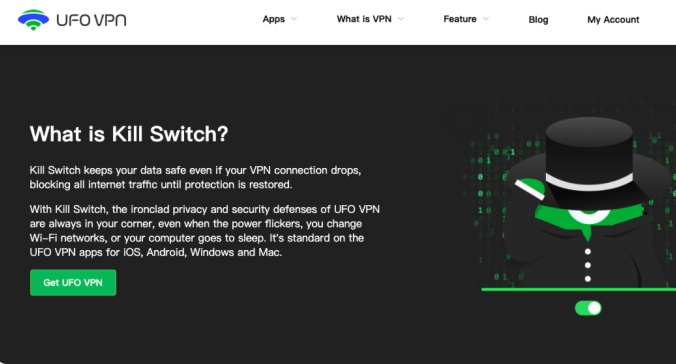
IP leaks can compromise your privacy by exposing your real location. One effective tool to prevent this is the UFO VPN kill switch. A kill switch is a security feature that automatically cuts off your internet connection if your VPN connection drops unexpectedly. Here’s how to set it up and use it:


UFO VPN is an all-in-one VPN that offers unlimited access to 4K streaming like Netlfix, Disney Plus, no-ping gaming as PUBG, Roblox, CODM and social networking for YouTube, X, Facebook and more.




Unlock Pro Features
If you have upgraded to premium plan , feel free to enjoy premium servers for 4K streaming and advanced features like Kill Switch, Split Tunneling, and gaming acceleration. Your Mac is now fully optimized and protected. Inaddition to basic functions, we recommend you turn on

Verify Your IP Now
Use UFO VPN's " What is My IP " feature to see your new IP and location. This confirms your connection is secure, anonymous, and ready for safe browsing online anywhere at any time.







Once reconnected, verify that your IP address remains masked by checking an IP checker site.
How to Perform a VPN Speed Test
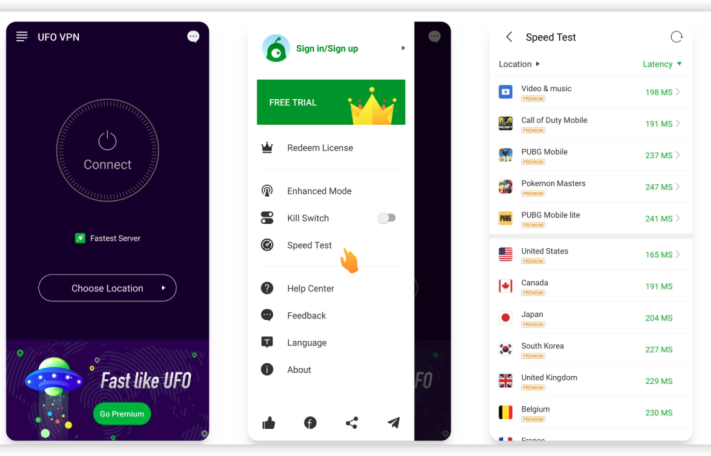
A VPN speed test helps you evaluate how much your VPN is impacting your connection speed. Here’s how to do it:
-
Select a Speed Test Tool:
Use an online service like VPN Speed Test or an app like Speedtest by Ookla. -
Run a Test with VPN Connected:
With your VPN active, start the speed test. Record your download and upload speeds. -
Compare with Baseline Speeds:
Run the speed test without the VPN for a baseline comparison. Note any differences, as a slight drop is expected, but a significant reduction might require you to switch servers. -
Analyze Results:
If speeds are consistently low, try different VPN servers or contact your VPN provider for further troubleshooting.
Is My VPN Blocked? How to Find Out
Sometimes, networks or ISPs block VPN traffic, limiting your ability to access content securely. Here’s how to determine if your VPN is blocked:
-
Check Access on Different Networks:
Try connecting to your VPN on various networks (home Wi-Fi, mobile data, public Wi-Fi) to see if the issue persists across all. -
Test with an IP Checker:
Visit an IP checker to see if your IP address is being changed. If it isn’t, your VPN may be blocked. -
Review VPN Settings:
Some VPNs offer settings that help bypass VPN blocks (such as obfuscation or stealth modes). Enable these settings if available. -
Contact Your VPN Provider:
If you suspect that your VPN is being blocked, contact your VPN’s customer support for assistance. They can provide server recommendations or technical solutions.
Final Thoughts
Regularly verifying that your VPN is working correctly is crucial for protecting your privacy, accessing geo-restricted content, and ensuring optimal performance.By following the step-by-step instructions in this guide, you can confidently check if your VPN is active on devices, perform essential tests for IP leaks and speed, and troubleshoot any issues that arise.