




Why Packet Loss Frequently Happens in Valorant?
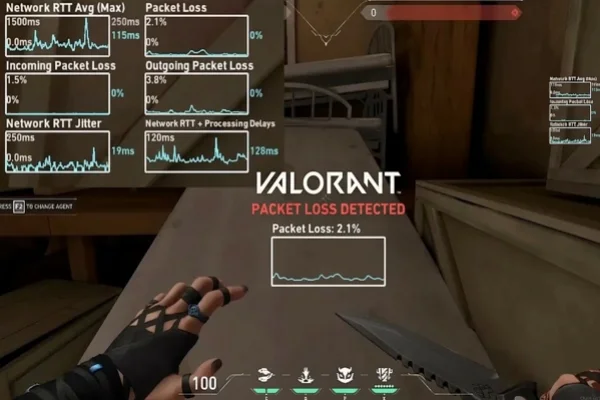
Packet loss happens when data sent between your computer and the game server does not arrive correctly. In a fast-paced game like Valorant, even a small percentage of lost packets can affect your performance.
Here are some common reasons:
💡 Unstable Wi-Fi connection - Wireless networks can drop signals due to walls, interference from other devices, or distance from the router.
💡 Network congestion - If multiple devices are using the same network for streaming, downloads, or video calls, your game traffic may be delayed or dropped.
💡 Outdated network drivers - Old or incompatible drivers can cause poor communication between your system and the internet.
💡 Incorrect in-game server selection - Connecting to a distant server increases latency and the chance of packet loss.
💡 ISP routing issues - Sometimes your internet provider routes data inefficiently, which leads to unstable connections.
💡 Background applications - Programs running in the background can use bandwidth without you noticing.
6 Effective Strategies to Fix Valorant Packet Loss
Fixing packet loss works best when you adjust both your hardware and your system settings. The methods below focus on common weak points in a typical gaming setup and help create a more stable connection.
Way 1. Switch to a Wired Ethernet Connection
Wi-Fi is convenient, but it is not stable enough for competitive games. Signals can be blocked by walls or affected by other devices, which leads to lost data packets.
A wired Ethernet connection sends data directly from your PC to the router without interference. Just connect your computer with a Cat6 or Cat7 cable and turn off Wi-Fi. If running a cable is not practical, a Powerline adapter is a good alternative for more stable performance.
Way 2. Optimize In-Game Network Buffering Settings
Valorant includes a Network Buffering option that helps handle unstable connections. This setting controls how the game processes incoming data.
If you notice packet loss, set it to Moderate or Maximum. This allows the game to briefly hold incoming data and arrange it correctly before showing it on screen. It may add a small delay, but it makes movement and actions appear smoother instead of broken.
Way 3. Update Your Network Adapter Drivers
Your network adapter depends on drivers to communicate with Windows and online servers. Old drivers can cause errors that look like packet loss during matches.
Open Device Manager, find your network adapter, and update the driver. For better results, download the latest version from the official manufacturer’s website. Updated drivers often improve stability when handling fast data traffic.
Way 4. Flush Your DNS and Reset Network Settings
Your system stores network data to speed up connections, but over time this data can become outdated. This may cause your PC to use inefficient routes when connecting to game servers.
You can fix this by clearing and resetting your network settings. Open Command Prompt as Administrator and run:
-
ipconfig /flushdns -
netsh int ip reset -
netsh winsock reset
Restart your computer after this. It forces your system to rebuild a clean connection path.
Way 5. Disable Background Bandwidth Usage
Many apps use your internet in the background without clear notice. This includes browsers, cloud storage, and system updates.
Before starting Valorant, open Task Manager and check which apps are using the network. Close anything unnecessary. This frees up bandwidth and reduces sudden spikes that can cause packet loss. If you use Discord, turning off its QoS setting can also help avoid conflicts.
Way 6. Change to a Public DNS Provider
Your default DNS server comes from your internet provider, and it may not be the fastest option. A slow DNS can delay how your system connects to game servers.
Switching to a public DNS can improve connection response time. You can use:
-
Google DNS: 8.8.8.8 / 8.8.4.4
-
Cloudflare DNS: 1.1.1.1 / 1.0.0.1
These services are built for speed and reliability, helping your game connect more efficiently and reducing the chance of packet loss.

The Best VPN to Enhance the Overall Valorant Gameplay
A VPN is often the most misunderstood tool for gaming. While many people think a VPN will slow down their internet, it can actually solve packet loss if your ISP is the problem. If your ISP is routing your data through a congested or broken path, a VPN allows you to "hop" onto a different, cleaner network path.
Beyond fixing packet loss, a VPN improves your experience by:
✅ Hiding your gaming traffic from your ISP so they don't slow you down during peak hours.
✅ Hiding your real IP address, so other players can't boot you offline.
✅ Letting you play on different regional servers more easily if you have friends abroad.
For a fast and reliable connection, we recommend UFO VPN. It offers dedicated gaming servers that are tuned to keep ping low and stability high. It is a great choice for players who want to stop packet loss without needing to be a tech expert. You can download UFO VPN today to get a more stable, lag-free experience in your next match.


UFO VPN is an all-in-one VPN that offers unlimited access to 4K streaming like Netlfix, Disney Plus, no-ping gaming as PUBG, Roblox, CODM and social networking for YouTube, X, Facebook and more.




Unlock Pro Features
If you have upgraded to premium plan , feel free to enjoy premium servers for 4K streaming and advanced features like Kill Switch, Split Tunneling, and gaming acceleration. Your Mac is now fully optimized and protected. Inaddition to basic functions, we recommend you turn on

Verify Your IP Now
Use UFO VPN's " What is My IP " feature to see your new IP and location. This confirms your connection is secure, anonymous, and ready for safe browsing online anywhere at any time.







Conclusion
Fixing packet loss in Valorant usually comes down to cleaning up the path between your PC and the server. By moving to a wired connection, updating your software, and making sure no other apps are stealing your bandwidth, you can remove most of the obstacles that cause lag.
If those local fixes don't work, the issue likely lies with how your ISP handles your data, which is where a specialized gaming VPN becomes necessary. Take these steps one by one, and you will find that your gameplay becomes much more consistent.
FAQs
Does high FPS help reduce packet loss in Valorant?
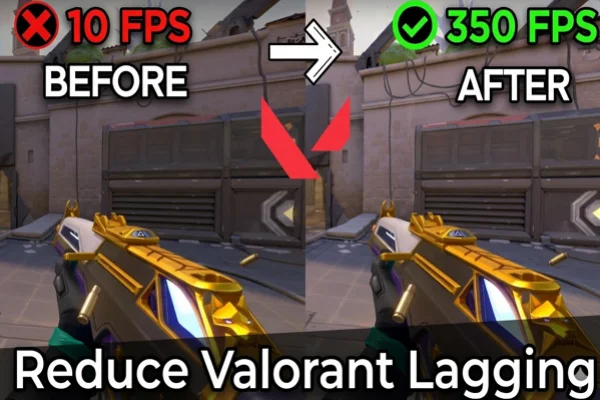
No, FPS (Frames Per Second) and packet loss are two different things. FPS is about how fast your computer can draw images, while packet loss is about how well your computer talks to the internet. You can have 300 FPS and still experience terrible packet loss.
Can a damaged Ethernet cable cause packet loss?
Yes. If an Ethernet cable is bent too sharply or the plastic clip is broken, the internal copper wires can lose contact. This causes data to "drop" intermittently. If you see packet loss even on a wired connection, try swapping the cable for a new Cat6 one.
Is 1% packet loss a big deal in a tactical shooter?
In a game like Valorant, even 1% packet loss is noticeable. It means one out of every 100 actions you take—like a shot or a movement—might not happen on the server. In a game where headshots happen in milliseconds, that 1% can be the difference between winning and losing.
Why does my packet loss get worse at night?
This is usually due to "Peak Hour Congestion." More people in your neighborhood are using the internet to stream movies or download files at night. This fills up the local data lines, causing your gaming packets to get delayed or lost in the crowd.
Should I turn off Windows Firewall to fix packet loss?
You should not turn it off completely, as it protects your PC. However, you should make sure that "Valorant.exe" and "Riot Vanguard" are added to the Allowed Apps list in your Firewall settings. This ensures the firewall doesn't accidentally block game data.