





Understand the Causes of Valorant Lagging
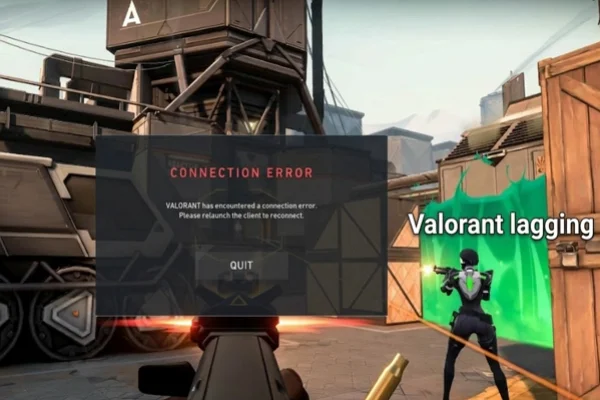
Before fixing lag, it helps to know what is actually causing it. Different problems require different solutions, so identifying the source can save time.
Here are some common causes of Valorant lag:
✅ Background Applications Running - Apps like browsers, streaming tools, or downloads can use CPU, RAM, and bandwidth. This reduces the resources available for Valorant and may cause stuttering.
✅ Network Problems - Unstable Wi-Fi, packet loss, or high latency from your internet provider can lead to delayed actions in-game. Even short interruptions can affect gameplay.
✅ Outdated Drivers - Graphics drivers that are not updated may not work well with newer game updates. This can result in low FPS or screen stutter.
✅ High Graphics Settings - Running the game on high or max settings can overload your GPU, especially on mid-range systems. This leads to frame drops during fights.
✅ Hardware Limitations - Older CPUs, low RAM, or weak GPUs may struggle to handle the game smoothly, especially during intense scenes.
✅ Server Distance or Routing Issues - If you are connected to a server far away, your ping will increase. Poor routing from your ISP can also cause delays, even if the distance is not large.
✅ Overheating Issues - When your CPU or GPU gets too hot, the system may slow down to protect itself. This reduces performance and causes lag spikes.
5 Effective Methods to Fix Valorant Lagging
If the quick fixes did not work, you may need to adjust some system settings. These methods focus on common performance issues that affect gameplay today.
Do you have high ping? When you shoot with your gun does it fire immediately? If not then its a network problem. Play with an ethernet cable instead of wifi. Do you have low ping and its stuttering? Gotta be your pc or monitor’s fault.

Way 1. Optimize Windows Power and Game Mode
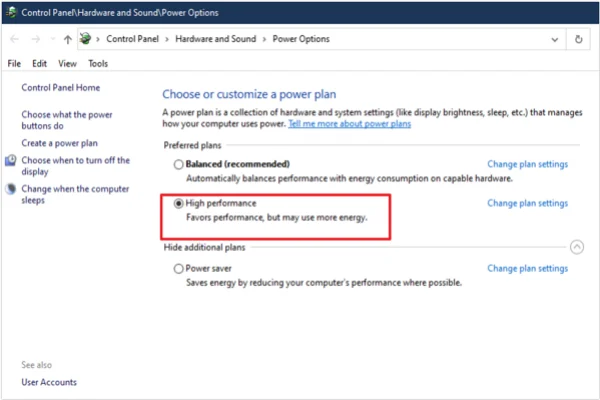
Windows often runs on a “Balanced” power plan, which limits CPU performance to save energy. This can reduce your FPS during matches.
Open the Windows search bar, type “Power Plan,” and select “Choose a power plan.” Switch to High Performance so your CPU runs at full speed.
Then search for Game Mode in Settings and turn it on. This prevents background updates and system tasks from interrupting your game, which helps avoid sudden lag spikes.
Way 2. Adjust In-Game Settings for Better Performance
High graphics settings can make the game look better, but they often reduce performance. Many competitive players use low settings to keep gameplay smooth.
In the video settings, turn off V-Sync to reduce input delay. Set Limit FPS to off or slightly above your monitor’s refresh rate, such as 144 or 240.
You should also disable options like Bloom and Experimental Sharpening, as they use extra resources without improving gameplay.
Way 3. Clear Temporary Files and Cache
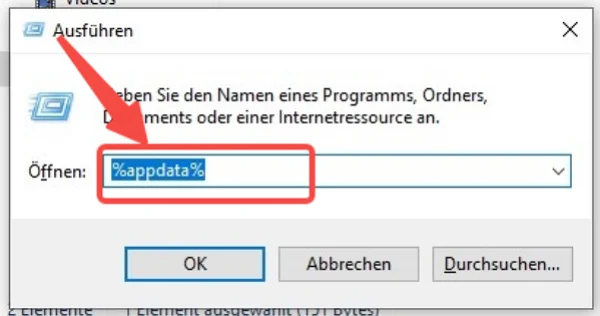
Your system stores temporary files over time, especially after updates. These files can slow down loading and cause small stutters.
Press Windows + R, type %appdata%, and open the Valorant folder. Go to Saved, then delete files inside the Logs and Crashes folders.
If you use an NVIDIA GPU, you can also increase the shader cache size in the NVIDIA Control Panel. This allows the game to store more data and reduces stuttering when loading maps.
Way 4. Improve Network Stability with DNS Settings
If your ping is unstable, your network settings may be part of the problem. You can reset and improve your connection using a few simple steps.
Open Command Prompt as an administrator and type ipconfig /flushdns, then press Enter. This clears outdated network records.
Next, change your DNS server to a faster option like Google DNS (8.8.8.8 / 8.8.4.4) or Cloudflare (1.1.1.1) in your network settings. This can help your system connect to game servers more efficiently.
Way 5. Set Valorant as a High Priority Task
Windows may not always give Valorant enough system resources, especially when other apps are running.
Start the game, then open Task Manager using Ctrl + Shift + Esc. Go to the Details tab, find VALORANT-Win64-Shipping.exe, and set its priority to High.
Avoid using “Realtime,” as it can cause system issues. Setting the priority to High ensures the CPU focuses on the game, which improves frame stability during matches.
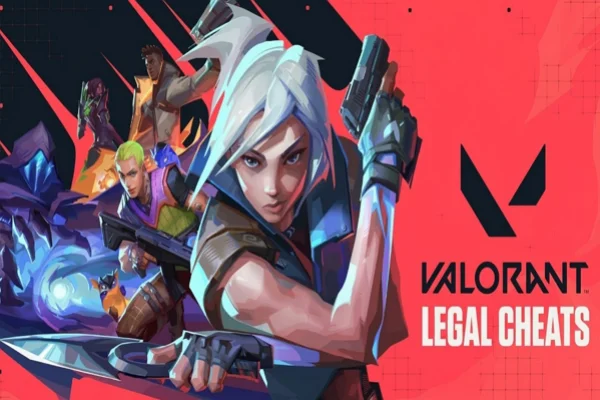
How A VPN Can Help to Reduce Valorant Lagging?
A lot of people think a VPN will always make your ping worse because it adds another "stop" for your data. In 2026, that is not always true. A high-quality VPN can actually act like a shortcut for your internet connection.
Better Routing to Game Servers: Some ISPs use inefficient routes. A VPN can redirect your connection through a faster path.
Reduced Packet Loss: Stable VPN servers can help maintain consistent data transfer, reducing interruptions.
Bypass Network Restrictions: Certain networks, such as school or public Wi-Fi, may limit gaming traffic. A VPN helps avoid these limits.
Access to Different Regions: You can connect to servers closer to the game server location, which may reduce ping.
More Stable Connection: A VPN can smooth out sudden drops in connection quality.
If you want a simple and fast way to stabilize your connection, give UFO VPN a try. It has dedicated servers built specifically for gaming that help keep your ping low and your connection steady. You can download it and see the difference in your next match.


UFO VPN is an all-in-one VPN that offers unlimited access to 4K streaming like Netlfix, Disney Plus, no-ping gaming as PUBG, Roblox, CODM and social networking for YouTube, X, Facebook and more.




Unlock Pro Features
If you have upgraded to premium plan , feel free to enjoy premium servers for 4K streaming and advanced features like Kill Switch, Split Tunneling, and gaming acceleration. Your Mac is now fully optimized and protected. Inaddition to basic functions, we recommend you turn on

Verify Your IP Now
Use UFO VPN's " What is My IP " feature to see your new IP and location. This confirms your connection is secure, anonymous, and ready for safe browsing online anywhere at any time.







To Sum up
Fixing lag in Valorant is all about making your computer's job as easy as possible. When you clear out background apps, lower your graphics settings, and make sure your network is clean, you allow the game to run at its full potential.
A smooth game doesn't just look better; it makes you a better player because your inputs actually happen when you want them to. Take ten minutes to go through these steps, and you will spend much less time fighting your computer and more time winning your games.
FAQs
Why does Valorant still lag when the Internet is good?
Even if your download speed is high, you might suffer from "packet loss." This means some of the information your PC sends to the server is getting lost along the way. This is usually caused by a bad router, a poor Wi-Fi signal, or a damaged Ethernet cable. It can also happen if the game servers themselves are having a bad day.
What is a good ping for Valorant and games alike?
For a tactical shooter like Valorant, a ping under 30ms is considered excellent. If you are between 30ms and 60ms, the game is still very playable. Once you go over 80ms, you will start to notice a delay, and anything over 100ms will put you at a significant disadvantage against other players.
Does having more RAM help with Valorant lag?
Yes. While Valorant can run on 8GB of RAM, having 16GB is the "sweet spot" in 2026. This gives the game enough room to breathe without fighting your operating system for memory. If your RAM is full, your PC will use your hard drive as temporary memory, which is much slower and causes "stuttering."
Should I play Valorant in Fullscreen or Windowed mode?
You should always use "Fullscreen." In Windowed or Windowed Borderless mode, Windows has to keep rendering your desktop and other background elements. Fullscreen mode allows the PC to give almost 100% of the graphics resources to the game, which reduces input lag and increases your FPS.
Do weapon skins cause lag in Valorant?
Generally, no. However, if you have an older PC, skins with very heavy visual effects (like finishers or moving textures) can cause a very tiny drop in frames when they first appear on screen. If you are on a very low-end system, using "default" skins can technically help keep your frames more stable, but for most people, it won't matter.