




qBittorrent VPN Binding: Meaning & Features
What is Binding VPN to qBittorrent?
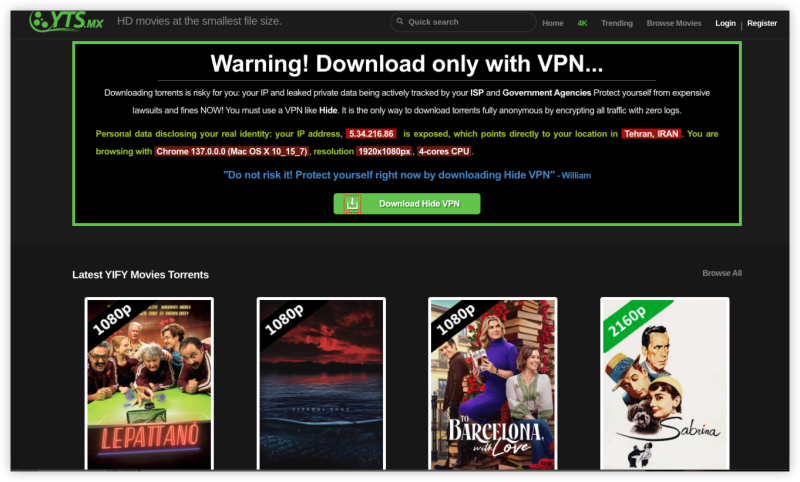
VPN binding means telling qBittorrent to use a specific network interface created by your VPN rather than allowing it to communicate through any available network interface.
Without binding, your qBittorrent setup may look like this: qBittorrent → Available Network Interface → Internet
With VPN binding: qBittorrent → VPN Network Interface → VPN Tunnel → Internet
If the VPN interface becomes unavailable, qBittorrent should no longer be able to transfer data through that interface.
qBittorrent's official VPN-binding guide explains that this configuration is designed to ensure data can be transferred only while the VPN is active, adding another layer of protection beyond a VPN Kill Switch.
Why Should You Bind qBittorrent to a VPN?
Hi all. I'm getting back into torrenting after years away. After some research, I've settled on using qBittorent. I read it would be best to bind my VPN instead of relying on the killswitch.

Here are several practical situations where qBittorrent VPN binding can be useful.
Scenario 1: Your VPN Suddenly Disconnects
Imagine you're downloading a large Linux ISO overnight.
You connect to your VPN, open qBittorrent, and leave the computer running. A few hours later, the VPN connection drops, but your computer is still connected to the internet through Wi-Fi or Ethernet. If qBittorrent is allowed to use any interface, it may attempt to continue communicating through another available network connection.
With VPN binding, qBittorrent is restricted to the VPN interface you selected. When that interface becomes unavailable, qBittorrent should stop transferring rather than simply switching to another interface. This is one of the main reasons users search for how to bind qBittorrent to VPN.
Scenario 2: Your Laptop Switches From Wi-Fi to Ethernet
Network changes can also cause problems.
For example:
- You start qBittorrent over Wi-Fi.
- UFO VPN is connected.
- You move to another location.
- Your laptop switches to Ethernet.
- The VPN reconnects or creates a new virtual interface.
If qBittorrent is configured to use any interface, it can automatically work with the available network configuration.
A specific VPN interface binding gives you more control over which interface qBittorrent is allowed to use.
Scenario 3: You Want More Than a Kill Switch
A VPN Kill Switch and qBittorrent binding are related, but they work at different levels.
VPN Kill Switch → protects device-wide traffic
qBittorrent VPN Binding → restricts qBittorrent to a specific network interface
Using both can provide a more layered configuration than relying on either feature alone.
Before Binding qBittorrent to a VPN: What You Need
Before changing qBittorrent's network settings, prepare three things.
1. Install qBittorrent
Install qBittorrent from its official project sources.
The current qBittorrent documentation includes guidance for binding the client to a VPN connection, and the procedure uses the Network Interface setting in the Advanced settings.
2. Install a VPN With a Desktop App
You'll need a VPN application that creates a network interface that qBittorrent can use.
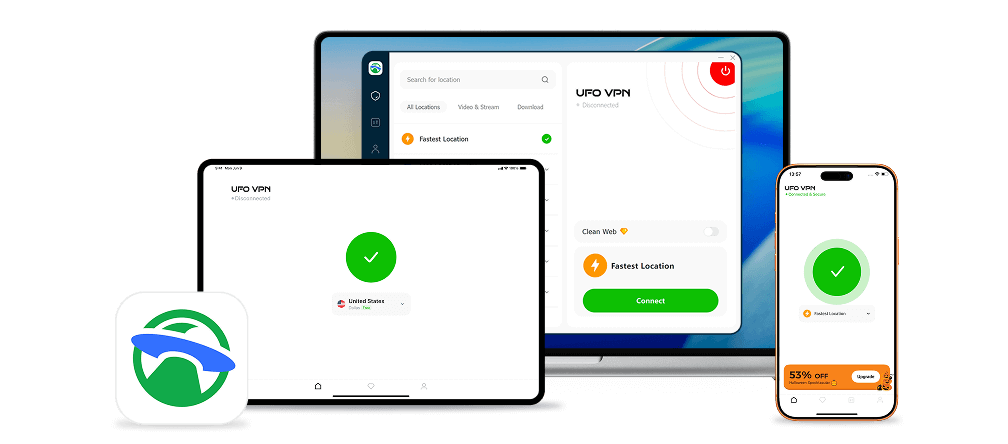
For this guide, you can use UFO VPN on Windows or macOS.
UFO VPN's desktop offering includes features such as:
- Kill Switch
- Split Tunneling
- DNS and IP leak protection
- AES-256 encryption
- Multiple VPN servers
The exact interface name may vary depending on your operating system, VPN protocol, and connection.
3. Connect UFO VPN Before Configuring qBittorrent
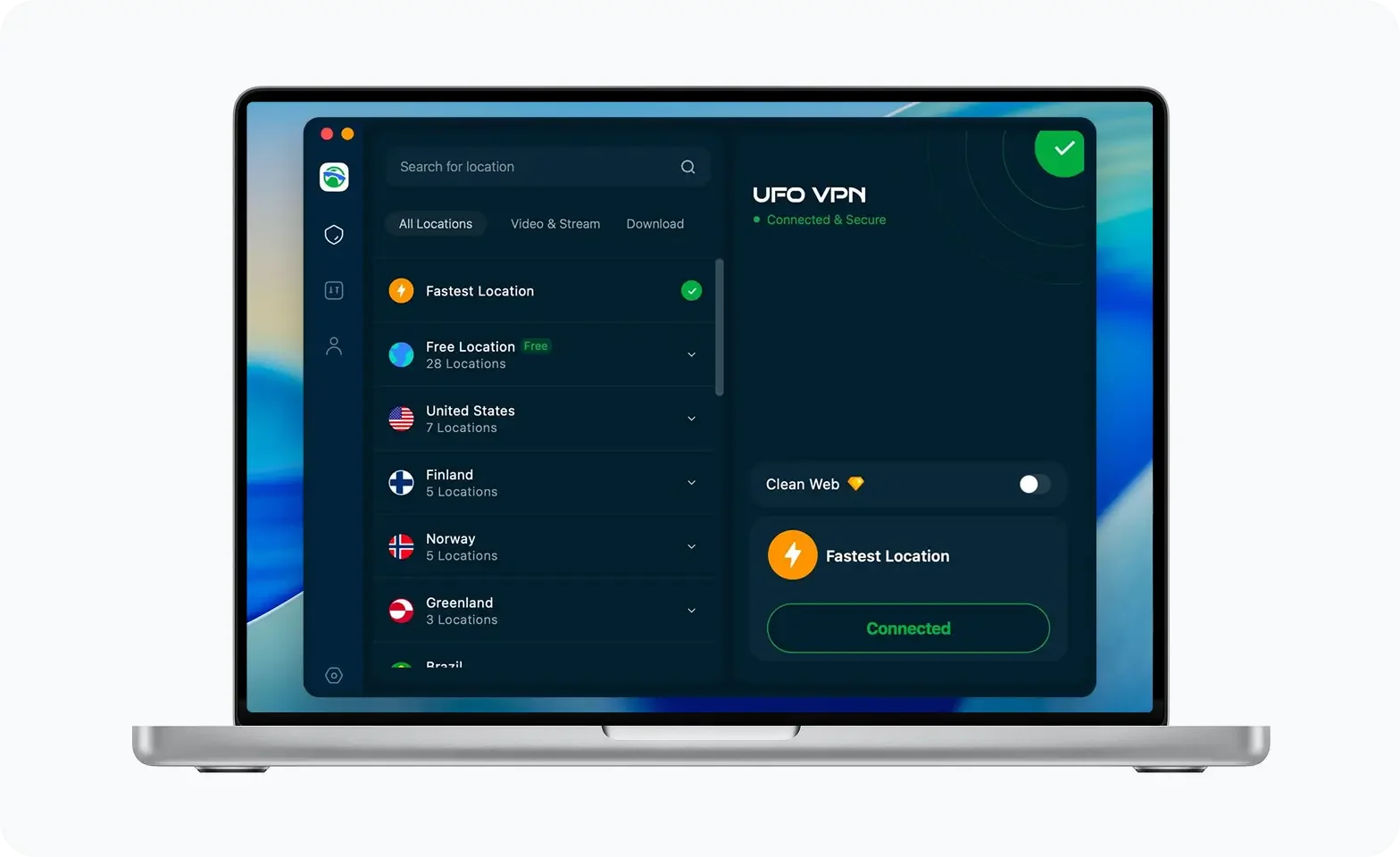
Launch UFO VPN and connect to a server.
Keep the VPN connected while you identify the VPN network interface.
This makes it easier to distinguish the VPN adapter from your regular Wi-Fi or Ethernet connection.
How to Bind VPN to qBittorrent on Desktop
How to Bind VPN to qBittorrent on Windows
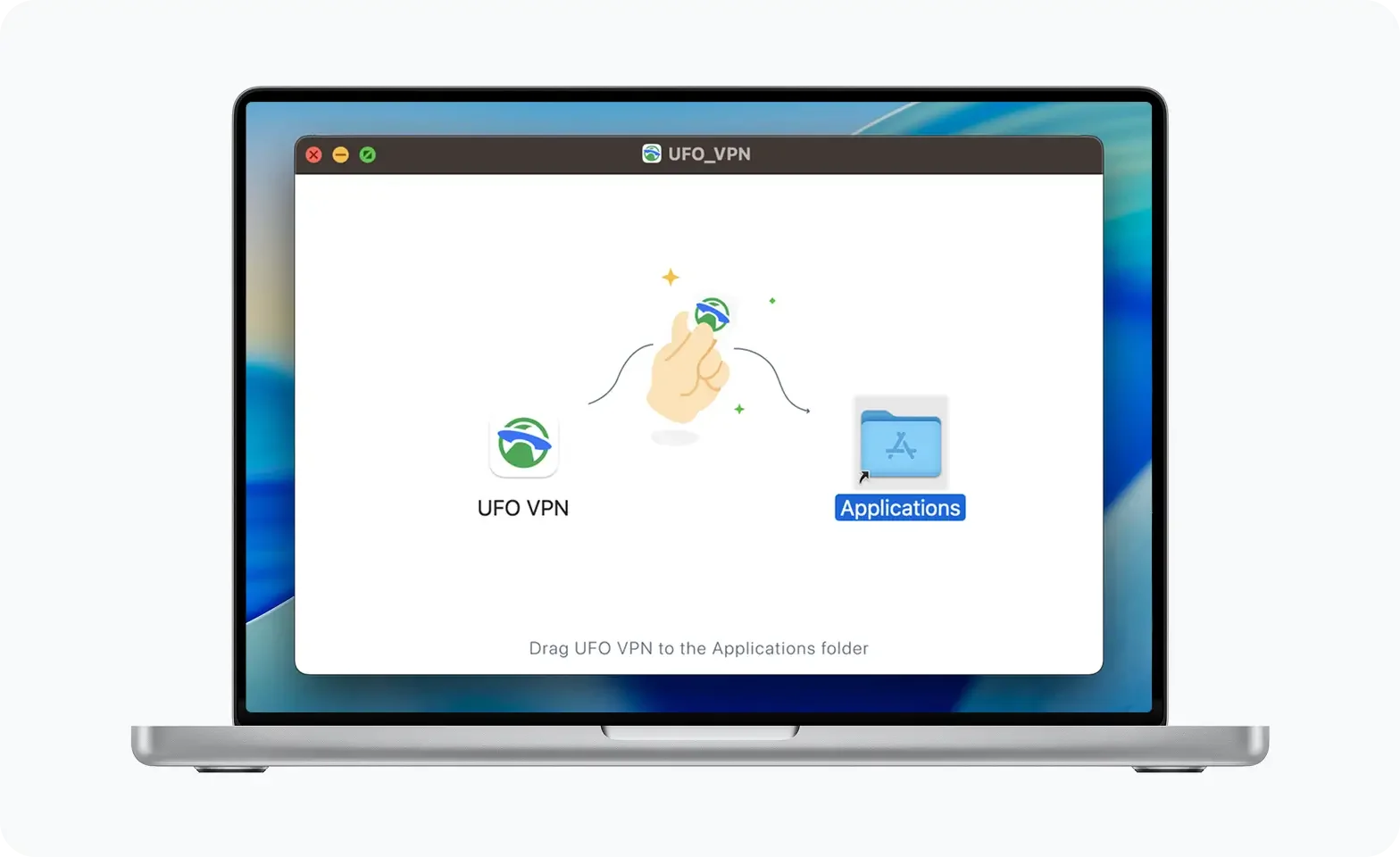
Step 1: Connect UFO VPN
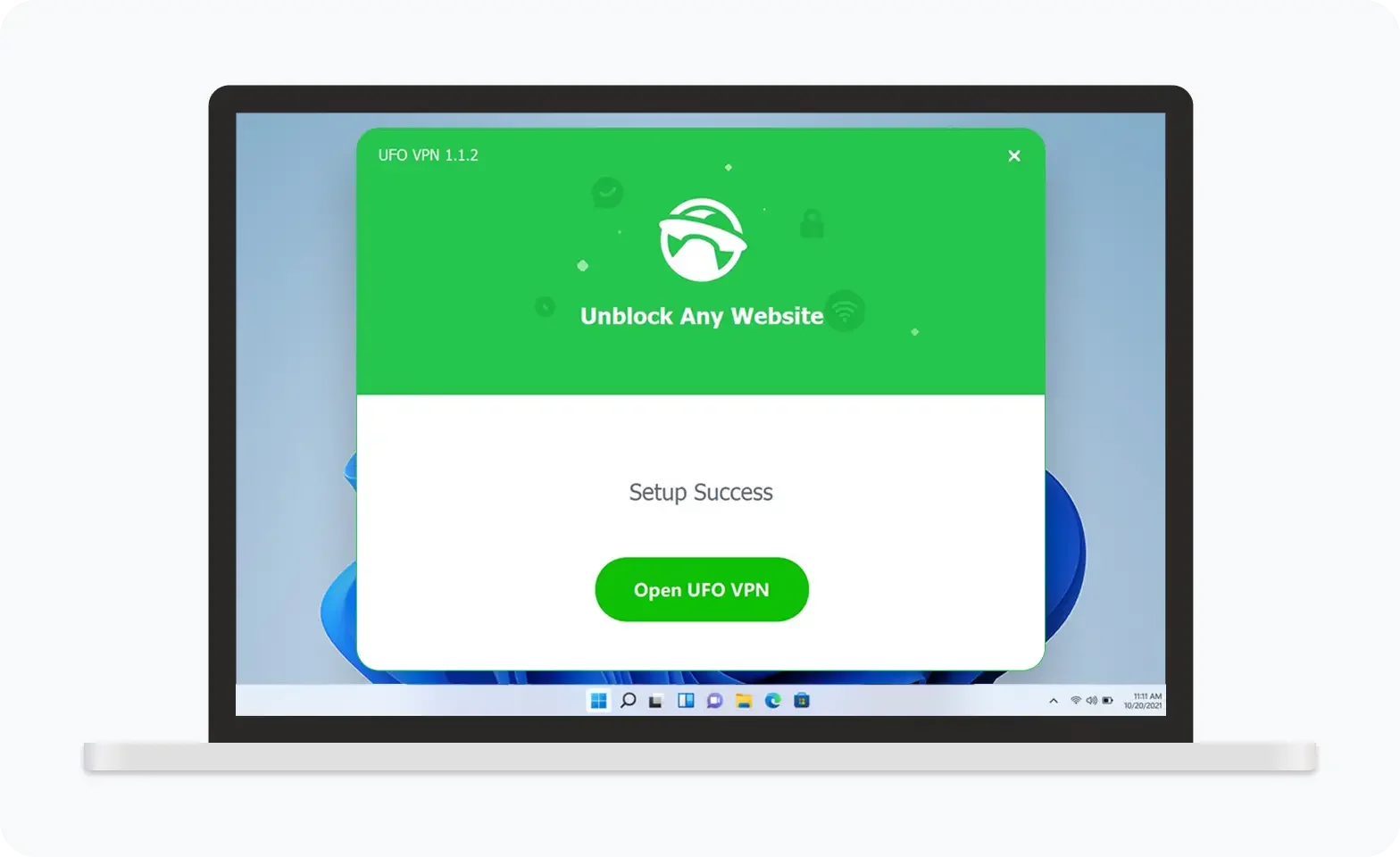
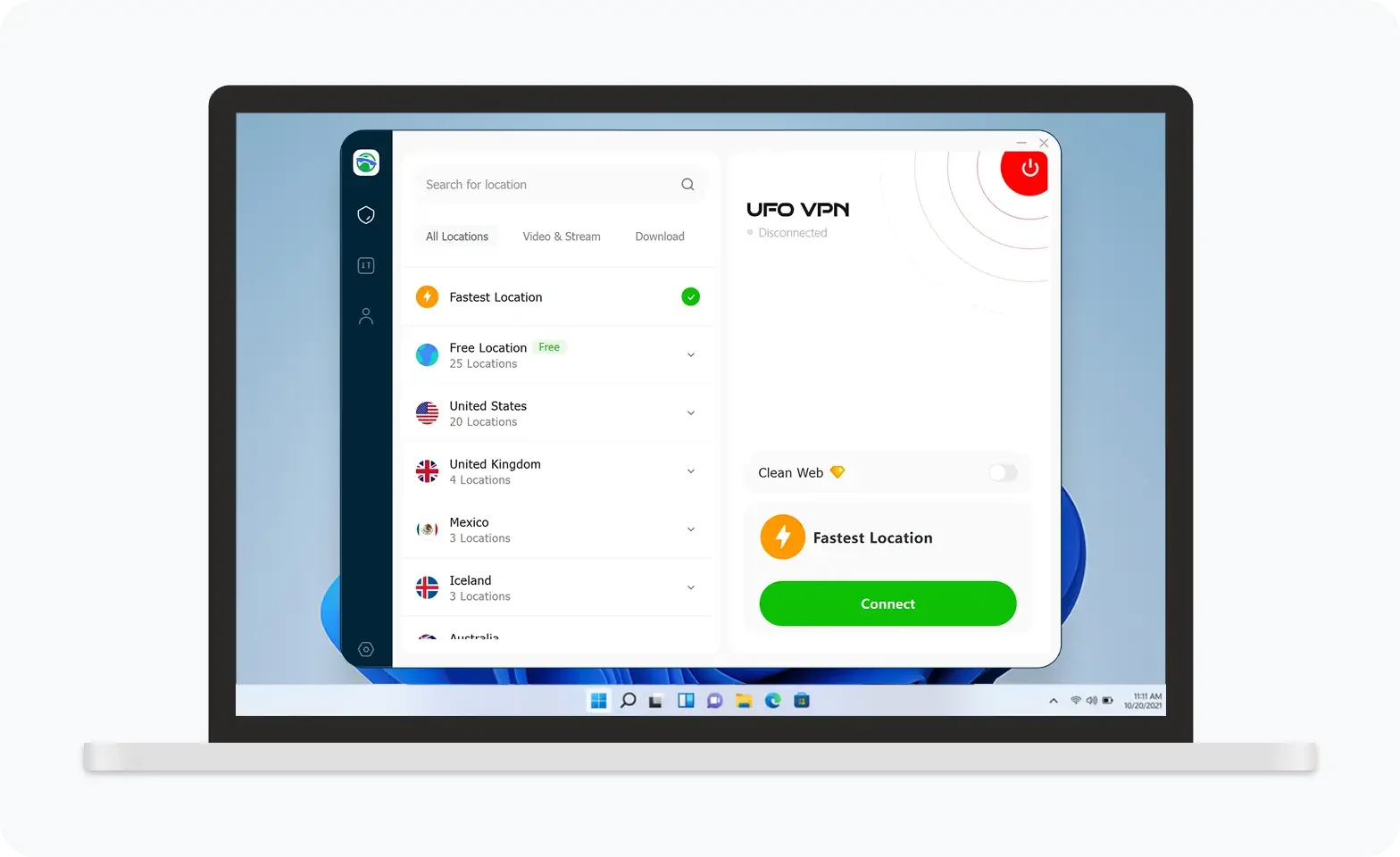
UFO VPN is an all-in-one VPN that offers unlimited access to 4K streaming like Netlfix, Disney Plus, no-ping gaming as PUBG, Roblox, CODM and social networking for YouTube, X, Facebook and more.
Unlock Pro Features
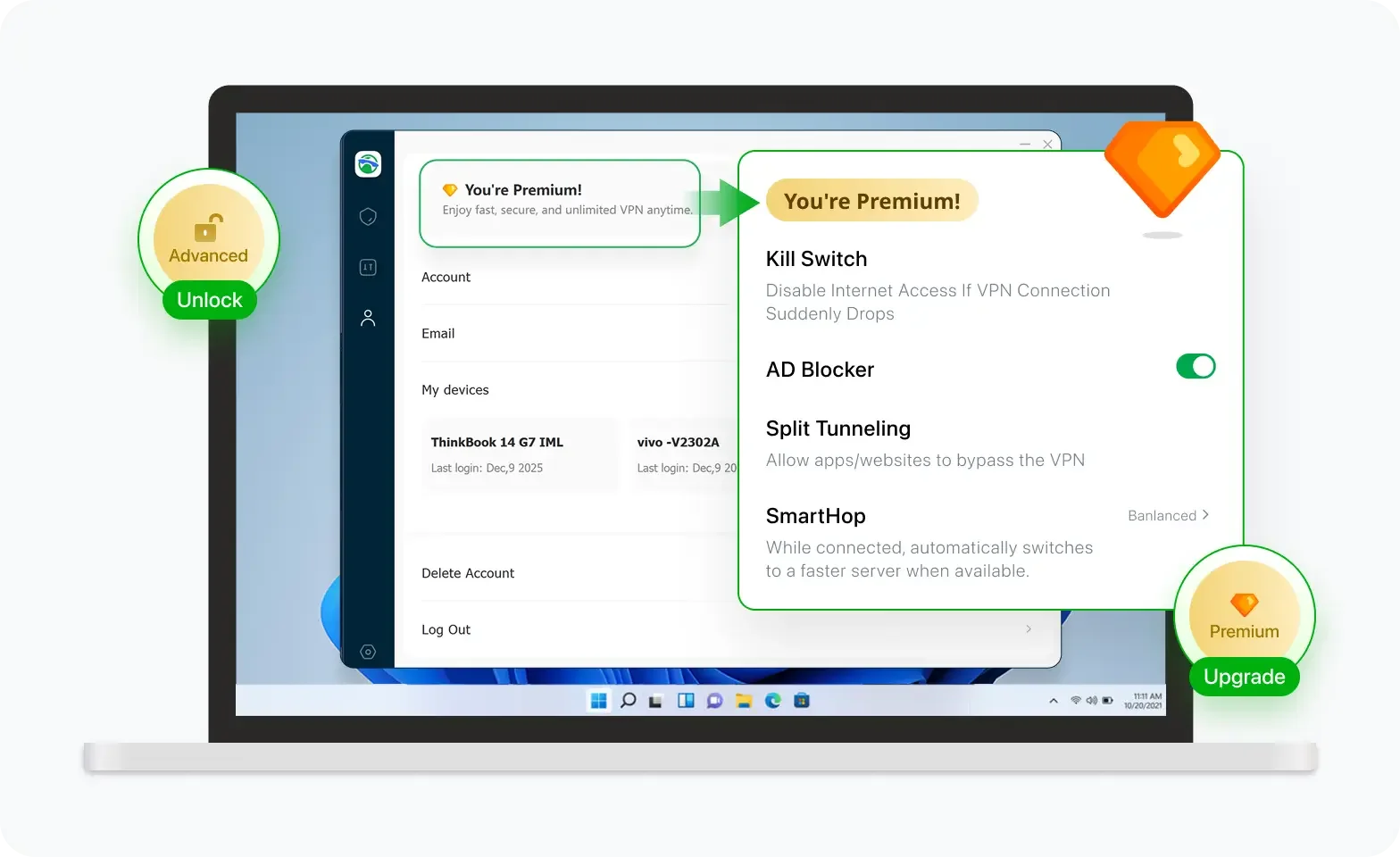
If you have upgraded to premium plan , feel free to enjoy premium servers for 4K streaming and advanced features like Kill Switch, Split Tunneling, and gaming acceleration. Your Mac is now fully optimized and protected. Inaddition to basic functions, we recommend you turn on

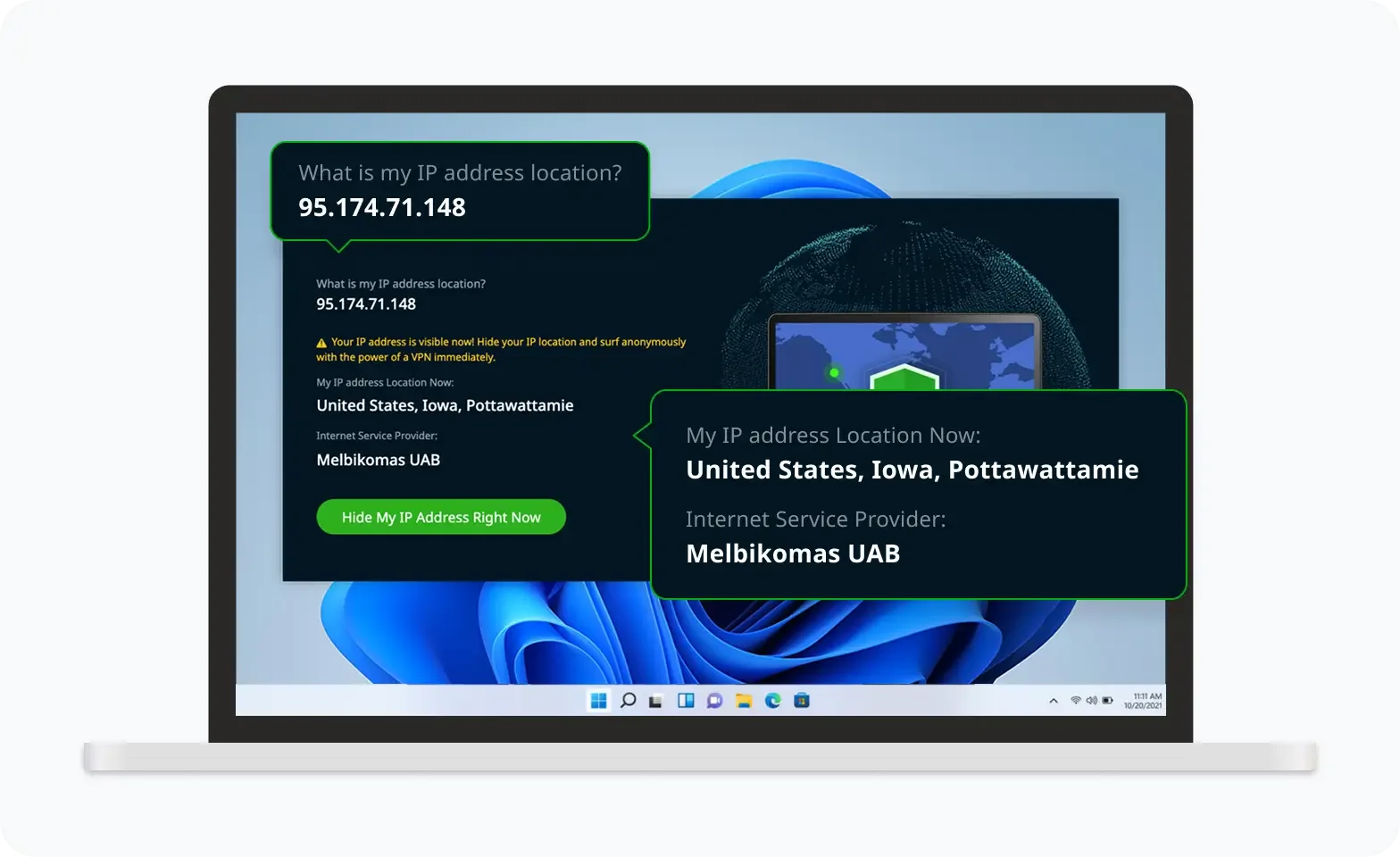
Verify Your IP Now
Use UFO VPN's " What is My IP " feature to see your new IP and location. This confirms your connection is secure, anonymous, and ready for safe browsing online anywhere at any time.

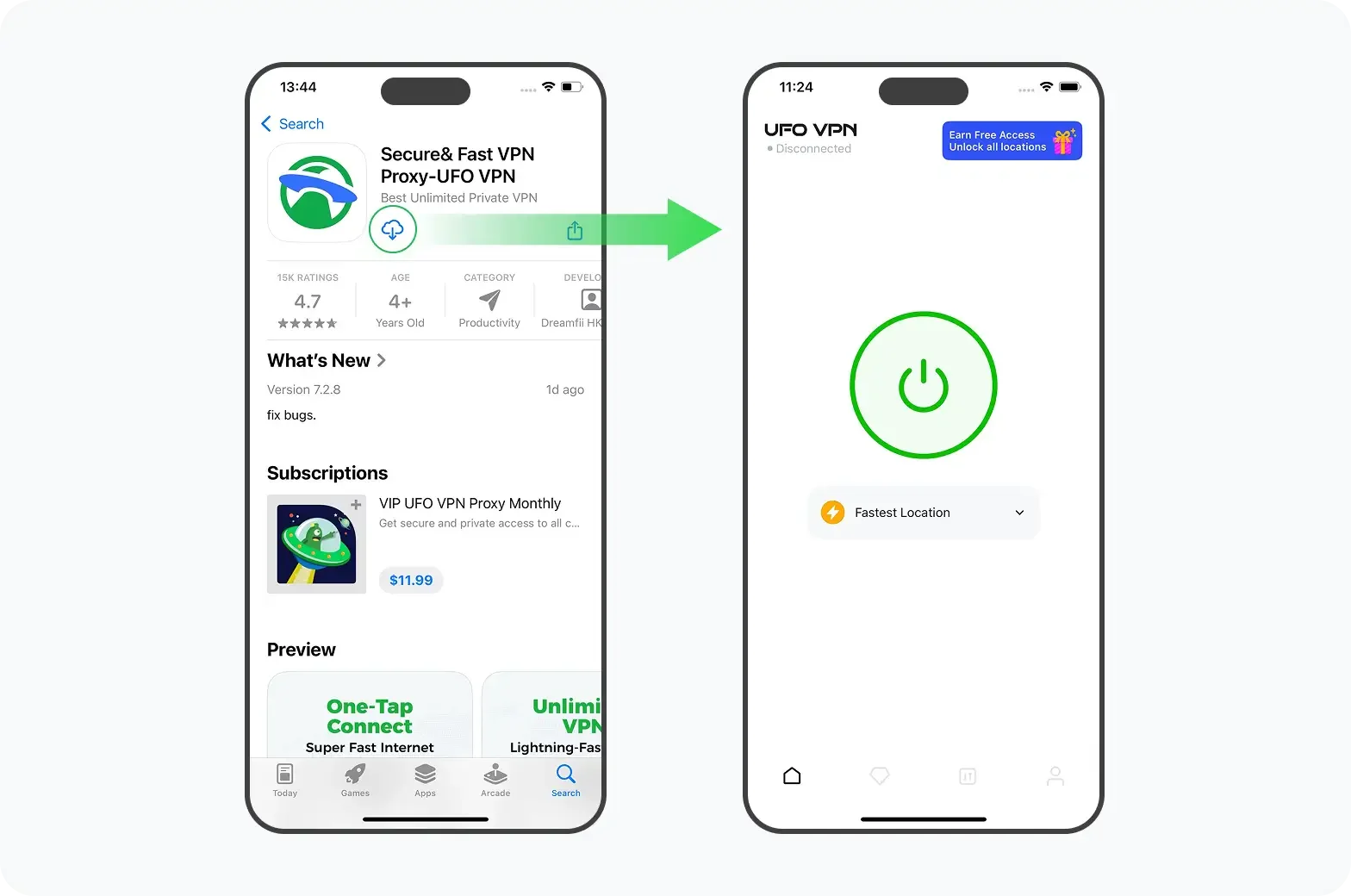
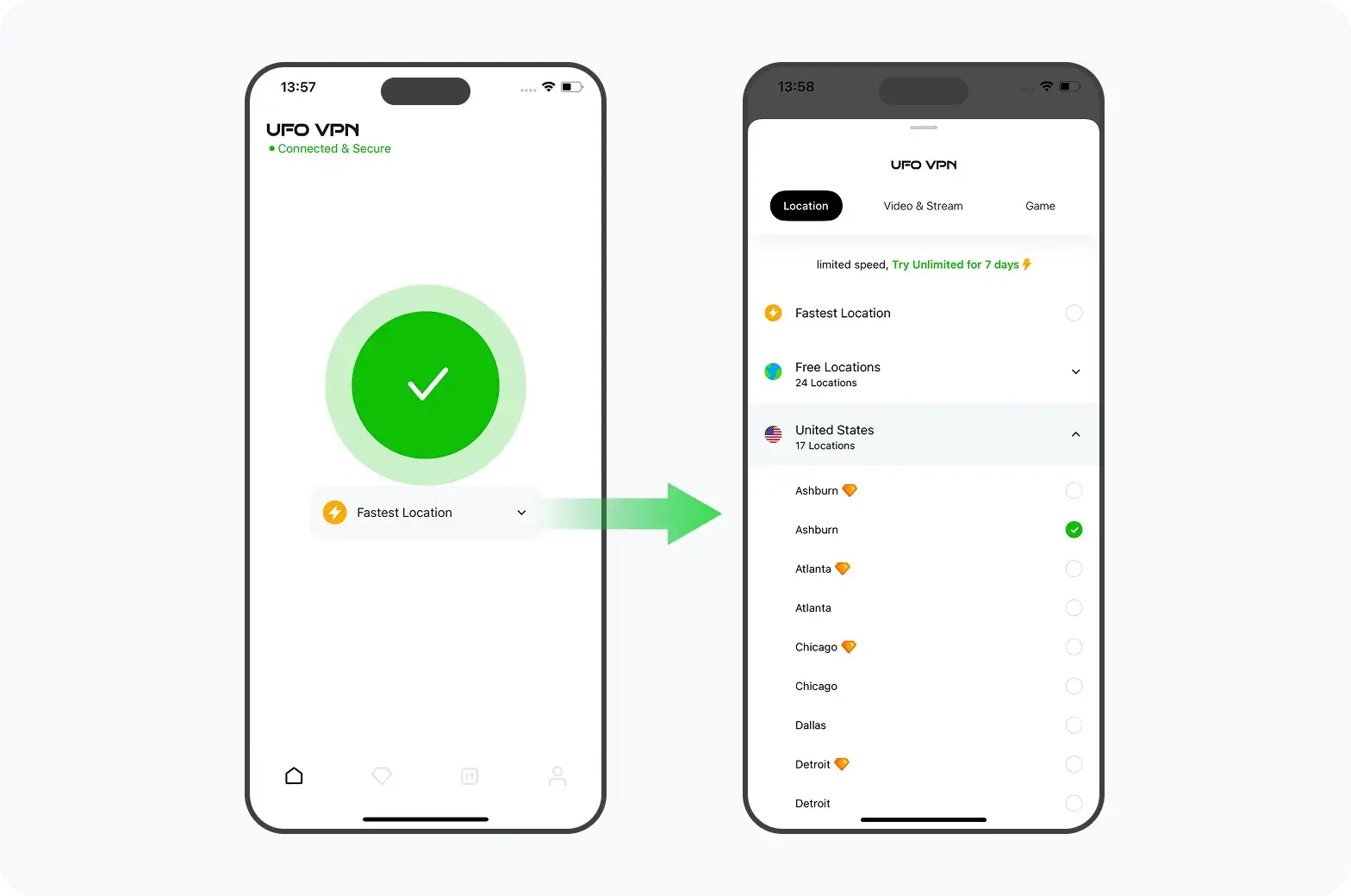
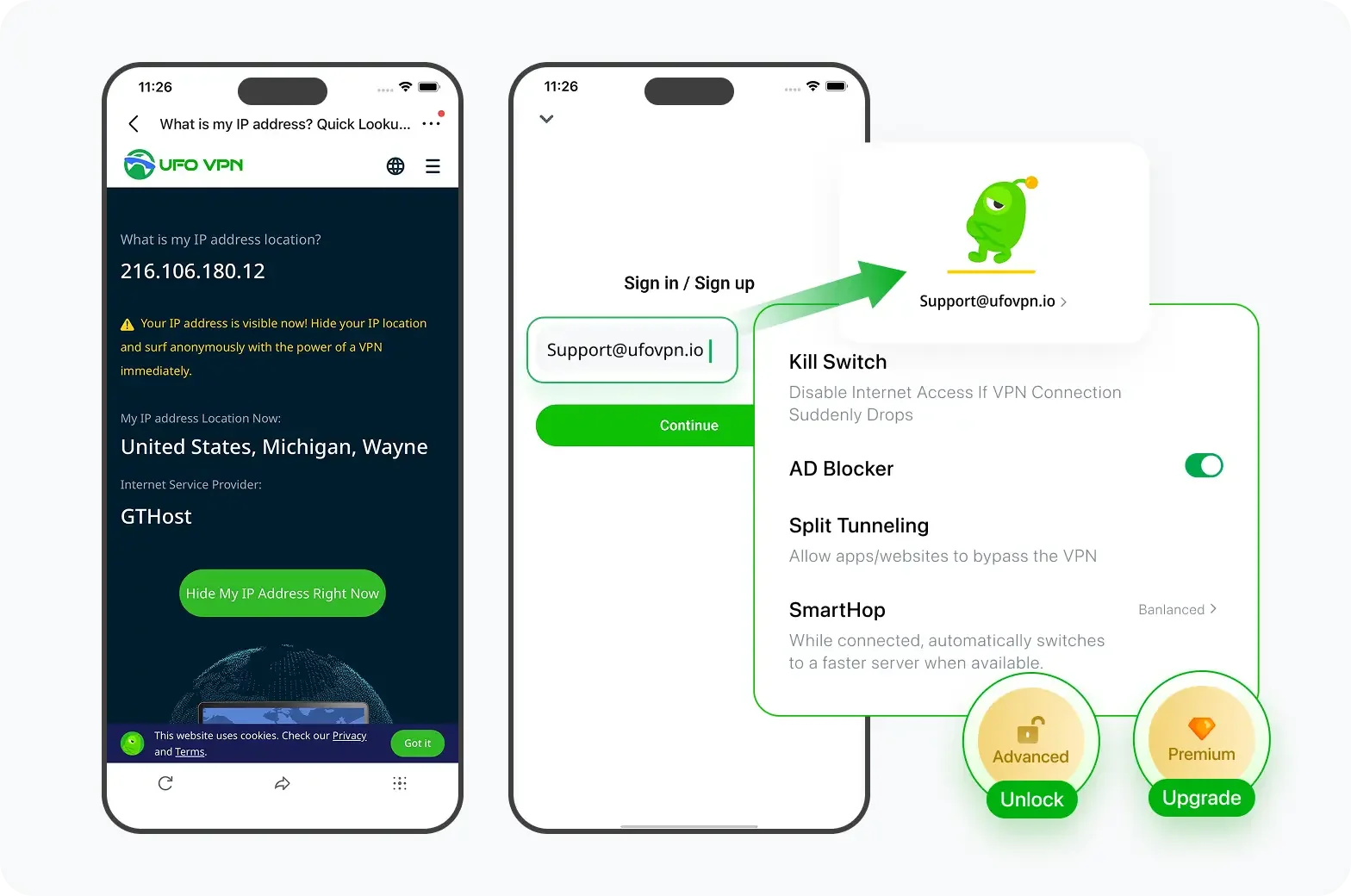
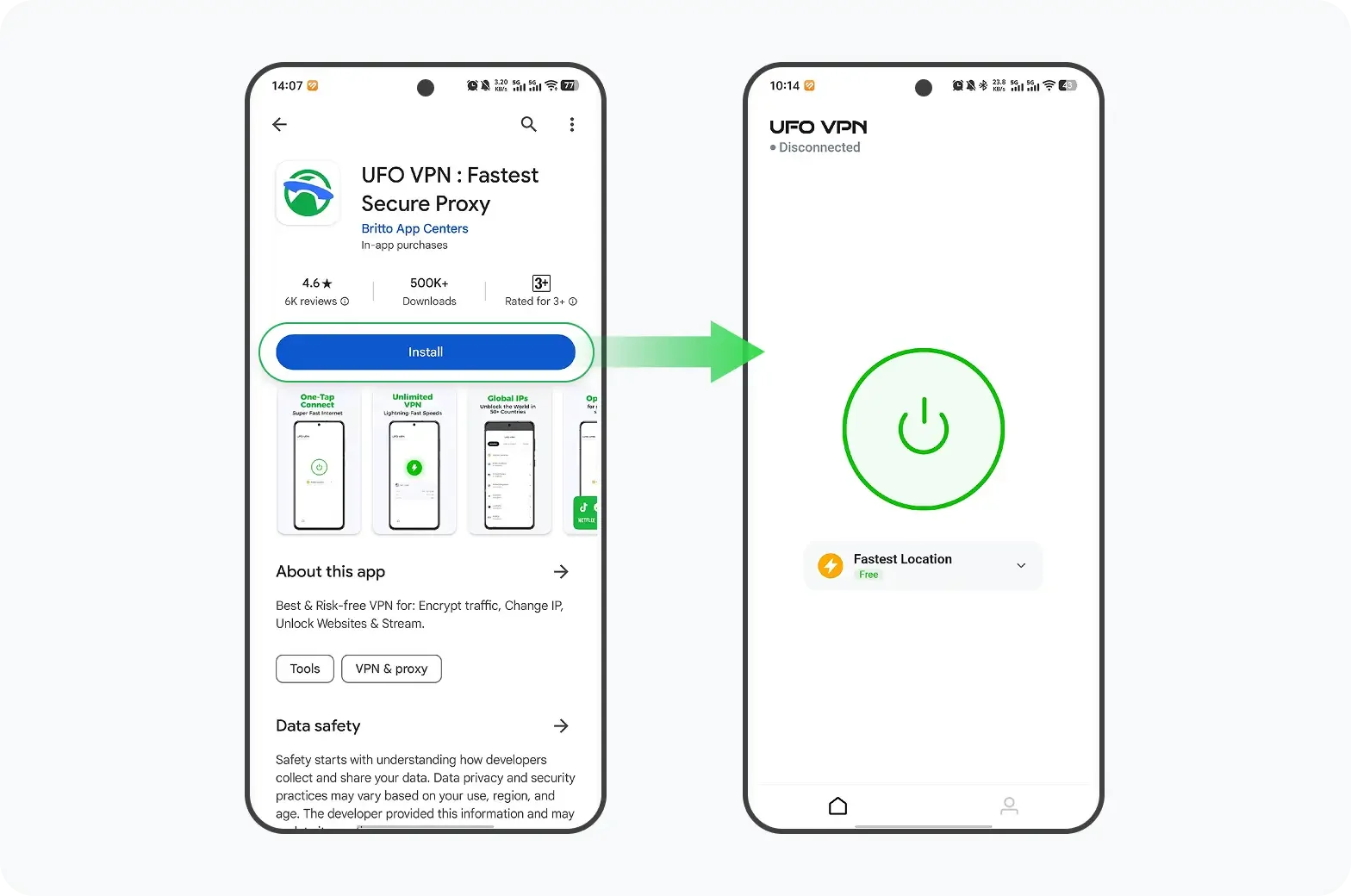
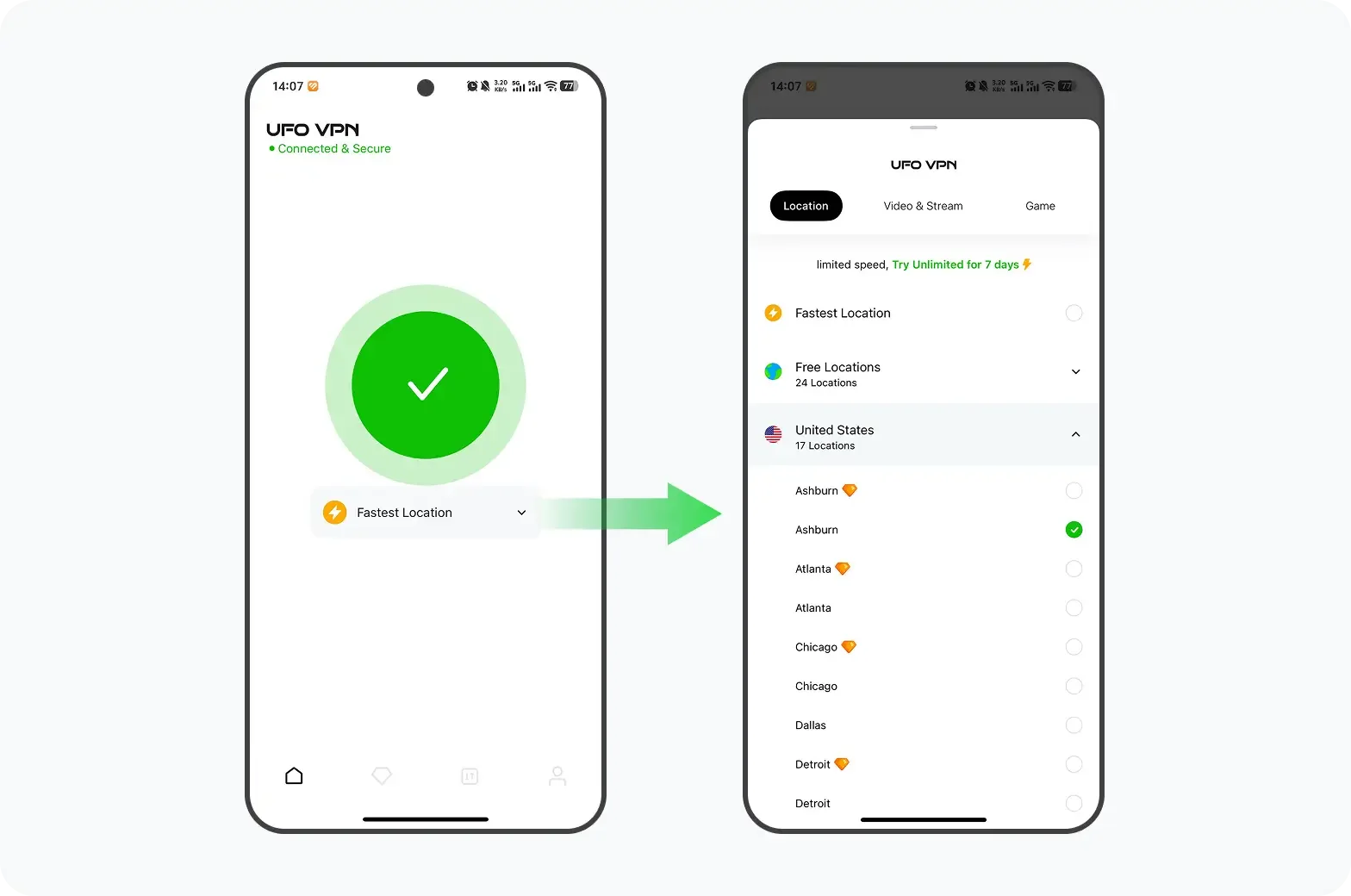
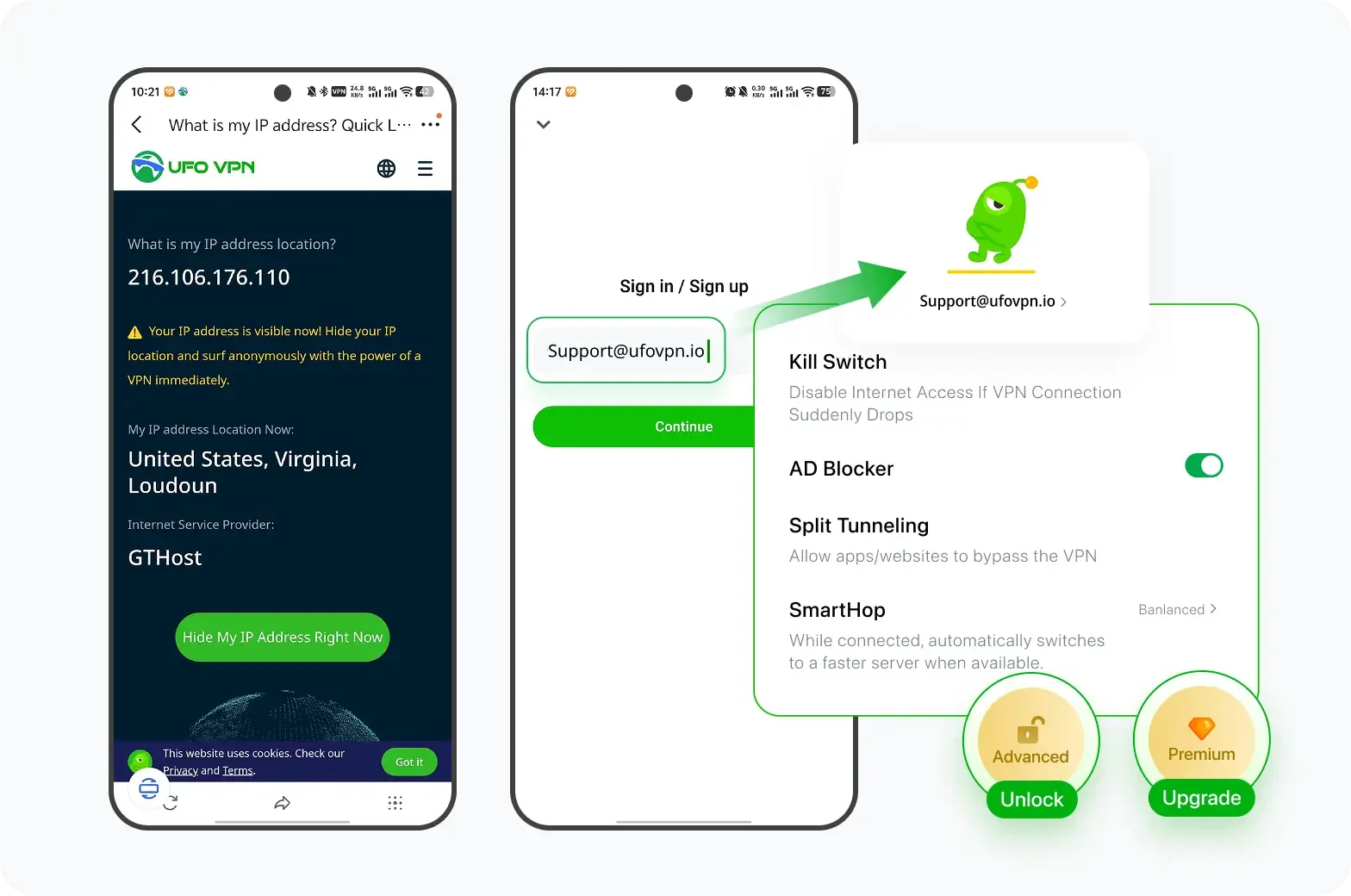
For your first setup, use a stable VPN server instead of repeatedly switching between locations.
Once the binding works, you can test other servers if necessary.
Step 2: Find the UFO VPN Network Interface
On Windows:
- Open Control Panel.
- Go to Network and Internet.
- Open Network Connections.
- Look for the VPN adapter created or activated by UFO VPN.
You may see multiple adapters.
For example, your system could show:
- Wi-Fi
- Ethernet
- VPN connection
- Other virtual adapters
The VPN interface is the one you need to select in qBittorrent.
How to identify the VPN adapter
If you're unsure which adapter belongs to UFO VPN:
- Disconnect UFO VPN.
- Look at the available network adapters.
- Reconnect UFO VPN.
- Check which adapter appears or becomes active.
This is usually easier than guessing based on the interface name.
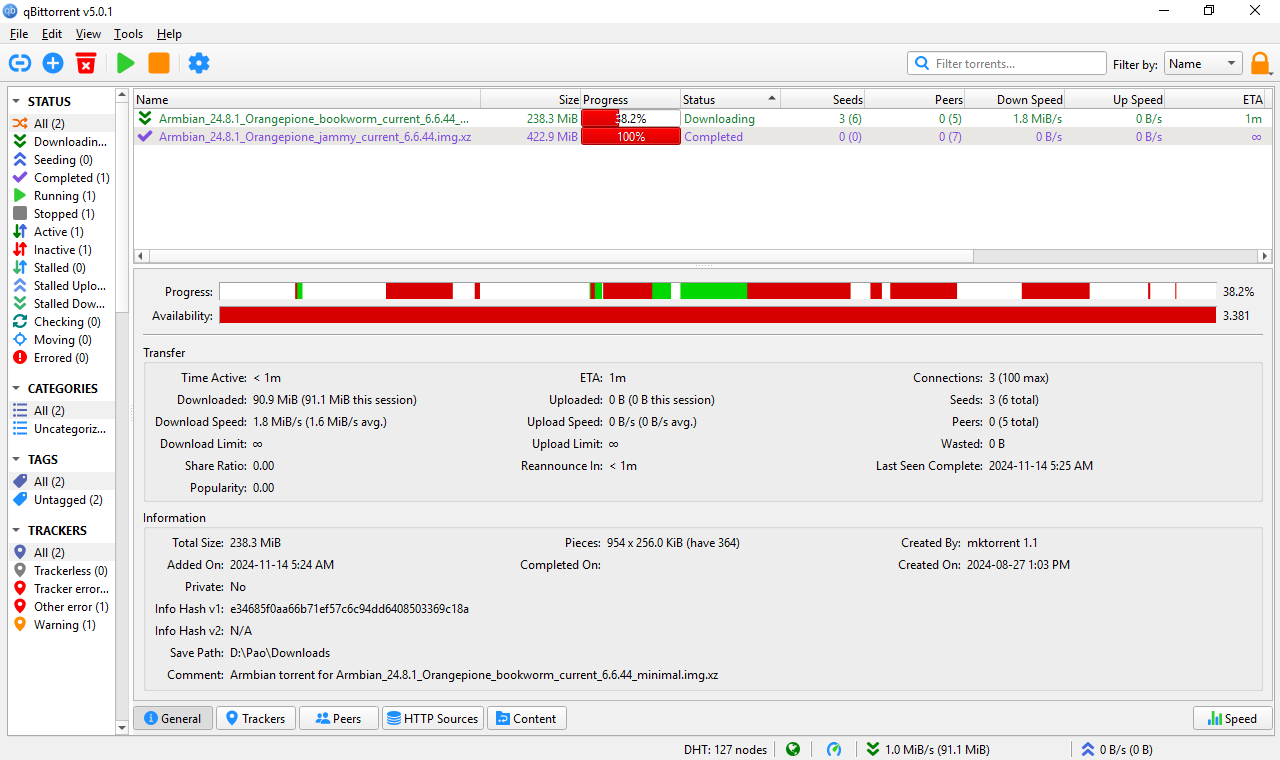
Step 3: Open qBittorrent Settings
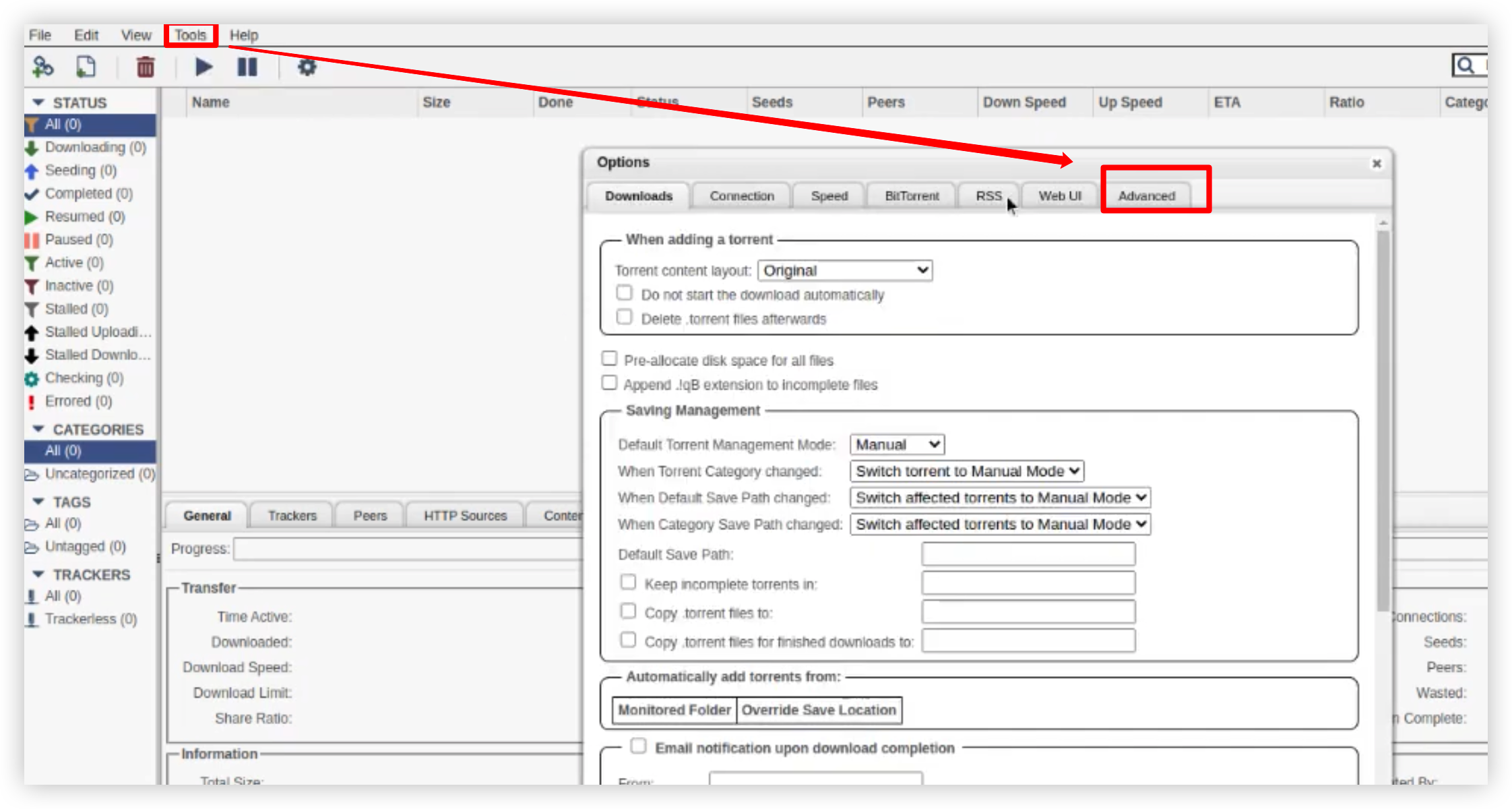
Open qBittorrent.
Then go to:
Tools → Options → Advanced
Find the setting called:
Network Interface
This setting controls which network interface qBittorrent uses for its network communication.
Step 4: Select the UFO VPN Interface
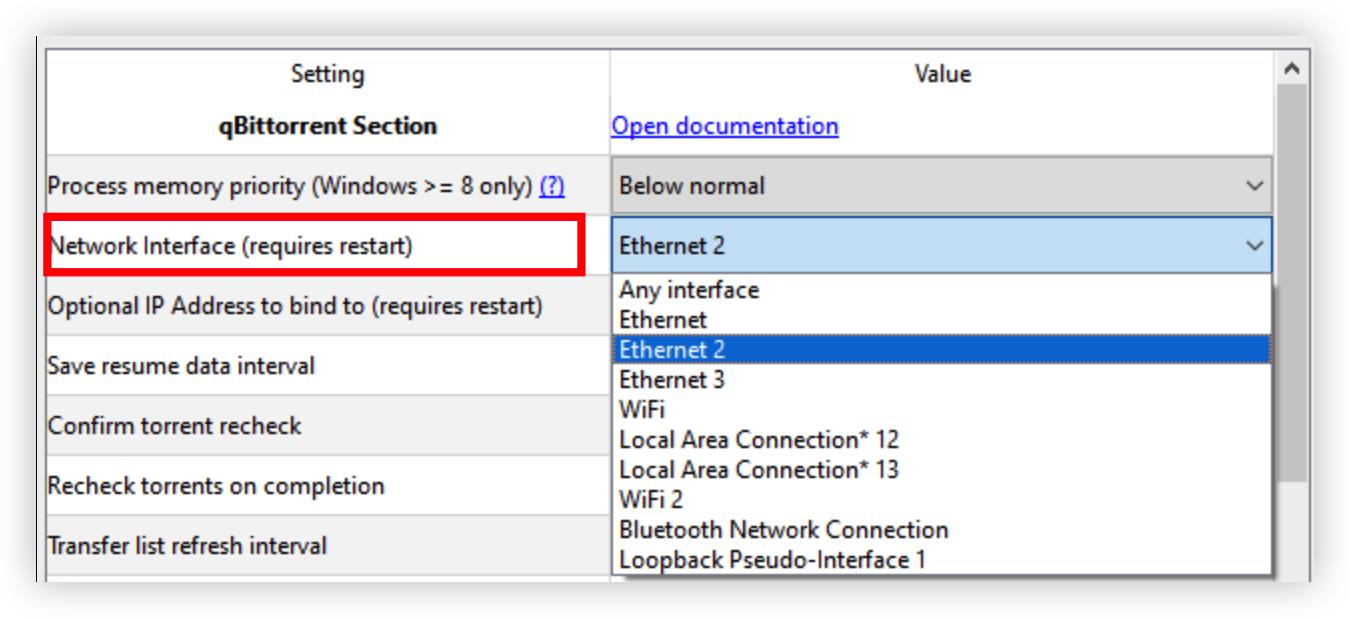
Under Network Interface, select the VPN adapter you identified earlier.
Avoid leaving the setting at:
Any interface
if your goal is to restrict qBittorrent to the VPN connection.
The important part is that the selected interface corresponds to the VPN connection that is currently active.
Step 5: Apply the Settings
Click:
Apply → OK
Then:
- Keep UFO VPN connected.
- Close qBittorrent.
- Reopen qBittorrent.
Restarting qBittorrent helps ensure that the new interface configuration is applied cleanly.
How to Bind VPN to qBittorrent on macOS
The overall process is similar on macOS, but there is an important difference:
The VPN interface name can vary depending on the VPN protocol and macOS configuration.
You should therefore identify the active VPN interface on your own Mac rather than copying an interface name from another computer.
Step 1: Connect UFO VPN
Open UFO VPN and connect to your preferred VPN server.
Keep the connection active while checking your network interfaces.
Step 2: Identify the VPN Interface
You can use macOS network settings or Terminal to identify the active VPN interface.
Depending on the VPN configuration, you may see a virtual interface such as:
utun0utun1- Another VPN-created interface
Don't assume that utun0 is always the correct interface.
The interface number can differ between computers and connections.
Step 3: Open qBittorrent
Open qBittorrent. Depending on the macOS version and qBittorrent version, go to:
qBittorrent → Settings/Preferences → Advanced
Locate: Network Interface
Step 4: Select the VPN Interface
Select the interface associated with your active VPN connection.
Then apply the settings and restart qBittorrent.
If qBittorrent stops transferring after this step, don't immediately assume the VPN is incompatible. The first thing to check is whether the selected interface is actually the active VPN interface.
How to Verify Your qBittorrent VPN Binding
Configuring the setting isn't enough. You should test the binding before relying on it. A simple disconnect test can tell you whether qBittorrent is still able to communicate after the VPN connection disappears.
Test 1: Check qBittorrent With the VPN Connected
First:
- Connect UFO VPN.
- Open qBittorrent.
- Start a legal torrent.
- Confirm that data transfers normally.
If qBittorrent works normally, the initial configuration is likely correct.
However, you still need to perform the disconnect test.
Test 2: Disconnect the VPN
This is the most important test.
- Start a legal torrent.
- Confirm that qBittorrent is transferring.
- Disconnect UFO VPN.
- Wait several seconds.
- Check qBittorrent.
What should happen?
If qBittorrent is correctly bound to the VPN interface, its transfers should stop when that interface becomes unavailable.
The key point is:
VPN disconnected → VPN interface unavailable → qBittorrent cannot continue through that selected interface
If qBittorrent continues transferring normally after the VPN disconnects, stop the torrent and review your configuration.
Do not assume that the binding is working simply because qBittorrent remains open.
Test 3: Reconnect the VPN
Reconnect UFO VPN.
Once the VPN interface becomes available again, qBittorrent should be able to communicate through the selected interface.
If it doesn't resume:
- Check the active VPN interface.
- Confirm that qBittorrent is still bound to it.
- Restart qBittorrent if necessary.
Does VPN binding slow down qBittorrent?
VPN binding itself does not significantly slow down qBittorrent. The main factor that can affect torrent speed is the VPN connection, rather than the qBittorrent binding setting.
When qBittorrent is bound to a VPN interface, the client is simply restricted to that specific network interface. It does not add another layer of encryption or create an additional connection by itself.
- VPN server distance: A server farther from your location can introduce higher latency.
- Server load: Overloaded VPN servers may provide slower speeds.
- Network congestion: Busy routes between your device, VPN server, and torrent peers can reduce throughput.
- VPN protocol: Different VPN protocols can have different performance characteristics.
- Your internet connection: Your ISP connection and local network can still be the limiting factor.
- Torrent availability: The number and upload speeds of available peers can have a major impact on download performance.

(Pro) Improve qBittorent Speed with a VPN
Once you have configured qBittorrent, a few additional settings can make the setup more practical.
1. Enable Kill Switch
Turn on UFO VPN's Kill Switch before using qBittorrent.
The purpose of a Kill Switch is to block internet traffic when the VPN connection is interrupted.
This provides device-level protection, while qBittorrent binding provides application-level control.
Together:
UFO VPN Kill Switch
→ Helps block device traffic when the VPN disconnects
qBittorrent Network Interface Binding
→ Restricts qBittorrent to the selected VPN interface
2. Keep qBittorrent Bound to the VPN Interface
Don't switch qBittorrent back to Any interface simply because downloads stop when the VPN disconnects.
If you've intentionally configured interface binding, stopping when the VPN is unavailable can be the expected behavior.
Instead, check:
- Is UFO VPN connected?
- Is the selected interface active?
- Did the VPN create a different interface after reconnecting?
- Does qBittorrent need to be restarted?
3. Choose a Stable VPN Server
VPN server selection can affect qBittorrent performance.
Factors include:
- Server load
- Distance
- Latency
- Network congestion
- VPN protocol
- Your underlying internet connection
If torrent transfers suddenly become slow, try another UFO VPN server rather than immediately removing the VPN binding.
A geographically closer or less congested server may provide better performance.
(Fixed) qBittorent Stops Downloading after VPN Binding?
If qBittorrent stops downloading immediately after you bind it to a VPN, that's one of the most common setup issues.
In many cases, the problem is the selected network interface rather than qBittorrent itself.
You Selected the Wrong Network Interface
You may have accidentally selected:
- Wi-Fi
- Ethernet
- An inactive VPN adapter
- An old VPN adapter
- Another virtual network interface
Reconnect UFO VPN and identify the active VPN interface again.
Then return to:
qBittorrent → Options → Advanced → Network Interface
Select the currently active VPN interface.
UFO VPN Is Not Connected
If qBittorrent is correctly bound to the VPN interface, it may stop transferring when UFO VPN is disconnected.
That's expected.
The whole purpose of binding is to prevent qBittorrent from freely switching to another network interface.
Reconnect UFO VPN and check whether the transfer resumes.
The VPN interface changed
Some VPN connections can create a different virtual interface after reconnecting.
For example, you may configure qBittorrent to use one interface, disconnect the VPN, reconnect it, and find that the active interface has changed.
Check the active interface again.
If necessary, update qBittorrent's Network Interface setting to match the current VPN connection.
qBittorrent Needs to Be Restarted
After changing the Network Interface setting:
- Apply the configuration.
- Close qBittorrent.
- Connect UFO VPN.
- Reopen qBittorrent.
- Test a legal torrent.
A restart can resolve issues caused by qBittorrent retaining the previous network state.
🔍Quick qBittorrent binding Checklist
| Problem | What to Check | Fix |
|---|---|---|
| qBittorrent won't download | VPN interface selection | Make sure qBittorrent is bound to the active VPN interface |
| qBittorrent stops after VPN reconnects | Whether the VPN interface changed | Reconnect the VPN, check the active interface, and update the binding if needed |
| Downloads are very slow | VPN server distance and load | Try a closer or less congested VPN server |
| qBittorrent transfers after VPN disconnects | Network Interface setting | Stop the torrent and verify that qBittorrent is bound to the VPN interface |
| qBittorrent cannot connect to peers | VPN, firewall, and network settings | Check your VPN connection and firewall rules, then restart qBittorrent |
| Downloads don't resume after VPN reconnects | Whether the bound interface is available | Confirm the VPN interface is active and restart qBittorrent if necessary |
| Works without VPN but not with VPN | qBittorrent binding configuration | Check that the correct VPN interface is selected instead of Any interface |
| Binding suddenly stops working | VPN or network configuration changes | Recheck the VPN interface and qBittorrent's Advanced settings |
qBittorrent VPN Binding vs VPN Kill Switch vs Proxy
qBittorrent VPN binding, a VPN Kill Switch, and a proxy serve different purposes. A Kill Switch protects traffic when the VPN disconnects, VPN binding restricts qBittorrent to a specific VPN interface, while a proxy routes configured application traffic through a proxy server.
| Feature | qBittorrent VPN Binding | VPN Kill Switch | Proxy |
|---|---|---|---|
| Main purpose | Restrict qBittorrent to the VPN interface | Block traffic when VPN disconnects | Route traffic through a proxy server |
| Protects qBittorrent specifically | ✅ | Indirectly | Yes, if configured |
| Protects other apps | ❌ | ✅ | Usually no |
| Blocks traffic after VPN disconnect | Yes, if correctly configured | ✅ | Usually no |
| Requires qBittorrent settings | ✅ | ❌ | ✅ |
| Works at application level | ✅ | ❌ | ✅ |
| Requires a VPN connection | ✅ | ✅ | ❌ |
| Best use case | Preventing qBittorrent from using another interface | Device-wide traffic protection | Specific proxy-based routing |
These features are not interchangeable. For most users who want to run qBittorrent through a VPN, VPN binding and a Kill Switch work best together. A proxy can be useful for specific routing requirements, but it is not a direct replacement for either VPN binding or a VPN Kill Switch.
Key Takeaways
- Keep qBittorrent inside a VPN: Bind it to the VPN interface.
- Prevent IP leaks on qBittorrent: Enable VPN Kill Switch + interface binding.
- Test protection: Disconnect the VPN and confirm downloads stop.
- Bind UFO VPN to qBittorrent: Connect UFO VPN - a free proxy VPN first, then select its VPN interface in qBittorrent.
- Fix qBittorrent VPN connection issues: Recheck the selected interface and restart qBittorrent.
- Improve torrent speed: Switch to a stable, less congested VPN server for qBittorrent.
Conclusion
Simply opening a VPN before launching qBittorrent is not the same as configuring qBittorrent to use the VPN exclusively. For users who want an extra layer against accidental traffic leaks, the more robust setup is all included in this tutorial. Meanwhile,VPN binding does not make copyrighted or unauthorized torrenting legal. Use qBittorrent for content you have the right to download and share.
FAQs
Is it safe to access qBittorrent with a VPN?
qBittorrent can be used with a VPN, and binding it to the VPN interface can provide an additional layer against accidental traffic outside the VPN tunnel.
Does qBittorrent have a built-in VPN?
No. qBittorrent is a torrent client; you need a separate VPN service if you want VPN protection.
Should I use a VPN Kill Switch and qBittorrent binding together?
Yes. They address different layers of protection: the Kill Switch can block device-wide traffic during a VPN interruption, while qBittorrent binding restricts qBittorrent to a specific interface.
Can I bind UFO VPN to qBittorrent?
Yes. UFO VPN provides free VPN download (desktop and mobile) and features including Kill Switch and DNS/IP leak protection. You can configure qBittorrent to use the VPN interface created by the VPN connection.
Does a VPN binding to qBittorent make torrenting anonymous?
No. VPN binding is a leak-prevention and traffic-routing measure, not a guarantee of anonymity. It can help ensure that qBittorrent uses a specific VPN interface, but your overall privacy still depends on multiple factors, including VPN configuration, DNS behavior, IPv6 configuration, qBittorent settings, PS networking, etc.