




Key Takeaways
💻 ipconfig and Windows 11 IP settings mainly change your local IP address.
🌐 Restarting your router or moving to another network can change your public IP.
🔄 A proxy or Tor can show websites a different IP without changing the address assigned by your ISP.
⚠️ A new IP does not make you anonymous or erase earlier online activity.
🔐 If you need to switch public IPs often, a VPN is usually easier than repeatedly changing networks or settings.
Which IP Address Do You Want to Change on Windows 11?
Before changing anything, identify which IP address matters for your situation. Windows 11 users normally deal with a local IP address and a public IP address.
Local IP Address
Your local IP identifies your Windows 11 PC inside your home, office, or another private network. It often looks like 192.168.1.25. Your router normally assigns it automatically through DHCP.
You may need to change or renew this IP if your PC has a connection problem, two devices have conflicting addresses, or you want your computer to keep a fixed address on your local network.
Windows 11 lets you handle this directly through Command Prompt or Network settings.
Public IP Address
Your public IP is the address websites and online services normally see when you connect to the internet. On a typical home network, your ISP assigns this address to your internet connection, while your router gives each device a separate local IP.
You may want to change your public IP if a website has blocked your current one, you are testing access from another network, or you simply do not want a site to keep seeing your current home IP.
Changing your local IP in Windows 11 does not normally change your public IP. This is why ipconfig /renew may show a different IPv4 address on your PC while an IP-checking website still shows the same address.
How to Change Your Local IP Address on Windows 11
If you are fixing a local network problem or want your PC to use a different address inside your network, start with these Windows 11 methods.
Method 1: Release and Renew Your IP with Command Prompt
The quickest built-in way to refresh a local IP is through Command Prompt. This works when your Windows 11 PC gets its network configuration automatically through DHCP and is useful for connection issues or local IP conflicts.
Step 1: Open Command Prompt and Release Your Current IP
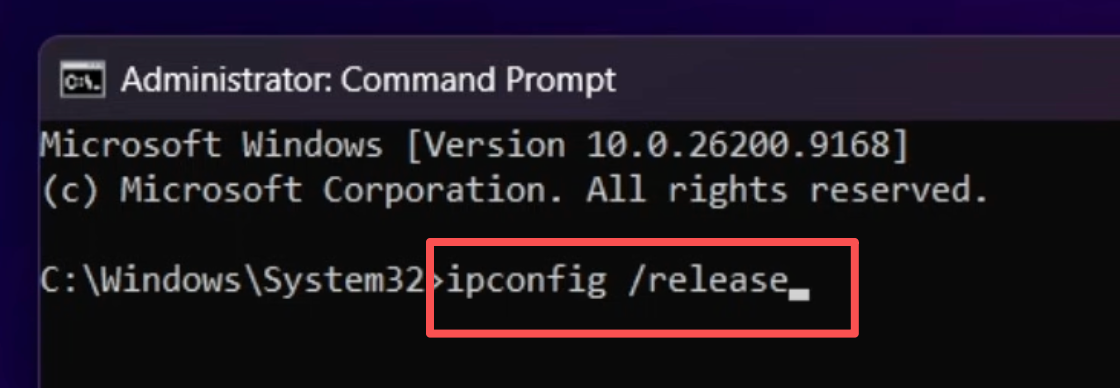
Click the Windows search bar and type CMD. In Command Prompt, enter ipconfig /release and press Enter.
Step 2: Renew the IP Address
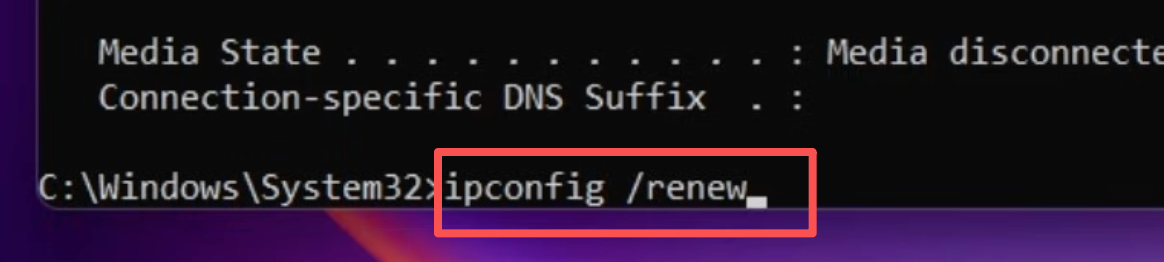
Next, enter ipconfig /renew and press Enter.
Step 3: Restart the Computer
Step 4. Check Your Current Local IP
Enter ipconfig and find the active Wi-Fi or Ethernet adapter. Look for IPv4 Address.
Compare it with the address you had before. If the value changed, your local IP changed.
Method 2: Manually Set a Static IP in Windows 11
If you want your Windows 11 PC to use a specific local IP, you can switch from automatic DHCP to a manual IPv4 setup.
Step 1: Check Your Current Network Details
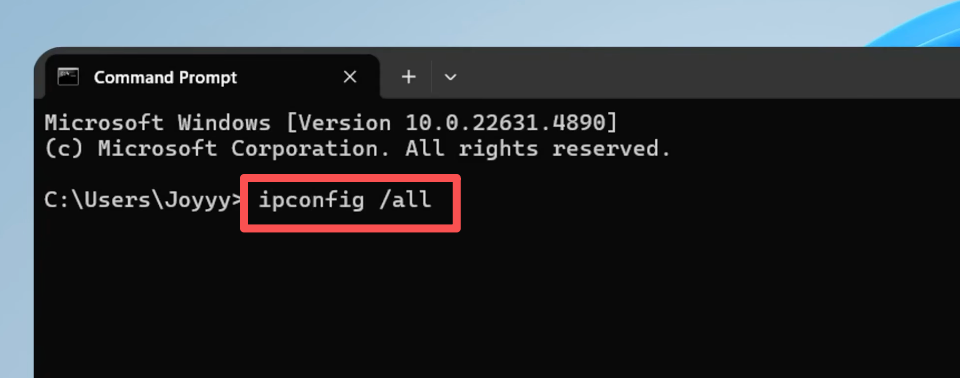
Open Command Prompt and enter ipconfig /all.
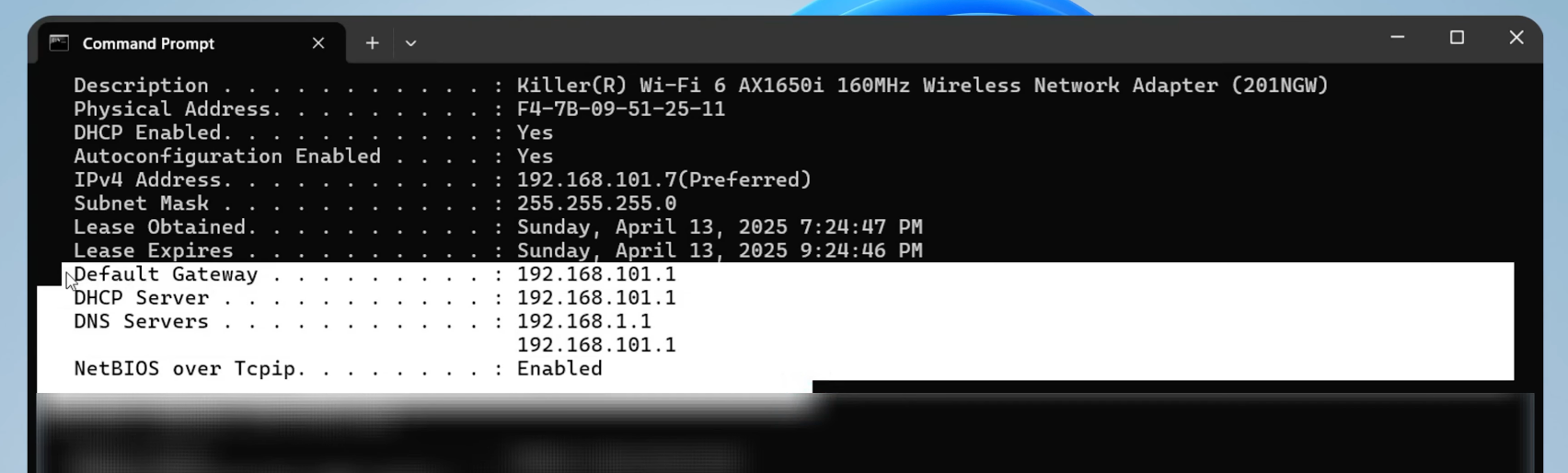
Note your IPv4 Address, Subnet Mask, Default Gateway, and DNS Servers. Keep these details for the next step.
Step 2: Open Manual IP Settings
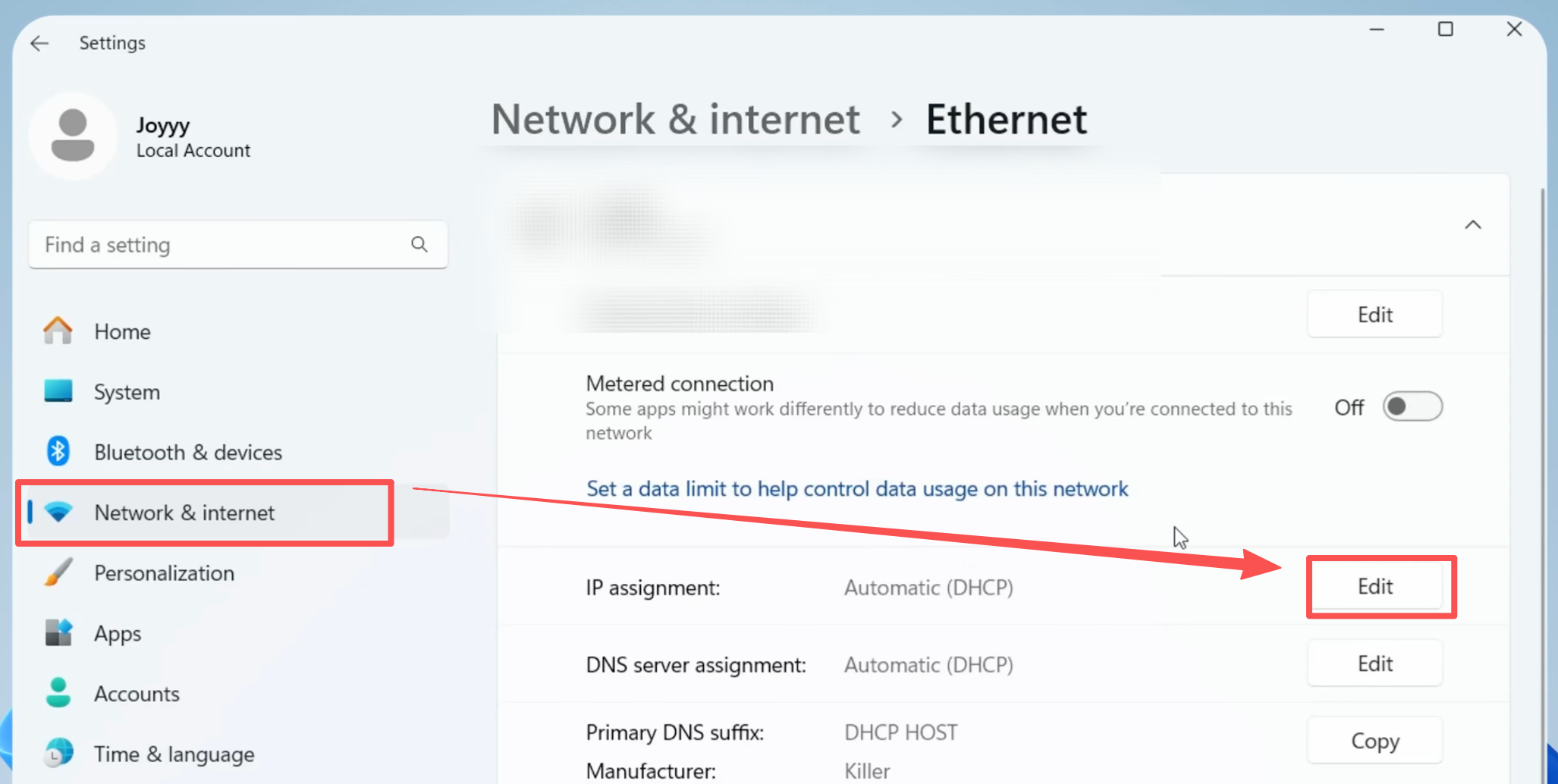
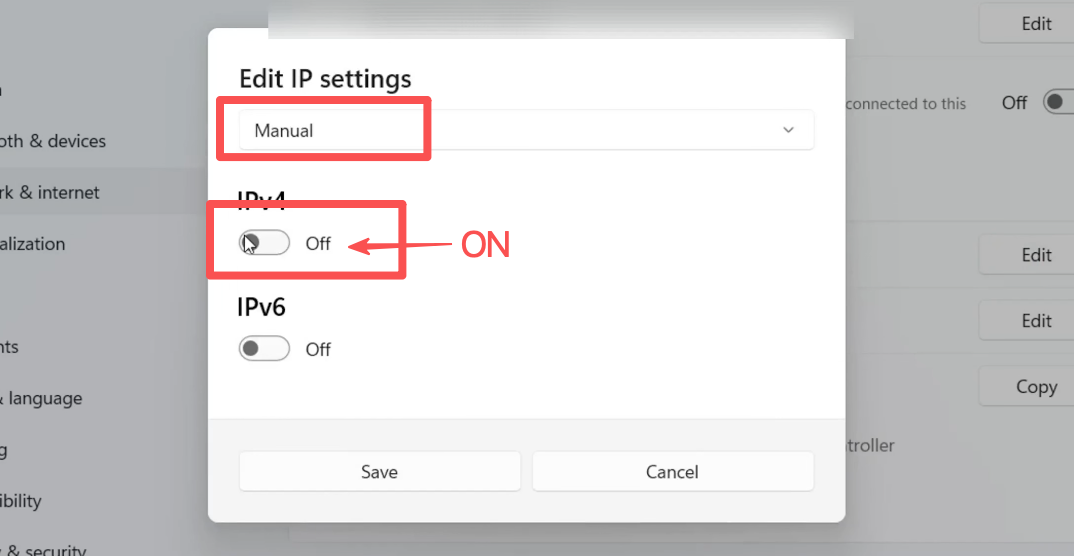
Go to Settings → Network & internet → Wi-Fi or Ethernet → IP assignment → Edit. Change Automatic (DHCP) to Manual, then turn on IPv4.
Step 3: Enter a New Local IP and Save
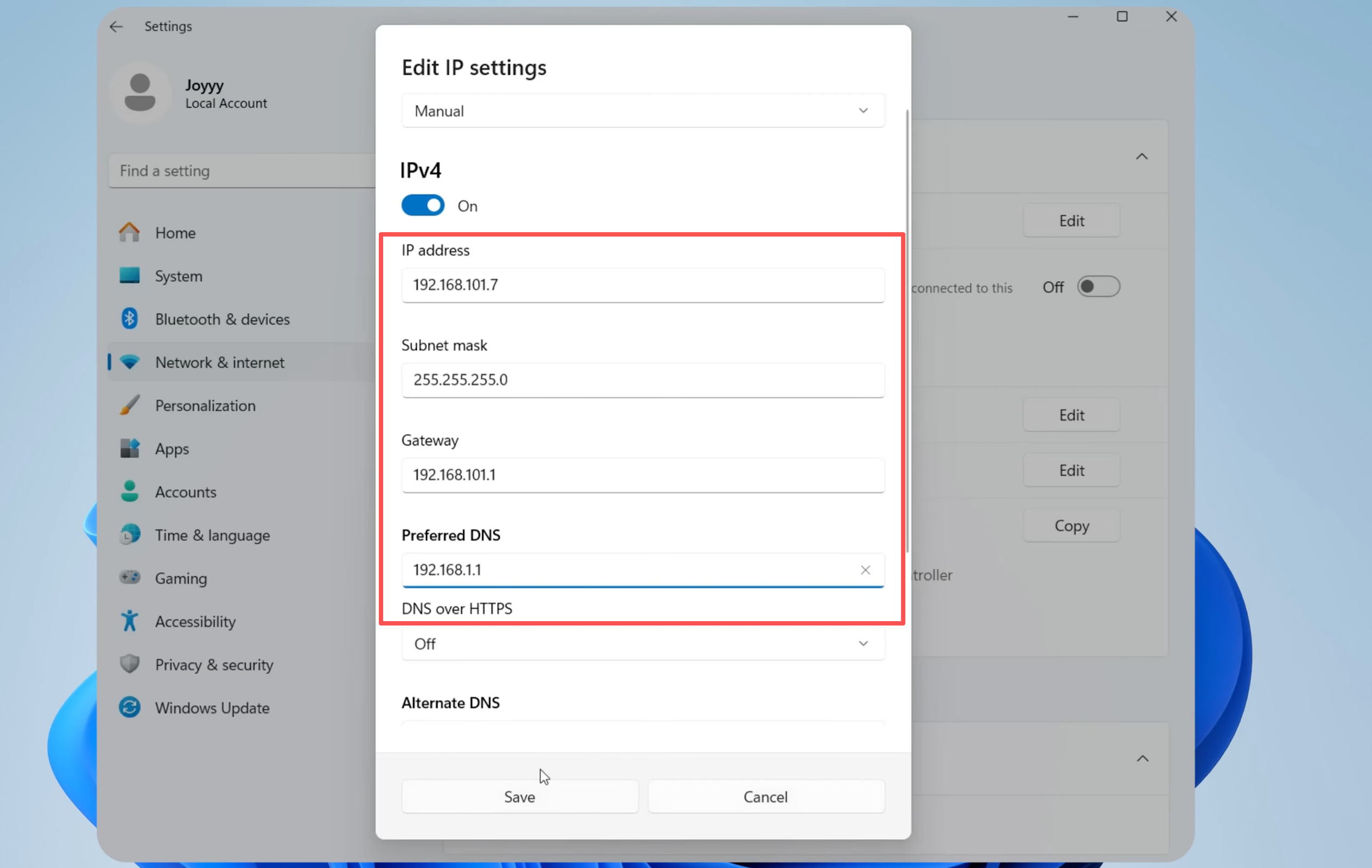
Enter a new unused IP in the same network range, then fill in the subnet mask, gateway, and DNS details you checked earlier. Click Save.
For example, if your current IP is 192.168.1.25, you could use another available address such as 192.168.1.50.
If the connection stops working, switch IP assignment back to Automatic (DHCP).
How to Change Your Public IP Without a VPN on Windows 11
If your goal is to change the IP websites see, editing the local IPv4 address inside Windows is not enough. Instead, you need to reconnect through another public address or send your traffic through another network or server.
Method 3: Restart Your Router
If your ISP gives you a dynamic public IP, restarting your router may result in a new address. Before doing anything, search what is my IP and note your current public IP. Then turn off or disconnect your router, wait several minutes, reconnect it, and check your public IP again.
Whether this works depends on your ISP. Some providers assign a different IP after the connection is re-established, while others keep giving the same IP to the same customer for days, weeks, or even longer. If your connection uses a static public IP, restarting the router will not change it. If the address stays the same after reconnecting, switching networks is usually a more reliable option.
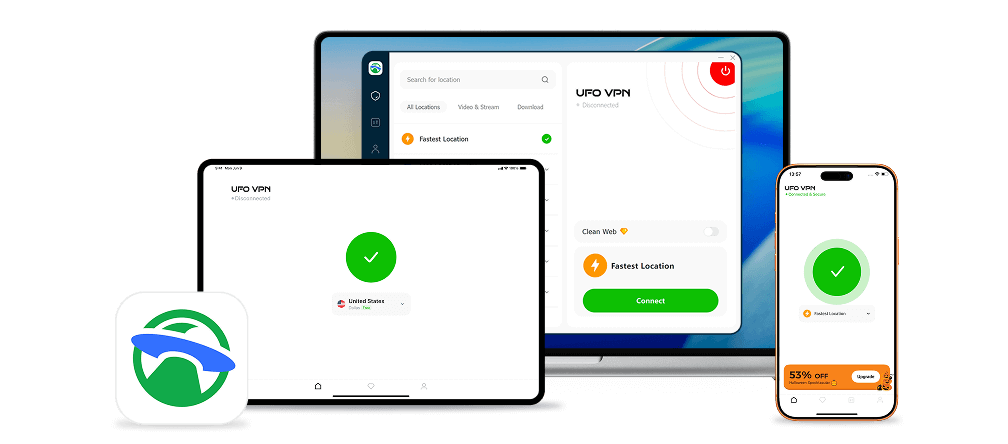
If you're looking for a one-click method to change your IP address on Windows 11, UFO VPN is a great choice to try.
Method 4: Switch to Another Wi-Fi Network
Connecting your Windows 11 PC to another network is one of the simplest ways to make websites see a different public IP. For example, if you disconnect from your home Wi-Fi and connect to an office, hotel, or another trusted Wi-Fi network, your internet traffic now leaves through that network instead of your home connection.
The main limitation is that you need another network to connect to. Also, avoid treating public Wi-Fi as a privacy tool. A new IP does not make an unknown network safe, so you should still be careful when using open or untrusted Wi-Fi.
Method 5: Use Your Phone's Mobile Hotspot
If you do not have another Wi-Fi network nearby, your phone can provide one. When you connect your Windows 11 PC to a mobile hotspot, the PC stops using your home ISP connection and starts accessing the internet through your mobile carrier instead.
Turn on Personal Hotspot or Mobile Hotspot on your phone, then open the Wi-Fi menu on Windows 11 and connect to the hotspot using its password. After the connection is established, check your public IP again. It should normally be different from the public IP of your home Wi-Fi.
This is one of the easiest ways to get onto a different network without changing Windows network settings. However, mobile providers often use carrier-grade NAT, which means multiple customers may share the same public IP. That is normal and does not prevent the method from giving your PC a different public-facing address from your home connection.
Method 6: Use a Proxy Server on Windows 11
A proxy server sits between your device or application and the website you visit. Instead of sending supported traffic directly to a website, your connection first goes to the proxy, and the proxy forwards the request. The website then sees the proxy server's IP rather than your normal public IP for that traffic.
Windows 11 includes built-in proxy settings under Settings → Network & internet → Proxy. Under Manual proxy setup, you can enter the proxy server address and port provided by your proxy service. Once configured, supported traffic will use the proxy until you turn the setting off.
A proxy can be useful when you only need certain web traffic to appear from another IP, but it is not the same as a VPN. Depending on the setup, some applications may ignore the proxy, and the connection does not automatically get the same device-wide encrypted tunnel that a VPN provides.
Method 7: Use Tor Browser
Tor Browser can also make websites see a different public-facing IP. Instead of sending your browsing traffic directly to a website, Tor routes it through multiple relays before it reaches the final destination. The site sees the IP of the Tor exit relay rather than your normal home IP.
To use it, download Tor Browser from the official Tor Project website, install it, open the browser, and connect to the Tor network. Once connected, websites opened inside Tor Browser will see a Tor IP rather than your usual one.
Method 8: Ask Your ISP for a New Public IP
If restarting your router does not change your public IP and you specifically need your home connection to receive a different one, contact your ISP. Ask whether your internet connection uses a static or dynamic IP and whether they can assign you a new address.
The answer depends entirely on the provider. Some ISPs may change a dynamic IP after reconnecting your equipment, while others may keep the same address for a long time. Static IP services usually require the ISP to make the change directly, and some providers may charge for this service.
Easier Alternative: Change Your IP with a VPN
The methods above let you change your IP without a VPN on Windows 11, but each has a limitation. Restarting your router may return the same IP, switching networks is not always practical, and a proxy or Tor may only cover certain traffic.
If your goal is simply to change the public IP websites see, a VPN is usually easier. A VPN sends your internet traffic through a VPN server, so websites see the server's public IP instead of the public IP of your normal internet connection.
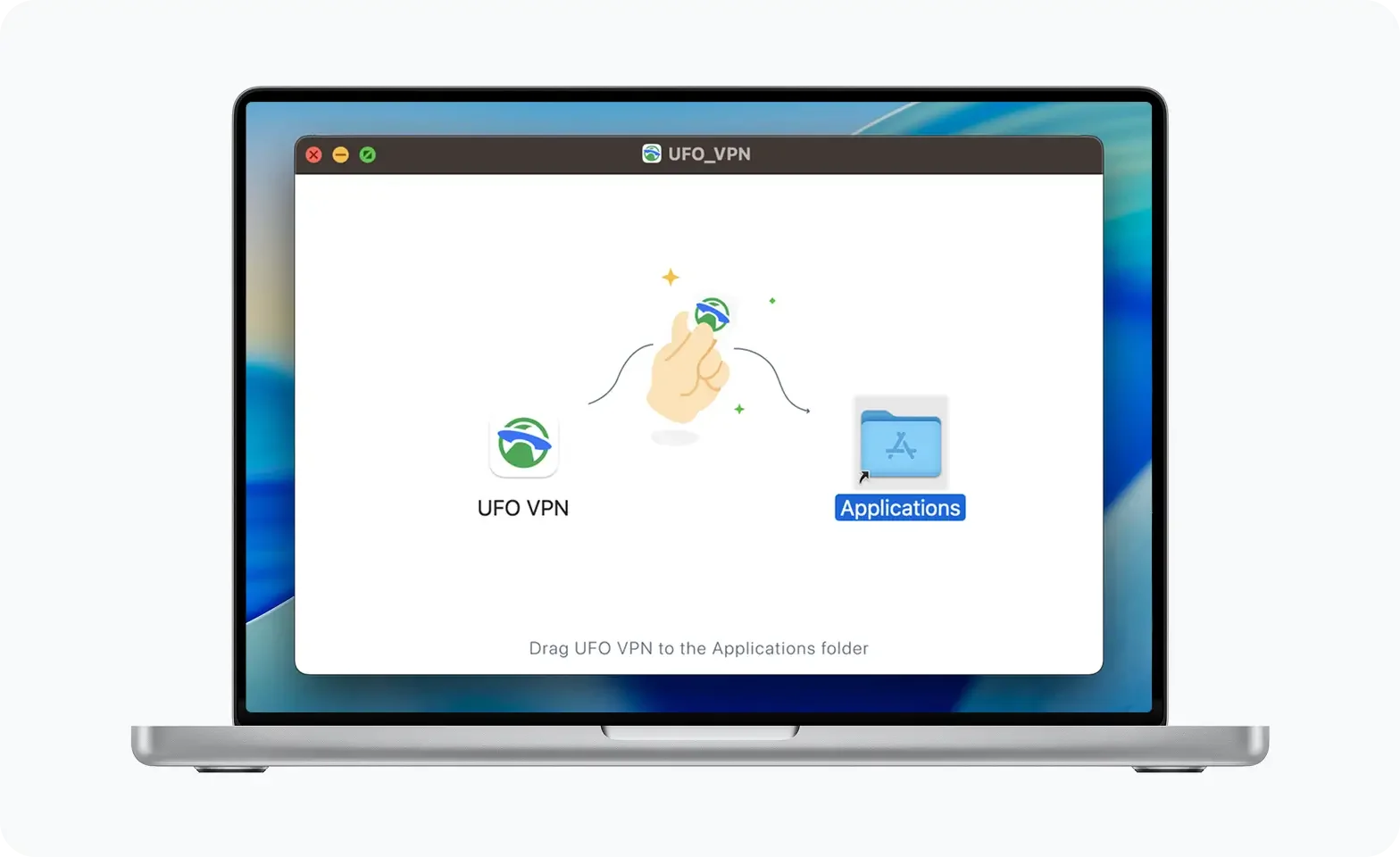
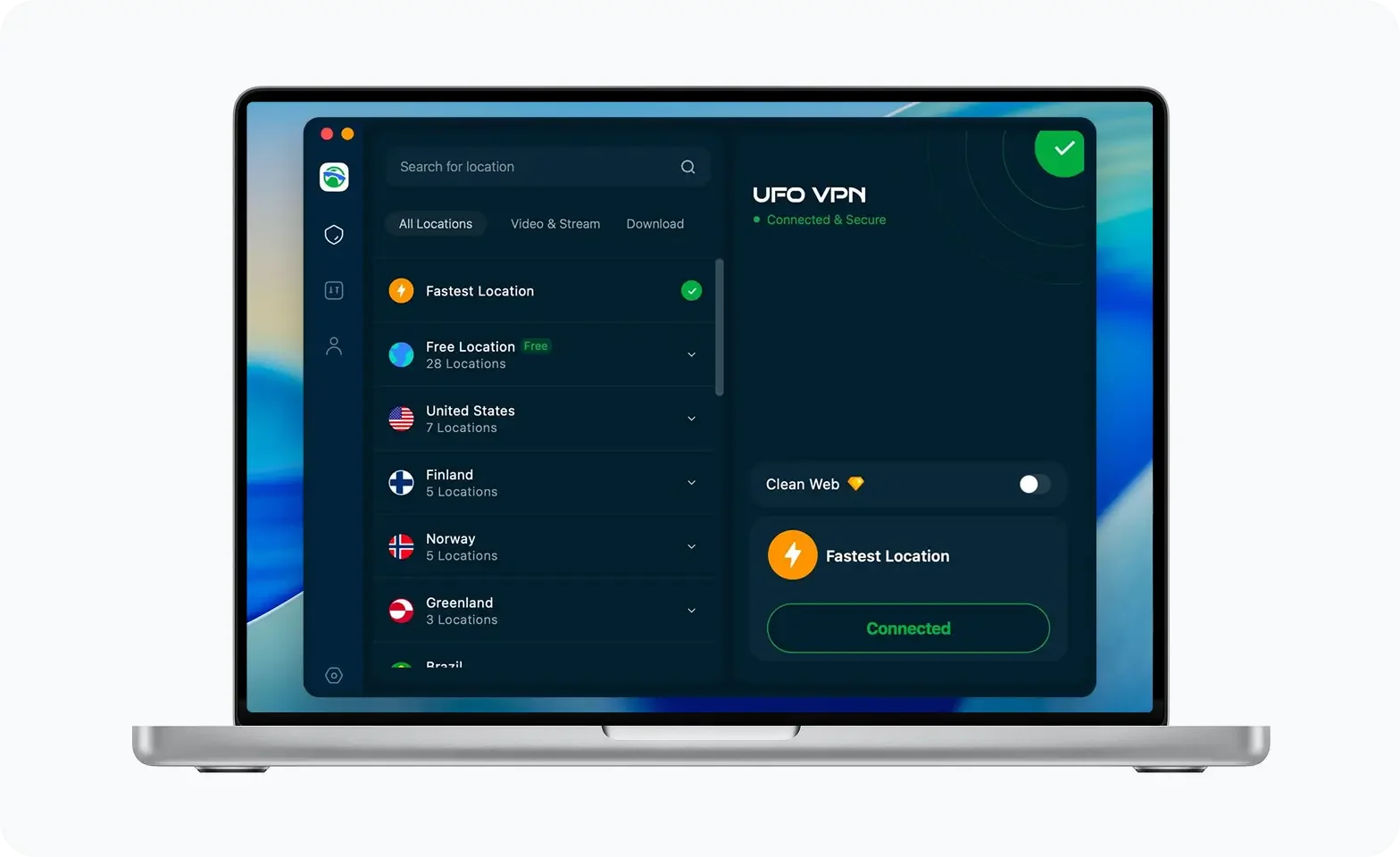
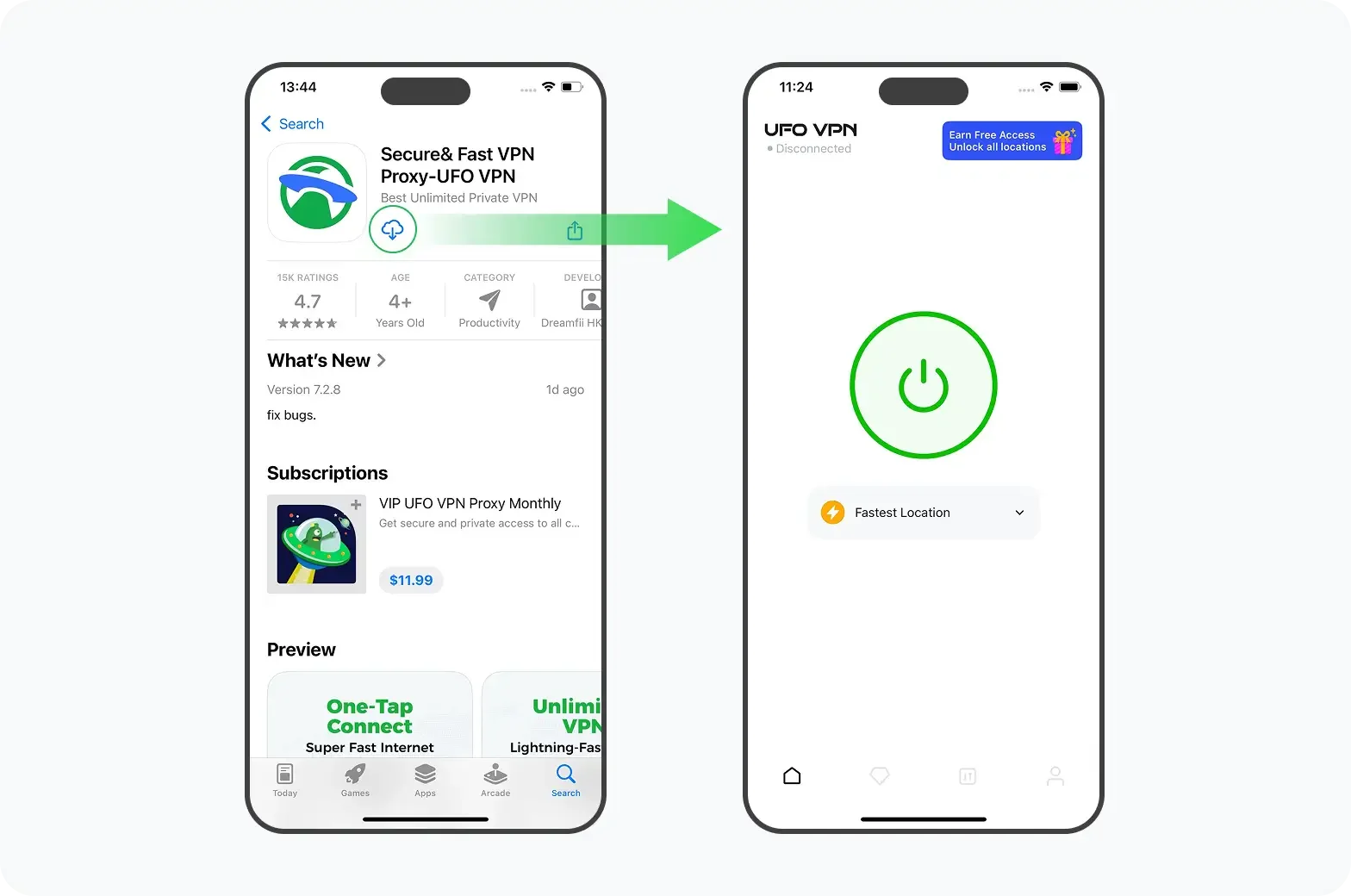
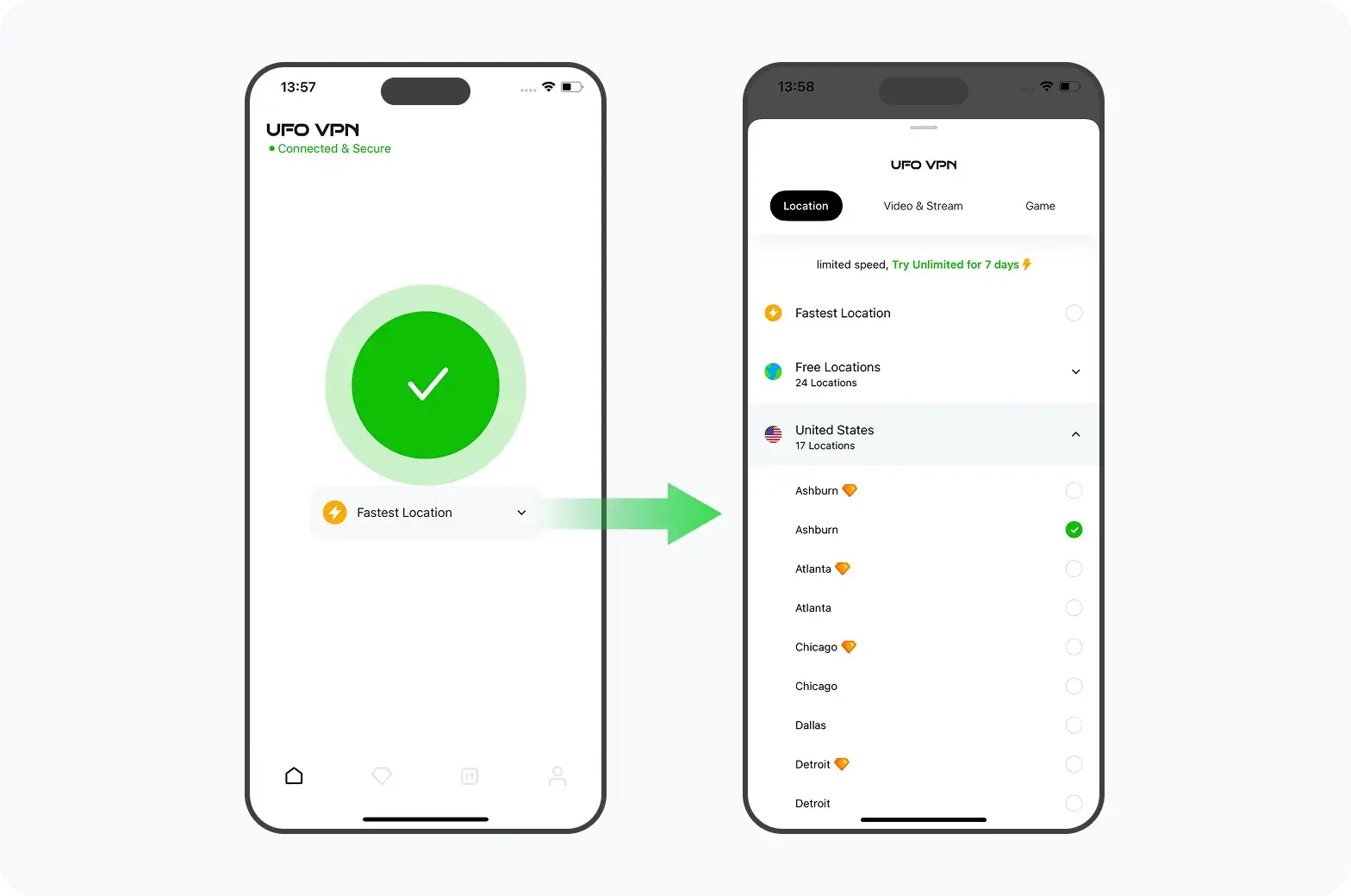
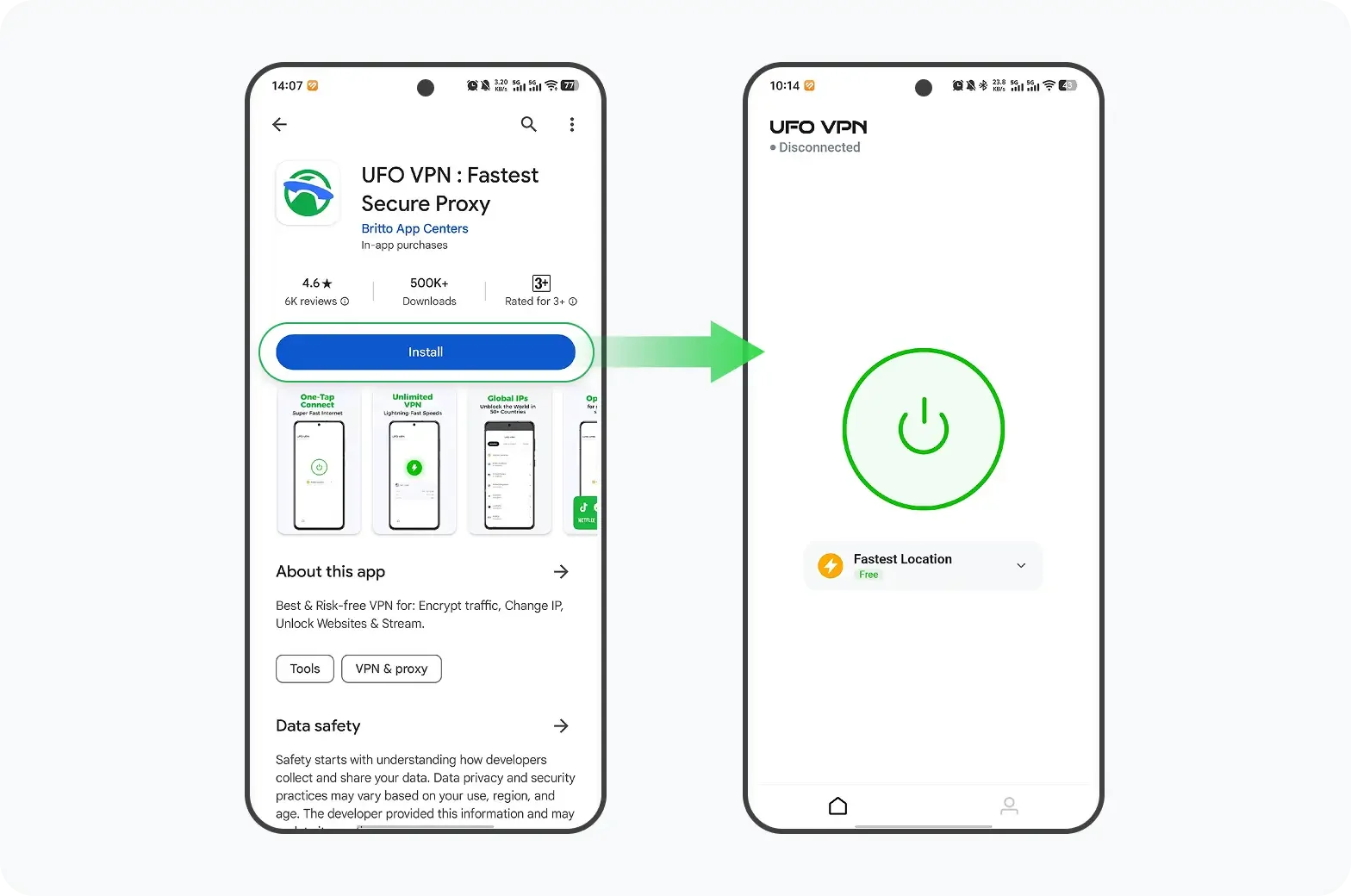
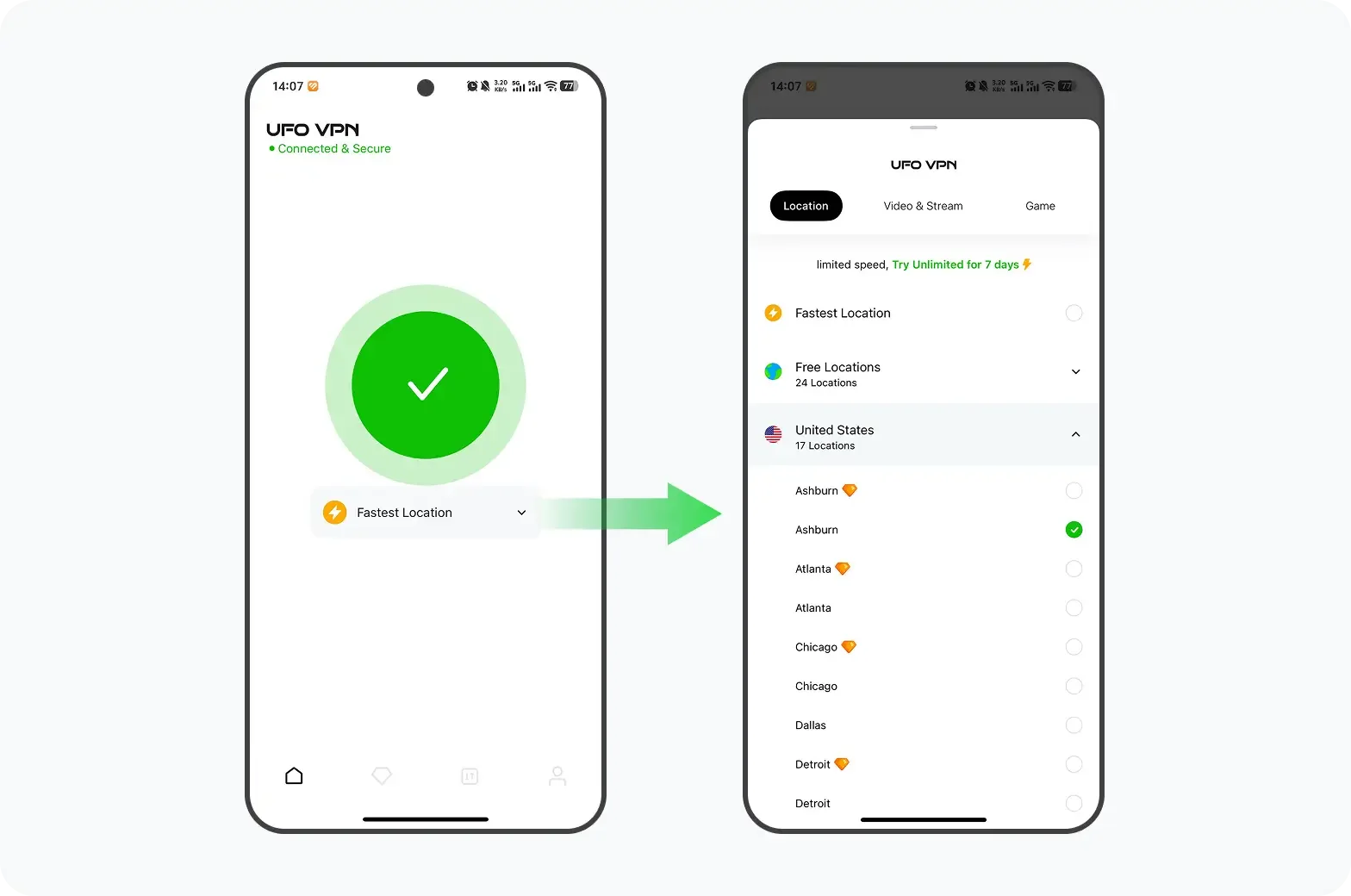
Check how to use UFO VPN to change your IP address on Windows 11 and how to check if your IP address changed:
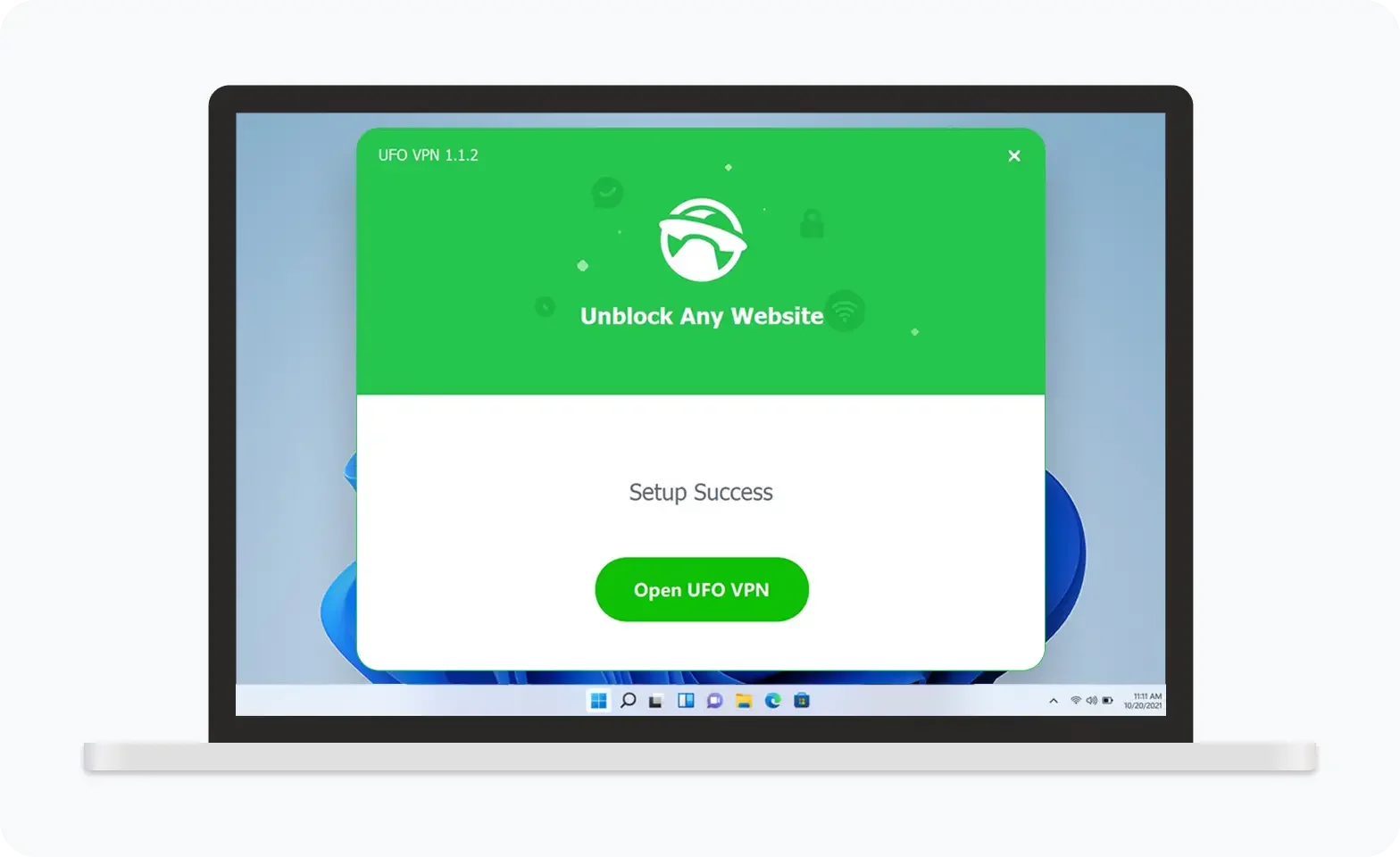
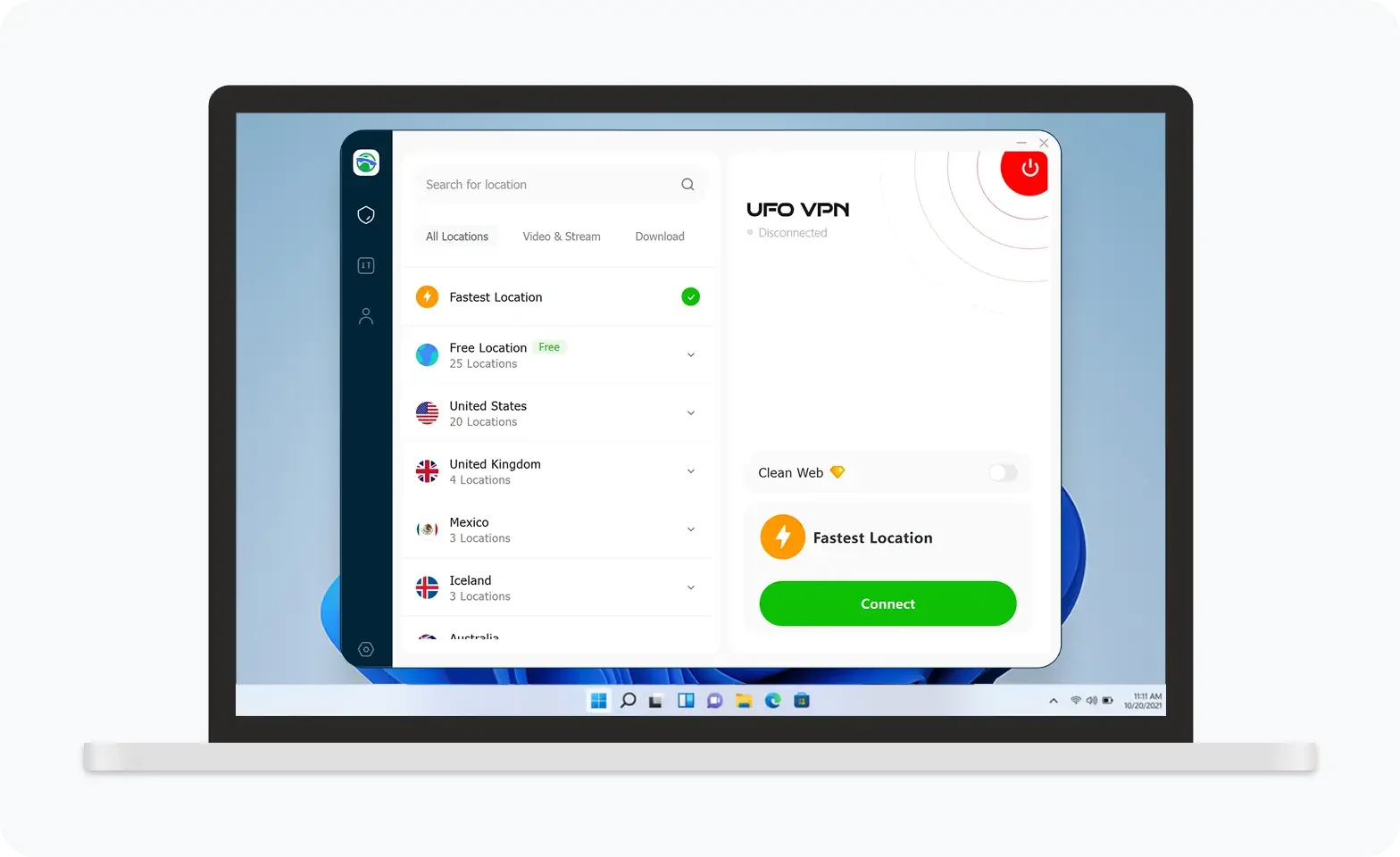
UFO VPN is an all-in-one VPN that offers unlimited access to 4K streaming like Netlfix, Disney Plus, no-ping gaming as PUBG, Roblox, CODM and social networking for YouTube, X, Facebook and more.
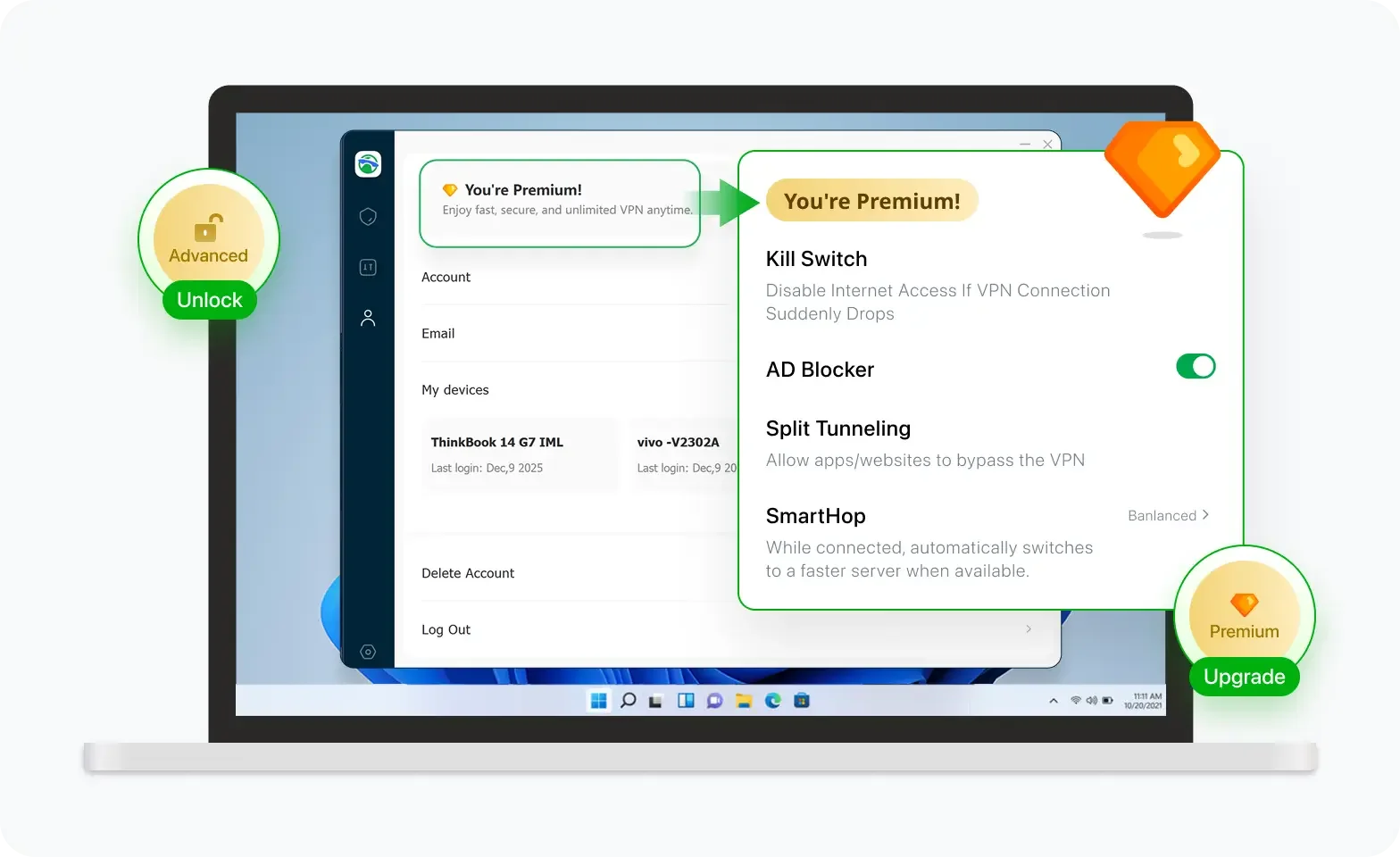
Unlock Pro Features
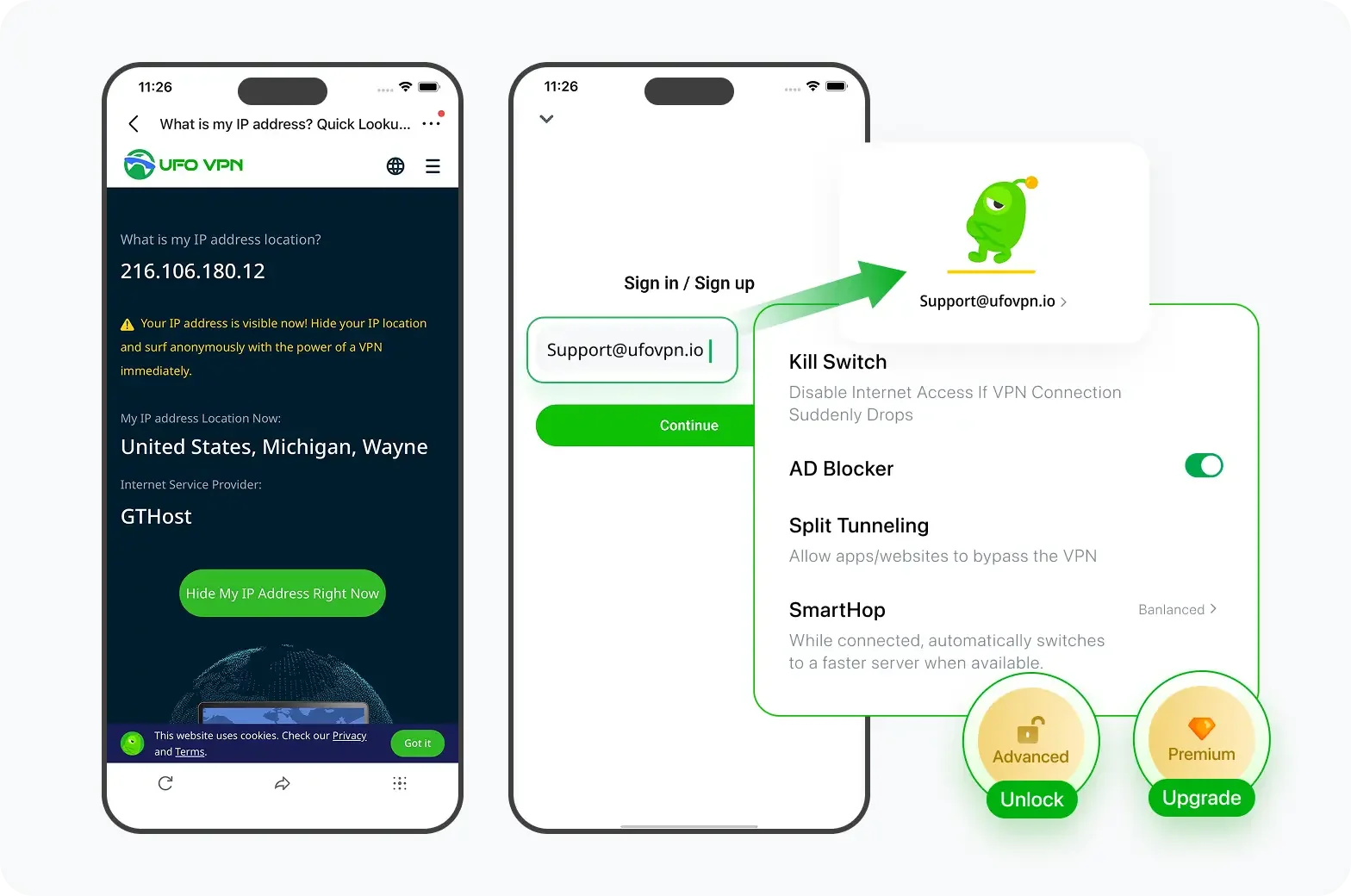
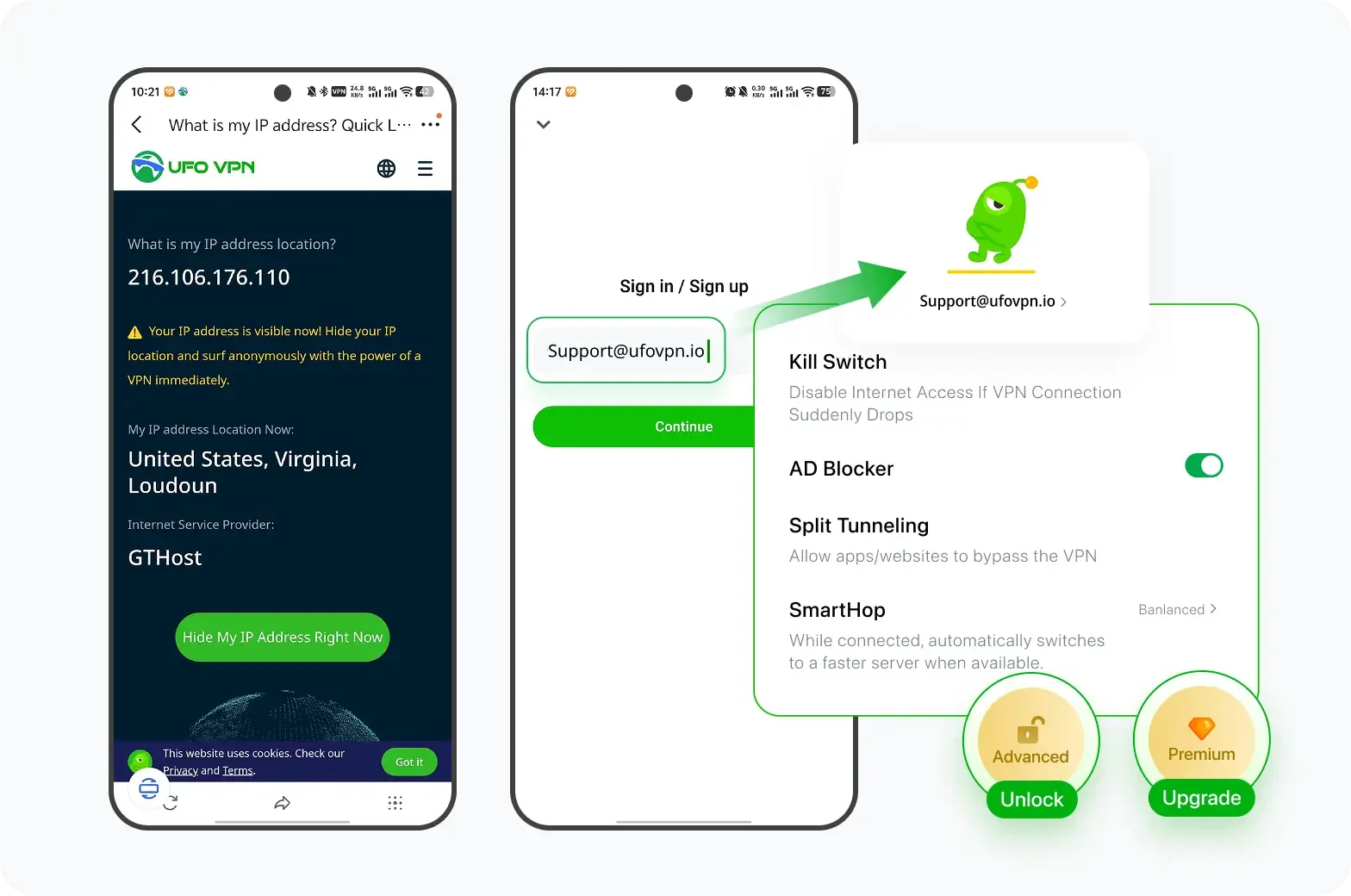
If you have upgraded to premium plan , feel free to enjoy premium servers for 4K streaming and advanced features like Kill Switch, Split Tunneling, and gaming acceleration. Your Mac is now fully optimized and protected. Inaddition to basic functions, we recommend you turn on

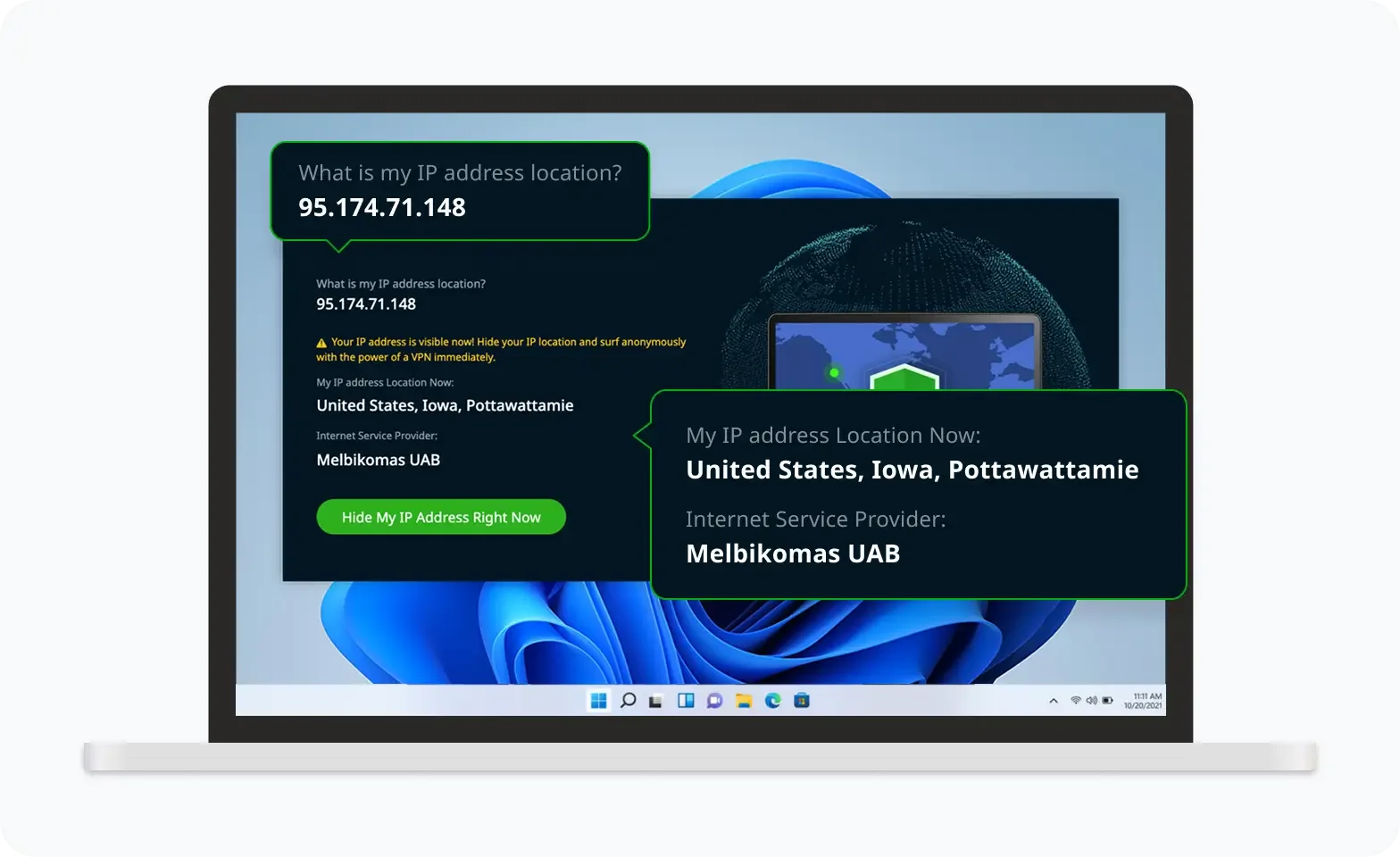
Verify Your IP Now
Use UFO VPN's " What is My IP " feature to see your new IP and location. This confirms your connection is secure, anonymous, and ready for safe browsing online anywhere at any time.

When Should You Change Your IP Address?
You do not need a new IP every time someone online mentions your address. Changing an IP can solve certain network and privacy problems, but it is not a general fix for hacking, scams, tracking, or account security.
Your current IP is blocked by a website or service
You have a local IP conflict
You need a fixed local IP
You want to test access from another network
You want to hide your current home IP
Someone online says they know your IP
A scam email includes your IP
You want to erase past online activity
A website shows your city or region
You are dealing with malware or a hacked account
When Changing Your IP Can Help
Changing your public IP can help when a website or service has blocked your current address, when you need to test access from another network, or when you do not want a site to keep seeing your current home IP.
Changing a local IP serves a different purpose. It can help resolve an IP conflict, refresh a problematic DHCP configuration, or give a PC, printer, or server a predictable address inside your home network.
There are limits, though. A different IP does not make you anonymous. Websites can also recognize you through login accounts, cookies, browser fingerprints, and other data.
When You Probably Don't Need to Change Your IP
If someone in a game, forum, or chat says they know your IP, you do not automatically need to change it. Knowing a public IP alone does not normally give someone direct access to your Windows 11 PC. An IP may reveal your ISP and an approximate area, but it usually does not expose your exact home address.
A threatening email that claims to know your IP is another common case. Scam and extortion messages sometimes include an IP, old password, name, or other leaked information to make the threat look convincing. Changing your IP does not solve the scam. Do not pay simply because the sender displays an IP address. If the email includes a password you still use, change that password and enable two-factor authentication.
Changing your IP also does not erase past activity. Websites, apps, network operators, and ISPs may already have logs from earlier connections. A new address affects future traffic; it does not remove existing records.
And if an IP-checking website shows your city or region, that does not mean it knows your exact physical address. IP geolocation is usually approximate. You do not need to change your IP simply because a website can estimate your general location.
Conclusion
You can change an IP address on Windows 11 without using a VPN, but the right method depends on which IP you want to change.
For a local IP, use ipconfig /release and ipconfig /renew, or configure the IP manually in Windows 11 settings. For a public-facing IP, restart your router, connect to another Wi-Fi network, use your phone's hotspot, configure a proxy, use Tor Browser, or ask your ISP for another address.
If you need to change your public IP often, a VPN is usually simpler than changing networks or configuring these methods each time.
FAQs
Can I change my IP address without a VPN on Windows 11?
Yes. You can renew or manually change your local IP through Windows 11, while restarting your router, switching networks, using a mobile hotspot, proxy, Tor, or contacting your ISP can change or replace the public-facing IP in different ways.
Does ipconfig /renew change my public IP?
Usually not. ipconfig /renew asks the DHCP server to renew the network configuration for your Windows adapter. On a typical home network, this affects your local IP rather than the public IP websites see.
Does restarting my router change my IP address?
It can. If your ISP uses dynamic addressing, reconnecting your router may result in a different public IP. But your ISP can also assign the same address again, so the method is not guaranteed.
Can I change my IP to another country without a VPN?
A proxy can make websites see an IP from another country if the proxy server is located there. Tor can also give you an exit IP from another country, although you normally have less control over the exact location. Switching ordinary Wi-Fi networks only gives you an IP associated with the network you join.
Does changing my IP address stop hackers?
No. Changing an IP does not remove malware, secure a compromised account, replace leaked passwords, or fix security problems on your Windows PC. It only changes one part of your network identity.
Does changing my IP make me anonymous?
No. Websites can still identify or recognize you through login accounts, cookies, browser fingerprinting, and other data even after your IP changes.