




First Thing: Is Peacock Down Right Now?
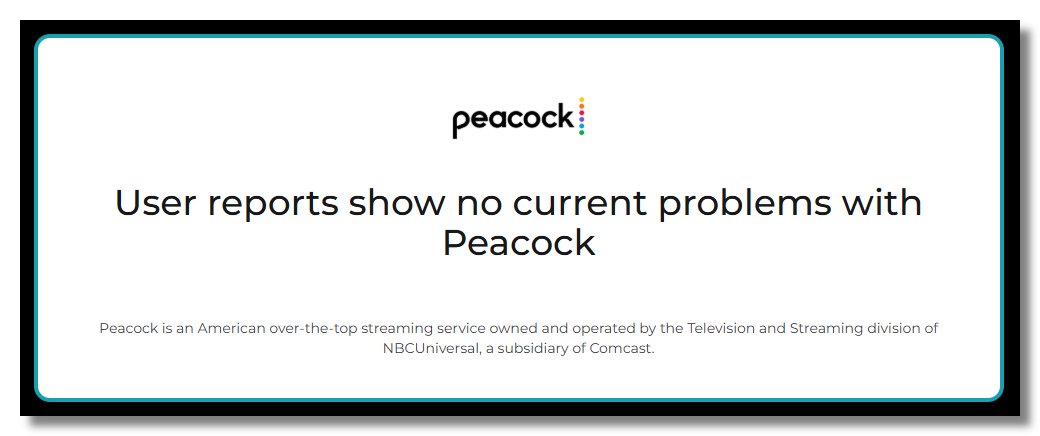
Before troubleshooting your phone, browser, or Smart TV, make sure the issue isn't on Peacock's side. Like every major sports streaming service, Peacock occasionally experiences:
-
Temporary outages
-
Scheduled server maintenance
-
Authentication issues
-
Bugs after major app updates
-
Traffic spikes during big live events
This is especially common during high-demand sports broadcasts like the FIFA World Cup. When millions of fans jump online to watch an NFL playoff game, WWE Premium Live Event, or Premier League match at the same time, Peacock's servers can occasionally struggle to keep up.
If Peacock itself is down, there's nothing wrong with your device. The only real solution is to wait for the platform to recover.
How to Check If Peacock Is Down Globally
To verify if Peacock is going through worldwide downtime, try these approaches:
- Check Peacock server status on Downdetector: If reports suddenly spike within the last hour, the issue may be affecting users globally.
- Browse Reddit and other forums: Sports fans are usually quick to report problems. If everyone is complaining about buffering or login issues, it's probably not just you.
- Check Peacock's official channels: Visit Peacock's website or social media accounts to see whether the company has acknowledged an outage or maintenance period.
- Try another device: If Peacock refuses to work on every device you own, the problem is more likely platform-related than device-specific.
Recommended Peacock outage monitoring tools you can try:
- Is It Down Right Now? – Checks if Peacock is reachable.
- Down for Everyone or Just Me – Shows whether Peacock is down globally or just for you.
- Outage.Report – Displays community-reported outages in real time.
- StatusGator – Tracks service status and recent incidents.
- IsDown.app – Provides aggregated outage information and alerts.
If you've confirmed Peacock is online but still not working, the following are practical troubleshooting steps for tailored scenarios. Get your most effective fixes!
Peacock Not Working in 2026: Main Reasons & Solutions
Not all Peacock errors are created equal. A loading screen, endless buffering, a Smart TV crash, and a region restriction all point to different underlying problems. To save you time, we've grouped the most common Peacock issues into real-world scenarios and explained the reasons and fixes for each one.
1. Peacock Won't Open, Keeps Loading, or Crashes?
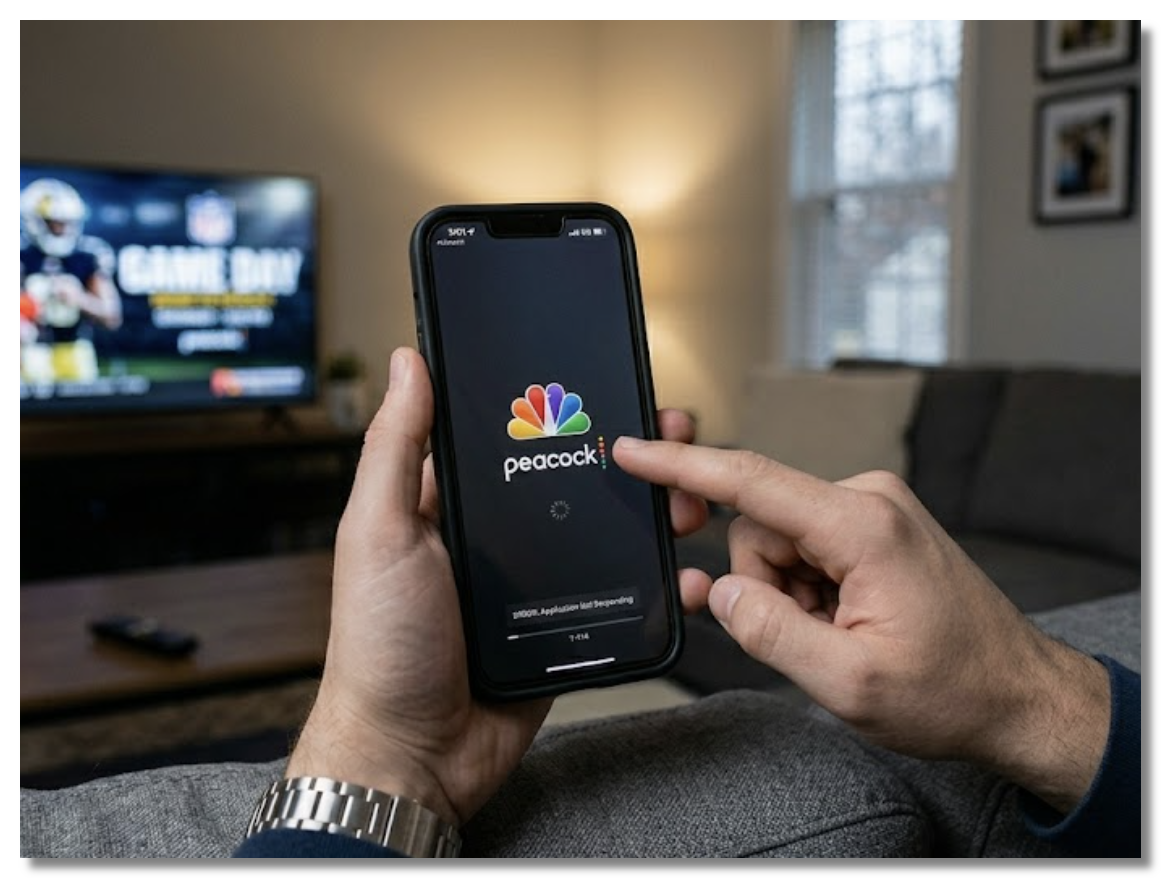
You're about to catch the kickoff, but Peacock has other plans. The app won't open, gets stuck on the logo screen, crashes immediately, or shows nothing but a black screen. Instead of streaming the game, you're stuck trying to get the app to launch.
Main Reasons:
- Corrupted temporary files
- Outdated app versions
- Insufficient device memory
- Failed authentication requests
- Temporary Peacock server issues
Fixing Steps:
Step 1. Restart Peacock: Force close the app and reopen it to create a fresh session.
Step 2. Restart Your Device: Reboot your device to refresh system processes and network services.
Step 3. Update Peacock: Install the latest version to fix known bugs and compatibility issues.
Step 4. Clear the App Cache: Remove corrupted temporary files that may be preventing Peacock from starting properly.
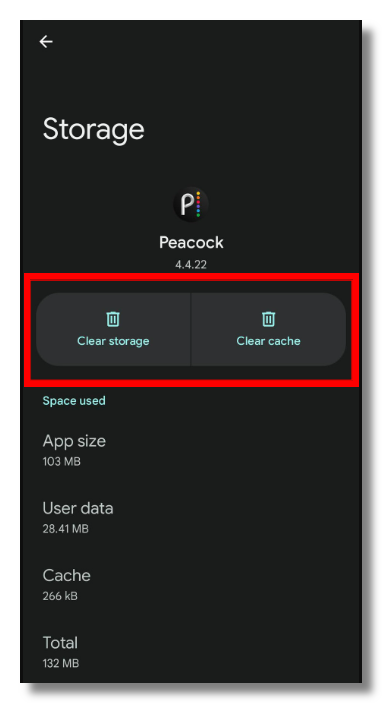
Step 5. Reinstall Peacock: Remove and reinstall the app to replace damaged files and reset configurations.
2. "Peacock Not Available in My Region" Error
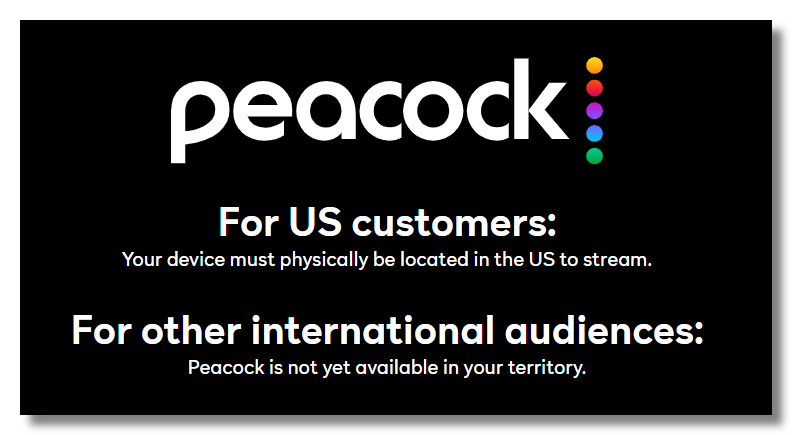
You open Peacock, everything looks normal at first—but when you try to play a video, a message appears saying the service is not available in your region. The interface may still load, but streaming simply doesn’t start, leaving you blocked before playback begins.
Main Reasons:
- Peacock is officially available only in the United States >>> Try a free USA VPN
- Streaming rights and sports broadcasting licenses are region-specific
- Your IP address is detected outside supported regions
- Travel, roaming, or VPN usage triggers location mismatch
The fastest way to bypass Peacock geo-restriction is to use a reliable Peacock VPN free. A VPN works by routing your internet traffic through a different region, which may help align your IP address with Peacock’s supported service area.
If you’re looking for a stable option, you can try UFO VPN, which provides multiple US servers designed for streaming scenarios and helps users access region-restricted content more smoothly.
Activate UFO VPN for your Peacock streaming:


UFO VPN is an all-in-one VPN that offers unlimited access to 4K streaming like Netlfix, Disney Plus, no-ping gaming as PUBG, Roblox, CODM and social networking for YouTube, X, Facebook and more.




Unlock Pro Features
If you have upgraded to premium plan , feel free to enjoy premium servers for 4K streaming and advanced features like Kill Switch, Split Tunneling, and gaming acceleration. Your Mac is now fully optimized and protected. Inaddition to basic functions, we recommend you turn on

Verify Your IP Now
Use UFO VPN's " What is My IP " feature to see your new IP and location. This confirms your connection is secure, anonymous, and ready for safe browsing online anywhere at any time.







3. Peacock Not Working with My VPN?
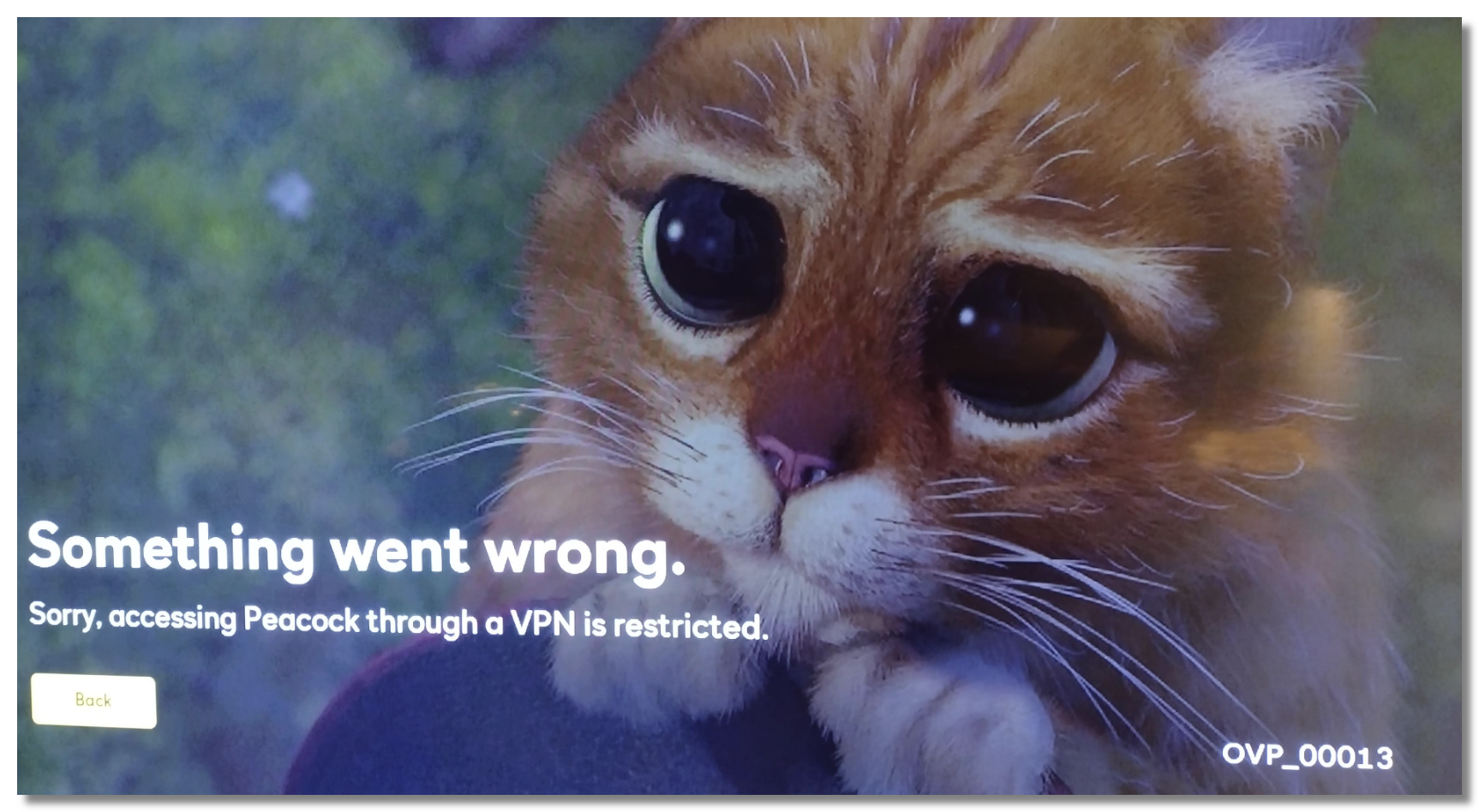
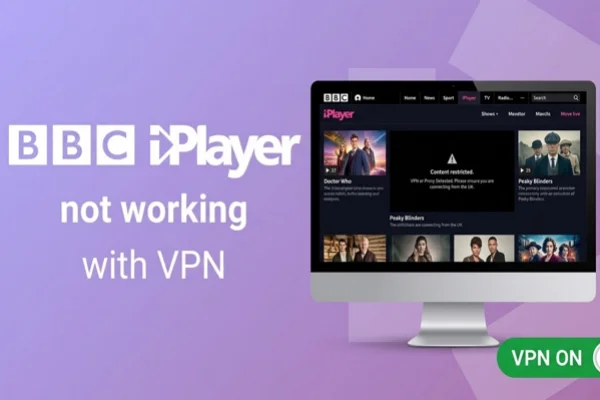
You already connected to a US server, refreshed Peacock, and even tried again—yet Peacock still refuses to stream or says the service isn't available in your region.
Main Reasons:
- VPN IP addresses have been flagged by streaming services
- Account region doesn't match your current connection
- VPN servers are overloaded or unstable
- DNS or WebRTC leaks reveal your actual location
- High traffic causes connection inconsistencies
Fixing Steps:
Step 1. Switch VPN Servers: Try another US server with a cleaner IP reputation.
Step 2. Clear App or Browser Cache: Remove stored location data that may conflict with the VPN session.
Step 3. Enable Leak Protection: Prevent DNS or WebRTC requests from exposing your actual location.
Step 4. Restart Peacock: Open a fresh session and trigger another location check.
Step 5. Change VPN Protocols: Try WireGuard or OpenVPN to improve stability and connectivity.

4. Peacock Keeps Buffering or Won't Play Videos?
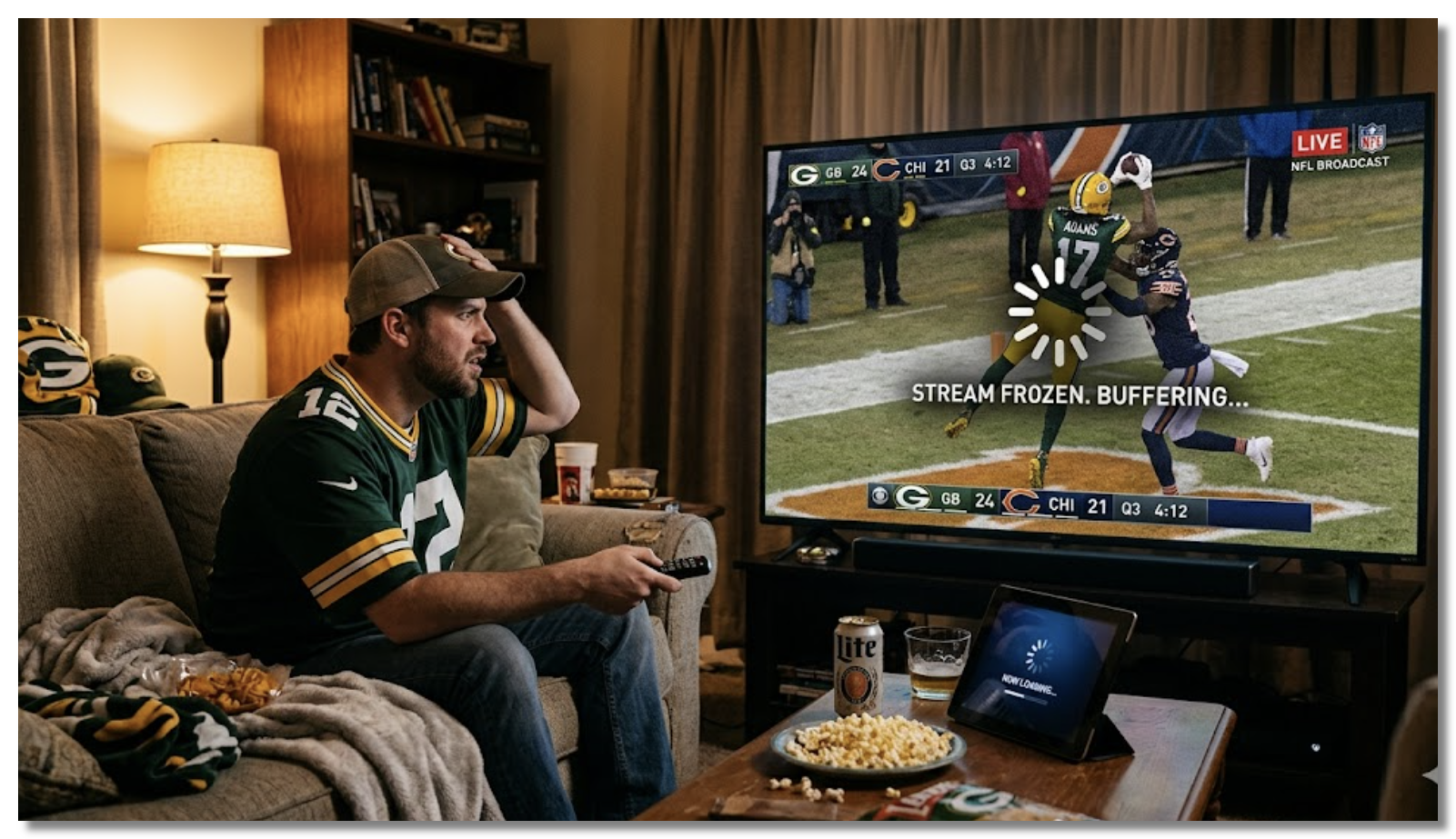
You're halfway through an NFL game and the stream freezes right before a touchdown. Or maybe your movie pauses every few minutes to buffer. Few things ruin game day faster than constant interruptions.
Main Reasons:
- Slow internet speeds
- Wi-Fi congestion
- Too many devices sharing bandwidth
- Temporary server overload
- Unstable connections during live events
Fixing Steps:
Step 1. Test Your Internet Speed: Make sure your connection can handle HD streaming and live sports.
Step 2. Restart Your Router: Refresh your network connection and stabilize communication with Peacock's servers.
Step 3. Pause Background Downloads: Free up bandwidth for streaming.
Step 4. Lower Streaming Quality: Reduce data requirements during network congestion.
Step 5. Refresh the Stream: Exit and rejoin the stream to establish a new playback session.
5. Peacock Not Working on Samsung TV, Apple TV, or Roku?
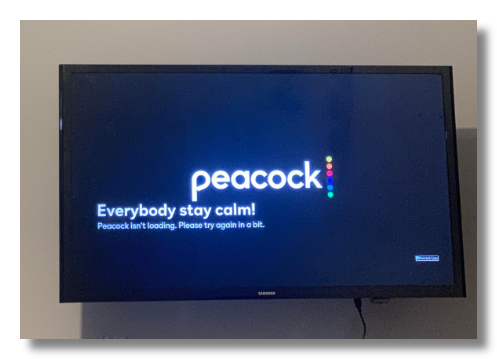
You finally settle onto the couch, grab the remote, and open Peacock on your Smart TV—only to be greeted by a black screen or an endless loading spinner.
Main Reasons:
- Outdated TV firmware
- Compatibility issues after updates
- Limited memory or background overload
- Corrupted Peacock installation files
Fixing Steps:
Step 1. Force Close Peacock: Fully exit the app to clear stuck processes.
Step 2. Restart Your TV: Refresh the operating system and reload essential services.
Step 3. Update TV Firmware: Install the latest software updates to improve streaming compatibility.
Step 4. Update Peacock: Make sure you're running the newest version of the app.
Step 5. Reinstall Peacock: Remove corrupted files and reset app configurations with a fresh installation.
Still Not Working? Try These Peacock Alternatives
If you've tried everything and Peacock still isn't cooperating, don't let a technical issue ruin your movie night or game day. Here are five popular streaming alternatives worth checking out.
1. Netflix
Netflix is one of the world's largest streaming platforms, offering thousands of movies, TV series, documentaries, and original productions.
Pros:
-
Massive on-demand content library
-
Award-winning original shows and films
-
Available in most countries
-
Supports multiple devices and profiles
Cons:
-
Limited live sports coverage
-
Monthly subscription can be relatively expensive
-
Content libraries vary by region (Try Netflix VPN free)
2. Hulu
Hulu combines on-demand entertainment with live TV packages, making it a strong option for users who enjoy both binge-watching and live channels.
Pros:
-
Extensive collection of current TV shows
-
Optional Live TV plans
-
Bundles available with Disney+ and ESPN+
-
User-friendly interface
Cons:
-
Primarily available in the US
-
Lower-tier plans include ads
-
Some sports content requires Live TV upgrades
3. ESPN+
ESPN+ focuses heavily on sports and is an excellent alternative if you're mainly using Peacock for live events and sports programming.
Pros:
-
Large selection of live sporting events
-
Exclusive sports documentaries and original content
-
Relatively affordable subscription price
-
Strong coverage of niche sports
Cons:
-
Not a full replacement for traditional ESPN channels
-
Limited movies and general entertainment
-
Some major events require additional purchases
4. HBO Max
Max offers premium movies, HBO originals, documentaries, and selected live sports content in certain markets.
Pros:
-
High-quality original programming
-
Excellent movie library
-
Premium streaming experience
-
Supports 4K content on eligible plans
Cons:
-
Higher subscription cost
-
Limited live sports compared with dedicated sports platforms
-
Regional content restrictions may apply (Try HBO VPN free)
5. Paramount+
Paramount+ combines entertainment and live sports, including selected NFL games and CBS programming, making it one of the closest alternatives to Peacock.
Pros:
-
Mix of movies, TV shows, and live sports
-
Access to CBS live channels
-
Includes popular franchises and originals
-
Competitive pricing
Cons:
-
Smaller content library than Netflix
-
Some premium features require higher-tier plans
-
Availability differs by country
Final Say
Peacock not working issues can happen at every stage of streaming—from the app refusing to open to buffering during a live NFL game or region restrictions blocking playback entirely. The key is to identify where the failure occurs first, then work through the appropriate fixes one step at a time.
If you're still locked out after trying everything, consider switching devices, testing another network, or exploring alternative streaming platforms so you don't miss the game.
FAQs
Why is Peacock not working on Chrome or Chromebook?
Peacock may fail to work on Chrome or Chromebook because of corrupted cookies, outdated browser versions, problematic extensions, or hardware acceleration conflicts. Try refreshing the page, clearing your cache, disabling extensions, or updating Chrome.
Why are Peacock subtitles not working or out of sync?
Subtitle issues usually occur when Peacock fails to load caption tracks properly or temporarily loses synchronization with the video stream. Turning subtitles off and on again, restarting playback, or updating the app often fixes the problem.
Why can't I watch Peacock Premium even though I paid?
This usually happens when your subscription status hasn't synchronized correctly. Sign out and back into your account, restore your purchase, and verify that you're using the same email address or billing account that made the purchase.
Why is my Peacock promo code not working?
Peacock promo codes may fail if the offer has expired, is only available in certain regions, requires a new account, or applies to a specific subscription plan. Double-check the code, review the eligibility requirements, and confirm that the promotion is available in your region.
Does Peacock work outside the United States?
Peacock's availability varies by region. If you're traveling abroad, some content may be unavailable due to licensing restrictions.