





Before We Start: What Is an M3U Playlist?
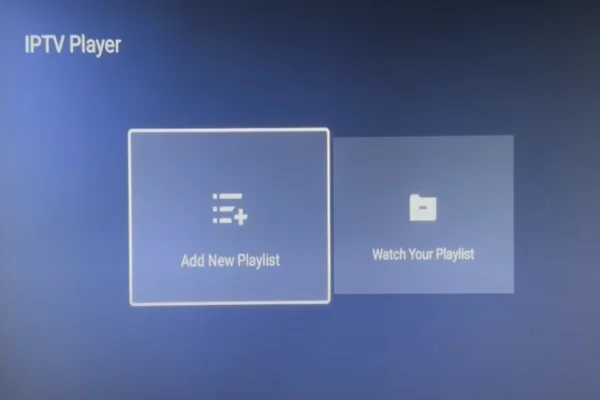
An M3U playlist is a plain text file that contains a list of media URLs. These URLs point to live TV streams, video-on-demand files, or radio channels. IPTV players read the file and organize the links into channels or categories that users can browse and play.
Originally, M3U files were used for local audio playlists. Today, they are widely used for IPTV because they are lightweight, easy to update, and supported by almost all IPTV apps and players.
Why M3U playlists matter for IPTV:
-
They act as the content source for IPTV players
-
One file can include hundreds or thousands of channels
-
They allow quick updates without reinstalling apps
-
Most IPTV apps support remote M3U URLs
-
They work across phones, TVs, tablets, and computers
What Types of M3U Playlists Are There?
Not all M3U playlists serve the same purpose. Some focus on live TV, while others focus on on-demand content or regional channels. Knowing the types helps you choose a playlist that fits your viewing habits.
Below are the most common types of M3U playlists used with IPTV players:
-
Live TV playlists
These include real-time TV channels such as national broadcasters, local stations, and international networks. -
Movie playlists
Focused on films, often grouped by language, country, or release year. Some playlists mix live movie channels with on-demand files. -
Sports playlists
Dedicated to sports channels that show football, basketball, tennis, racing, and other live events. -
News playlists
Include 24/7 news channels from different countries, useful for staying updated without cable TV. -
Kids playlists
Feature cartoon channels, educational shows, and family-friendly content. -
Music playlists
Contain music TV channels, live concerts, and radio-style streams. -
Adult playlists
Restricted-content playlists that usually require manual enabling in IPTV apps. -
Regional or country-based playlists
Focus on channels from a specific country or language group.
Complete Free Popular M3U Playlist for IPTV: Quick Runaway
If you want a free popular IPTV playlist that works across most IPTV players, it helps to start with trusted public playlists. These are often hosted on GitHub or maintained by IPTV communities.
Below is a quick overview of common playlist categories and what they usually include.
Live TV Playlists
Live TV M3U playlists focus on real-time television channels. They are best for users who want the same experience as traditional cable TV but through an IPTV player. https://iptv-org.github.io/iptv/index.m3u
| Playlist Type | Content Focus | Typical Use | URL |
|---|---|---|---|
| Global Live TV | Mixed international channels | General watching | https://iptv-org.github.io/iptv/index.m3u |
| Local TV | Country-specific channels | Regional news and shows | https://iptv-org.github.io/iptv/countries/us.m3u |
| News Live | 24/7 news channels | Information updates | https://iptv-org.github.io/iptv/categories/news.m3u |
Movie & Entertainment Playlists
Movie and entertainment playlists are designed for users who prefer films and TV shows over live broadcasting. These playlists often mix live movie channels with on-demand content.
| Playlist Type | Content Focus | Typical Use | URL |
|---|---|---|---|
| Movie Channels | Live movie networks | Casual viewing | https://iptv-org.github.io/iptv/categories/movies.m3u |
| VOD Movies | On-demand film files | Flexible watching | https://raw.githubusercontent.com/Free-TV/IPTV/master/playlists/vod.m3u |
| TV Series | Episodic shows | Binge sessions | https://raw.githubusercontent.com/iptv-restream/iptv-channels/master/series.m3u |
Sports Playlists
Sports M3U playlists are built for live events. They usually include higher-bitrate streams and are most active during match times.
| Playlist Type | Content Focus | Typical Use | URL |
|---|---|---|---|
| Football & Soccer | League and match channels | Live games | https://iptv-org.github.io/iptv/categories/sports.m3u |
| Multi-Sport | Mixed sports channels | All-in-one sports | https://raw.githubusercontent.com/Free-TV/IPTV/master/playlists/sports.m3u |
| Event Streams | Temporary live events | Special matches | https://raw.githubusercontent.com/iptv-org/iptv/master/streams/sports.m3u |
Kids & Music Playlists
These playlists are lighter on bandwidth and suitable for background use or family-friendly environments.
| Playlist Type | Content Focus | Typical Use | URL |
|---|---|---|---|
| Kids TV | Cartoons and learning shows | Family viewing | https://iptv-org.github.io/iptv/categories/kids.m3u |
| Music TV | Music channels | Background play | https://iptv-org.github.io/iptv/categories/music.m3u |
| Radio Streams | Audio-only stations | Low bandwidth use | https://iptv-org.github.io/iptv/categories/radio.m3u |
⭐ Warm Note: These playlists change often. Some links may stop working, while new ones appear. Regular updates are normal.
How to Install Live TV (M3U) Playlists on Different Devices
Getting a free popular IPTV playlist is only half the battle. You need to put that link into a player to actually watch it. Luckily, the process is straightforward regardless of what hardware you own.
➡️ For Android TV / Firestick (Using TiviMate or Smarters)
Android-based devices are the most popular choice for IPTV because they are open systems.
-
Download the App: Go to your App Store or use an APK downloader to install an IPTV player like "IPTV Smarters Pro" or "TiviMate."
-
Open the App: Select "Add New User" or "Add Playlist."
-
Select M3U Playlist: Choose the option to load your Playlist or File/URL.
-
Paste the Link: Carefully type in or paste one of the URLs from the tables above.
-
Watch: The app will process the channels and load the TV guide.
➡️ For PC and Mac (Using VLC Media Player)
VLC is free and handles M3U files perfectly without needing complex setups.
-
Install VLC: Download it from the official VideoLAN website.
-
Open Network Stream: Open VLC, click on "Media" in the top left corner, and select "Open Network Stream" (or press Ctrl+N).
-
Enter URL: Paste your M3U link into the box.
-
Play: Click "Play." To see the list of channels, click the "Toggle Playlist" button in the bottom toolbar (or press Ctrl+L).
➡️ For iOS / iPhone / iPad (Using GSE Smart IPTV)
Apple devices are stricter, but good apps still exist.
-
Get the App: Download "GSE Smart IPTV" or "Smarters Player Lite" from the Apple App Store.
-
Add Playlist: Tap the plus (+) icon or "Remote Playlists."
-
Input Details: Give the playlist a name (e.g., "My Sports") and paste the M3U URL.
-
Load: Tap on the playlist name to load the channel groups.
➡️ For Smart TVs (Samsung/LG)
Smart TVs use their own operating systems, so you need specific apps.
-
Search App Store: Look for "Nanomid," "Smart IPTV" (SIPTV), or "Duplex Play."
-
Get MAC Address: When you open the app, it will show a MAC address on the screen.
-
Upload via Website: Go to the app developer's website on your computer/phone. Enter your TV's MAC address and paste your M3U URL there.
-
Restart App: Reload the app on your TV, and the channels will appear.
➡️ Fire TV Stick
-
Install an IPTV player from the Amazon Appstore.
-
Launch the app and choose Add Playlist.
-
Enter the M3U URL.
-
Wait for channels to sync.
Protect Your Privacy While Enjoying M3U Playlists
Using free M3U playlists often means connecting to third-party streaming servers. These servers can see your IP address, location, and viewing activity. In some regions, IPTV traffic may also be monitored by internet providers or network administrators.
Privacy protection matters because:
-
Streaming activity may be logged
-
Public Wi-Fi increases tracking risks
-
Some playlists redirect traffic through unknown servers
-
Network restrictions may block IPTV streams
Efficient Measures include:
1) Use a VPN: A VPN is one of the simplest ways to protect your privacy. It hides your real IP address and encrypts your traffic, making it harder for others to track what you watch. UFO VPN works well with IPTV players because it focuses on streaming stability and ease of use.
Key benefits of this tool include:
-
Encrypts IPTV traffic
-
Helps bypass network restrictions
-
Reduces ISP tracking
-
Works on phones, TVs, and computers
For users who want lightweight protection, a free proxy VPN in UFO VPN can help mask IP addresses during IPTV use without a complex setup. You can download UFO VPN and enable it before opening your IPTV app.


UFO VPN is an all-in-one VPN that offers unlimited access to 4K streaming like Netlfix, Disney Plus, no-ping gaming as PUBG, Roblox, CODM and social networking for YouTube, X, Facebook and more.




Unlock Pro Features
If you have upgraded to premium plan , feel free to enjoy premium servers for 4K streaming and advanced features like Kill Switch, Split Tunneling, and gaming acceleration. Your Mac is now fully optimized and protected. Inaddition to basic functions, we recommend you turn on

Verify Your IP Now
Use UFO VPN's " What is My IP " feature to see your new IP and location. This confirms your connection is secure, anonymous, and ready for safe browsing online anywhere at any time.







2) Avoid unknown or suspicious playlist sources
Some M3U playlists are hosted on unstable or private servers. These sources may log user IP addresses or redirect traffic without notice. Using well-known public repositories reduces this risk.
3) Do not enter personal data into IPTV apps
Most IPTV players do not need names, phone numbers, or email addresses to work. Entering personal information increases the chance of data misuse or leaks.
4) Use trusted IPTV players only
Popular IPTV players usually receive updates and basic security fixes. Unknown apps may contain tracking code or outdated components that expose user activity.
5) Disable unnecessary app permissions
IPTV apps typically only need network access. Permissions such as contacts, storage, or location are often unnecessary and can be safely turned off to limit data access.
Additional Guide: Common Issues of Using M3U URLs (& Fixes)
Using free links isn't always smooth sailing. Here are common problems and how to fix them efficiently.
🚨 Frequent Buffering or Freezing
This is the most annoying issue. It often happens because too many people are using the same free popular IPTV playlist at the same time, overloading the server.
🛠️ Fix:
- Pause the stream for 10-15 seconds to let it build a buffer.
- Connect to UFO VPN to stop ISP throttling.
- Switch to a lower video quality (e.g., from 1080p to 720p) if your player allows it.
🚨 Links Not Working / Black Screen
M3U links change often. A link that worked yesterday might be dead today because the server was shut down.
🛠️ Fix: Check if the link is active by opening it in a web browser on your PC. If it doesn't download a file or show text, the link is dead. You need to find a newer updated playlist.
🚨 Audio Out of Sync
Sometimes the voice doesn't match the mouth movement.
🛠️ Fix:
- In VLC, use the "J" or "K" keys to adjust audio delay.
- In TiviMate, look for the "Audio Offset" option in the playback menu.
🚨 "Check Log" Errors
This usually means the playlist format is wrong or the player cannot read the file type.
🛠️ Fix: Ensure you copied the full URL exactly, including "http://" and ".m3u". Try a different media player like VLC to test the file.
🚨 Geo-Blocking Errors
Some channels only work if you are physically in that country.
🛠️ Fix: This is purely a location issue. Open your VPN, select a server in the country where the channel originates (e.g., connect to a UK VPN free for BBC), and restart the stream.


Conclusion
A free popular IPTV playlist can offer a flexible way to watch live TV, movies, and sports across many devices. M3U playlists are simple files, but choosing the right type, setting them up correctly, and protecting your privacy makes a big difference. Free playlists change often, so keeping backups and staying informed helps avoid frustration. With proper setup, a reliable IPTV player, and basic privacy tools like a VPN, IPTV viewing can be smooth and convenient.
FAQs
Is it legal to use M3U playlists?
It depends on the content. Using M3U playlists to watch public domain content or free-to-air channels is legal. However, accessing copyrighted content (like premium sports or paid movies) without a subscription can infringe on copyright laws. Always check the source of your playlist.
Why do my M3U links stop working after a few days?
Free links are often public. When thousands of people use the same link, the server crashes or the owner changes the URL to stop bandwidth theft. You need to update your free popular IPTV playlist regularly to keep it working.
Do I need a specific box to use these playlists?
No. While Android TV boxes and Firesticks are popular because they are easy to use on a big TV, you can use M3U playlists on almost any device, including your smartphone, tablet, laptop, or desktop computer.
Can I use these playlists on my Smart TV without a box?
Yes, mostly. Samsung and LG TVs have apps like Smart IPTV or Nanomid available in their app stores. However, these apps sometimes cost a small one-time fee to activate after a trial period.
What is the difference between M3U and M3U8?
They are almost the same. M3U is the general file container. M3U8 is a version of M3U that specifically supports UTF-8 (unicode) characters. This is important for playlists that have channel names in languages like Chinese, Arabic, or Russian. Most players handle both without issues.