What Is Spam Email and Why It Matters
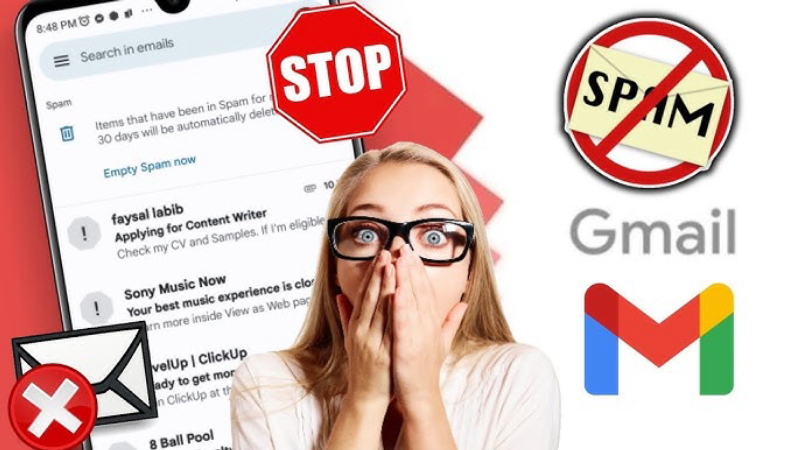
Spam email refers to unsolicited messages sent in bulk, often for advertising, phishing, or distributing malware. On Android devices, spam can not only clutter your inbox but also expose you to:
-
Phishing Attempts: Links designed to steal your credentials.
-
Malware Delivery: Attachments that infect your device.
-
Privacy Risks: Trackers and tracking pixels that monitor your activity.
Understanding the mechanics of spam is the first step toward neutralizing it.
Common Ways Spam Reaches Your Android Inbox
-
Data Breaches & Leaks
Your email address may have leaked in a breach, landing it on spammers’ lists. -
Web Forms & Online Purchases
Signing up for newsletters or making purchases can inadvertently share your address with third parties. -
Random Harvesting
Bots crawl websites and forums to scrape visible email addresses. -
Referral Chains
Forwarded or shared emails can propagate your address without your consent.
Quick Wins: Immediate Steps to Block Spam

Before diving into permanent fixes, take these rapid actions:
-
Unsubscribe Safely
Use the built‑in “Unsubscribe” link in Gmail or Outlook—but only if the sender is legitimate. -
Mark as Spam
Hitting “Report spam” trains your email provider’s filters to spot similar messages. -
Block Specific Senders
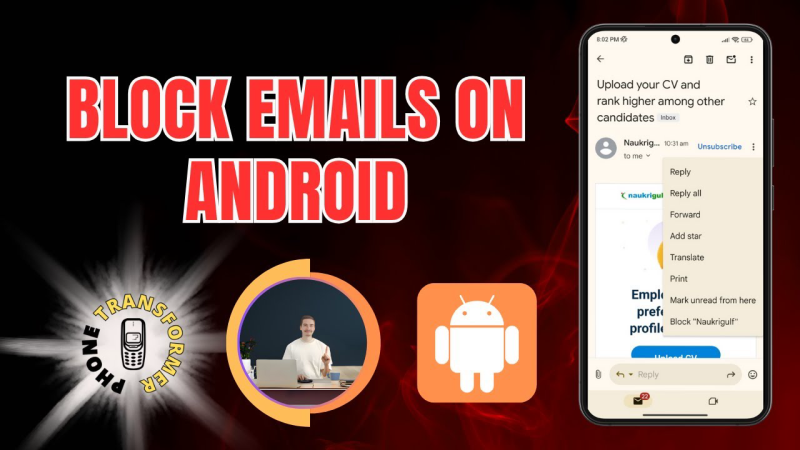
In Gmail’s Android app, open the message, tap the three‑dot menu, and choose “Block [sender].” -
Enable Sender Filters
Create a filter to automatically archive or delete messages containing common spam phrases (e.g., “free gift,” “limited time offer”).
Long‑Term Strategy: How to Permanently Stop Spam Emails

To keep your inbox clear for the long haul, implement these robust measures:
1. Strengthen Your Email Privacy
-
Use Alias Addresses: Create disposable aliases for sign‑ups (e.g., yourname+shopping@gmail.com).
-
Hide Your Email: Avoid publishing your primary address on public websites—consider a separate “public” alias.
2. Leverage Advanced Filters
-
Gmail Filters:
-
Go to Settings → your account → “Filters and Blocked Addresses.”
-
Click “Create a new filter,” enter keywords or domains, and choose “Delete” or “Skip the Inbox.”
-
-
Outlook Rules:
-
In the Outlook Android app, tap your profile icon → Settings → select your account → “Focused Inbox & Sweep.”
-
Use “Sweep” to automatically remove unwanted messages from specific senders.
-
3. Employ Third‑Party Anti‑Spam Apps
-
Cleanfox: Automatically unsubscribes you from newsletters and unsubscribed senders.
-
SpamDrain: Filters out spam before it hits your inbox, works with most email providers.
-
ProtonMail Bridge (for paid plans): Advanced spam filters with end‑to‑end encryption.
4. Harden Account Security
-
Two‑Factor Authentication (2FA): Prevent unauthorized access even if someone phishes your password.
-
Regular Password Rotation: Change your password every 3–6 months and avoid reusing it.
-
Monitor Breach Alerts: Services like Have I Been Pwned notify you if your address appears in new data leaks.
5. Keep Your Android Device Secure
-
Install Updates Promptly: Security patches often address vulnerabilities used by malware sent via email.
-
Use a VPN on Public Wi‑Fi: UFO VPN’s military‑grade encryption shields your connection, preventing attackers from intercepting email traffic over unsecured networks.
Gmail‑Specific Tactics on Android
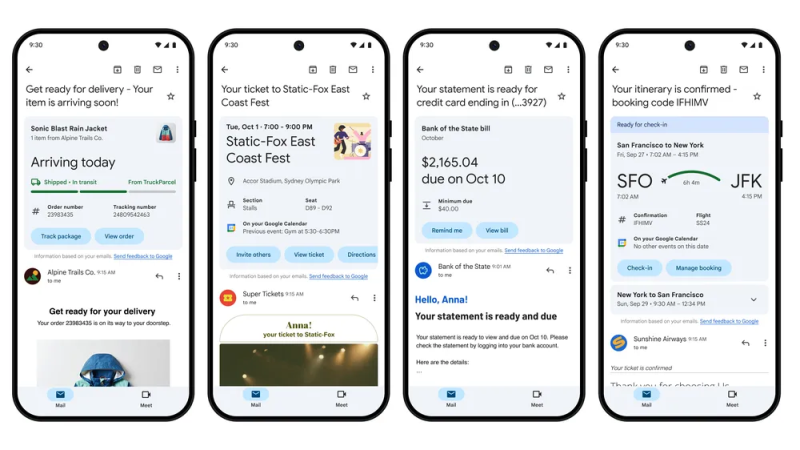
Gmail holds a dominant share of mobile email. Here’s how to optimize its spam defenses:
-
Enable “Block Images” by Default
Prevents hidden trackers. In Settings → Images → choose “Ask before displaying external images.” -
Activate Confidential Mode
For sensitive emails, set expiration dates and require passcodes to open messages. -
Review “Promotions” & “Social” Tabs
Periodically check these tabs for false positives, then drag legitimate senders back to “Primary” to retrain the algorithm.
Outlook‑Specific Tactics on Android
For those using Outlook’s app:
-
Focused Inbox
Toggles between “Focused” and “Other” to prioritize important messages. -
Sweep Rules
Auto‑delete or move messages older than a set period (e.g., 10 days) from specific senders. -
Report Phishing
Use the three‑dot menu on suspicious emails to notify Microsoft’s security team.
Best Practices to Keep Spam at Bay
-
Never Respond to Spam: Even a “STOP” reply can confirm your address is active.
-
Shred Physical Documents: Any paper listing your email should be destroyed.
-
Be Wary of Free Wi‑Fi: Always enable Best free VPN when connecting in public to prevent session hijacking.
-
Educate Yourself on Phishing Trends: New tactics emerge constantly—stay informed through blogs and security bulletins.
- Download UFO VPN


UFO VPN is an all-in-one VPN that offers unlimited access to 4D streaming like Netlfix, Disney Plus, no-ping gaming as PUBG, Roblox, CODM and social networking for YouTube, X, Facebook and more.




Unlock Pro Features
If you have upgraded to premium plan , feel free to enjoy premium servers for 4K streaming and advanced features like Kill Switch, Split Tunneling, and gaming acceleration. Your Mac is now fully optimized and protected. Inaddition to basic functions, we recommend you turn on

Verify Your IP Now
Use UFO VPN's " What is My IP " feature to see your new IP and location. This confirms your connection is secure, anonymous, and ready for safe browsing online anywhere at any time.







Conclusion
Spam emails on Android aren’t just an annoyance—they pose real risks to your privacy and device security. By following these immediate and permanent steps, you can reclaim your inbox and maintain a spam‑free environment. And by securing your connection, especially on public networks, with UFO VPN’s encrypted service, you add a powerful layer of defense against email‑based threats. Take control today and enjoy an organized, secure inbox for the long term.