





Is Sky Go Down for Everyone or Just for Me?
Sometimes, the issue is not caused by your device at all. When Sky Go does not work, the first thing you should figure out is whether the platform itself is experiencing an outage or whether the problem only affects your account, device, or internet connection.
If Sky Go is down for everyone, you may notice these signs:
- The app fails to load for all users
- Login servers stop responding
- Streaming suddenly stops nationwide
- Social media is filled with complaints
- Official Sky support pages report outages
On the other hand, if you are having problems, the issue is usually linked to:
- Weak internet connection
- Outdated app version
- VPN conflicts
- Device compatibility problems
- Corrupted app cache
- Login or account issues
Easy Ways to Check the Live Status of Sky Go
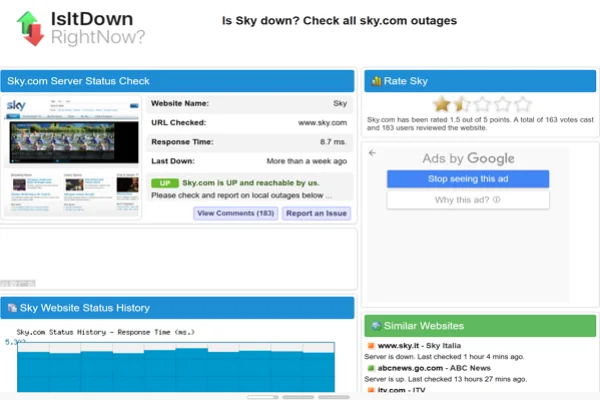
To check the live status of Sky Go, you can use these popular outage monitoring websites:
- Downdetector – Real-time outage reports from users worldwide
- Is It Down Right Now – Checks website and app server status
- Down for Everyone or Just Me – Simple accessibility checker for websites
- Outage.Report – Community-driven outage tracking platform
- StatusGator – Monitors service interruptions and downtime alerts
- IsTheServiceDown – Tracks telecom and streaming outages
- UpDownRadar – Displays regional outage reports and trends
- OnlineorNot – Detects server and streaming failures quickly
- Pingdom – Professional uptime monitoring and diagnostics
- Statuspage – Official status dashboards for online services
If these websites show no major outage reports, then the problem is likely happening only on your side. In that case, the fixes below may help restore Sky Go quickly.
Simple & Quick Fixes to Sky Go Not Working on Various Devices
Before trying anything complicated, first determine whether the problem affects all users or just your own device. If Sky Go is not working for everyone, there is unfortunately little you can do besides waiting for Sky to resolve the outage. However, if the issue only happens on your device, these troubleshooting methods can often solve it quickly.
✅ Fix Sky Go not working on Android
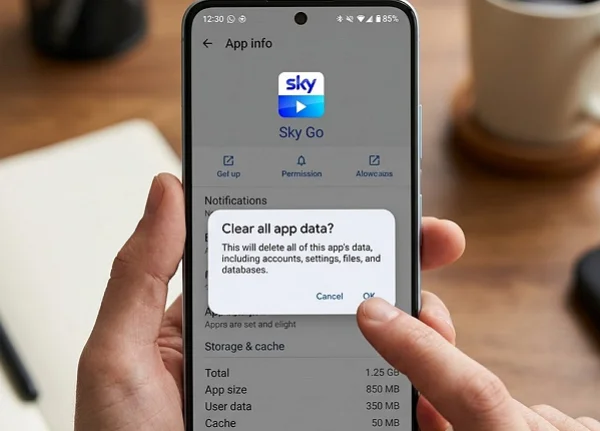
Android users may experience black screens, endless loading, crashing, playback failures, or login loops. These issues are commonly linked to app cache corruption, outdated software, or network conflicts.
Here are the most effective fixes:
Way 1. Restart the App and Device:
- Completely close the Sky Go app
- Restart your Android phone
- Open Sky Go again
- Try streaming another channel
Way 2. Clear Cache and App Data
- Open Settings
- Tap Apps
- Select Sky Go
- Go to Storage
- Tap Clear Cache
- Then tap Clear Data
This often removes corrupted temporary files, causing playback issues.
Way 3. Update the App
- Open Google Play Store
- Search for Sky Go
- Tap Update if available
Older app versions may stop working after server-side updates.
Way 4. Disable Battery Optimization
Some Android devices restrict background streaming apps.
- Open Settings
- Go to Battery
- Disable optimization for Sky Go
Way 5. Check VPN or DNS Settings
Certain VPN protocols or custom DNS settings may interfere with streaming authentication. Try disabling them temporarily to test the connection.
✅ Fix Sky Go not working on iPhone
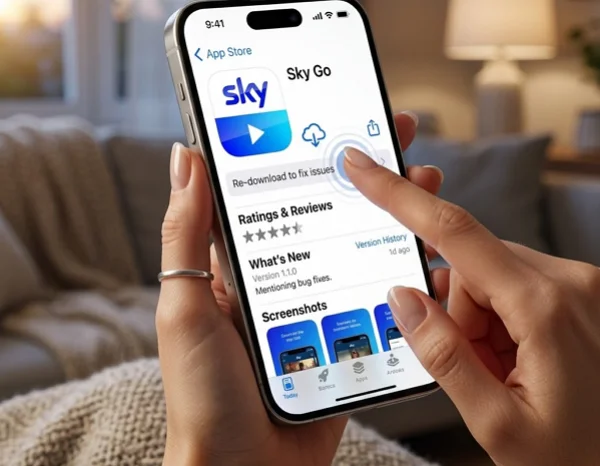
If Sky Go freezes, crashes, or refuses to stream on iPhone, the problem is often related to iOS permissions, storage issues, or outdated software.
Way 1. Force Close the App
- Swipe up from the bottom
- Remove Sky Go from recent apps
- Reopen the application
Way 2. Reinstall Sky Go
- Press and hold the app icon
- Tap Remove App
- Reinstall from the Apple App Store
Reinstalling refreshes damaged installation files.
Way 3. Update iOS
- Open Settings
- Tap General
- Choose Software Update
- Install the latest iOS version
Older iOS versions sometimes lose compatibility with newer Sky Go updates.
Way 4. Check Available Storage
Low storage can cause buffering and crashes.
- Open Settings
- Go to iPhone Storage
- Delete unnecessary files if space is low
Way 5. Reset Network Settings
- Open Settings
- Tap General
- Choose Transfer or Reset iPhone
- Tap Reset Network Settings
This may solve streaming authentication problems.
✅ Fix Sky Go not working on Tablet/iPad
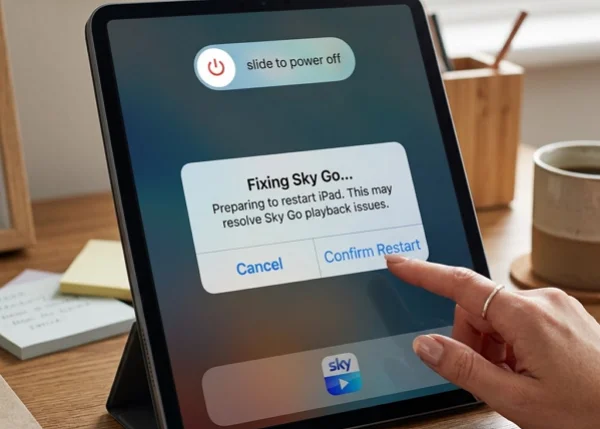
Tablet and iPad issues are usually very similar to those found on Android phones or iPhones because they use related operating systems. However, larger-screen devices may also encounter compatibility or scaling problems after system updates.
You can try these quick fixes:
💡 Restart the tablet completely
Hold the power button → Tap “Restart” → Wait 1–2 minutes → Reopen Sky Go
💡 Update both the operating system and Sky Go app
Settings → Software Update → Install latest version
Open App Store / Google Play → Search Sky Go → Tap “Update”
💡 Remove and reinstall the application
Press and hold Sky Go → Uninstall/Delete → Restart device → Reinstall from official app store
💡 Clear the cache if using Android tablets
Settings → Apps → Sky Go → Storage → Clear Cache → Relaunch the app
💡 Check whether the device is officially supported
Visit the official Sky Go Website → Check compatible device list → Confirm your tablet version is supported
💡 Turn off battery-saving modes
Settings → Battery → Disable Power Saving / Battery Optimization for Sky Go
💡 Test another Wi-Fi network
Disconnect current Wi-Fi → Connect another network or mobile hotspot → Open Sky Go again
✅ Fix Sky Go not working on PC
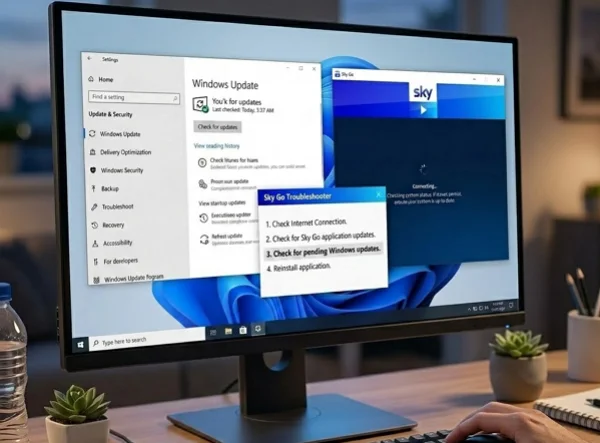
On Windows PCs, Sky Go may fail to launch, display black screens, freeze during playback, or show installation errors.
Way 1. Restart the Application
Close Sky Go fully from Task Manager before reopening it.
Way 2. Update Windows
- Open Settings
- Go to Windows Update
- Install all available updates
Compatibility issues are common on outdated systems.
Way 3. Reinstall Sky Go Desktop App
- Uninstall Sky Go
- Restart the PC
- Download the newest version from the official Sky Go Website
- Install it again
Disable Antivirus Temporarily
Some security software blocks streaming components or DRM verification.
Way 4. Clear Temporary Files
- Press Windows + R
- Type
%temp% - Delete temporary files
Way 5. Update Graphics Drivers
Outdated GPU drivers may trigger playback errors or black screens.
✅ Fix Sky Go not working on Xbox
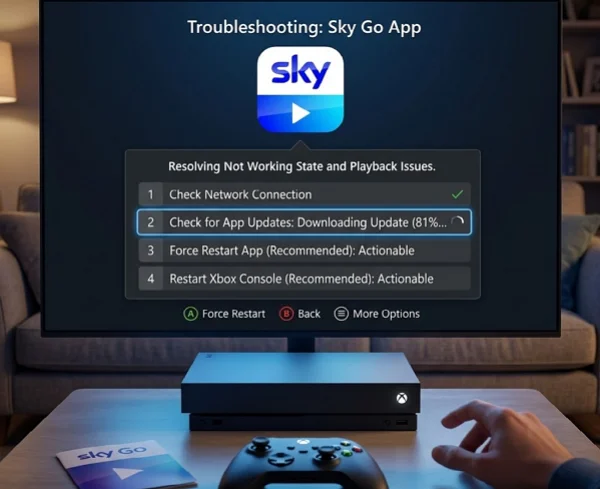
Xbox users occasionally encounter loading errors, login failures, or playback crashes when using Sky Go.
Way 1. Restart the Xbox Console
A simple reboot often refreshes network connections.
Way 2. Check Xbox Network Connection
- Open Settings
- Go to Network
- Run Test Network Connection
Way 3. Reinstall the Sky Go App
- Remove the app
- Restart Xbox
- Reinstall from the Microsoft Store
Way 4. Clear Persistent Storage
- Go to Settings
- Open Devices & Connections
- Choose Blu-ray
- Clear persistent storage
Way 5. Disable VPN or Proxy
Some VPN setups conflict with Xbox streaming services.

How Can a VPN Help in Watching Sky Go?
A VPN can significantly improve your streaming experience when using Sky Go, especially if you travel frequently or encounter regional restrictions. Besides enhancing privacy, VPNs may also help stabilize connections and reduce network throttling from internet providers.
1. Access Sky Go Anywhere
Due to regional licensing agreements, copyright restrictions, and broadcasting policies, Sky Go is mainly available only in the UK and Ireland. In many other countries, the service may be partly blocked, unavailable entirely, or limited to certain content categories, including:
- ❌ United States
- ❌ Canada
- ❌ Singapore
- ❌ Japan
- ❌ South Korea
- ❌ India
- ❌ Thailand
- ❌ United Arab Emirates
- ❌ Saudi Arabia
- ❌ Australia
- ❌ New Zealand
- ❌ South Africa
- ❌ Brazil
- ❌ Mexico
- ❌ Germany
- ❌ France
- ❌ Spain
- ❌ Italy
- ❌ Netherlands
So when you are abroad for travel, business, or study, using a VPN can help you connect through a UK-based server and regain access to your Sky Go content library securely.
2. Reduce Ping & Lag
Some internet providers intentionally slow down streaming traffic during peak hours. A VPN may help bypass this type of bandwidth throttling by encrypting your traffic.
Benefits include:
- More stable streaming quality
- Fewer buffering interruptions
- Reduced lag during live sports
- Better performance on public Wi-Fi
3. Improve Privacy and Security
Streaming on hotel, airport, or café Wi-Fi can expose your browsing activity to unsecured networks. VPN encryption helps protect your connection and keeps your streaming sessions more private.
What's the Best Sky Go VPN?
Choosing the right free VPN proxy for Sky Go is important because not every VPN works well with streaming services. A good VPN should provide:
- Fast streaming speeds
- Stable UK servers
- Strong encryption
- Low buffering rates
- Wide device compatibility
- Reliable uptime
One popular option many users consider is UFO VPN, especially for streaming-related use cases. It offers optimized servers, supports multiple devices, and is relatively easy for beginners to set up.
To activate this efficient tool, follow steps like:


UFO VPN is an all-in-one VPN that offers unlimited access to 4K streaming like Netlfix, Disney Plus, no-ping gaming as PUBG, Roblox, CODM and social networking for YouTube, X, Facebook and more.




Unlock Pro Features
If you have upgraded to premium plan , feel free to enjoy premium servers for 4K streaming and advanced features like Kill Switch, Split Tunneling, and gaming acceleration. Your Mac is now fully optimized and protected. Inaddition to basic functions, we recommend you turn on

Verify Your IP Now
Use UFO VPN's " What is My IP " feature to see your new IP and location. This confirms your connection is secure, anonymous, and ready for safe browsing online anywhere at any time.







For best performance, choose a server geographically closer to your actual location while still being within the UK region. For example, switching to a Switzerland VPN free or Norway VPN free would be better.
What to do if Sky Go VPN is not working?
Normally, reliable VPN providers such as UFO VPN work smoothly with streaming platforms. However, there are still situations where Sky Go may stop detecting or accepting the VPN connection.
This can happen because:
- The VPN IP address was blocked
- DNS leaks exposed your real location
- Server congestion slowed the connection
- Browser cache stored old location data
- The VPN protocol became unstable
If this happens, try these solutions.
💡 Change DNS Settings
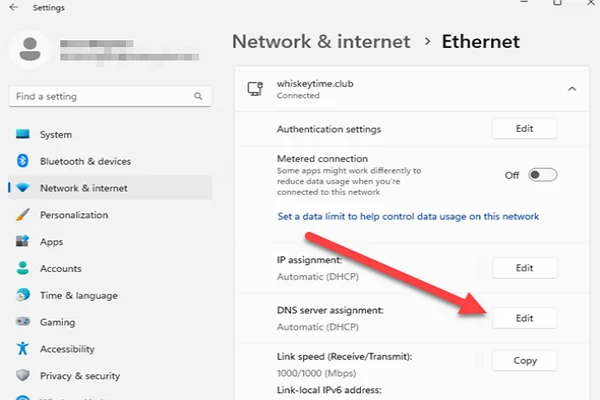
Switching to public DNS servers may improve streaming reliability.
Steps:
- Open network settings
- Change DNS to:
- Google DNS:
8.8.8.8 - Cloudflare DNS:
1.1.1.1
- Google DNS:
- Restart the connection
This may help bypass DNS-related geo-detection.
💡 Switch to Another VPN Server
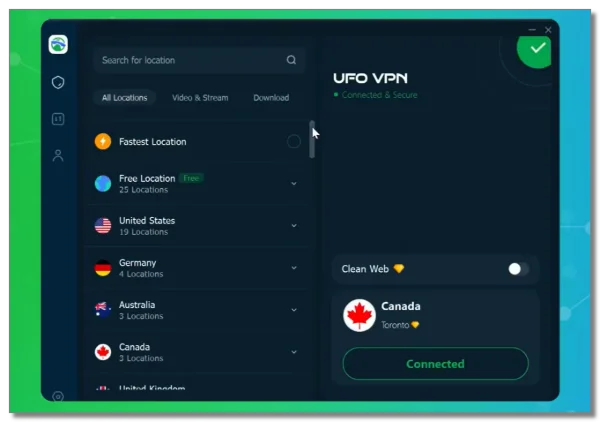
Some VPN servers become overcrowded or blocked over time.
Try:
- Another UK city
- A streaming-optimized server
- A less crowded location
This is often the fastest solution.
💡 Use Smart DNS Proxy
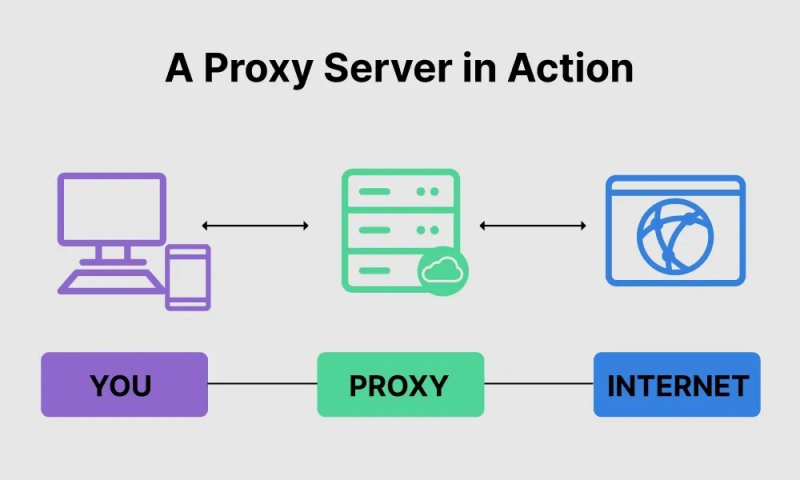
Smart DNS changes only location-related routing without encrypting the entire connection.
Advantages:
- Faster speeds
- Lower latency
- Better for smart TVs and consoles
However, it provides less privacy protection than a full VPN.
💡 Clear Browser and App Cache
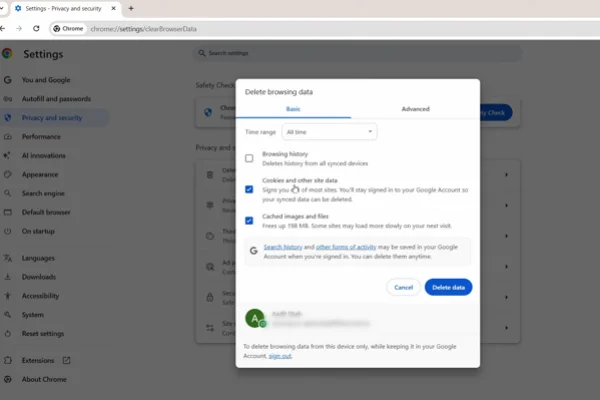
Cached location data may reveal your previous region.
Steps:
- Clear browser cookies
- Clear Sky Go app cache
- Restart the device
- Reconnect the VPN
💡 Change VPN Protocol
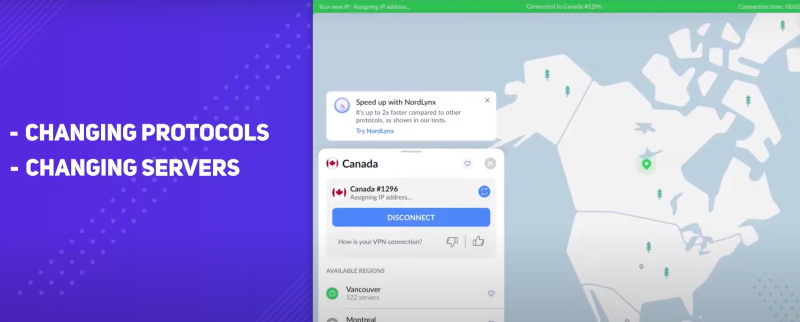
Different protocols behave differently depending on the network.
Try switching between:
- WireGuard
- OpenVPN
- IKEv2
Some protocols are faster while others are more stable.

Bonus Tips to Avoid Sky Go Stops Working
To reduce the chances that Sky Go will not work unexpectedly in the future, these small habits can make a noticeable difference.
Keep the app updated
Restart devices regularly
Use supported devices only
Check available storage space
Update operating systems
Use reliable VPN providers
Avoid unstable public Wi-Fi
Don’t run too many background apps
Don’t ignore app error messages
Don’t use outdated browsers or drivers
Don’t switch VPN servers too frequently
By following these simple practices, you can greatly reduce the chances of facing Sky Go app not working issues during important live streams or entertainment sessions.
Final Word
Streaming problems can happen on almost any device, but most of the time they are easier to solve than people expect. Whether the issue comes from server outages, outdated software, unstable internet, or VPN conflicts, identifying the real cause is usually the key step toward fixing it.
If you keep encountering Sky Go not working problems, staying updated, maintaining your device properly, and using reliable network tools can make your viewing experience much smoother and more stable over time.
FAQs
Why does Sky Go say external display output is blocked?
This often happens on tablets due to screen mirroring or DeX modes. Disable them in device settings.
Can I watch Sky Go on older devices?
Support drops for very old OS versions (e.g., older iOS). Update if possible or use a compatible device.
Does Sky Go work with mobile data?
Yes, but ensure you have a strong signal and sufficient data allowance, as streaming uses a lot.
Is it safe to use a VPN with Sky Go?
Yes, premium VPNs are safe and commonly used for accessing content while protecting privacy.
What should I do if reinstalling doesn't fix Sky Go?
Contact Sky support with error details or try a different device/network.