




What Is NetMirror App?
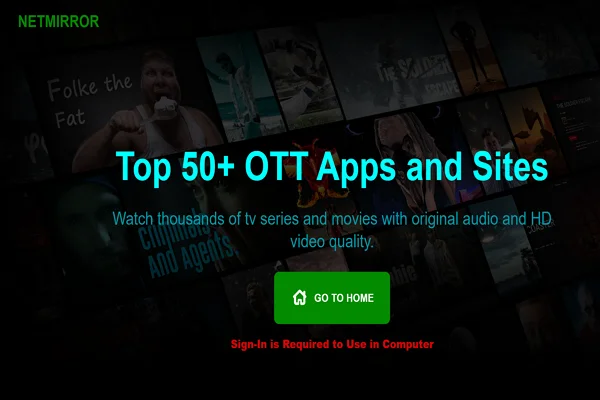
The NetMirror app is not limited to basic screen casting. In fact, it is often used as a non-official streaming aggregation tool that helps users access and organize video content from multiple OTT platforms within a single interface. Instead of requiring users to open and manage several apps separately, NetMirror allows you to browse and play content from services such as Netflix, Prime Video, and Disney+ Hotstar through one unified environment.
Meanwhile, this app does not provide its own movies or TV shows, and it does not replace official streaming subscriptions. Users do not need to purchase additional subscriptions for screen mirroring or aggregation itself.
As long as content is accessible through a supported service, NetMirror can display and play it on a larger screen, such as a TV or laptop, without requiring repeated logins across different devices.
Here are some key features of this amazing application:
-
Cross-Platform Content Discovery: Netmirror brings together titles from multiple streaming platforms, allowing users to search movies and TV series across services in one place.
-
Unified Playback Interface: Instead of switching between different OTT apps, users can start playback from a single front-end player.
-
No Extra Subscription for Aggregation: The app itself does not require separate subscriptions for content browsing or mirroring functionality.
-
Multi-Device Display Support: Content can be viewed on TVs, laptops, or projectors through wireless display or casting methods.
-
Centralized Viewing Control: Playback is controlled from one device, reducing the need to install or manage multiple apps on smart TVs.
How Does NetMirror Work?
The netmirror app works by gathering content from different streaming services like Netflix, Prime Video, and Disney+ Hotstar. Instead of forcing you to open each app separately, it pulls all the movie and TV show data into one easy-to-use platform.
Here's how it works exactly in real-world situation:
- It grabs the movie titles, episode lists, and streaming links from these platforms.
- Then centralizes all the data into one interface, making it easier to search for movies and TV shows from different services.
- You can find what you're looking for without jumping between different platforms.
- Once you select a movie or show, NetMirror uses a proxy to stream it through your device to a bigger screen, such as a TV or laptop.
- It allows you to control playback directly from your phone or tablet, without needing to interact with your TV or another device.
For most users, the main benefit is convenience. There is no need to move files or install complex drivers.
If app is available on playstore then we can trust on the app. because it passes through many security checks from google. And I found out - that netmirror app is available on google play - if you download it from there, then it is 100% safe.

How to Install the NetMirror App on Different Devices?
Installing the NetMirror app is usually straightforward, but the steps vary depending on the device. Some platforms use an app store, while others require a desktop program or browser access.
Before installing, make sure:
-
All devices are connected to the same Wi-Fi network
-
The operating system is up to date
-
Screen casting permissions are enabled
The following sections explain how to download and install the NetMirror app on common devices.
👉 Download the NetMirror App on Android
Android is one of the most common platforms for the NetMirror app. Many users rely on it for work and entertainment.
Step 1. Open Google Play Store: Search for the NetMirror app in the search bar.
Step 2. Check App Details: Confirm the app name, developer, and user ratings to avoid unofficial copies.
Step 3. Tap Install: Wait for the download and installation to finish.
Step 4. Grant Permissions: Allow screen recording, audio access, and network access when prompted.
Step 5. Start Mirroring: Open the app, select a target device, and begin screen sharing.
👉 Download NetMirror App on iPhone
iPhone users can also use the NetMirror app, although system restrictions may limit certain features.
Step 1. Open the App Store: Search for the NetMirror app or related screen mirroring tools.
Step 2. Install the App: Tap “Get” and authenticate using Face ID, Touch ID, or password.
Step 3. Enable Screen Recording: Go to Settings → Control Center → Add Screen Recording.
Step 4. Connect to Wi-Fi: Make sure both devices are on the same network.
Step 5. Start Screen Mirroring: Open the app and follow the on-screen instructions to connect.
👉 Download the NetMirror App on Mac
Mac users often use the NetMirror app to display mobile screens during presentations or testing.
Step 1. Visit the Official Website or Mac App Store: Search for a Mac-compatible version of the NetMirror app.
Step 2. Download the Installer: Save the file to your Mac.
Step 3. Install the Application: Open the installer and follow the setup steps.
Step 4. Adjust Security Settings: Go to System Settings → Privacy & Security and allow screen access.
Step 5. Connect Devices: Launch the app and wait for your phone to appear.
👉 Download NetMirror App on Laptop
For Windows laptops or other systems, installation steps may differ slightly.
Step 1. Open a Web Browser: Search for the official NetMirror app download page.
Step 2. Download the Windows Version: Avoid third-party download sites when possible.
Step 3. Run the Setup File: Follow the installation prompts.
Step 4. Allow Firewall Access: Grant network permissions when asked.
Step 5. Start Mirroring: Open the app and connect your mobile device.


How to Ensure a Smoother Screen Mirroring Experience
Even with a reliable tool like the NetMirror app, screen mirroring quality depends on setup and usage habits. Many common issues, such as lag, disconnection, or low image quality, can be avoided with a few practical steps.
✅ Use a Stable Wi-Fi Network: Screen mirroring relies heavily on network performance. Always connect both devices to the same Wi-Fi network. Avoid public Wi-Fi or networks with many connected users. A 5 GHz Wi-Fi band usually provides better speed and lower delay than 2.4 GHz.
✅ Use a VPN to Improve Stability and Security: Using a reliable VPN tool like UFO VPN can help make the NetMirror app work more smoothly, especially on public or unstable Wi-Fi networks. It encrypts your internet traffic and routes it through a stable server, which can reduce connection drops and limit network throttling during screen mirroring.
You can connect to a free proxy VPN in UFO VPN with only a few simple steps:


UFO VPN is an all-in-one VPN that offers unlimited access to 4K streaming like Netlfix, Disney Plus, no-ping gaming as PUBG, Roblox, CODM and social networking for YouTube, X, Facebook and more.




Unlock Pro Features
If you have upgraded to premium plan , feel free to enjoy premium servers for 4K streaming and advanced features like Kill Switch, Split Tunneling, and gaming acceleration. Your Mac is now fully optimized and protected. Inaddition to basic functions, we recommend you turn on

Verify Your IP Now
Use UFO VPN's " What is My IP " feature to see your new IP and location. This confirms your connection is secure, anonymous, and ready for safe browsing online anywhere at any time.







✅ Keep Devices Close to the Router: Physical distance matters. Place your phone, laptop, or TV within a reasonable range of the router. Walls and large objects can weaken the signal and cause screen delay or freezing.
✅ Close Background Apps: Running many apps in the background can affect screen mirroring. Close unused apps on both the sending and receiving devices to free up memory and processing power.
✅ Match Screen Resolution Settings: High resolution can increase the delay. If the NetMirror app allows resolution settings, choose standard HD instead of full 4K when stability is more important than image detail.
✅ Update the App and System: Always use the latest version of the NetMirror app. Updates often fix bugs and improve connection stability. The same applies to your phone system, computer system, and smart TV firmware.
✅ Disable Battery Saver Mode: Battery saver modes may limit background activity or network performance. Turn it off while using screen mirroring to prevent unexpected interruptions.
✅ Use a wired connection for the Receiver: If possible, connect the receiving device (such as a PC or TV) to the router using an Ethernet cable. This reduces network fluctuation and improves overall performance.
✅ Restart When Issues Appear: If the connection becomes unstable, restart the app first. If problems continue, restart both devices and reconnect. This simple step often resolves detection and pairing issues.
Similar Apps like NetMirror
While the NetMirror app works well for many users, some people need extra features or better compatibility. Below are popular alternatives, presented in mixed order for easier comparison.
ApowerMirror
ApowerMirror is a well-known screen mirroring tool for Android, iOS, Windows, and Mac. It supports wireless and USB connections, which makes it flexible for office and classroom use. Many users choose it for its stable performance and recording features.
⭐ Key Features
-
Screen mirroring with audio
-
Screen recording and screenshots
-
Keyboard and mouse control
-
Cross-platform support
Google Home
Google Home is mainly used for managing smart devices, but it also supports screen casting through Chromecast. It is popular among Android users who already use Google services.
⭐ Key Features
-
Native Android screen casting
-
Works with Chromecast devices
-
Simple setup process
MirrorGo
MirrorGo focuses on Android screen mirroring and control from a PC. It is often used by gamers and app testers.
⭐ Key Features
-
Android screen control via keyboard
-
High-resolution display
-
Screen recording
LetsView
LetsView is a free screen mirroring app that supports Android, iOS, Windows, and smart TVs. It is widely used in education and home settings.
⭐ Key Features
-
Free to use
-
Multi-device support
-
Whiteboard and annotation tools
Mirroring360
Mirroring360 is designed for professional environments such as classrooms and meetings. It supports multiple devices mirroring to one screen.
⭐ Key Features
-
Multi-device mirroring
-
Works with Chromebooks
-
Presentation-friendly tools
Vysor
Vysor allows Android screen mirroring through USB or wireless connections. It is often used by developers.
⭐ Key Features
-
USB mirroring option
-
High-quality display (paid)
-
Android control from PC
Miracast
Miracast is a built-in wireless display standard supported by many TVs and Windows devices. It does not require a separate app in some cases.
⭐ Key Features
-
No third-party app needed
-
Works over Wi-Fi Direct
-
Built into many devices
After reviewing these tools, it becomes easier to see which app fits different needs. Some focus on simplicity, while others offer advanced control or recording features. Here's a clear table for you to make a better choice.
| App Name | Ease of Use | Devices Supported | Free Trial | Recommendation |
|---|---|---|---|---|
| NetMirror App | Easy | Android, iOS, PC, TV | Yes | Good for daily use |
| ApowerMirror | Medium | Android, iOS, PC, Mac | Yes | Feature-rich |
| Google Home | Easy | Android, Chromecast, TV | Free | Best for Chromecast |
| MirrorGo | Medium | Android, Windows | Yes | Gaming and testing |
| LetsView | Easy | Android, iOS, PC, TV | Free | Budget-friendly |
| Mirroring360 | Medium | PC, Mac, Chromebook, Mobile | Yes | Classroom use |
| Vysor | Medium | Android, PC, Mac | Yes | Developer use |
| Miracast | Easy | Windows, Smart TVs | Free | Built-in option |
Conclusion
The NetMirror app remains a practical choice for users who want a simple way to mirror screens across devices. With easy installation, basic features, and wide compatibility, it fits many everyday scenarios such as meetings, study sessions, and media sharing. For users with specific needs, several alternatives offer different strengths. Choosing the right tool depends on the devices you use and how you plan to share your screen.
FAQs
Does the NetMirror App Need the Internet to Work?
Yes. The NetMirror app requires an active network connection to function. Both the sending device and the receiving device must be connected to the same Wi-Fi network. Even though screen data is shared locally, the app still depends on network stability. If the network is unstable, lag or disconnection may occur.
Why Does NetMirror App Lag or Freeze During Screen Mirroring?
Lag usually happens because of weak Wi-Fi signals, crowded networks, or high screen resolution settings. Distance from the router and background apps can also affect performance. Lowering the resolution and closing unused apps often improves stability when using the NetMirror app.
Can I Use NetMirror App on Public Wi-Fi?
Yes, but it is not recommended without protection. Public Wi-Fi networks are often crowded and unsecured. Using a VPN, such as UFO VPN, can help encrypt your connection and reduce network interference while using the NetMirror app in public places like hotels, airports, or cafes.
Is NetMirror App Free to Use?
Many versions of the NetMirror app offer a free plan with basic screen mirroring features. Some advanced functions, such as higher resolution or longer session time, may require payment. Users should always check the app description before downloading.
Can NetMirror App Mirror Audio as Well as Video?
In most cases, yes. The NetMirror app can mirror both screen visuals and system audio, depending on the device and operating system. On some platforms, additional permissions may be required to enable audio sharing.