




Understanding Valorant's Block System
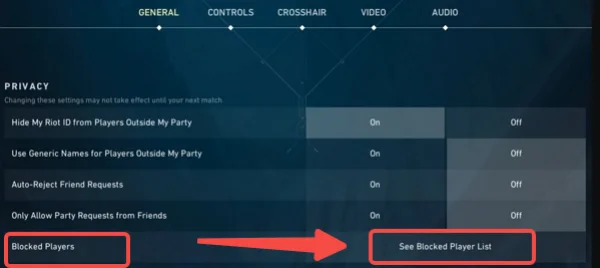
Valorant includes a built-in block system that lets you control who can interact with you. Once a player is blocked, they cannot send you messages, invites, or friend requests. This helps reduce unwanted interactions during or after matches.
During the everyday gameplay, it's better to block other people in Valorant if you wish to:
-
Stop toxic chat messages during games
-
Avoid repeated friend requests from unknown players
-
Prevent harassment or spam
-
Keep the friends list clean and relevant
-
Focus on gameplay without distractions
The system works at the Riot account level. This means the block applies across all Riot services, not just Valorant. When you unblock someone, all communication features return to normal.
Steps to Unblock Players on Valorant
If you are looking for a dedicated "Block List" tab inside the Valorant game settings, you might be looking for a long time. Riot Games has integrated most of its social management into the Riot Client rather than the game interface itself. This can be a bit confusing for new players who expect everything to be under the "Social" tab in the game.
To get your friend back on your list, you need to navigate through the client that launches the game. Follow these specific steps to clear your block list and restore communication.
Method 1: Using the Riot Client
This is often the most efficient way to unblock someone on Valorant. Here's how you can do it:
-
Open the Riot Client: Do not launch Valorant just yet. Open the Riot Client window where you usually sign in or click "Play."
-
Access the Social Icon: Look at the top right corner of the client window. You will see a small icon that looks like a person with a gear or a list next to it. Click on your profile icon.
-
Enter Settings: From the dropdown menu, select "Settings."
-
Find the Block List: On the left-hand sidebar, click on the "Riot Client" section and then look for "Block List."
-
Unblock the Player: You will see a list of every Riot ID you have blocked. Find the name of the person you want to talk to again. Click the "Unblock" button (often represented by an 'X' or a specific button next to their name).
-
Confirm and Restart: Once you remove them from the list, it is a good idea to restart your Valorant game to ensure the social sync updates immediately.
Method 2: In-Game via the Friends List (If they are still visible)
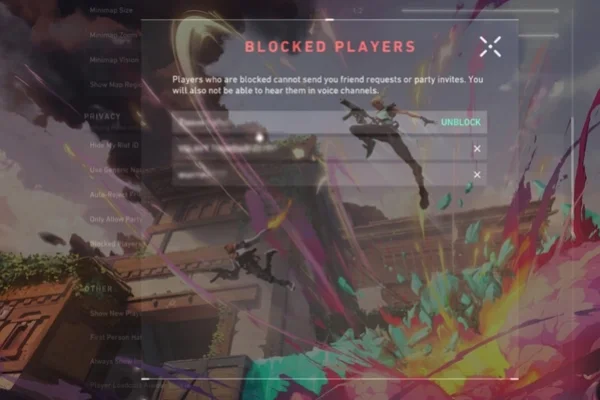
Sometimes, if you have just blocked someone and haven't closed the game, they might still appear in your "Blocked" category at the bottom of your friends list.
-
Open Valorant: Go to the main lobby screen.
-
Expand the Social Tab: On the right side of the screen, click on your friends list.
-
Scroll to the Bottom: There is usually a category labeled "Blocked." Click the small arrow to expand it.
-
Right-Click and Unblock: Find the player's name, right-click on it, and select "Unblock." If the name disappears, the process is successful.
Common Issues When Unblocking Someone on Valorant
Even though the process is simple, some players face small problems. Below are the most common ones and how to fix them.
1. Player Not Showing in Block List
Sometimes the name you are looking for does not appear in your block list. This usually happens when the player changed their Riot ID or you blocked a different account.
💡 Quick Fix: Double-check the exact Riot ID, including the tagline (for example: PlayerName#1234). If you still cannot find them, try searching your recent match history and confirm the correct username.
2. Changes Not Saving
You click “Unblock,” but the player still seems blocked. This can happen due to connection issues or a temporary client bug.
💡 Quick Fix: Restart the Riot Client and log in again. If the issue continues, log out of your account and access the Riot website to unblock the player there. This forces the system to refresh your settings.
3. Unable to Send Friend Request After Unblocking
After unblocking, you might try to send a friend request but nothing happens.
💡 Quick Fix: Wait a few minutes before sending the request again. Sometimes the system needs time to update. Also, check if the other player has you blocked. If they do, you will not be able to add them.
4. Block List Not Loading
In some cases, the block list page does not load properly or appears empty.
💡 Quick Fix: Check your internet connection first. Then restart the client. If the issue remains, update the Riot Client to the latest version. Outdated versions may not display account data correctly.
How to Avoid Accidentally Blocking Someone on Valorant?
It is easy to block someone during a match, especially when you are trying to mute or report them quickly. Many players click the wrong option without noticing.
To avoid this, take a moment to read each option in the player menu. The block button is usually near the report and mute options, so it is easy to misclick.
You can also use the mute feature instead of blocking. Muting stops voice and text chat during the match but does not remove future communication options. This is useful if you only want to avoid distractions in a single game.
Another good habit is to review your block list once in a while. This helps you catch any accidental blocks and keep your list organized.
Pro Tips for Better Managing Friends and Blocks in Valorant
Managing a social circle in a competitive game like Valorant can be a full-time job if you play a lot. Here are some ways to keep your list clean without having to resort to the block button every time.
✅ Use the "Note" Feature: When you add a friend, right-click their name and "Add Note." Write down how you met them (e.g., "Good Sage from Ranked"). This prevents you from forgetting who they are and blocking them later because you think they are a random stranger.
✅ Set Yourself to "Away": If you want to play alone but don't want to block friends who keep inviting you, change your status to "Away" or "Invisible" (if available in the client). This saves you from the awkwardness of blocking and unblocking.
✅ Clean Your List Monthly: Instead of blocking people to get them off your list, just "Unfriend" them. It is less "aggressive" in the system's eyes and doesn't require you to manage a massive block list.
✅ Use "Party Invite: Friends Only": In the settings, you can restrict who can send you invites. This stops the "invite spam" that usually leads people to block others.
Make Sure You've Used the Right VPN for Valorant
Sometimes, connection issues or region restrictions can affect your ability to interact with other players. A Valorant VPN free can help stabilize your connection and reduce problems when accessing game services.
It can greatly improve the gaming experience in several ways, including:
-
Improve connection stability in some regions
-
Reduce lag caused by unstable routing
-
Help access the game when networks block it
-
Protect your account from public Wi-Fi risks
-
Provide more consistent matchmaking connections
A simple option many players use is UFO VPN. It offers quick connection setup and servers optimized for gaming. You can connect before launching Valorant and check if your experience becomes more stable.


UFO VPN is an all-in-one VPN that offers unlimited access to 4K streaming like Netlfix, Disney Plus, no-ping gaming as PUBG, Roblox, CODM and social networking for YouTube, X, Facebook and more.




Unlock Pro Features
If you have upgraded to premium plan , feel free to enjoy premium servers for 4K streaming and advanced features like Kill Switch, Split Tunneling, and gaming acceleration. Your Mac is now fully optimized and protected. Inaddition to basic functions, we recommend you turn on

Verify Your IP Now
Use UFO VPN's " What is My IP " feature to see your new IP and location. This confirms your connection is secure, anonymous, and ready for safe browsing online anywhere at any time.







Conclusion
Unblocking someone in Valorant is a simple task, but it becomes important when you want to reconnect or fix past decisions. Keeping your block list clean, understanding how the system works, and knowing how to fix small issues can save time and improve your gameplay experience. With the right approach, you stay in control of who you interact with while keeping your matches smooth and focused.
FAQs
Does blocking someone in Valorant stop them from being in my match?
No. Blocking a player only prevents them from communicating with you (text, voice, and invites). It does not prevent the matchmaking system from putting them on your team or the opposing team in future games.
Can I see what someone wrote in chat before I unblock them?
No. Once you block a player, their messages are not recorded for you. Even after you unblock them, the history of what they said while they were blocked remains hidden.
Will the other person know if I unblock them?
Riot does not send a notification when you unblock someone. However, if you want to be friends again, you will have to send them a new friend request, which will notify them that you are reaching out.
Is there a limit to how many people I can block?
While Riot has not officially stated a hard limit, having hundreds of people on your block list can sometimes cause the Riot Client to slow down or lag when opening the social settings. It is better to "Unfriend" rather than "Block" when possible.
Why can't I see the "Blocked" category in my Valorant friends list?
The "Blocked" category only appears in the game if you currently have someone blocked. If your block list is empty, that specific folder will be hidden to keep your UI clean.