




Common Signs of DAZN Errors
Before dealing with a DAZN not working issue, it's better to recognize the specific signs of common errors that you may run into. The symptoms may appear in different forms depending on the device, network, or account you're using. Here are some of the most common errors:
⚠️ Error Code 10-000-000 – DAZN cannot establish a stable connection to its servers.
⚠️ Error Code 11-065-013 – Playback cannot start due to network or streaming issues.
⚠️ Error Code 50-006-403 – Content is restricted based on your current location.
⚠️ Error Code 65-000-403 – Account access is temporarily blocked or limited.
⚠️ Error Code 83-000-000 – Device compatibility issue detected.
⚠️ DAZN Isn't Available in This Country – DAZN does not currently offer service in your region.
⚠️ Infinite Loading Screen – The app or website gets stuck while loading content.
⚠️ Black Screen During Playback – Video fails to display even though audio may work.
⚠️ Login Failed Error – Incorrect credentials or account authentication issues.
⚠️ Playback Error – The selected video cannot be streamed properly.
Check If DAZN is Not Working for You or Down for Everyone
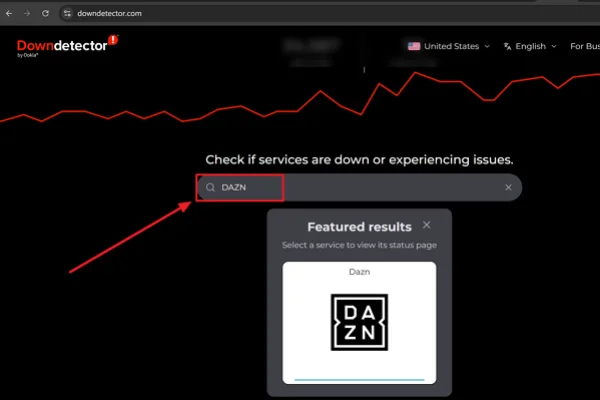
When you search why is DAZN not working, it's easy to assume that the issue is on your side. But this is not always true. Streaming services occasionally experience outages caused by server maintenance, technical failures, traffic spikes during major sporting events, or unexpected system updates.
Another possibility is that DAZN itself is temporarily unavailable. In this case, the platform becomes inaccessible for everyone rather than just your device. The easiest way to verify this is by using a live status checking website.
- Downdetector – Real-time outage reports
- Is It Down Right Now – Quick website availability check
- Is It Down For Everyone Or Just Me – Simple global accessibility test
- Outage.Report – User-submitted outage tracking
- StatusGator – Official service status tracking
- UpdownRadar – Crowd-sourced outage reports
- Website Planet Status Checker – Fast website status verification
- Site24x7 Website Checker – Global uptime monitoring
- Pingdom Website Speed Test – Connectivity and response testing
15 Easy Ways to Fix the DAZN Not Working Issue
Most DAZN errors can be resolved without contacting customer support. Try the following solutions one by one.
Way 1. Just Wait
If DAZN is currently experiencing a platform-wide outage, there is usually nothing you can do on your end. Server maintenance, technical failures, or unusually high traffic during major sporting events may temporarily affect service availability. Simply wait until DAZN resolves the issue.
Way 3. Reload the Page
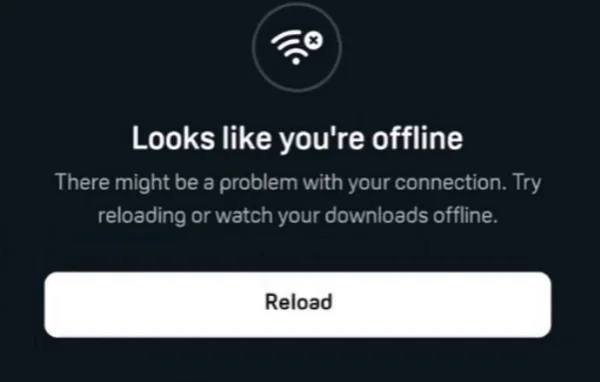
Sometimes the issue is not with DAZN itself but with a temporary page-loading error. Refreshing the page can re-establish the connection with DAZN's servers and reload any missing content, often resolving minor playback or loading issues instantly.
💡 Key Steps:
- Click the refresh button in your browser.
- Alternatively, press F5 or Ctrl + R (Windows) / Command + R (Mac).
- Wait for the page to reload completely.
- Try playing the content again.
- If the issue persists, perform a hard refresh using Ctrl + Shift + R (Windows) or Command + Shift + R (Mac).
Way 3. Restart DAZN
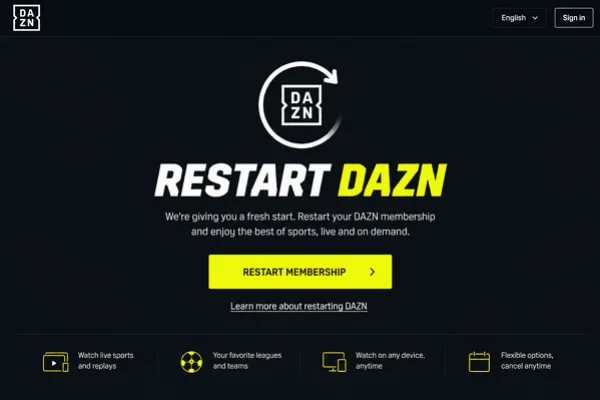
Temporary software glitches can sometimes prevent DAZN from loading content properly. Closing and reopening the application refreshes its processes and may quickly restore normal functionality without requiring advanced troubleshooting.
💡 Key Steps:
- Completely close the DAZN app or browser tab.
- Make sure it is no longer running in the background.
- Wait about 30 seconds.
- Launch DAZN again and check whether the issue is resolved.
Way 4. Check Your Internet Connection
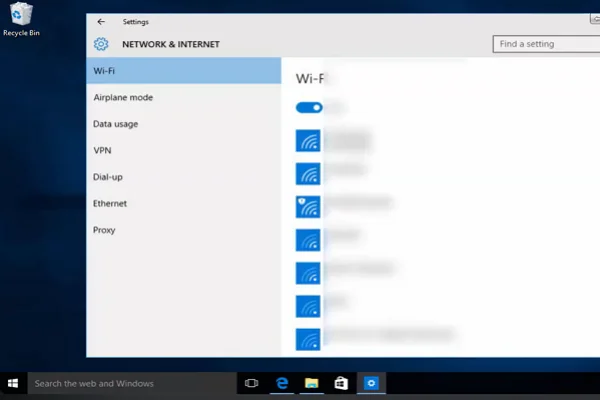
A weak or unstable internet connection is one of the most common causes of DAZN streaming issues. If your connection drops frequently or lacks sufficient speed, you may experience buffering, loading errors, or interrupted playback.
💡 Key Steps:
- Run an internet speed test.
- Confirm that your network meets DAZN's recommended speed requirements.
- Restart your modem and router.
- Move closer to the Wi-Fi router if possible.
- Try a different network to compare performance.
Way 5. Update the DAZN App
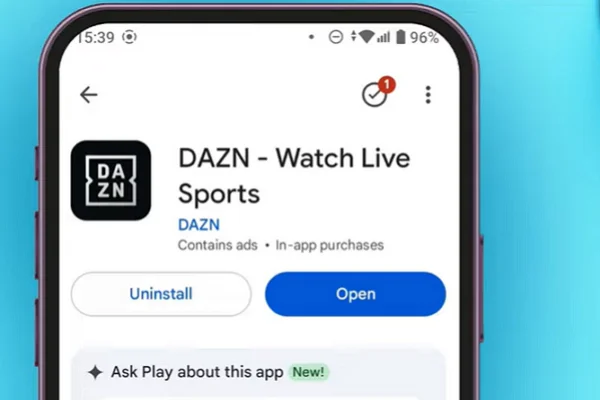
If you're using an outdated version of DAZN, you may encounter bugs or compatibility issues. Installing the latest update ensures you have access to recent fixes, security improvements, and performance enhancements.
💡 Key Steps:
- Open Google Play Store, App Store, or your device's app marketplace.
- Search for DAZN.
- Check whether an update is available.
- Install the latest version.
- Restart the app after updating.
Way 6. Clear DAZN Cache and Data
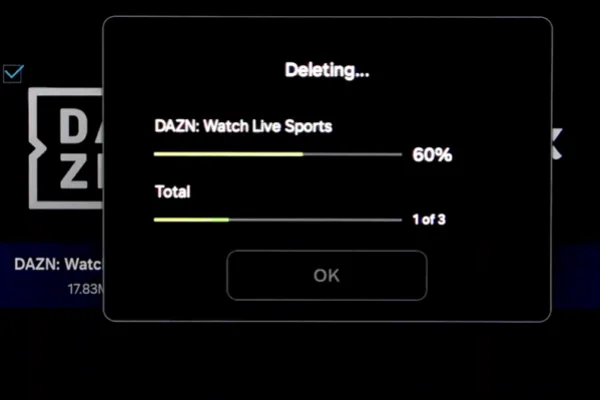
Stored cache files can occasionally become corrupted and affect app performance. Clearing them allows DAZN to generate fresh data, which may help resolve loading, login, or playback problems.
💡 Key Steps:
- Open your device settings.
- Navigate to Apps or Application Manager.
- Select DAZN from the app list.
- Tap Storage.
- Clear cache files.
- If the issue persists, clear app data as well.
- Log back into your account.
Way 7. Clear Browser Cache
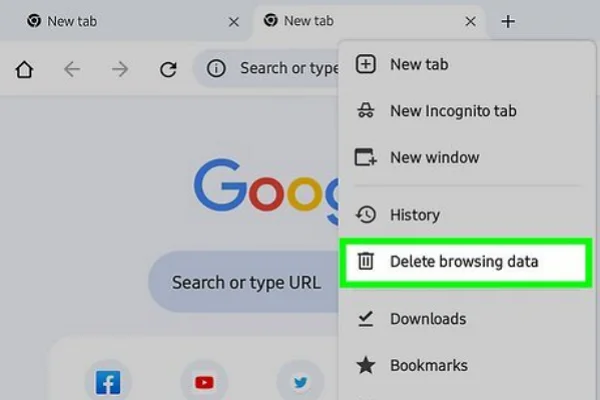
Your browser stores temporary files to help websites load faster. However, outdated or corrupted cache files can sometimes conflict with DAZN and cause loading errors, playback problems, or login issues. Clearing the browser cache forces DAZN to load fresh data.
💡 Key Steps:
- Open your browser settings.
- Navigate to Privacy & Security.
- Select Clear Browsing Data.
- Choose Cached Images and Files.
- Confirm the deletion.
- Restart your browser.
- Visit DAZN again and test the service.
Way 8. Clear Device Cache
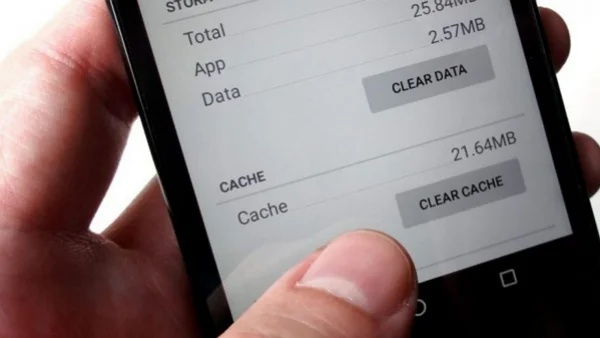
Overloaded or corrupted device cache files can sometimes interfere with app performance, causing DAZN to freeze, buffer, or fail to load properly.
Clearing your device cache helps remove temporary files that may be causing conflicts and can improve overall streaming stability.
💡 Key Steps:
- Open your device's settings menu.
- Navigate to Storage or Device Care.
- Locate the cache management option.
- Clear the system or device cache (without deleting personal files).
- Restart your device.
- Launch DAZN and check whether the issue has been resolved.
Way 9. Log Out and Log Back In
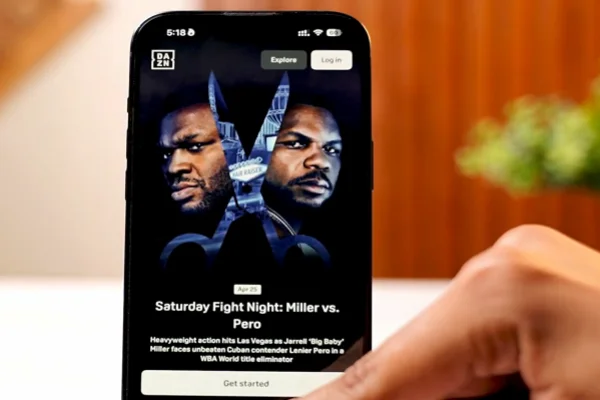
Sometimes your account session may expire or encounter authentication issues. Logging out and signing back in refreshes your account information and can quickly resolve access-related problems.
💡 Key Steps:
- Open the DAZN account menu.
- Sign out of your account.
- Close the app completely.
- Reopen DAZN.
- Enter your login credentials again.
Way 10. Restart Your Device
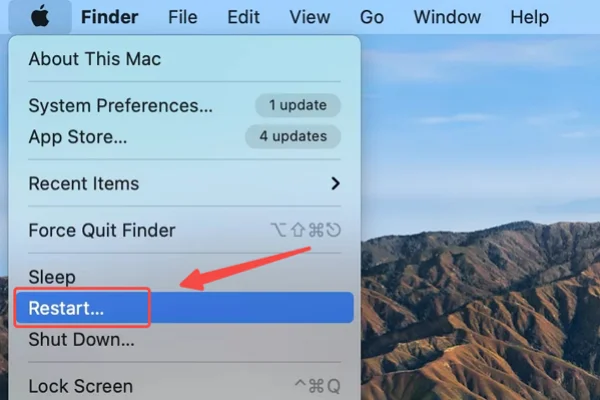
Your device may be running background processes that interfere with DAZN. A simple restart can clear temporary system issues and restore smoother app performance.
💡 Key Steps:
- Power off your device completely.
- Wait for at least 30 seconds.
- Turn the device back on.
- Launch DAZN and test playback.
Way 11. Disable Browser Extensions
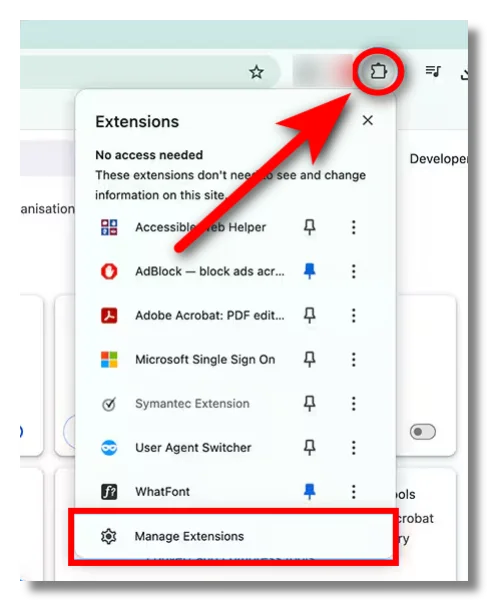
If you're watching DAZN in a browser, certain extensions such as ad blockers, privacy tools, or script managers may interfere with streaming. Temporarily disabling them can help identify the source of the problem.
💡 Key Steps:
- Open your browser's extension manager.
- Disable ad blockers and privacy-related extensions.
- Refresh the DAZN page.
- Test video playback.
- Re-enable extensions one by one to identify the conflicting tool.
Way 12. Try Another Browser
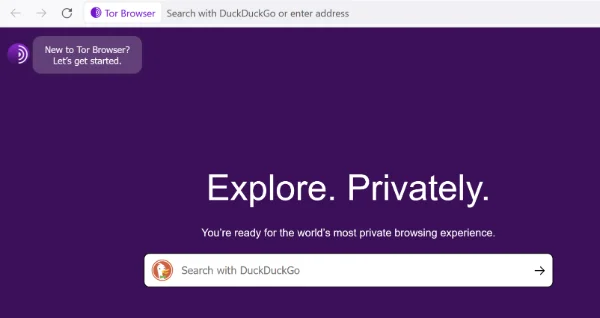
Browser-specific bugs or compatibility issues can sometimes prevent DAZN from functioning properly. Switching to another updated browser is a quick way to determine whether your browser is causing the issue.
💡 Key Steps:
- Install or open an alternative browser like Edge/Tor/Firefox/Chrome.
- Log into your DAZN account.
- Attempt to stream the same content.
- Compare performance with your previous browser.
Way 13. Check Device Compatibility
If you're using an older smart TV, streaming device, or operating system, it may no longer fully support DAZN. Checking the platform's compatibility requirements can help you avoid unnecessary troubleshooting.
💡 Key Steps:
- Verify your device model and operating system version.
- Check DAZN's supported device list.
- Install any available system updates.
- Retry the service after updating.
Way 14. Reinstall DAZN
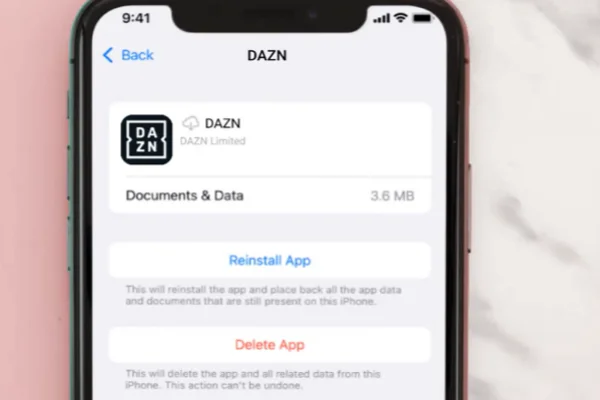
If important app files become damaged or corrupted, reinstalling DAZN can provide a fresh start. This process removes problematic files and installs the latest version available.
💡 Key Steps:
- Uninstall DAZN from your device.
- Restart the device.
- Visit the official app store.
- Download and install DAZN again.
- Log in and test streaming.
Way 15. Contact DAZN Support
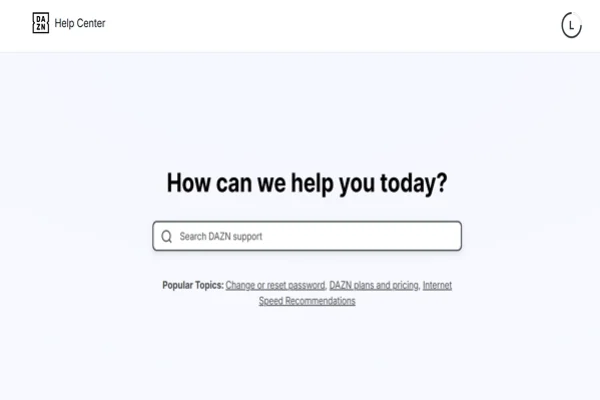
If none of the solutions above work, the issue may be related to your account or a technical problem that requires professional assistance. In that case, contacting DAZN Support is the most reliable next step.
💡 Key Steps:
- Gather relevant information such as error codes and screenshots.
- Visit the DAZN Help Center.
- Start a live chat or submit a support request.
- Follow the troubleshooting instructions provided by the support team.
- Keep track of your support ticket if further investigation is required.

Why DAZN is Not Working with a VPN Sometimes?
For users living in regions where DAZN is unavailable, a VPN is often necessary to access the platform. However, many subscribers encounter situations where DAZN not working with a VPN becomes an issue itself. This usually happens because streaming platforms actively monitor and restrict VPN traffic.
💡 Understanding DAZN's Policy towards VPN
DAZN takes a strict approach toward VPN usage due to licensing agreements and broadcasting rights.
Key points include:
- DAZN licenses content separately for different countries.
- VPN traffic may be detected and blocked.
- Access may be denied if your IP address appears suspicious.
- Some VPN server ranges are blacklisted.
- DAZN regularly updates its VPN detection systems.
- Not all VPN providers can consistently bypass restrictions.
🚩 The DAZN VPN Buffering Issues
Even when a VPN successfully connects, streaming quality may still suffer. This may be caused by:
- Long-distance server routing
- Overcrowded VPN servers
- Reduced connection speeds
- Encryption overhead
- ISP throttling
- Poor VPN infrastructure
As a result, users may experience buffering, lag, lower video quality, or interrupted streams.
🚫 DAZN VPN Detection and Blocking
Another frequent issue occurs when DAZN identifies VPN traffic.
Typical signs include:
- Region restriction messages
- Playback refusal
- Login interruptions
- Endless loading screens
- Repeated location verification requests
This often means the VPN server's IP address has already been detected by DAZN.
Tips to Enhance Streaming Experience with DAZN VPN
Even if your VPN successfully unblocks DAZN, that doesn't always guarantee a smooth viewing experience. Factors such as server quality, connection settings, network stability, and device configuration can all affect streaming performance.
Don't worry, a few simple adjustments can help you reduce buffering, improve connection speeds, and enjoy more reliable access to your favorite sports content on DAZN.
1. Choose a Reliable VPN Brand
The quality of your VPN can directly affect your DAZN experience. A reliable VPN typically provides faster speeds, more server options, and better compatibility with streaming platforms.
In this area, UFO VPN offers streaming-optimized servers that can help maintain a smoother connection when watching DAZN.
🎯 Activation Steps:


UFO VPN is an all-in-one VPN that offers unlimited access to 4K streaming like Netlfix, Disney Plus, no-ping gaming as PUBG, Roblox, CODM and social networking for YouTube, X, Facebook and more.




Unlock Pro Features
If you have upgraded to premium plan , feel free to enjoy premium servers for 4K streaming and advanced features like Kill Switch, Split Tunneling, and gaming acceleration. Your Mac is now fully optimized and protected. Inaddition to basic functions, we recommend you turn on

Verify Your IP Now
Use UFO VPN's " What is My IP " feature to see your new IP and location. This confirms your connection is secure, anonymous, and ready for safe browsing online anywhere at any time.







2. Switch to Another VPN Server
If DAZN detects or blocks your current VPN server, switching to another server may restore access. Different servers often have different IP addresses and performance levels.
3. Use Nearby Servers
Connecting to a server closer to your physical location usually reduces latency and improves connection speed, resulting in smoother playback and less buffering during live events.
4. Check for DNS Leaks
A DNS leak may expose your real location even when you're connected to a VPN. This can cause DAZN to detect location inconsistencies and restrict access.
5. Enable VPN Kill Switch
A kill switch automatically blocks internet traffic if your VPN connection drops unexpectedly. This helps prevent your real IP address from being exposed while streaming.
6. Use Wired Internet Instead of Wi-Fi
Wi-Fi interference can cause unstable connections and packet loss. Using an Ethernet cable often provides a more consistent and reliable streaming experience.
7. Close Background Applications
Applications running in the background may consume bandwidth and system resources. Closing unnecessary downloads, updates, and streaming services can improve DAZN performance.
8. Keep Your VPN Updated
VPN providers regularly release updates to improve security, fix bugs, and maintain compatibility with streaming platforms. Using the latest version may help avoid connection issues.
9. Try Different VPN Protocols
Different VPN protocols offer different balances between speed and security. Testing options like WireGuard, OpenVPN, or IKEv2 may help you find the most stable connection.
10. Restart the VPN Connection
Disconnecting and reconnecting your VPN can refresh your session and assign a new IP address. This simple step may resolve temporary connection or access problems.
11. Avoid Peak-Time Congestion
Streaming during major sports events can overload both VPN and DAZN servers. If possible, switching servers or waiting a few minutes may improve performance and reduce buffering.
12. Disable GPS Location Services
On mobile devices, GPS data may conflict with your VPN location. Turning off location services can help prevent DAZN from detecting mismatched location information.
Conclusion
Fixing the DAZN not working issue can be pretty simple. The key is identifying whether the problem comes from your device, network, DAZN's servers, or VPN configuration.
Most issues can be resolved with a few simple adjustments, while more complex cases may require changing servers or optimizing your streaming setup. With the right troubleshooting approach, you'll usually be back to enjoying live sports in no time.
FAQs
Is using a VPN for DAZN legal?
In most countries, using a VPN itself is legal. However, users should always review DAZN's terms of service and local regulations before using a VPN.
Can I use free VPN to unblock DAZN?
You can try, but free VPNs often have limited speeds, overcrowded servers, and a higher chance of being detected by DAZN.
What to do if DAZN app not working on my TV?
Restart the TV, update the DAZN app, clear cache if supported, check your internet connection, and reinstall the application if necessary.
Why does DAZN keep buffering even with fast internet?
Buffering can occur due to VPN congestion, server overload, Wi-Fi interference, DNS issues, or temporary DAZN service disruptions.
Does DAZN block all VPNs?
No. DAZN blocks many VPN IP addresses, but some premium VPN providers regularly refresh their servers and may continue working with the platform.