




Status Check: Is FuboTV Down Right Now?
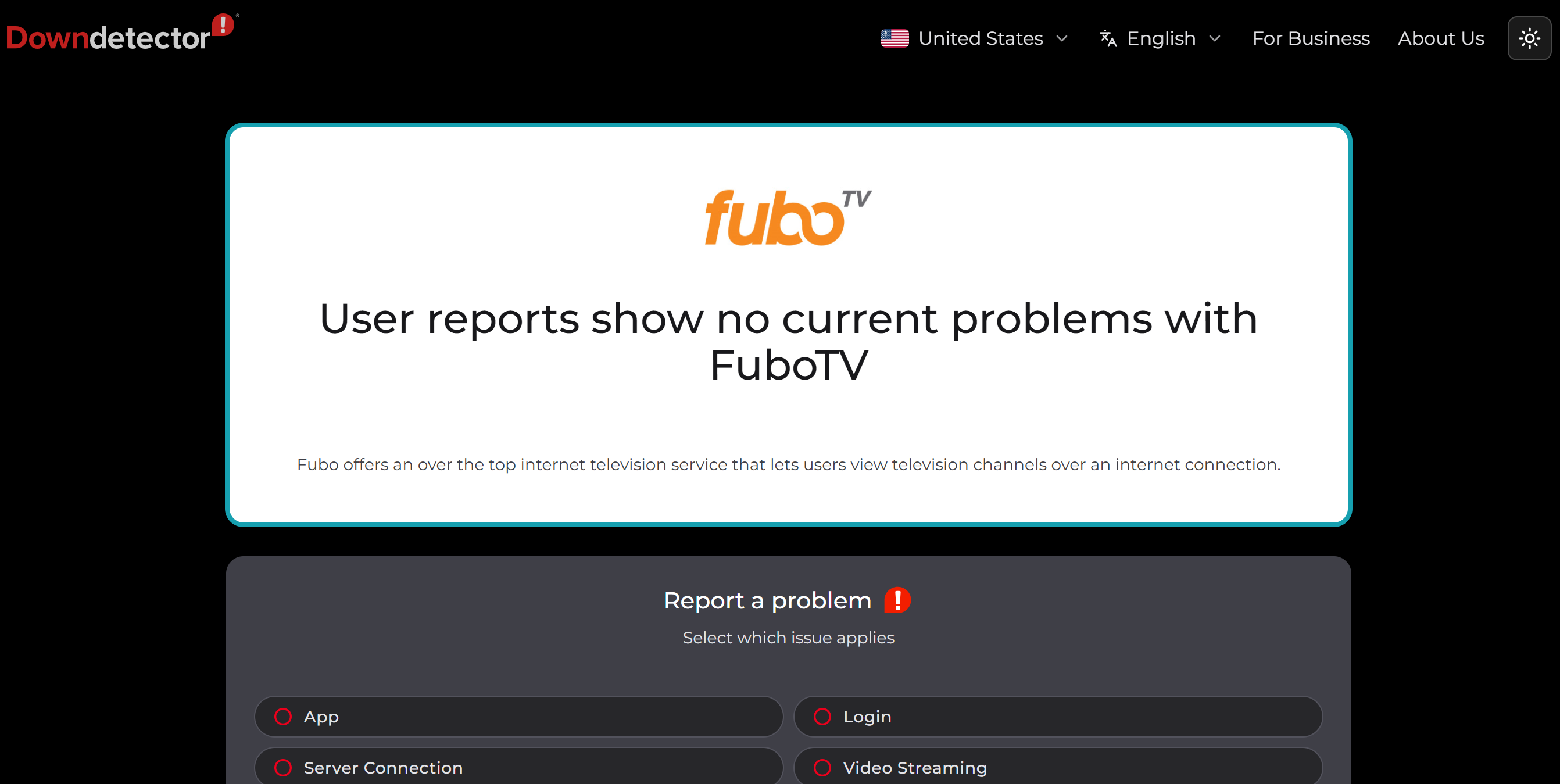
Before changing your device settings or reinstalling the app, it's worth confirming whether the outage is actually affecting everyone. Basically, there are many online monitoring platforms can help you verify is FuboTV down today within seconds. When checking the status, try the following sites:
- Downdetector – Real-time outage reports from users.
- Is It Down Right Now? – Check website availability instantly.
- StatusGator – Track live service health and incidents.
- Down for Everyone or Just Me – Compare global and local accessibility.
- UptimeRobot – Monitor uptime and response status.
- Outage.Report – View reported outages worldwide.
- IsDown.app – Monitor SaaS and streaming platform status.
- UpdownRadar – Check recent outage reports quickly.
Why Is FuboTV Not Working?
Even if outage checkers show everything is operating normally, you may still experience playback errors, login failures, or buffering. In many cases, the problem is local rather than a platform-wide outage.
If you're wondering is FuboTV down in my area, consider the following possibilities.
- Server Maintenance - FuboTV occasionally performs scheduled maintenance or emergency repairs. During this period, some services may temporarily become unavailable.
- Regional Service Outage - Sometimes only certain cities or internet providers are affected. That's why you may ask yourself, is FuboTV down in my area, while other users continue streaming normally.
- Internet Connection Problems - Slow or unstable Wi-Fi often causes endless buffering, loading screens, or playback failures.
- Account Issues - An expired subscription, billing failure, or account suspension may prevent you from accessing live channels.
- App Bugs - An outdated FuboTV app may contain compatibility issues or software bugs that prevent it from launching correctly.
- Device Compatibility - Older smart TVs or streaming devices may no longer support the latest version of the FuboTV application.
- Corrupted Cache - Cached files sometimes become corrupted after updates, causing crashes or unexpected login errors.
- VPN or Proxy Detection - Some VPN servers are detected by FuboTV's security system, which may block streaming access.
Quick Solutions to FuboTV Can't Access Issue
Once you've identified that the problem isn't a widespread outage, you can begin troubleshooting. Start with the simplest fixes before moving to more advanced solutions.
Way 1. Do Nothing but Wait
If outage checkers confirm FuboTV is experiencing server problems, or your friends can access it while the official status page reports maintenance, there isn't much you can do except wait.
💡 Key steps:
- Confirm the outage using multiple status-check websites.
- Follow FuboTV's official social media accounts.
- Wait until the service is restored.
- Avoid repeatedly logging in or reinstalling the app during maintenance.
Solution 2. Use a Reliable VPN
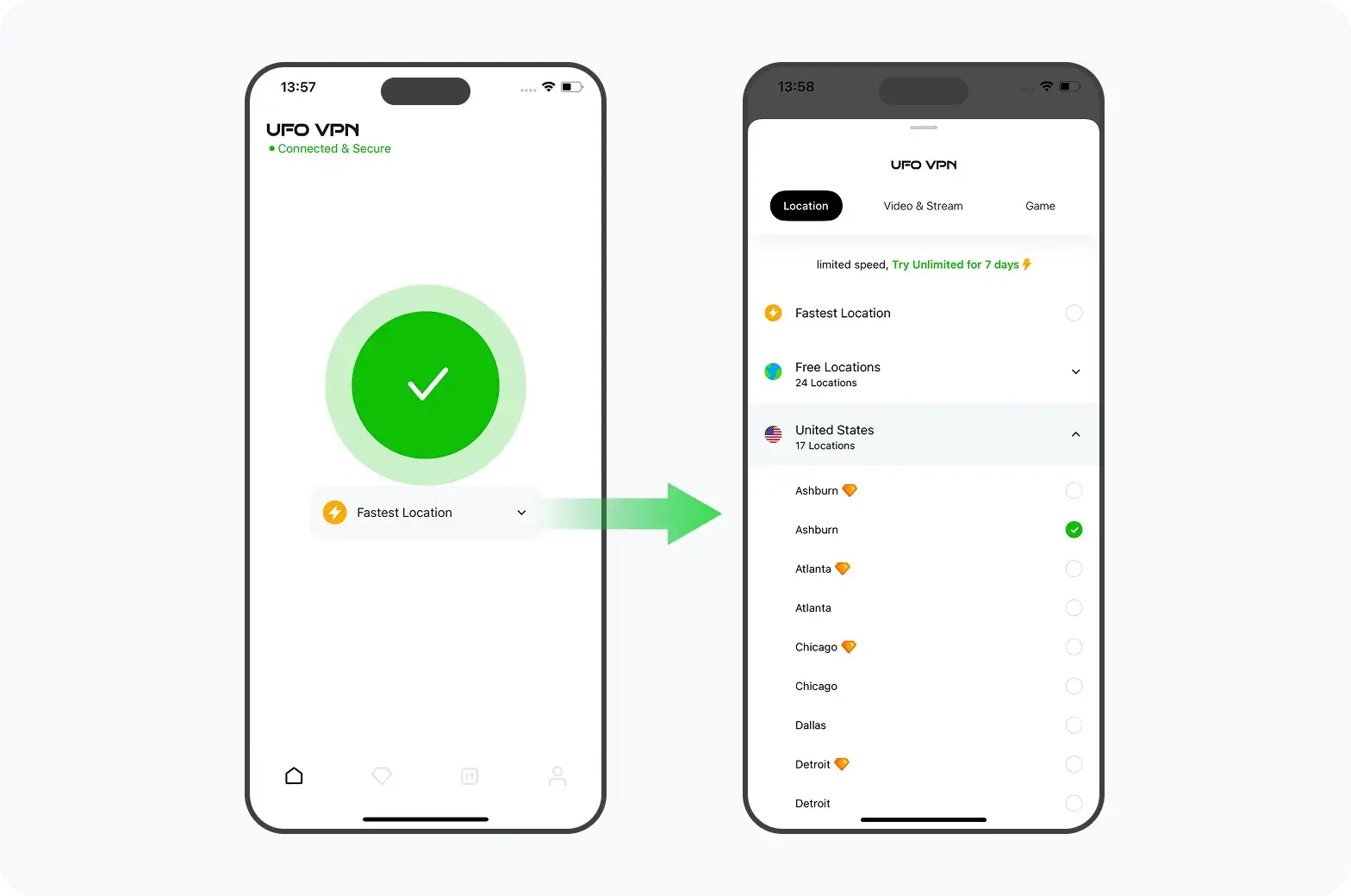
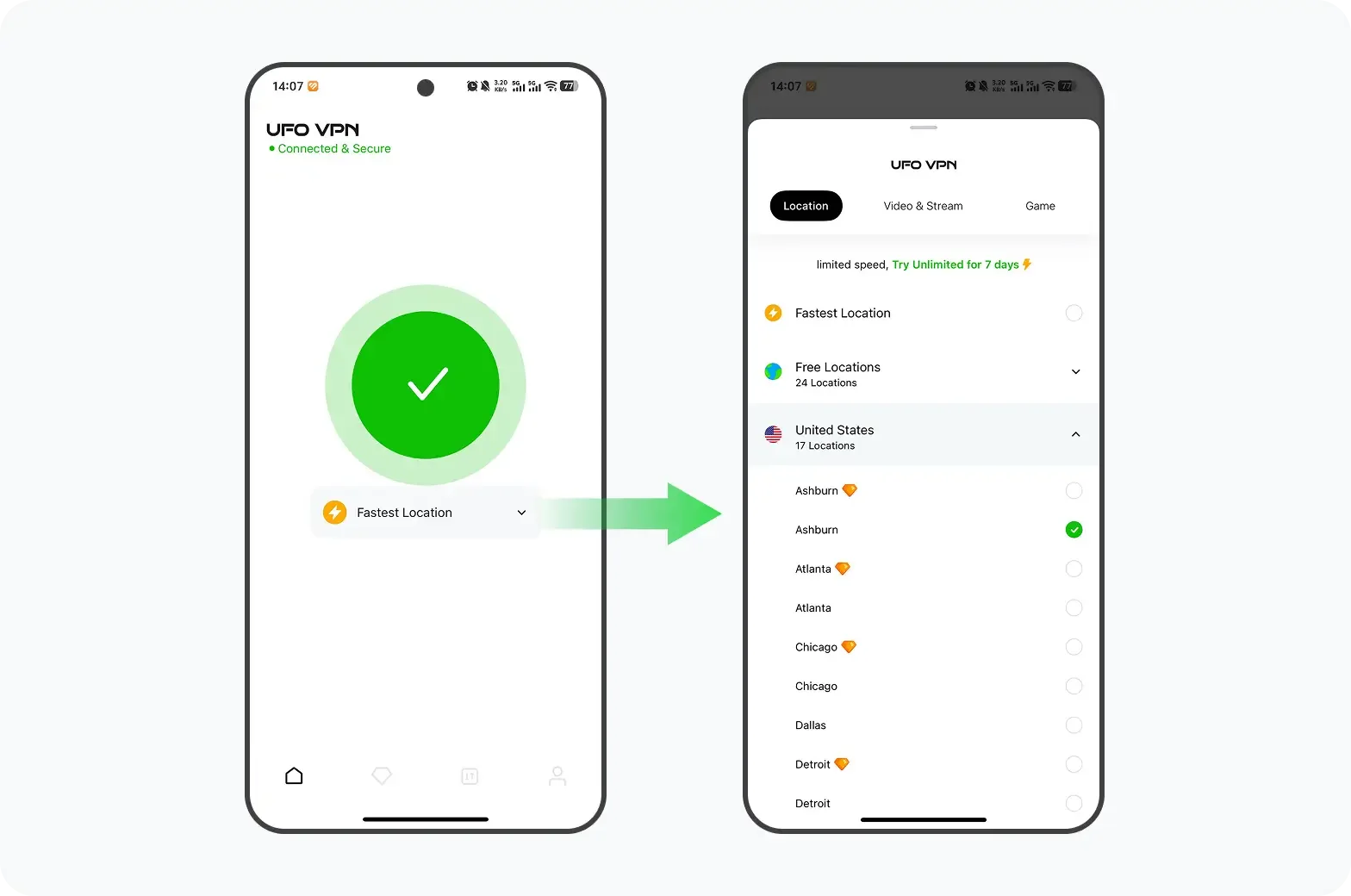
If FuboTV is available but inaccessible because of regional restrictions, ISP routing issues, or temporary network blocks, a specialized FuboTV VPN may help you regain access by routing your traffic through another server.
However, not every VPN works consistently with streaming platforms. Low-quality VPNs often use overcrowded IP addresses that streaming services detect and block.
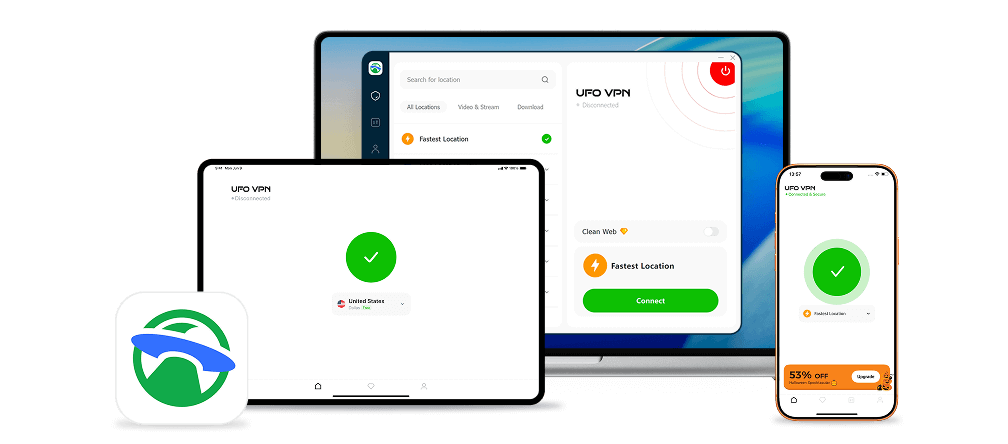
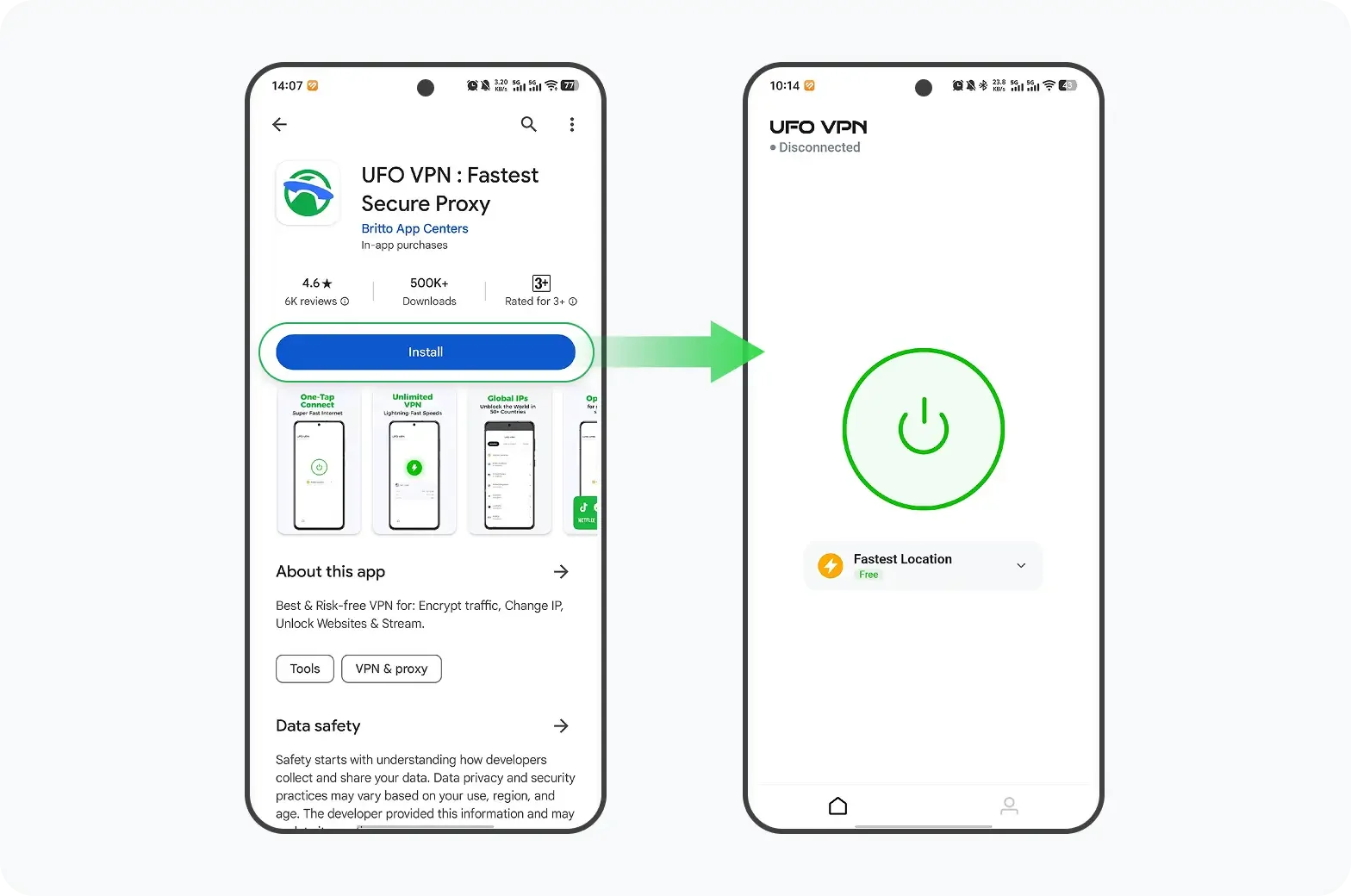
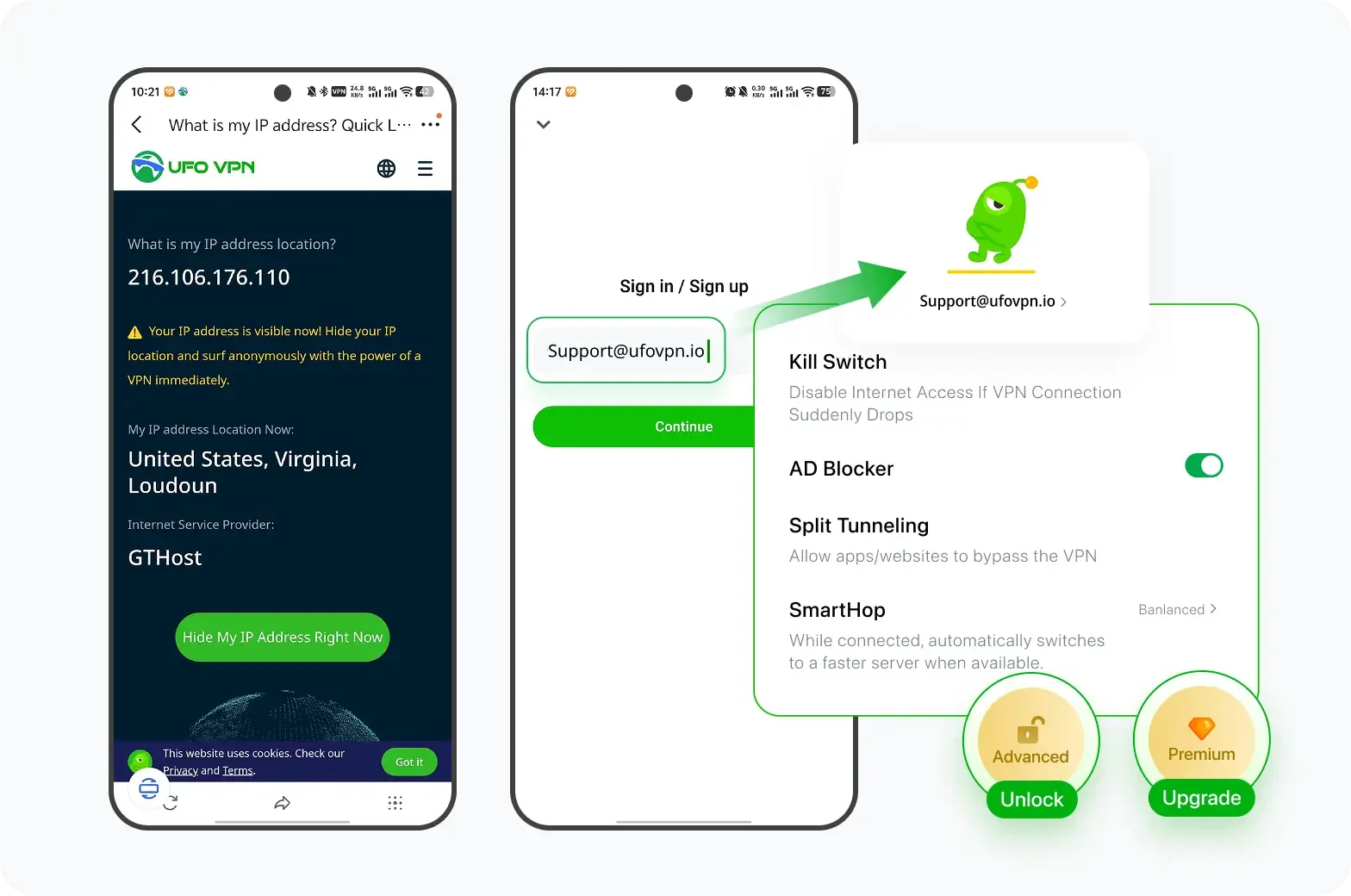
A premium VPN such as UFO VPN offers frequently refreshed streaming servers, optimized bandwidth, and stronger privacy protection, reducing the chance of detection while maintaining stable playback.
💡 Key steps:
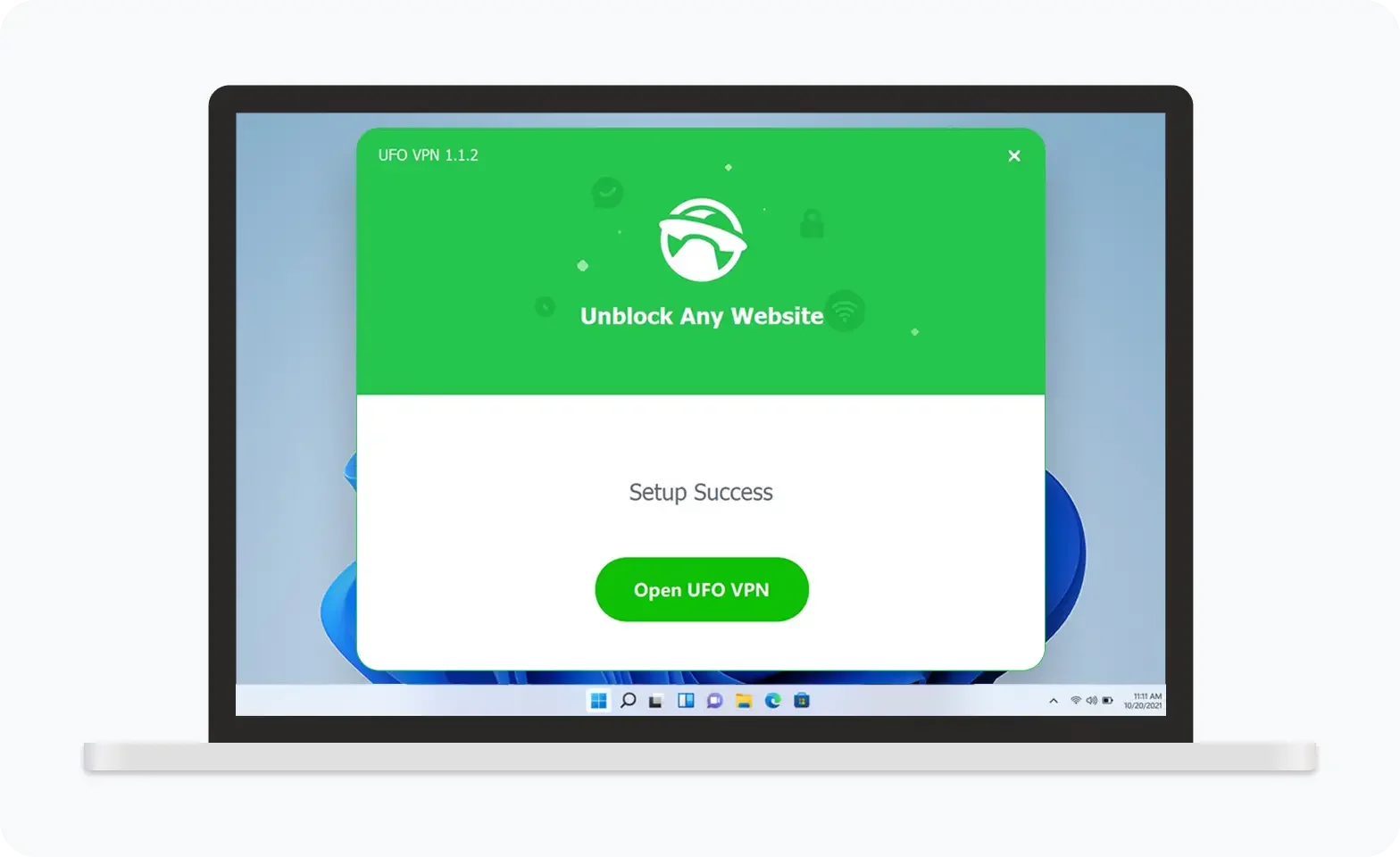
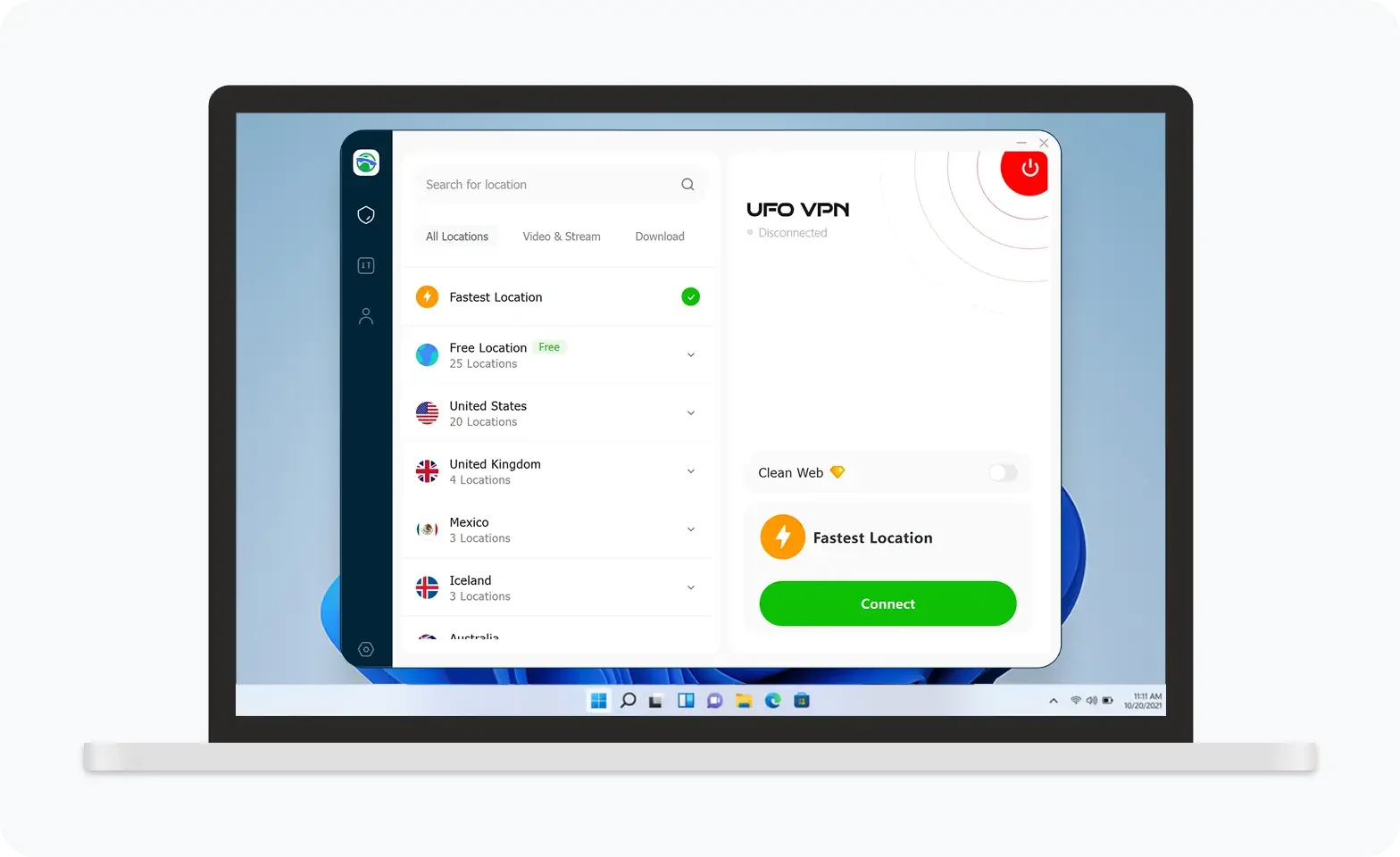
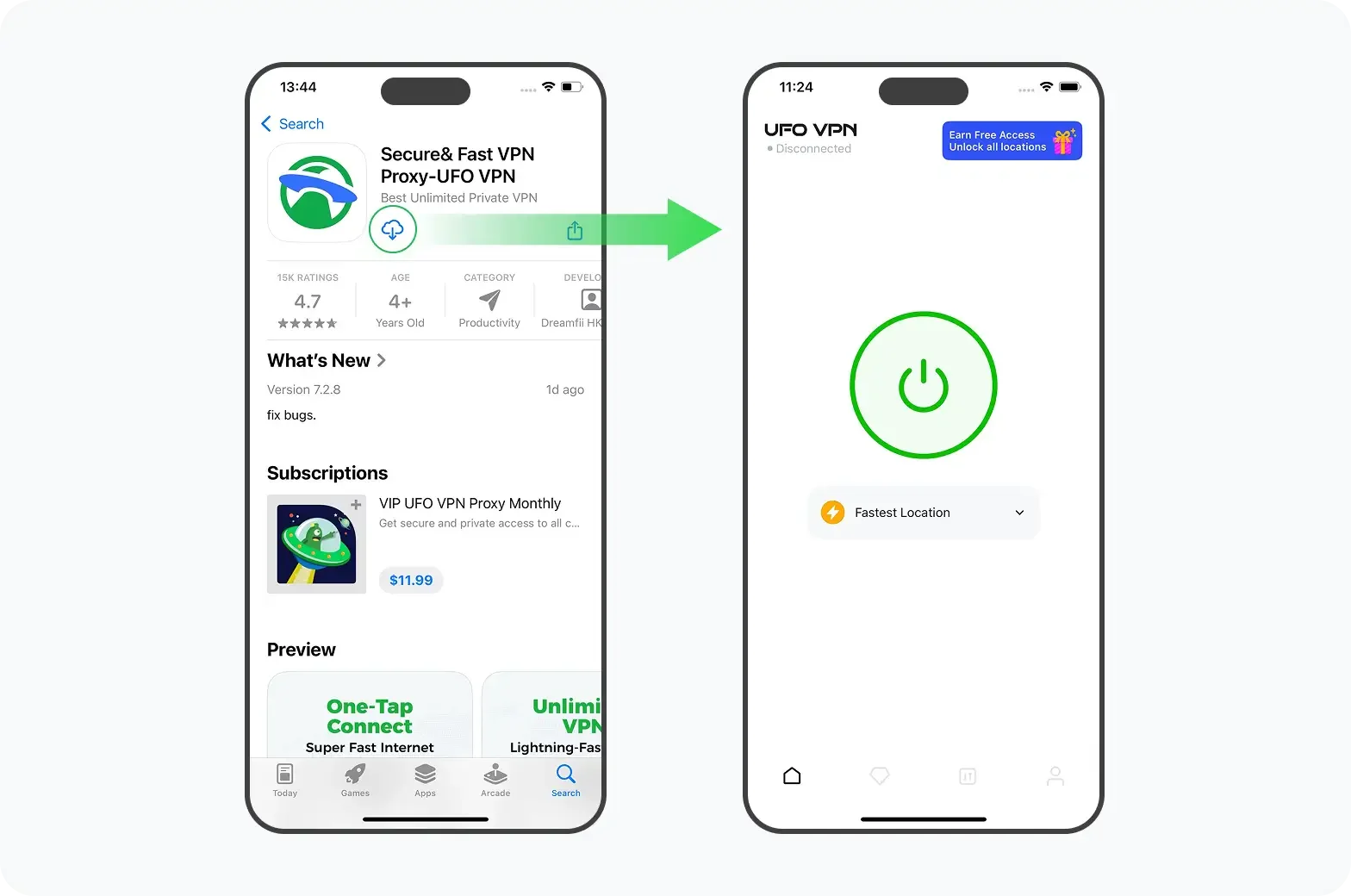
UFO VPN is an all-in-one VPN that offers unlimited access to 4K streaming like Netlfix, Disney Plus, no-ping gaming as PUBG, Roblox, CODM and social networking for YouTube, X, Facebook and more.
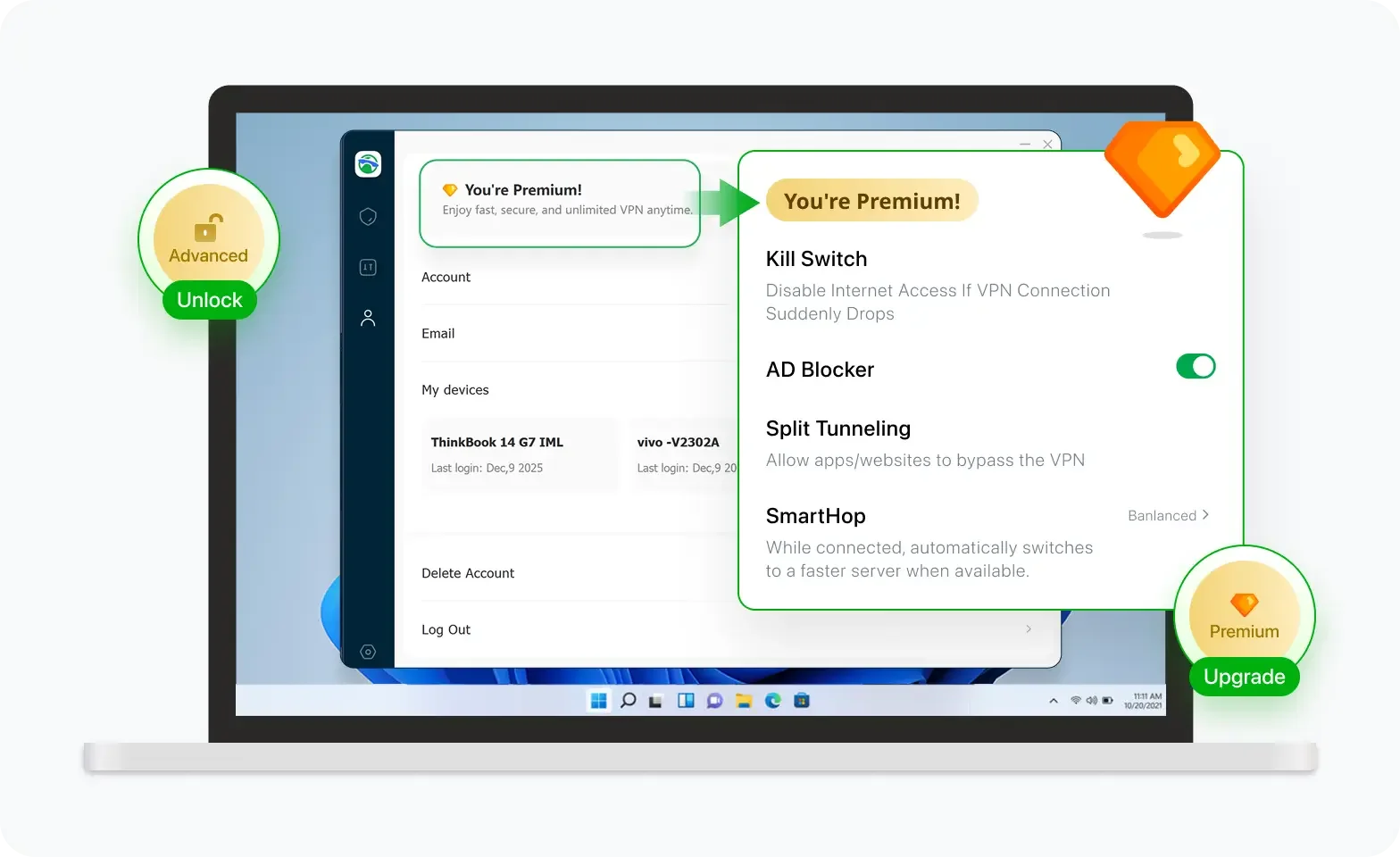
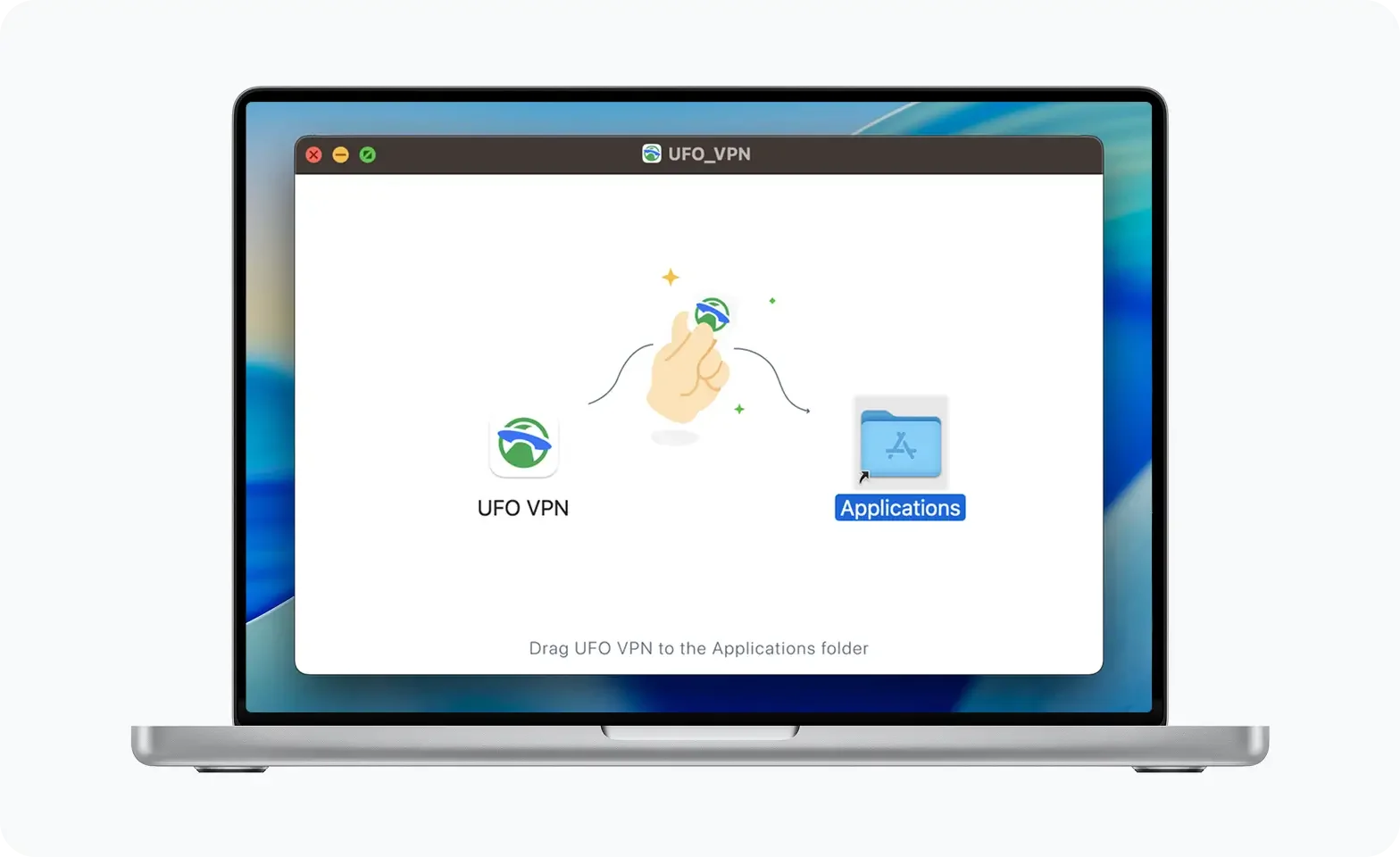
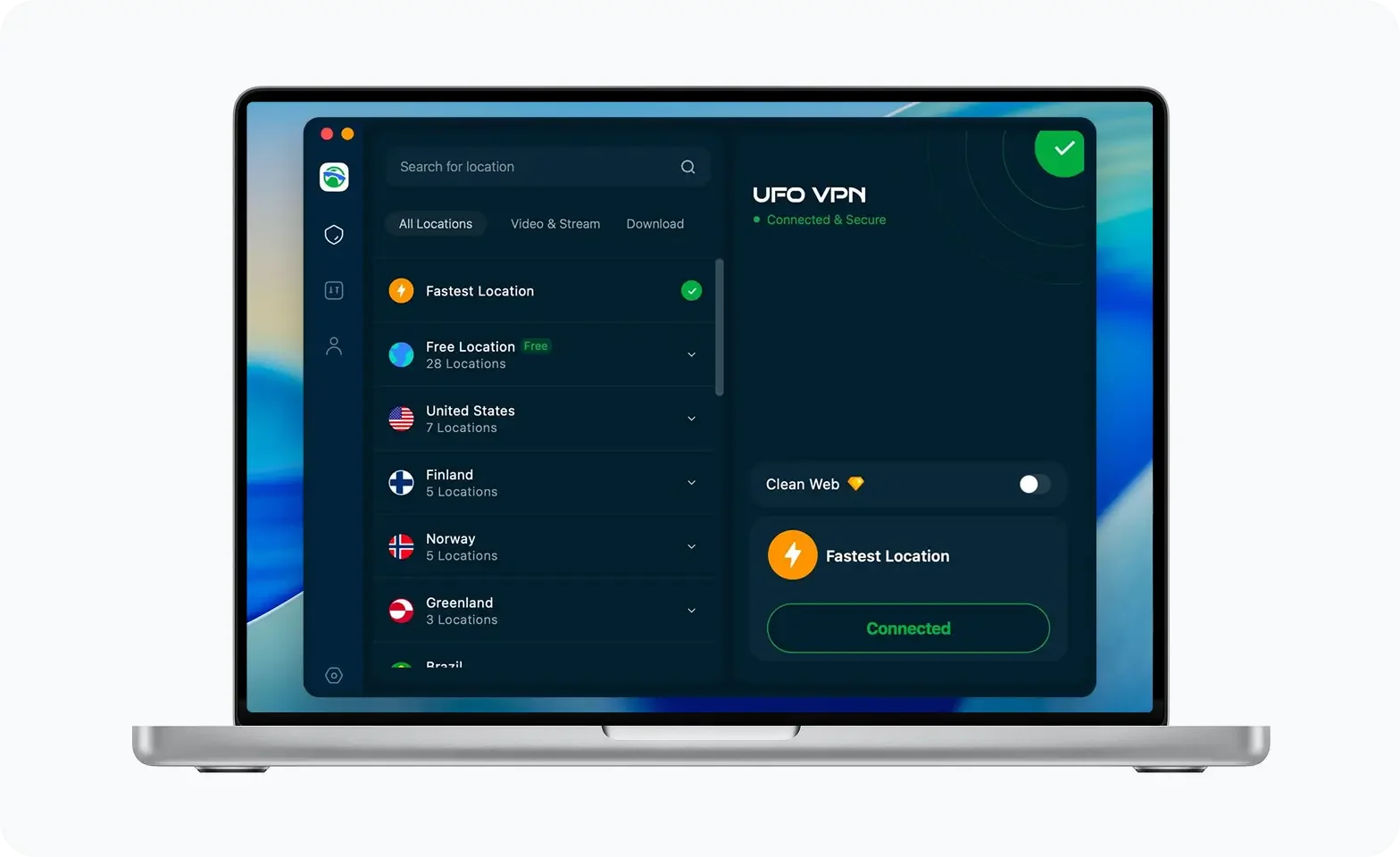
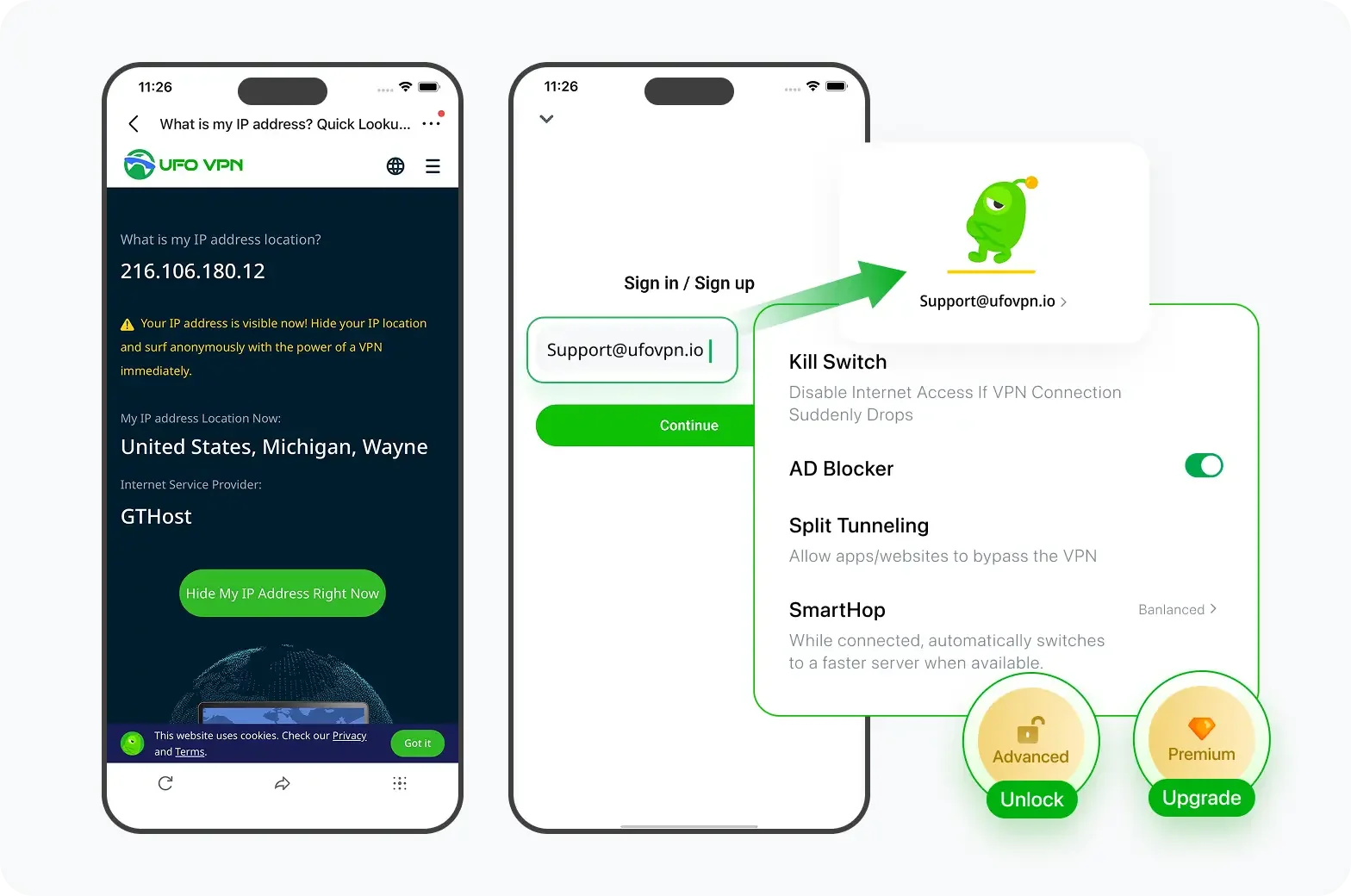
Unlock Pro Features
If you have upgraded to premium plan , feel free to enjoy premium servers for 4K streaming and advanced features like Kill Switch, Split Tunneling, and gaming acceleration. Your Mac is now fully optimized and protected. Inaddition to basic functions, we recommend you turn on

Verify Your IP Now
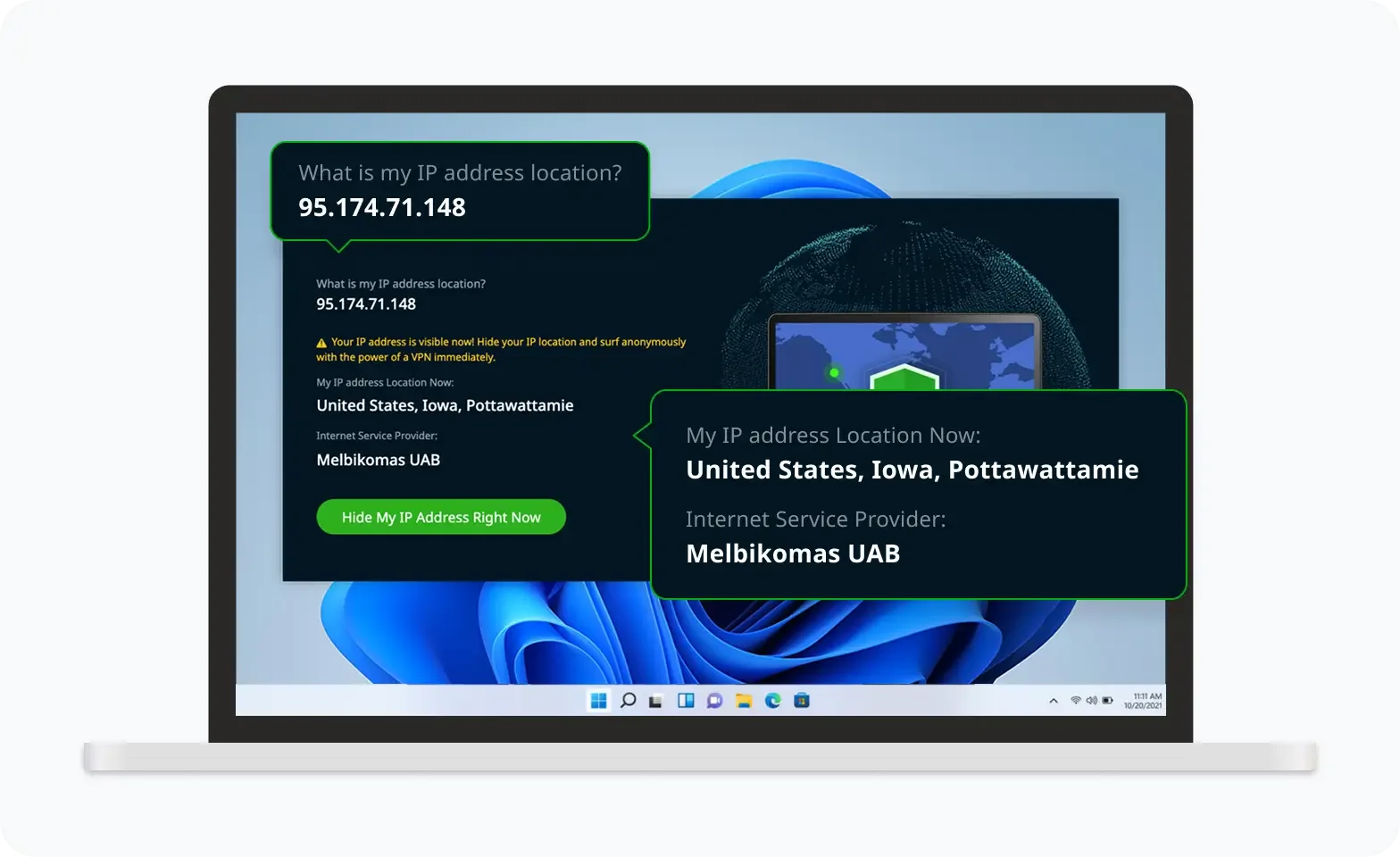
Use UFO VPN's " What is My IP " feature to see your new IP and location. This confirms your connection is secure, anonymous, and ready for safe browsing online anywhere at any time.

Solution 3. Contact FuboTV Support
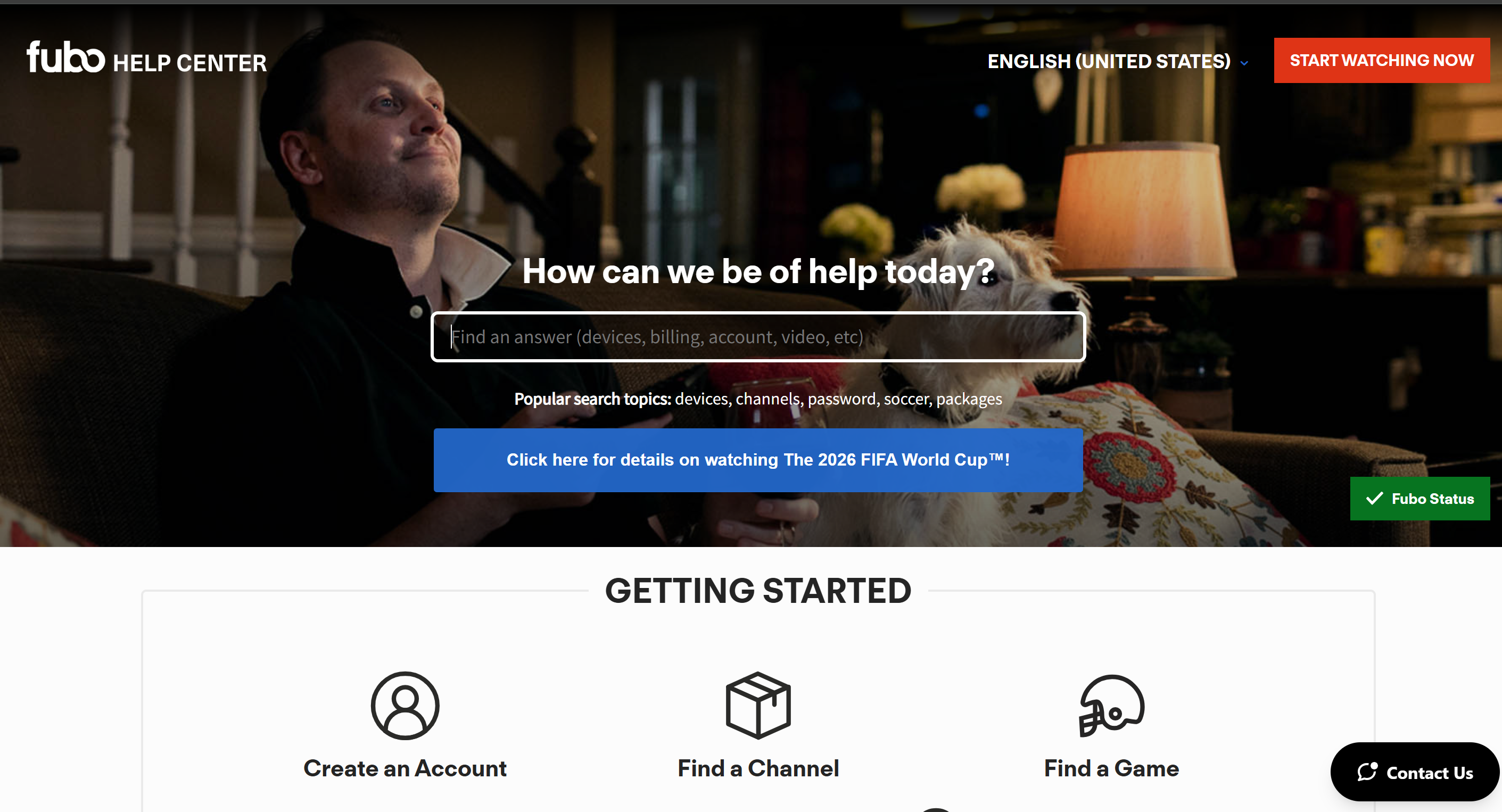
If only your account is affected, customer support can verify subscription status, account restrictions, or billing problems.
💡 Key steps:
- Visit the official Help Center.
- Submit a support ticket.
- Start a live chat if available.
- Include screenshots of any error messages.
Solution 4. Restart Your Device
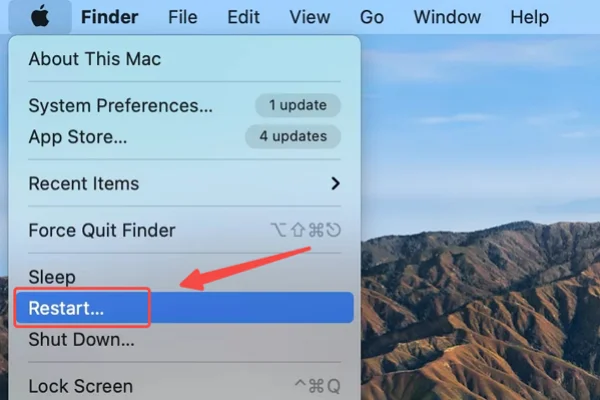
Sometimes, a temporary system glitch can stop FuboTV from working properly. Restarting your device refreshes the system, clears temporary memory, and often fixes minor issues without any additional troubleshooting.
💡Key seps:
- Close FuboTV completely.
- Restart your TV, phone, or computer.
- Reopen the application.
Solution 5. Check Your Internet Connection
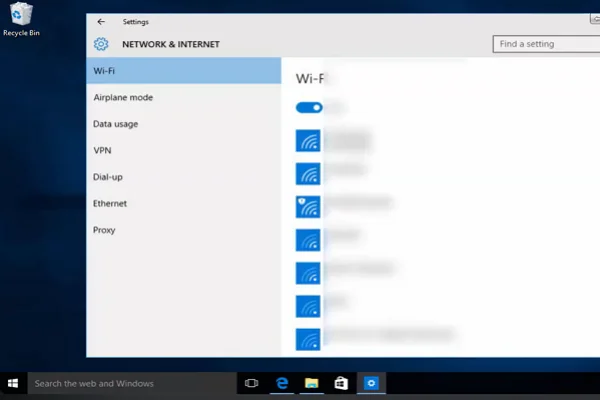
A slow or unstable internet connection can cause buffering, loading errors, or playback failures. Checking your network is one of the quickest ways to identify and fix streaming problems.
💡 Key steps:
- Restart your modem and router.
- Switch between Wi-Fi and Ethernet.
- Run a speed test.
- Disconnect unnecessary devices from the network.
Solution 6. Update the FuboTV App
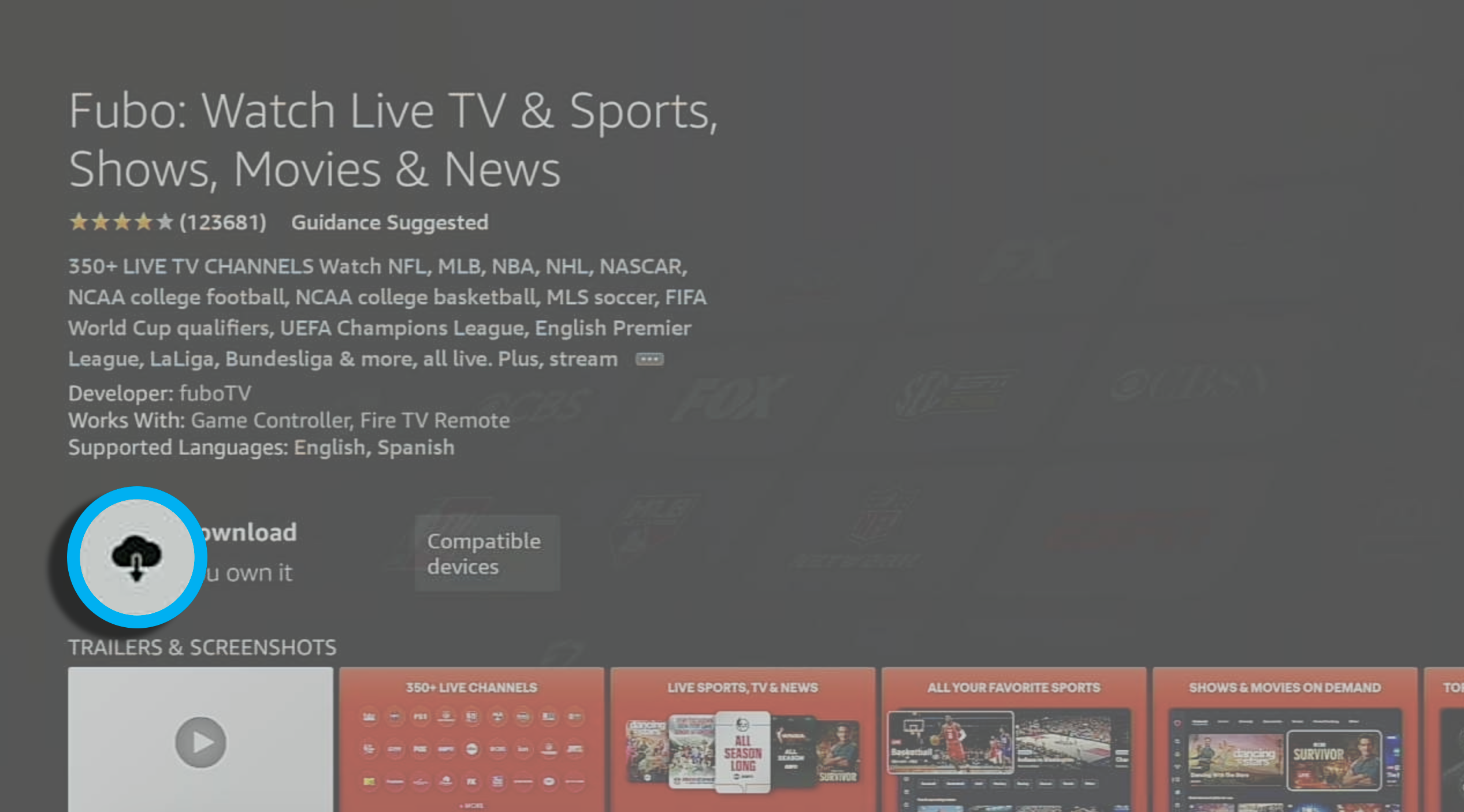
An outdated app may no longer work properly after a new update. Installing the latest version can fix known bugs, improve compatibility, and help restore normal streaming.
💡 Key steps:
- Open your device's app store.
- Search for FuboTV.
- Install any available updates.
- Restart the app afterward.
Solution 7. Clear Cache and App Data
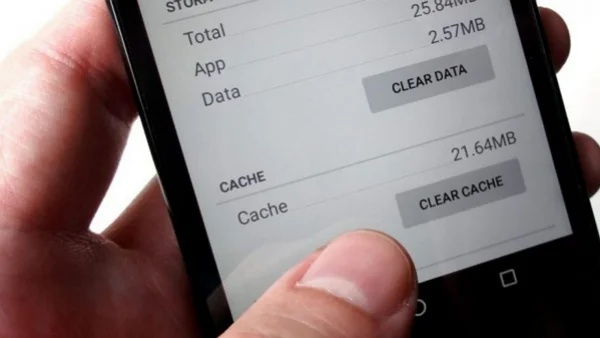
Cached files can become outdated or corrupted over time, leading to crashes or login issues. Clearing the cache allows the app to load fresh data and may resolve these problems.
💡 Key steps:
- Open device settings.
- Locate FuboTV.
- Clear cache.
- If necessary, clear app data and log in again.
Solution 8. Disable Browser Extensions
Some browser extensions, such as ad blockers or privacy tools, may interfere with FuboTV. Turning them off temporarily can help you find out whether an extension is causing the problem.
💡 Key steps:
- Disable extensions temporarily.
- Refresh the page.
- Test in Incognito Mode.
Solution 9. Try Another Browser
If you're streaming on a web browser, the issue may be browser-specific. Switching to a different browser is a simple way to check whether your current one is causing the problem.
💡 Recommended browsers:
- Chrome
- Edge
- Firefox
- Safari
Solution 10. Reinstall FuboTV
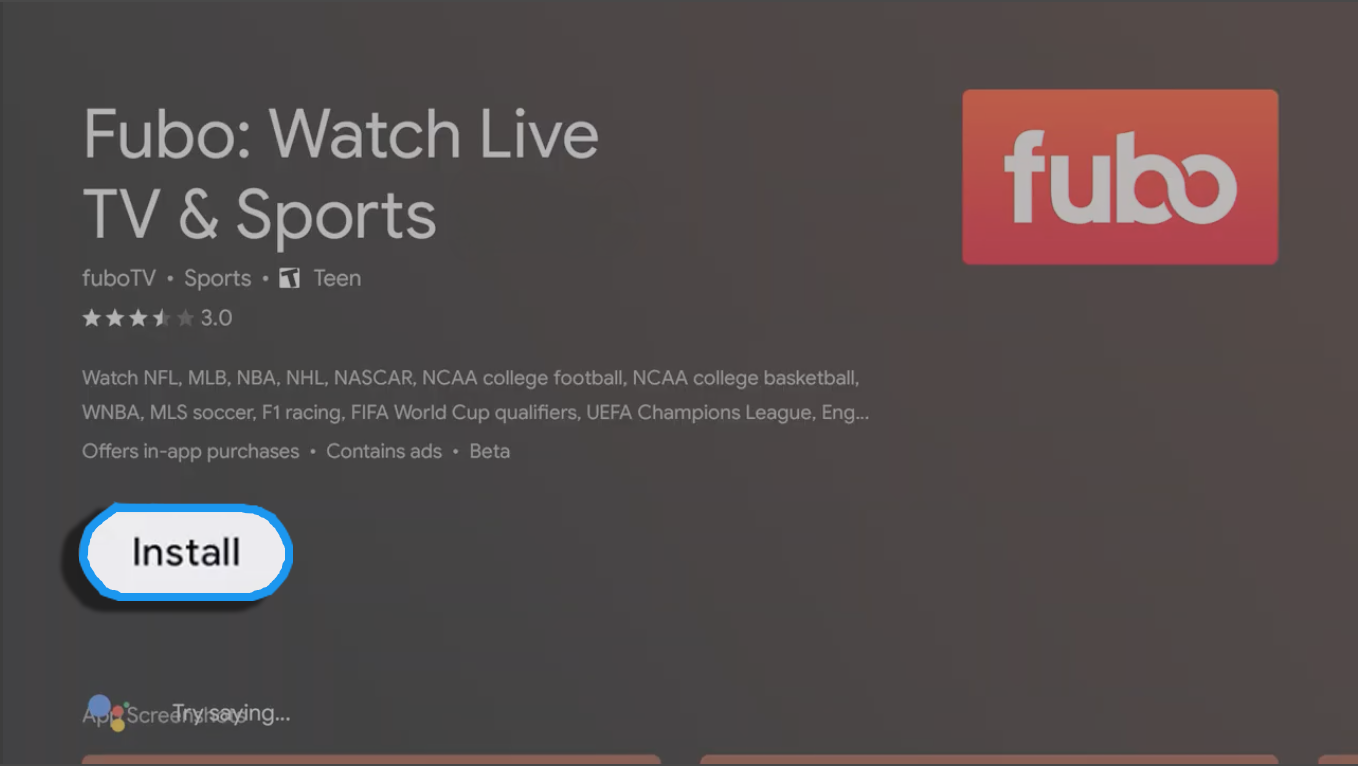
Reinstalling the app removes damaged files and gives you a clean installation. This simple step can fix many problems that other troubleshooting methods cannot.
💡 Key steps:
- Uninstall the application.
- Restart the device.
- Download the newest version.
- Sign in again.


Why & How to Fix FuboTV Not Working with a VPN?
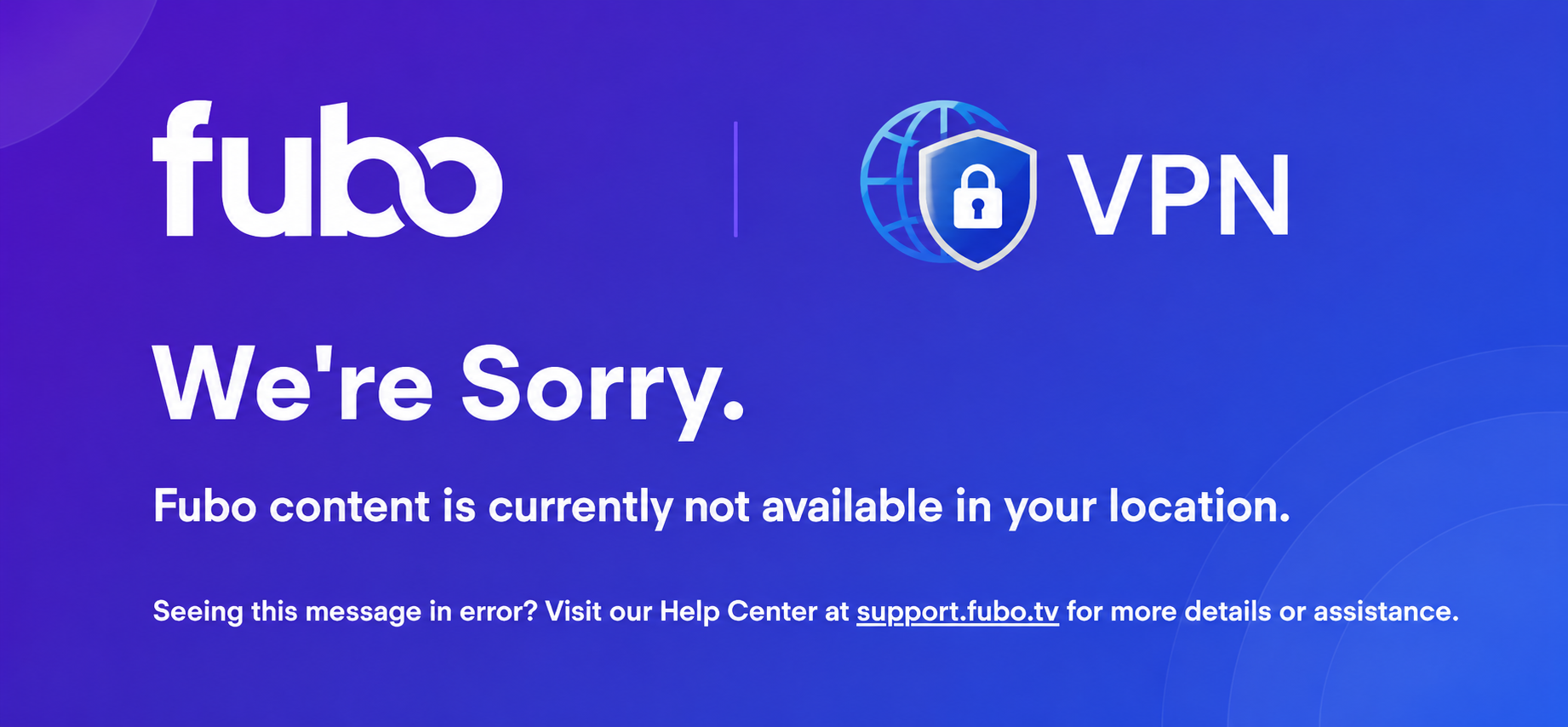
Many users discover that FuboTV works normally until they connect to a VPN. This usually happens because the streaming service detects VPN IP addresses or because the VPN server itself is overloaded.
🎯 Common reasons include:
- Blacklisted VPN IP addresses
- Shared servers with too many users
- DNS leaks exposing your real location
- Slow VPN servers are causing buffering
- Outdated VPN software
Below are some effective troubleshooting methods:
✅ Switch to Another VPN Server: Disconnect from your current server → Choose another server in a supported region → Reconnect → Reopen FuboTV.
✅ Use a Streaming-Optimized VPN (UFO VPN): Install UFO VPN → Connect to a streaming-optimized server → Wait for the connection to establish → Launch FuboTV again.
✅ Clear Browser Cookies and Cache: Open your browser settings → Clear cookies and cached files → Restart the browser → Sign in to FuboTV again.
✅ Enable DNS Leak Protection: Open your VPN settings → Turn on DNS leak protection → Reconnect to the VPN → Refresh the FuboTV page.
✅ Restart FuboTV After Connecting: Close the FuboTV app completely → Connect to your VPN first → Relaunch the app and try streaming.
✅ Update Your VPN App: Visit your app store or VPN website → Install the latest version → Restart the VPN → Connect again.
✅ Disable Location Services: Turn off GPS or location services on your device → Reconnect to the VPN → Open FuboTV and test access.
✅ Switch to Another Network: Change from Wi-Fi to mobile data (or vice versa) → Connect to the VPN → Check if FuboTV works normally.
✅ Restart Your Device: Power off your device → Wait about 30 seconds → Turn it back on → Reconnect to the VPN → Open FuboTV.
✅ Contact Your VPN Provider: Reach out to customer support → Ask for servers that currently work with FuboTV → Connect using their recommended server.

📺 Bonus Tip: How to Fix if FuboTV Not Working on TV?
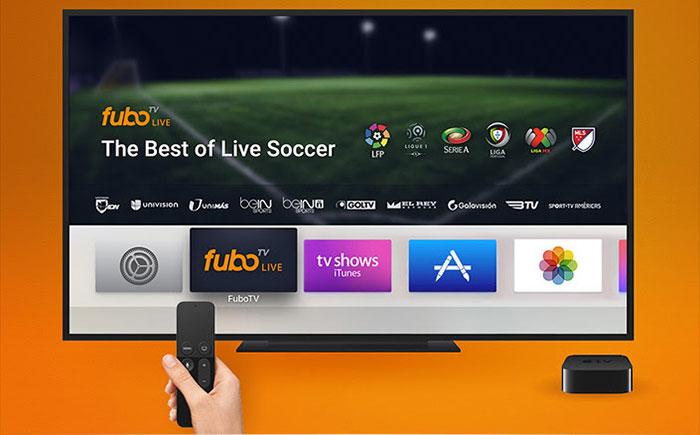
Besides browser-related issues, you may also encounter FuboTV not working on TV devices, including Smart TVs, Samsung TVs, Apple TV, Roku, Fire TV Stick, Android TV, and Google TV devices. When this happens, try the following steps in order:
- Restart the TV: Power off the TV completely for about one minute before turning it back on.
- Update the TV Software: Install the latest system firmware to improve compatibility with newer app versions.
- Update the FuboTV App: Open your TV's app store and install any available updates.
- Check Available Storage: Delete unused apps if your device has limited storage.
- Clear App Cache: If your TV supports cache clearing, remove temporary files and restart the app.
- Sign Out and Back In: Refreshing your account session often resolves authentication problems.
- Reinstall the App: Delete FuboTV completely and install the latest version from the official app store.
- Test Another Network: Switch from Wi-Fi to Ethernet or connect to another internet connection to rule out network-related issues.
Summing Up
FuboTV not working can be frustrating, but the good news is that most issues are easy to fix once you identify the cause. By checking the service status, trying the right troubleshooting methods, and using a reliable VPN like UFO VPN when needed, you can get back to streaming much faster. If the problem continues, contacting FuboTV Support is always a good next step.
FAQs
Does FuboTV automatically compensate users during major outages?
Not always. Compensation depends on the cause of the interruption and FuboTV's service policies. If you've experienced a lengthy outage, you can contact customer support to ask whether any account credits are available.
Can antivirus software interfere with FuboTV?
Yes. Some antivirus programs or firewall settings may mistakenly block streaming connections or prevent the website from loading. Temporarily disabling them for testing can help identify the issue.
Why does FuboTV keep logging me out?
Frequent sign-outs may result from expired authentication tokens, browser cookie settings, account security measures, or using multiple devices simultaneously. Signing in again after clearing cookies often resolves the problem.
Does changing DNS improve FuboTV performance?
In some situations, switching to a faster public DNS service can reduce connection delays and improve website responsiveness, especially if your ISP's DNS servers are experiencing issues.
How much internet speed does FuboTV recommend?
For smooth HD streaming, a stable connection of around 10 Mbps or higher is generally recommended for a single stream. If multiple people are streaming simultaneously, a faster connection will provide a better experience.